Note: Each file being uploaded must have a unique file name. If more than one file has the same exact name, they will overwrite each other.
- 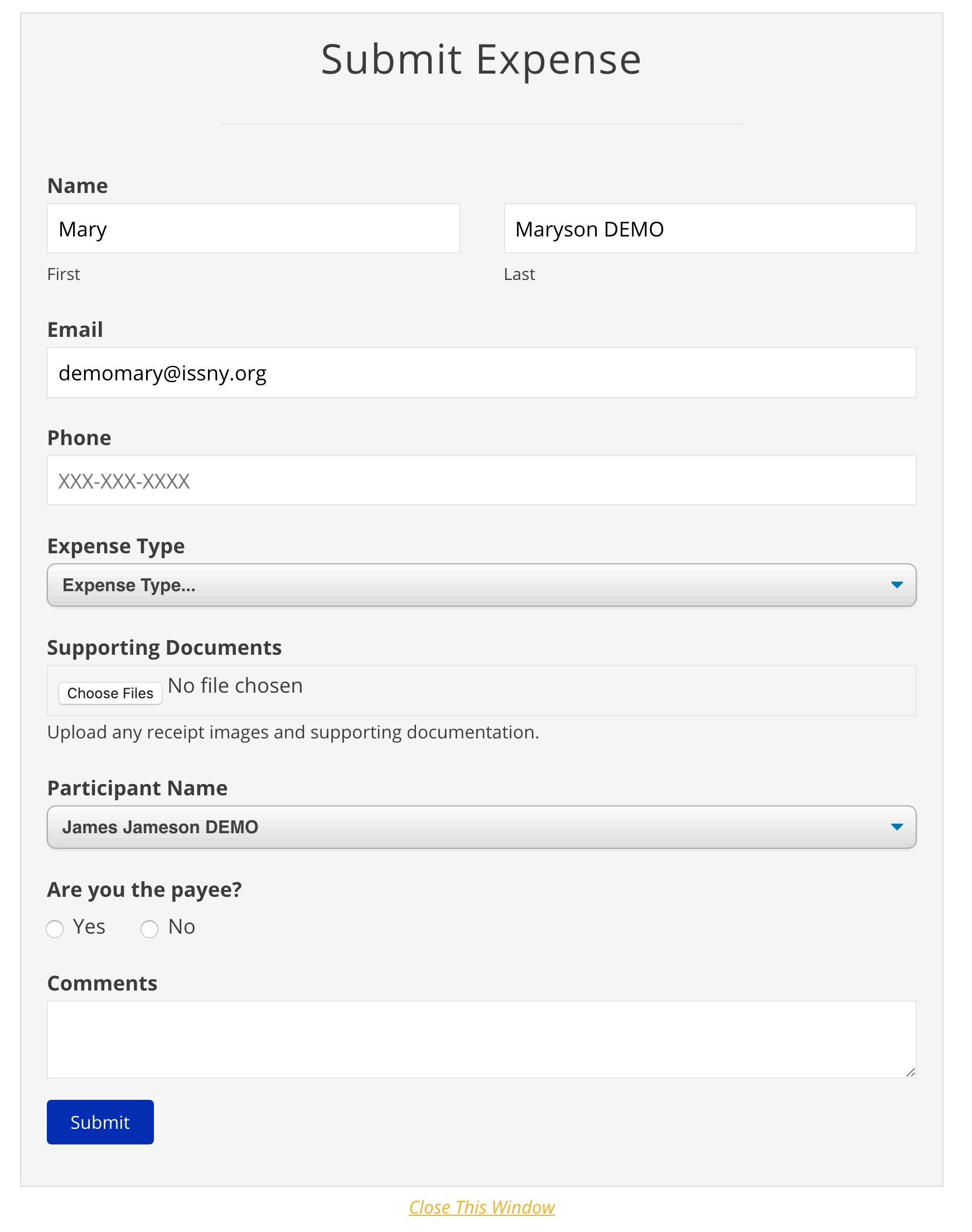2. Click **Submit**. 3\. You will receive a confirmation message on the screen and a confirmation email to the email address provided on the form. 4\. ISS will review and process the submission. Please retain the email confirmation as your proof of submission.Note: Unlike Timesheet Uploads, Expense Uploads are not viewable on the Portal until processing is finished.
--- Updated 08/14/25. # Suggestions For Capturing a Quality Scan Image Regardless of device, make sure to scan your expenses in a well-lit area. #### For iOS Devices There are several apps available on the App Store you can use to create a scan using your iPhone’s camera. This can also be done natively using the Notes app: 1. Open Notes. 2. Create a new note. 3. Tap the camera icon, then tap **Scan Documents**. 4. Position your expense in the camera’s view. 5. Capture the image. 6. Adjust the corners as needed. 7. Tap **Keep Scan**. 8. Tap **Save**. 9. Tap the **Share** icon. 10. (10)Tap **Save to Files**. 11. (11)Choose a location to which to save the file. You will select the document from this location when you upload the expense. ##### To set your iOS Device to use the JPEG format By default, your iOS device may take pictures and scans in the HEIC format. We accept HEIC image files, but they may cause issues when uploading to the Portal as they are not as compatible as the JPEG format. For instructions on how to set your iOS device to use JPEG, please follow the guide found [here](https://www.imore.com/how-take-jpeg-pictures-ios-11-instead-heif). #### For Android Devices There are several apps available on the Google Play store, including Clear Scan and Microsoft Office Lens, both of which are free. You can use one of these to scan your expenses and save them to your device to upload in the portal. You can also use Google Drive, which comes pre-installed on most Android devices: 1. Open the Google Drive app on your device. 2. Tap the “**+**” button. 3. Tap **Scan**. 4. Follow the prompts to scan, crop, and save the image. --- Updated 03/21/25. # Uploading Multiple Images from a Mobile Device ### iOS (iPhone) If you are using iOS (iPhone) to upload expense images, please note that if you use the "**Take Photo or Video**" option, you will only be able to upload a single image. Due to the way iOS works, if you were to use this option multiple times, the new photo will always replace and delete the previous photo you took. If you would like to upload multiple images from your iPhone, please take pictures of the documents using the Photo app then select "**Photo Library**". At the Photo Library screen, click the images you want to upload. Once all images are selected, click Add to complete image selection. [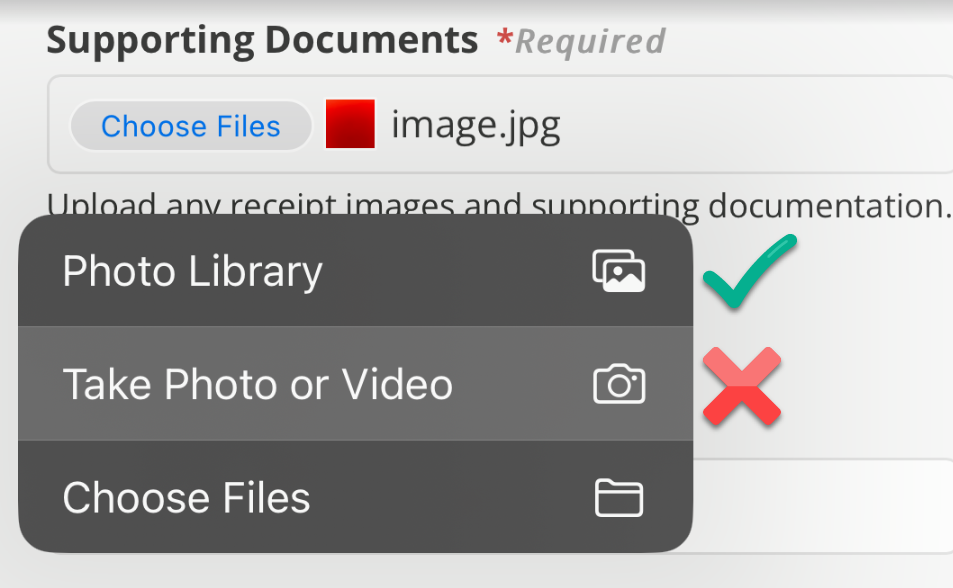](https://help.issny.org/uploads/images/gallery/2024-06/image-1717679194260.png)**NOTE**: Accounts Payable would prefer scanned images over photos.
### Android If you are using an Android device to upload expense images, please note that if you use the "**Camera**" option, you will only be able to upload a single image. Due to the way Android works, if you were to use this option multiple times, the new photo will always replace and delete the previous photo you took. If you would like to upload multiple images from your Android device, please take pictures of the documents using the Photo app then select "**Media Picker**". At the Media Picker screen, click the images you want to upload. Once all images are selected, click Add to complete image selection. [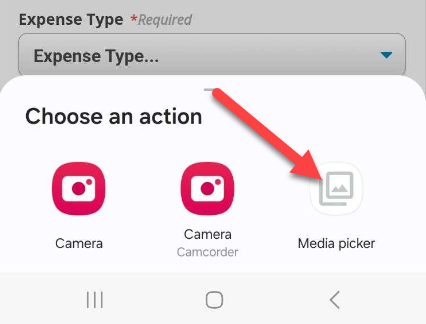](https://help.issny.org/uploads/images/gallery/2024-06/image-1718201878114.png)**NOTE**: Accounts Payable would prefer scanned images over photos.
--- Updated 03/21/25. # Expense Submission Deadlines Each month's expenses must be submitted to Accounts Payable within 30 days of the end of said month. Medicaid only allows ISS 90 days to receive, review, pay and bill for any claim. In an effort to meet Medicaid standards, we will be holding to the 30-day deadline for expenses which means we cannot guarantee payment for anything received after the 30-day mark.Example: Expenses being submitted for July should be submitted no later that August 30th. (30 days after the end of July)
Make sure to save your originals and confirmation emails! We recommend saving a copy of any forms, emails, and/or receipts submitted at least until you have received the reimbursement.
--- Updated 03/21/25. # Viewing Your Expense Submissions To see what expenses you uploaded via the Portal, log in and go to your *My Expenses* page. [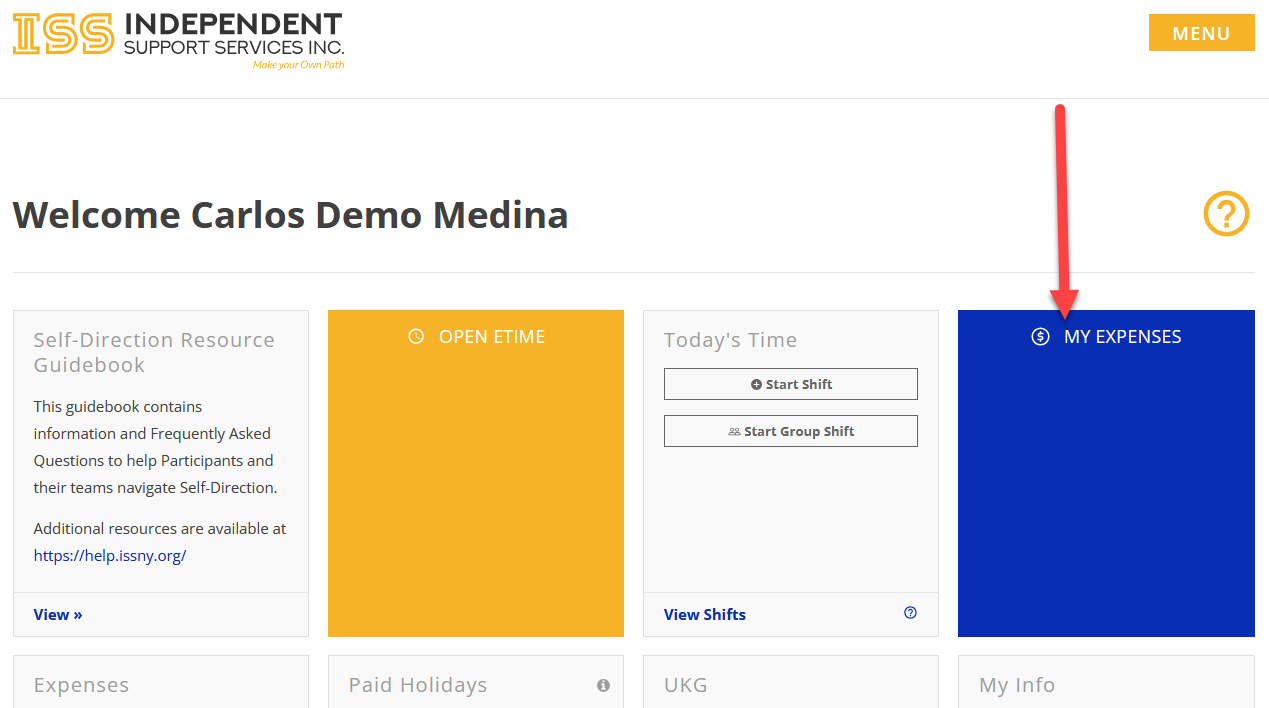](https://help.issny.org/uploads/images/gallery/2025-04/myuploads-01.png) On the *My Expenses* page, click the *My Uploads* tab on the right. [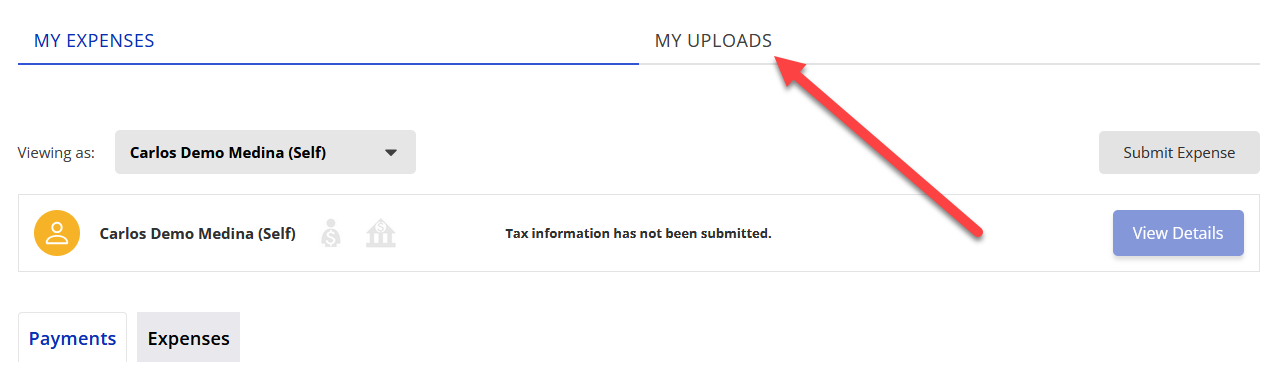](https://help.issny.org/uploads/images/gallery/2025-04/myuploads-02.png) The *My Uploads* page will load and display a list of the expenses you have uploaded via the Portal. [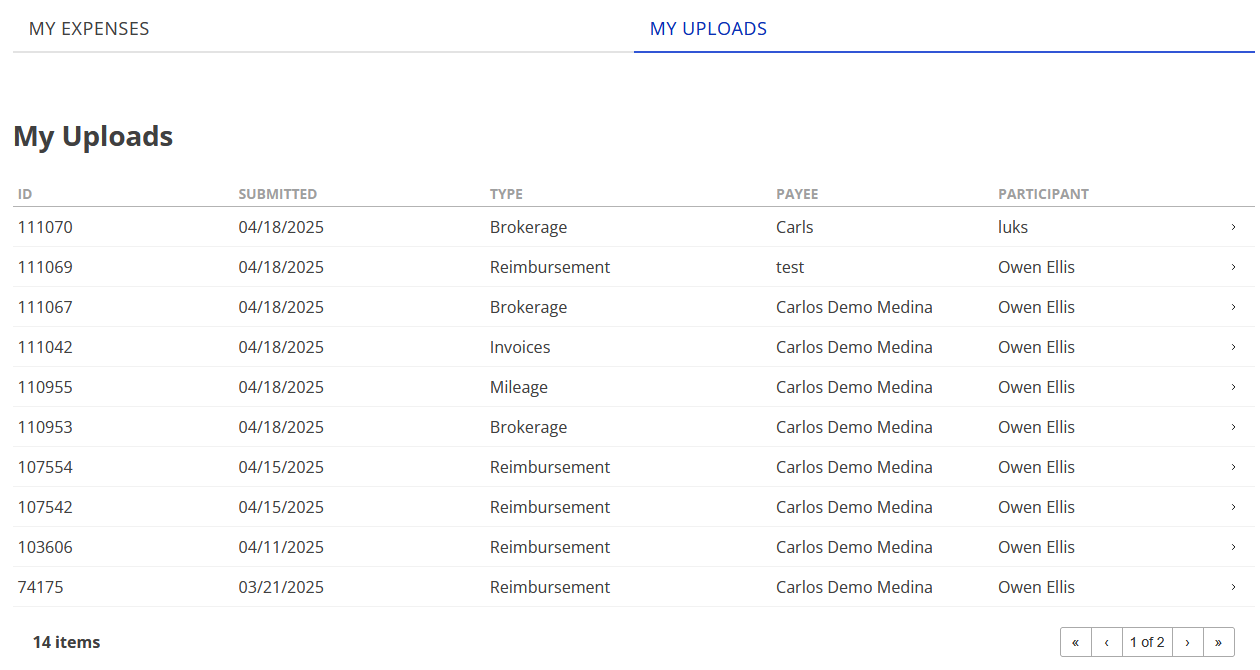](https://help.issny.org/uploads/images/gallery/2025-04/myuploads-03.png) When you click on an expense in the list, you will be shown more information, including the documents you uploaded. [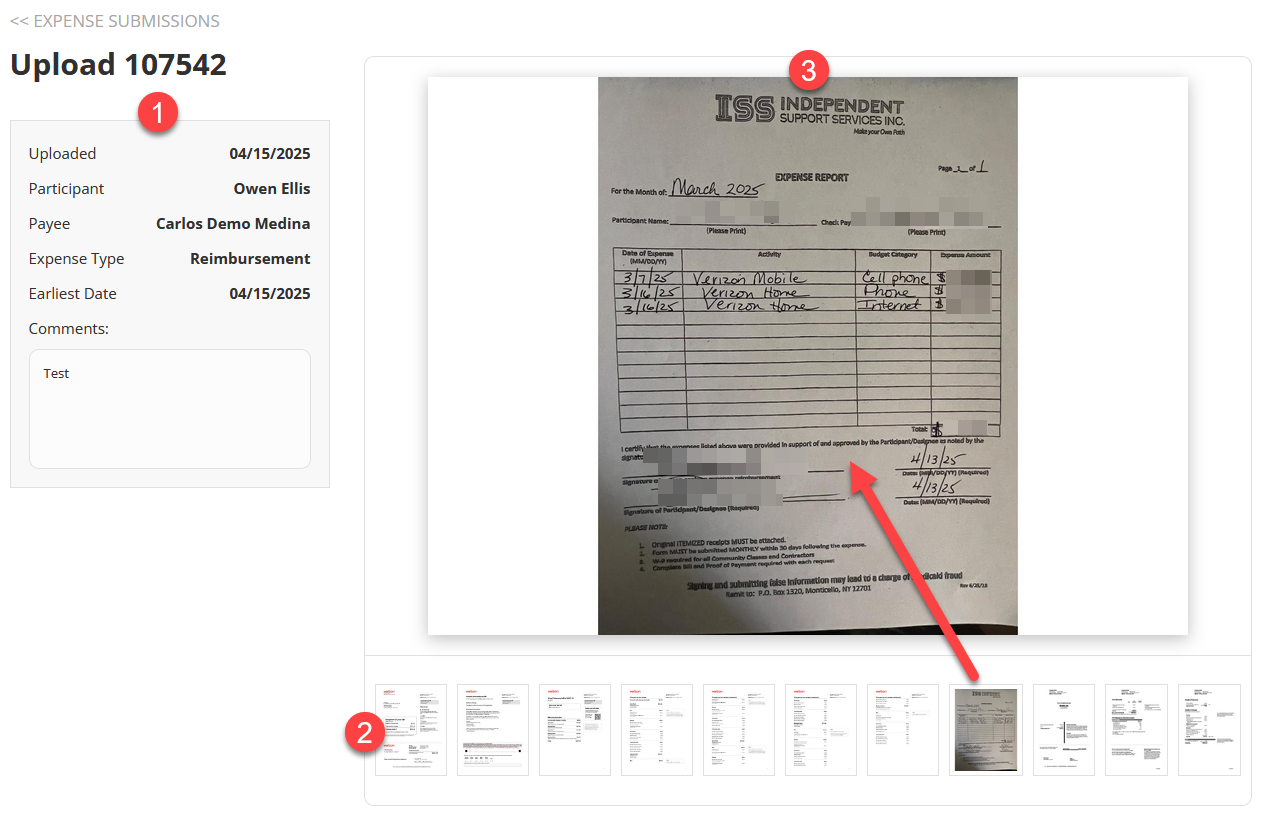](https://help.issny.org/uploads/images/gallery/2025-04/myuploads-04.png) 1. On the upper left, you will find the *Upload ID* of your expense submission and below that the details you provided when you uploaded the expense: the *Uploaded* date, the *Participant*, the *Payee*, the *Expense Type*, the *Earliest Date* on the expense, and any *Comments* you entered. 2. Along the bottom right, you will find thumbnails of all the documents you uploaded. 3. If you click on a thumbnail, that document will be displayed in the window on the upper right. #### FAQ ##### What is my expense submission's status? This will **not** show you your submission's status. That is a feature that is coming in the future. ##### When will my expense submission show in this list? Your upload will be listed immediately after your expense submission completes. If you have the list already open in another browser tab / window, you will need to hit refresh. ##### What if I don't see my expense submission in the list? If you **don't** see your submission in the uploads list, then we didn't receive it. Please resubmit it. ##### What if I don't see one or more of my documents in my submission? If you **don't** see a document, then we didn't receive it. Please resubmit just the missing document and include a comment so Accounts Payable can connect it with your other submission. Do not resubmit everything as it might then be mistaken for a duplicate. ##### Do I still have to include the Expense Report / Cover Sheet? **Yes**, that is still a required document to be included with all expense submissions. ##### What if I have questions about my expense submission? Any questions about your expense submission or reimbursement should be directed to Accounts Payable via