Uploading An Expense
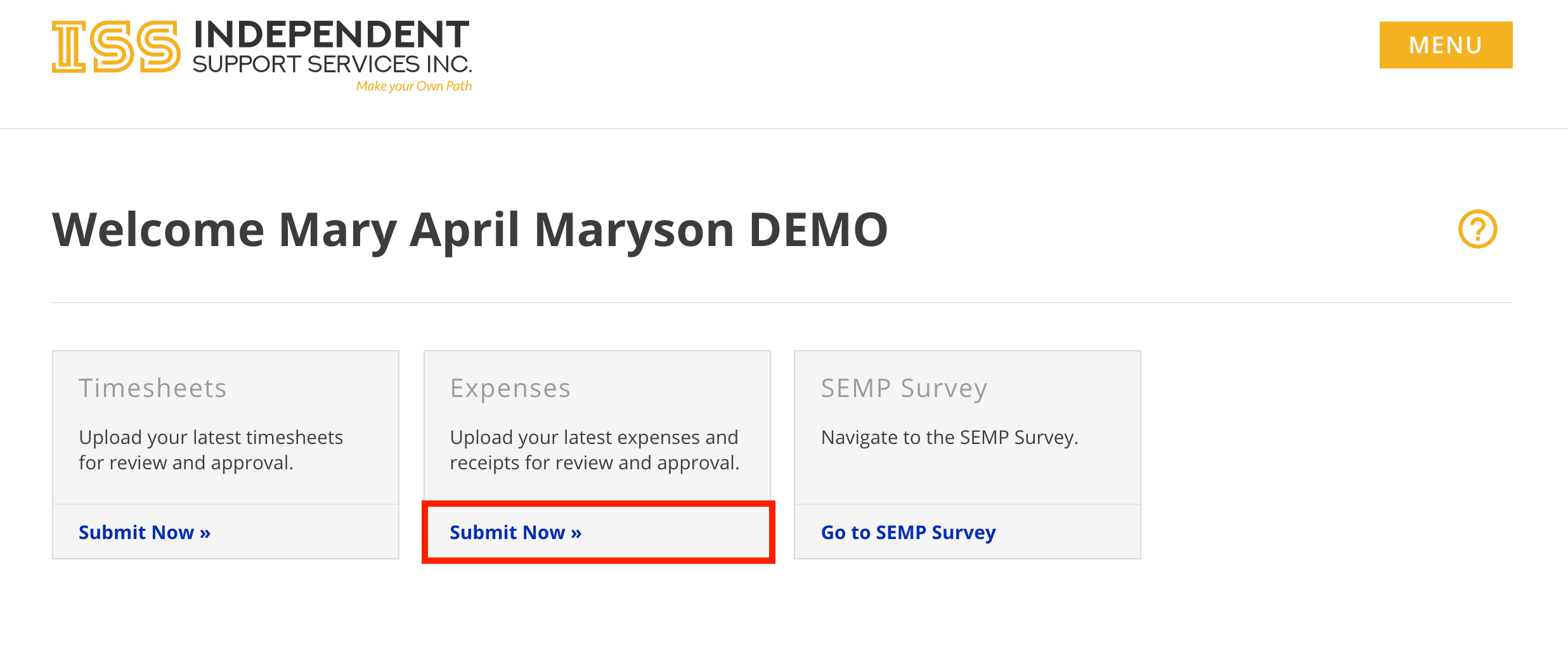
There are multiple ways to access the Submit Expense form.
- From the Home page of the portal, click Submit Now » in the Expenses tile.
- When viewing an individual in the Staff Dashboard, click Submit Expense at the top

Submitting an Expense:
1. Complete the form.
-
- First Name, Last Name, and Email are auto-populated when accessed through the portal.
- Phone Number and Comments are optional. All other fields are required.
- Allowed file types: heic, jpeg, jpg, gif, png, pdf
- Each file cannot exceed 100 MB.
- Each submission cannot exceed 250 MB.
- Each submission cannot exceed 30 files.
Note: Each file being uploaded must have a unique file name. If more than one file has the same exact name, they will overwrite each other.
 2. Click Submit.
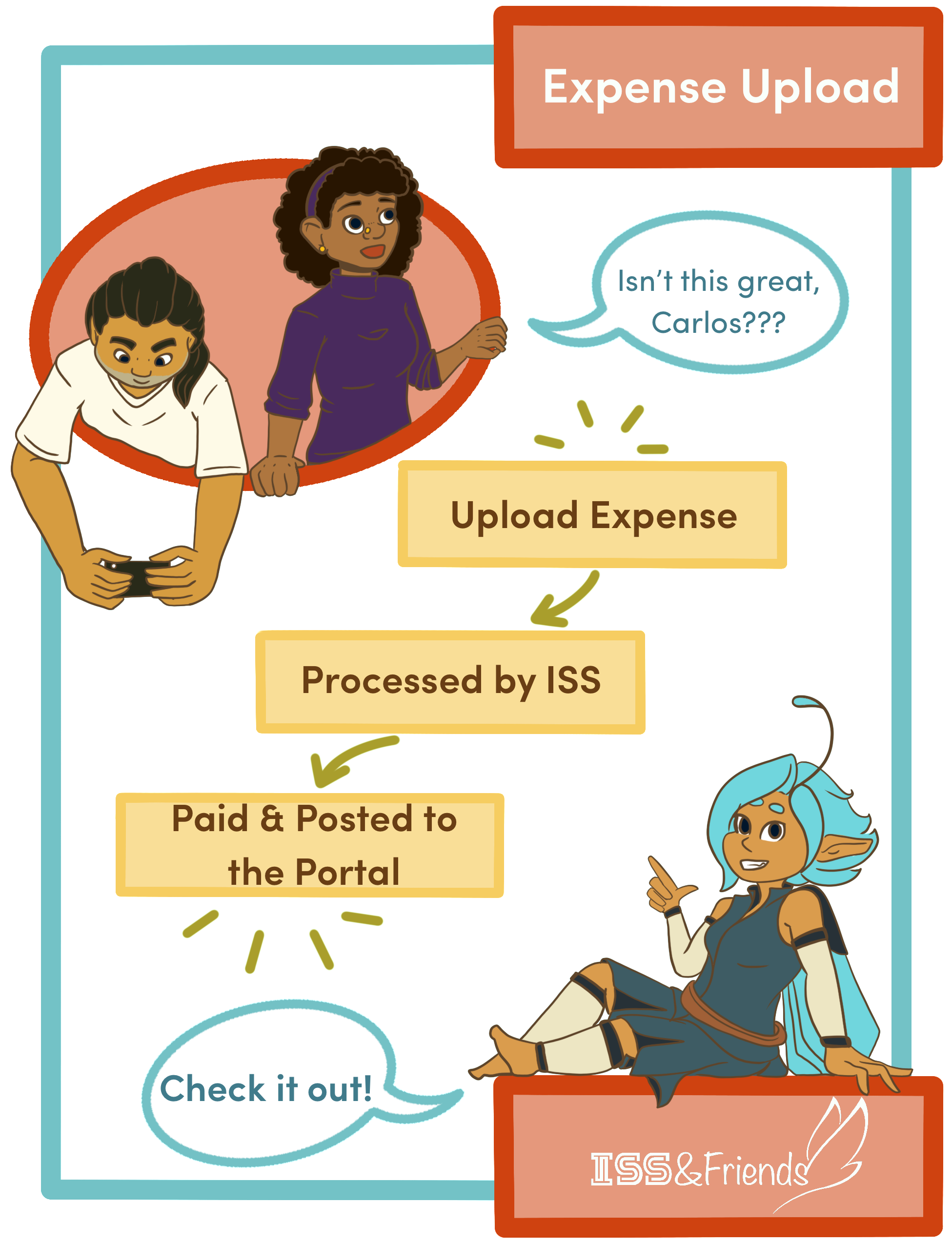
3. You will receive a confirmation message on the screen and a confirmation email to the email address provided on the form.
4. ISS will review and process the submission. Please retain the email confirmation as your proof of submission.
Note: Unlike Timesheet Uploads, Expense Uploads are not viewable on the Portal until processing is finished.
Updated 08/14/25.