# Uploading An Expense
[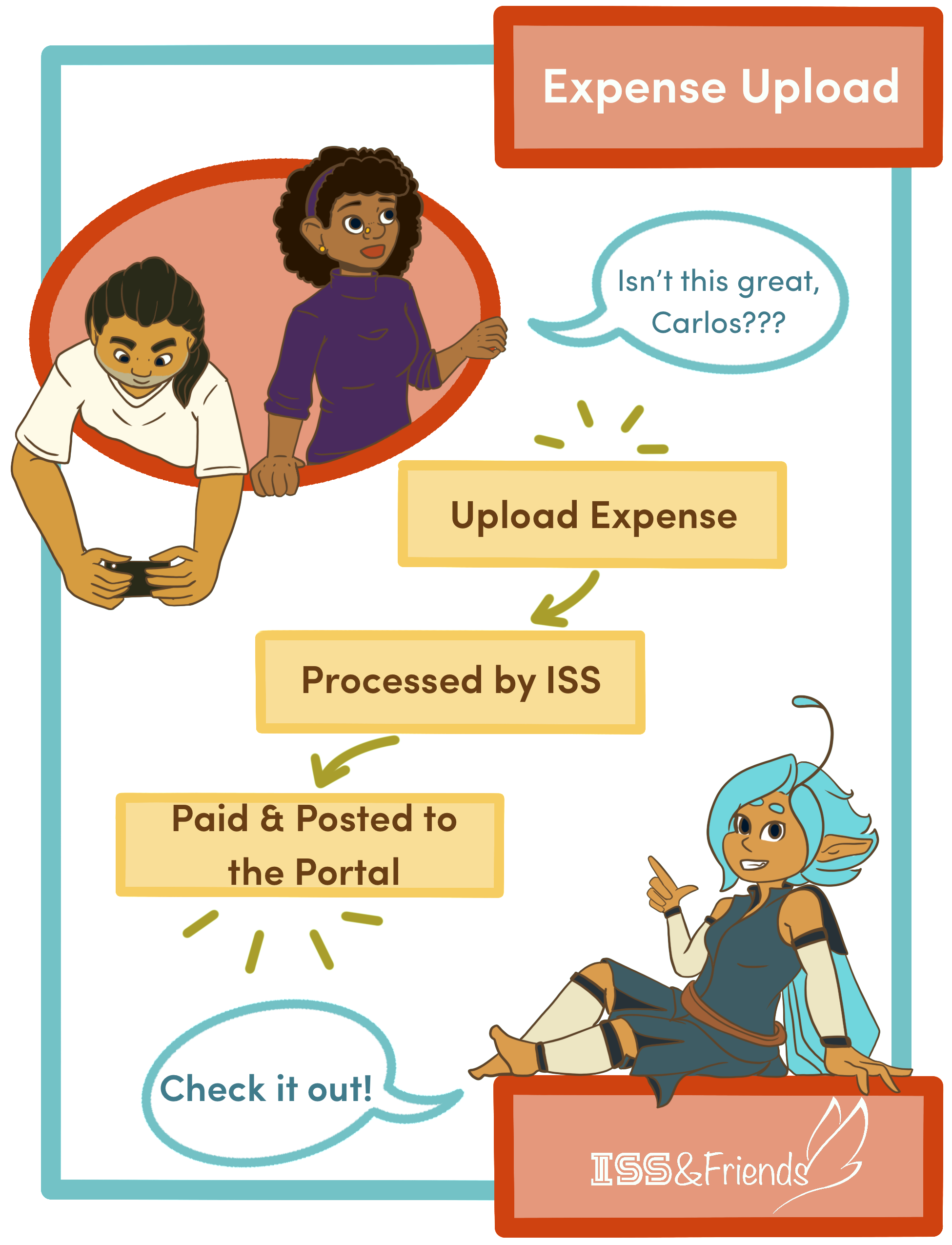 ](https://help.issny.org/uploads/images/gallery/2020-11/aWY1.png)
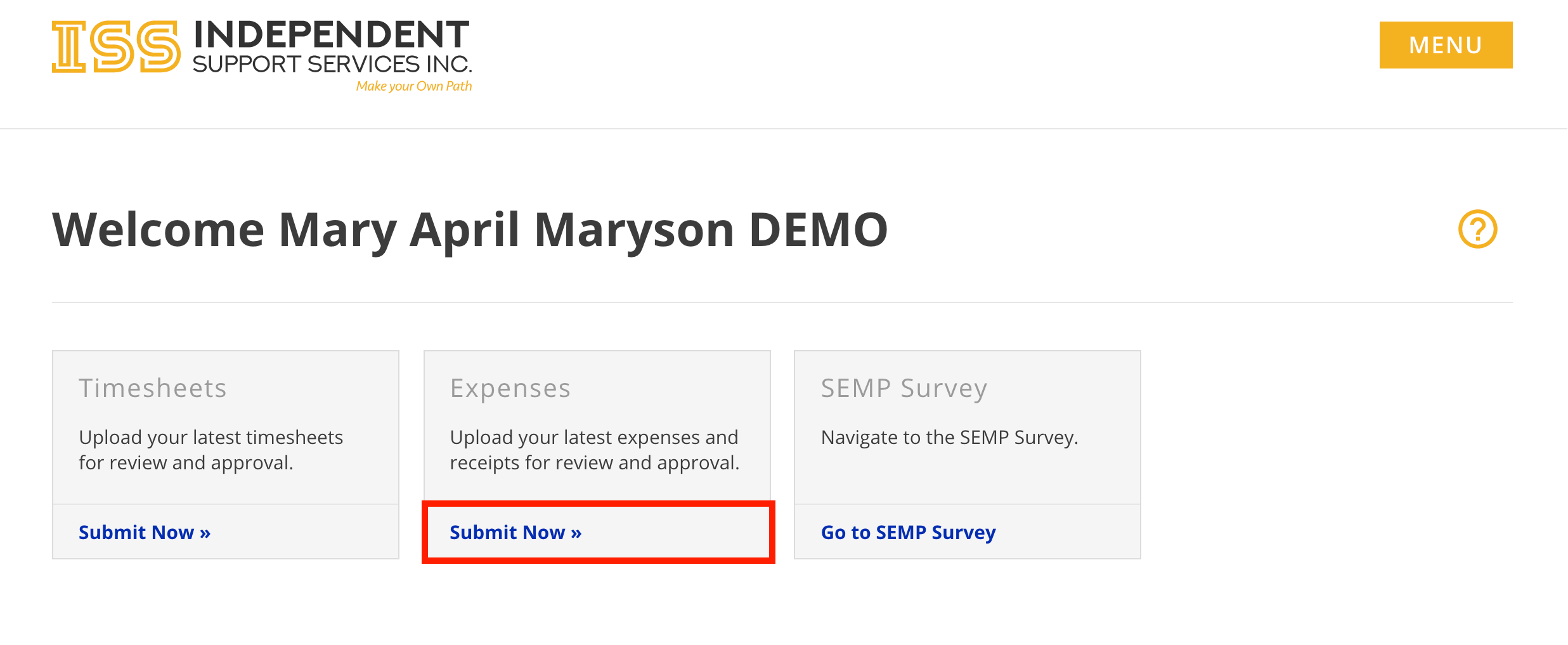
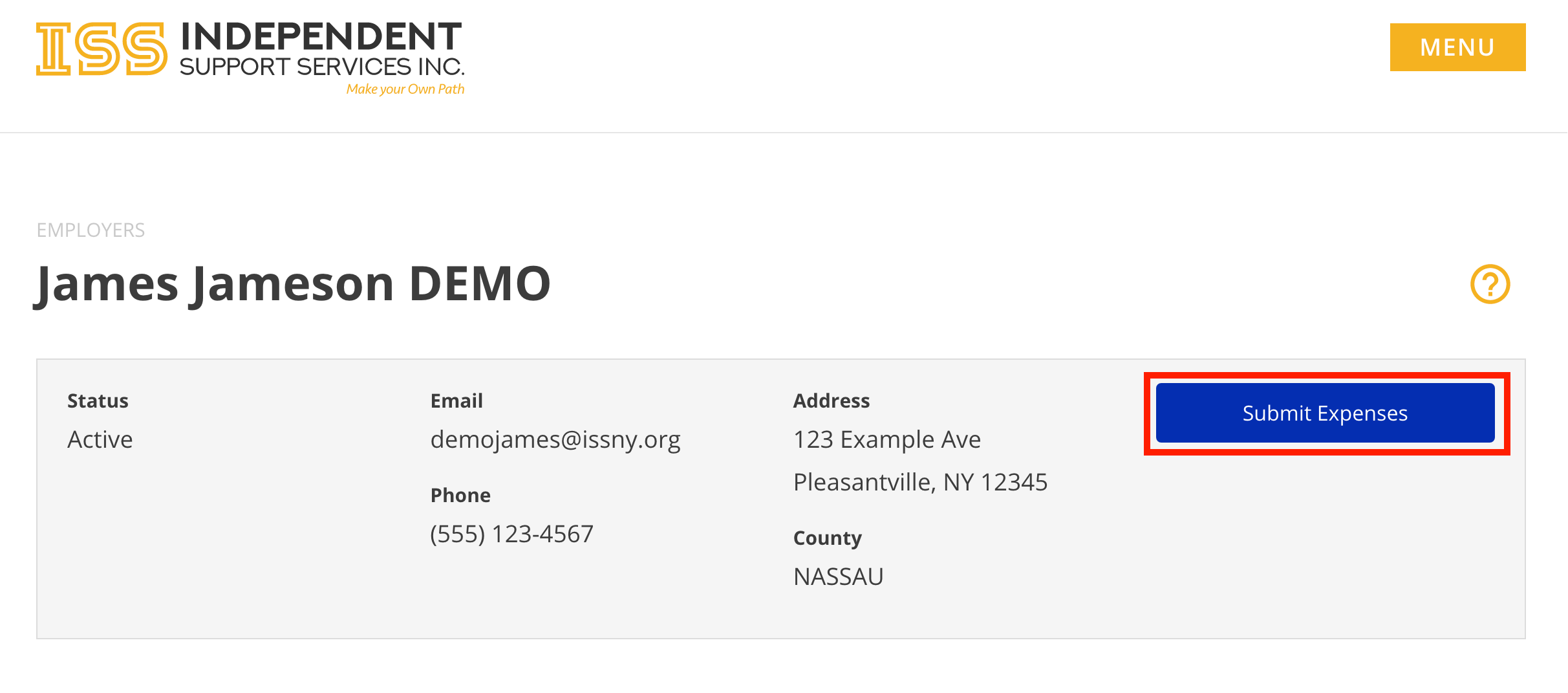
There are multiple ways to access the Submit Expense form.
- From the Home page of the portal, click **Submit Now »** in the Expenses tile.
- When viewing an individual in the Staff Dashboard, click **Submit Expense** at the top
[](https://help.issny.org/uploads/images/gallery/2020-11/DOj2.png)
[](https://help.issny.org/uploads/images/gallery/2020-11/l4r3.png)
#### Submitting an Expense:
1\. Complete the form.
- - First Name, Last Name, and Email are auto-populated when accessed through the portal.
- Phone Number and Comments are optional. All other fields are required.
- Allowed file types: **heic, jpeg, jpg, gif, png, pdf**
- Each file cannot exceed **100 MB**.
- Each submission cannot exceed **250 MB**.
- Each submission cannot exceed **30 files**.
Note: Each file being uploaded must have a unique file name. If more than one file has the same exact name, they will overwrite each other.
-
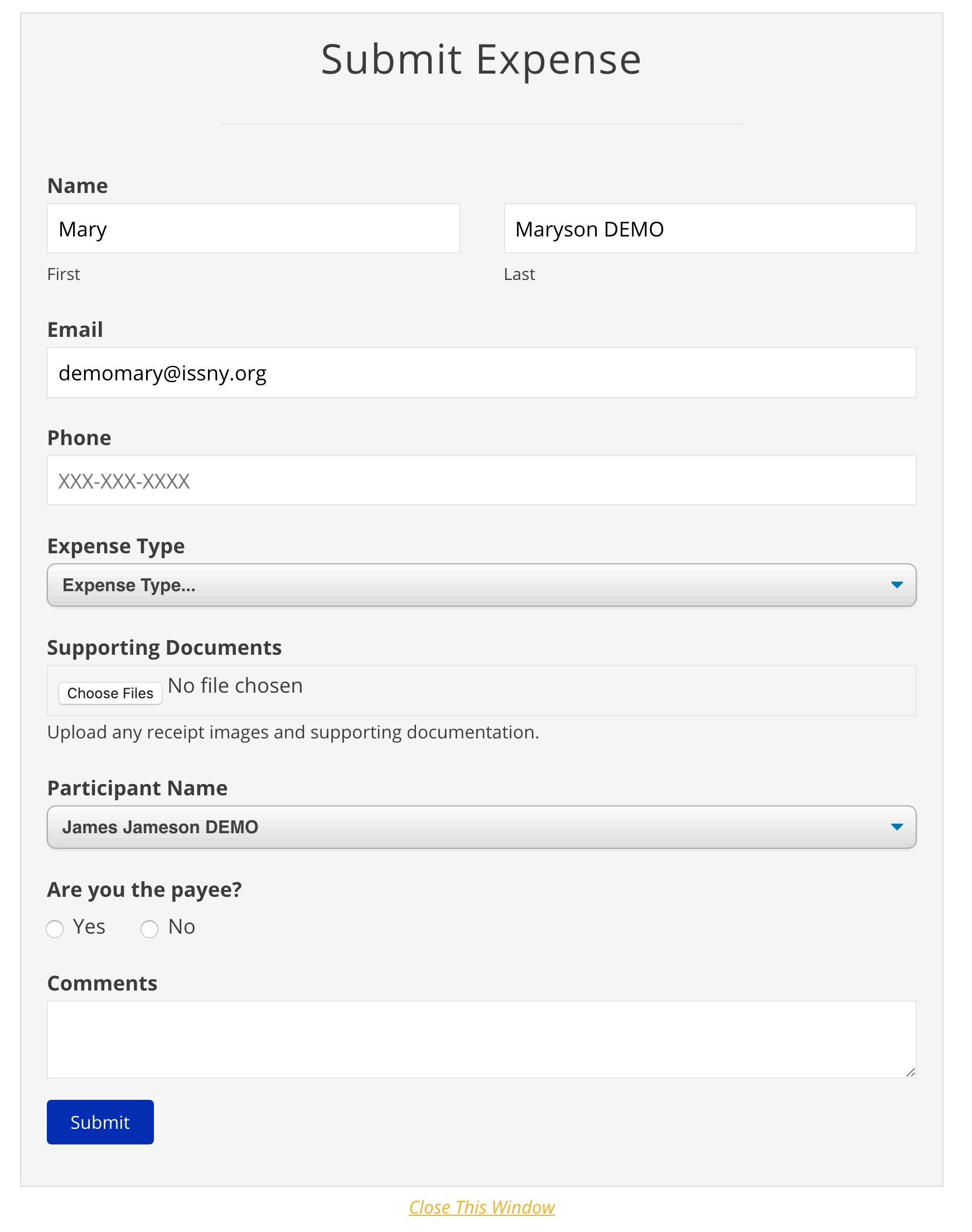2. Click **Submit**.
3\. You will receive a confirmation message on the screen and a confirmation email to the email address provided on the form.
4\. ISS will review and process the submission. Please retain the email confirmation as your proof of submission.
Note: Unlike Timesheet Uploads, Expense Uploads are not viewable on the Portal until processing is finished.
---
Updated 08/14/25.