As of midnight 12/6/2020 you must use eTime Live and punch in and out for each shift's start and end. eTime Entry will no longer be an option for dates 12/7 and beyond except for PTO. [Learn more»](https://help.issny.org/books/etime/page/notice-etime-entry-is-going-away)
#### Reviewing Time - Upon submitting the shift for review, each of the following who have a portal login will receive an email notification that there is time to review: participant, primary contact, and any other individual in the circle of support designated as a “web approver”. The previous three groups of individuals are the only ones able to review and approve time. - The circle will then review each shift, either approving or rejecting each shift. If a shift is rejected, a reason and description must be provided. This reason and description will be displayed to the support staff to make corrections. - If a shift is rejected, it will be returned to the support staff to make corrections. If all shifts are approved, it will be marked as approved, and will be automatically submitted to ISS for processing within the next business day. #### Correcting Time - The support staff will receive an email notification if the shift is returned for corrections. They will also receive an email notification if the shift is approved. - The support staff will log into the portal and select the shift to make corrections. After reviewing the circle comments and making the necessary corrections, they will resubmit the shift for review. #### Payroll Processing - The ISS Payroll department will process submitted time for payment. - If Payroll identifies an error with a shift, it may be sent back to the staff to make the necessary corrections. The shift will then need to be re-submitted to the circle for approval, and then resubmitted to ISS. ### General Requirements --- #### Portal Access In order to use eTime, support staff must have a portal login. There must also be at least one individual in the participant’s circle of support who has a portal login and is designated a web approver. See the section “Web Approvers” below for more information. #### Qualifying Jobs eTime currently supports all ComHab, Job Coach, Job Developer, and Respite jobs. Paid Neighbor, Staffing Support, and Brokerage are not supported at this time. #### Web Approvers A web approver is any contact associated with a participant who is permitted to review and approve staff time. The participant and primary contact by default are always web approvers. Any other contact can also be designated as a web approver. Contact the participant’s SD Coordinator to add an individual as a web approver. # Navigating and Finding Shifts Time is organized on two levels: the shift and the job period. - **Shift** - a block of time defined by a start and end time; you can compare this to a single line on an old paper timesheet - **Job Period** - a dynamic collection of all shifts falling within a specific date range (pay period) that all belong to the same participant, support staff, and job - A support staff will have a different job period per job per participant. - Likewise, a participant will have a different job period per job per staff person. --- 1. In the main navigation panel, select either **My Work** (for support staff) or **My Staff Work** (for circle approvers). [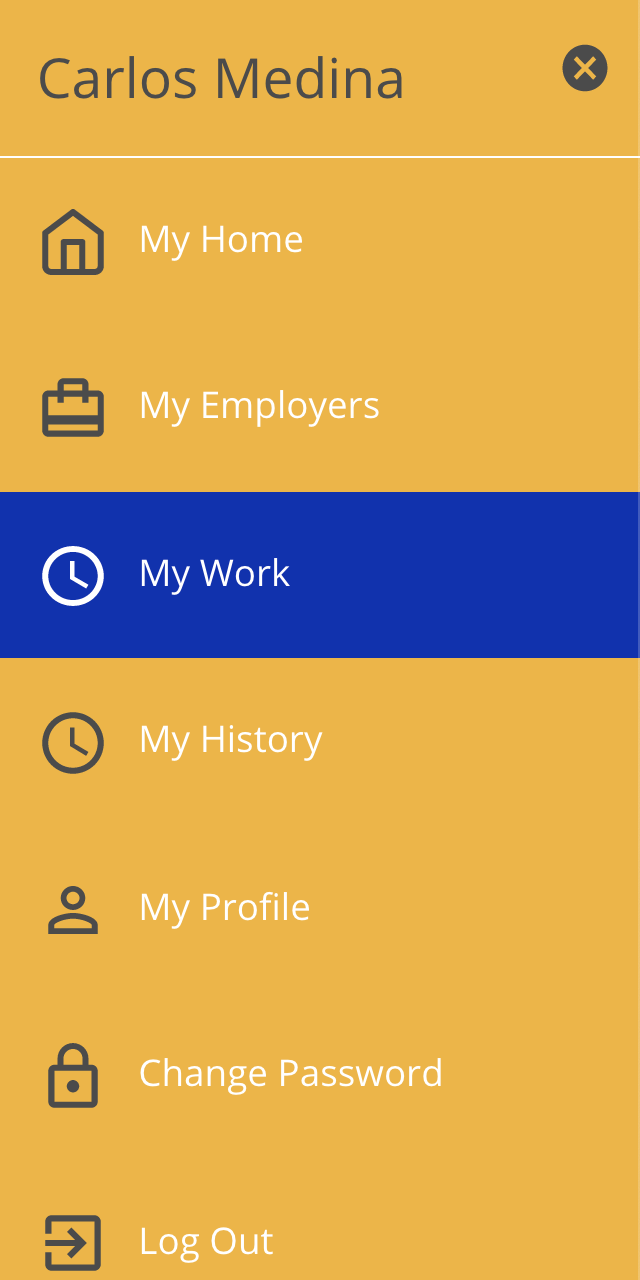](https://help.issny.org/uploads/images/gallery/2020-10/image-1603751698917.png) - If you are both a support staff and a circle approver, you will see both options. - **My Work** shows all eTime shifts that you have worked. - **My Staff Work** shows all eTime shifts for participants for whom you are a circle approver. 2. All time entered via eTime will appear in the main body of the page. 1. - By default, this page will be filtered to shifts that have a status of **All**. - Use the filter to view shifts based on their status, participant, or job. [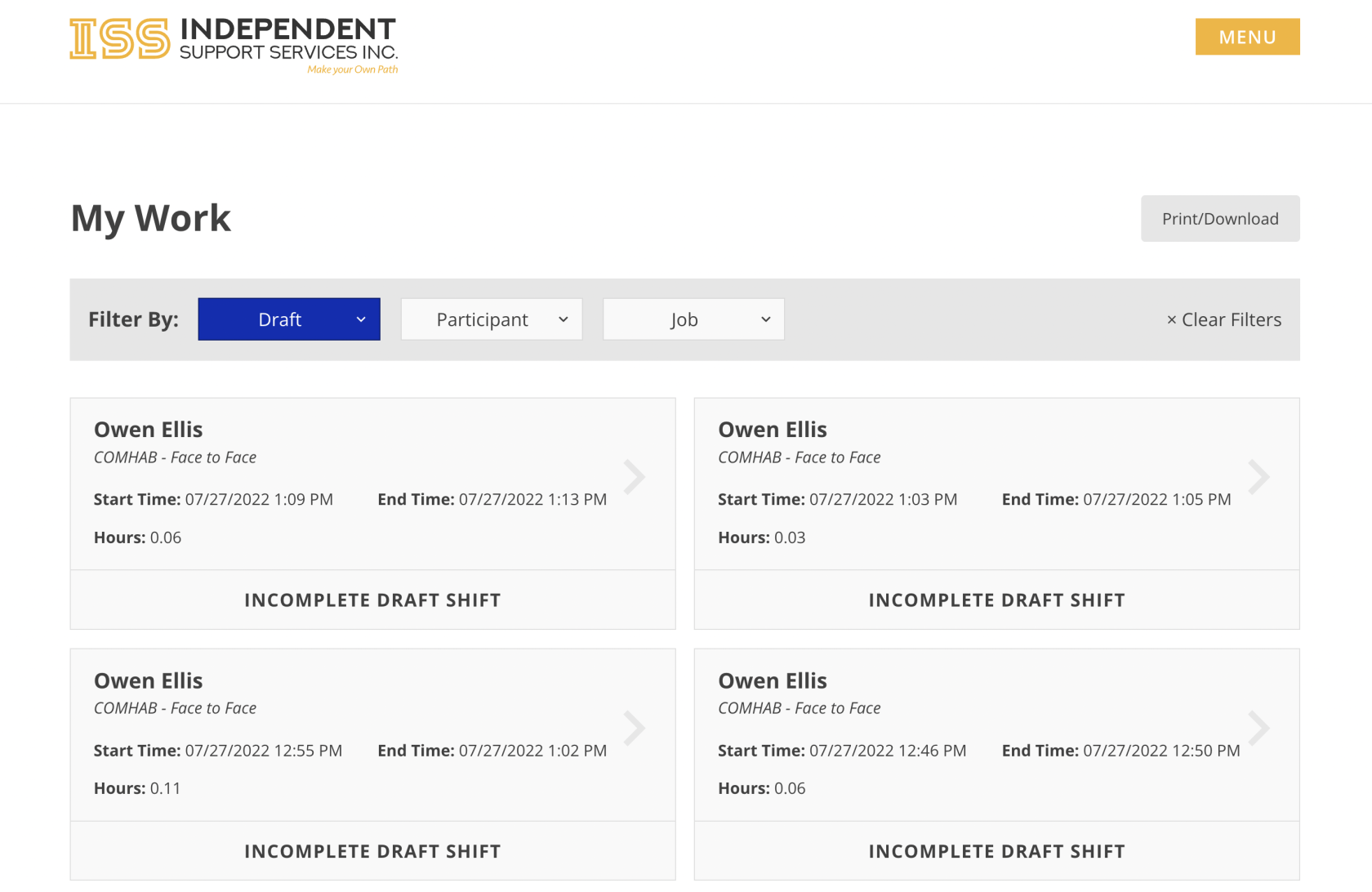](https://help.issny.org/uploads/images/gallery/2022-10/newmywork.png) 2. To view a shift, simply click on the desired shift and a window showing the details of the shift will be displayed. [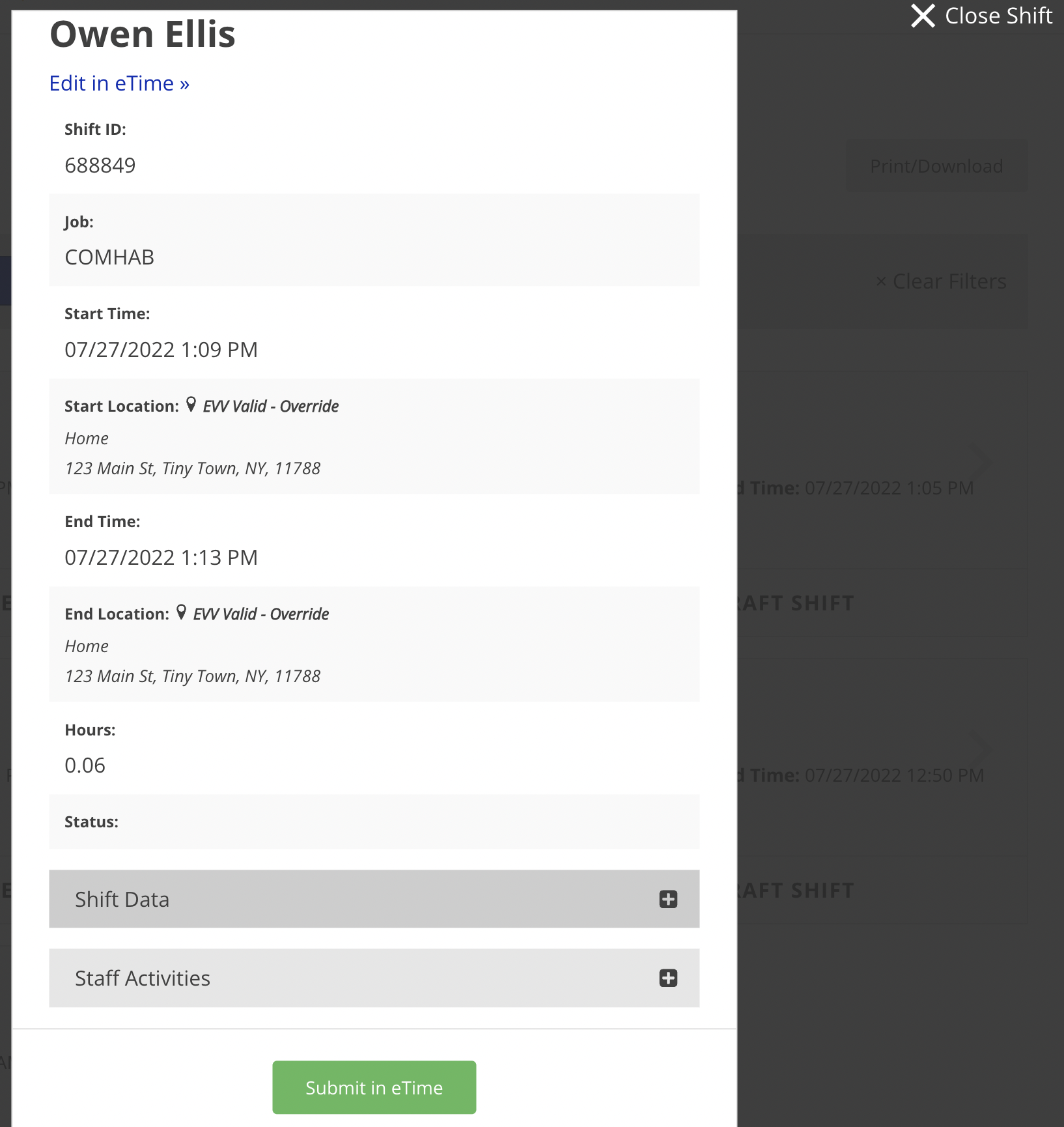](https://help.issny.org/uploads/images/gallery/2022-10/viewshift.png) 3. If the shift is a draft, clicking **Submit in eTime** will submit the shift to the circle for approval. To close the window, click **Close Shift** in the top right corner. --- *Disclaimer: All names displayed in the above screen shots are fictional characters. No identification with actual persons (living or dead) is intended or should be inferred.* Updated 07/24/23. # Recording Time ### Create a Shift 1. Navigate to eTime Live by clicking **Open eTime on the home page. - *On mobile, eTime Live will automatically open upon login.* 2. To start a new shift, tap **Start Shift**. You can only have one shift running at a time. - eTime will ask to use your location. Click **Allow** to allow location services. This is used as part of the Medicaid EVV mandate. *[Learn more about EVV.](https://help.issny.org/books/etime/chapter/evv "EVV")* 3. Select an employer. 4. Select a job. 5. Select a method. 6. If the selected job and method are EVV Required, select a start location. 1. If selecting Home, eTime will ask to use your location in order to verify that you are within an approved distance from the participant's service address. Click Allow. 2. If you are not within the approved distance from the service address, eTime will ask you to specify an address. 7. Review the selections made. Click **Add** to finish starting the shift. 8. To fill in details for the shift, select the shift. - *Adding a meeting, training, or other event? See [Adding Events to a Shift](https://help.issny.org/books/etime/page/adding-events-to-a-shift "Adding Events to a Shift").* 9. To end the shift, click **End Shift**. 10. Select staff activities and any other necessary details. 11. Click **Next** in the upper right corner. 12. If the shift is EVV Required, select an end location. 13. Review the selections made. Click **End** to end the shift. 14. Submit the shift by clicking **Submit Shift** at the bottom. This will take you to the My Work page to submit the shift. *[Did you accidentally start a new shift?](https://help.issny.org/books/etime/page/what-if-i-accidentally-clock-in-can-i-delete-a-shift "What if I accidentally clock in? Can I delete a shift?")* --- ### Edit a Shift 1. From eTime Live, navigate to and select the desired shift. 2. Fill in all required information. - *Activities are required for ComHab and SEMP (Job Coach and Job Developer) jobs.* - *Activities are not required when [submitting Time Off](https://help.issny.org/books/etime/page/requestingsubmitting-time-off "Requesting/Submitting Time Off").* - *Adding a meeting, training, or other event? See [Adding Events to a Shift](https://help.issny.org/books/etime/page/adding-events-to-a-shift "Adding Events to a Shift").* 3. To request an override to the start time or end time, the shift must be ended. After ending the shift, click **Change** on the Final Review screen. *[Learn more about EVV Override Requests.](https://help.issny.org/books/etime/page/evv-override-requests "EVV Override Requests")* --- ### Submit a Shift Shifts are submitted for approval on an individual basis. 1. Navigate to the shift on the My Work page, OR when viewing the shift in eTime Live, click the blue **Review & Submit** button at the bottom of the shift. 2. Verify all information is completed and correct for the shift. - *If the shift overlaps with one or more shifts that have already been submitted, you must resolved this overlap prior to submitting. Click **Resolve Overlap** to [resolve the overlap](https://help.issny.org/books/etime/page/staff-side-overlaps "Staff-Side Overlaps").* 3. Click **Submit**. 4. Add an optional comment. Then click **Submit for Approval**. - Shift comments are limited to 115 characters, including spaces. 5. All web approvers for the participant will receive an email notification that there is a timesheet to review. --- *Disclaimer: All names displayed in the above screen shots are fictional characters. No identification with actual persons (living or dead) is intended or should be inferred.* Updated on 04/24/24. # Adding Events to a Shift Events are explicitly recorded timeframes within a shift. Events within a shift must be recorded because they effect what can be billed to Medicaid. They can be added to shifts of most job and method types. There is no limit to the number of events that can be added to a shift. An event can also span a fraction of a shift or the entire shift, as might be the case with training. There are three (3) types of events, though not all available in all circumstances: - **Meeting** - a meeting with the circle of support - **Training** - the staff being trained, possibly at the same time as other staff - **Participant Absent** - a period of time during the shift that the participant is absent - *Example: The staff person drives the participant to a doctor's appointment, waits in the lobby while the participant is in with the doctor, and then drives the participant home. This entire scenario is recorded as one shift, and a* Participant Absent *event is added to the shift for the time the participant was in the with doctor.* To add one or more events to a shift: 1. When selecting activities, the events types at the top will be listed as default options in addition to the job-specific activities. Select the appropriate event checkbox to add it to the current shift. - Not all events will be listed for every job and method combination. For instance, a Job Developer job will not have the Participant Absent option since it is not applicable. [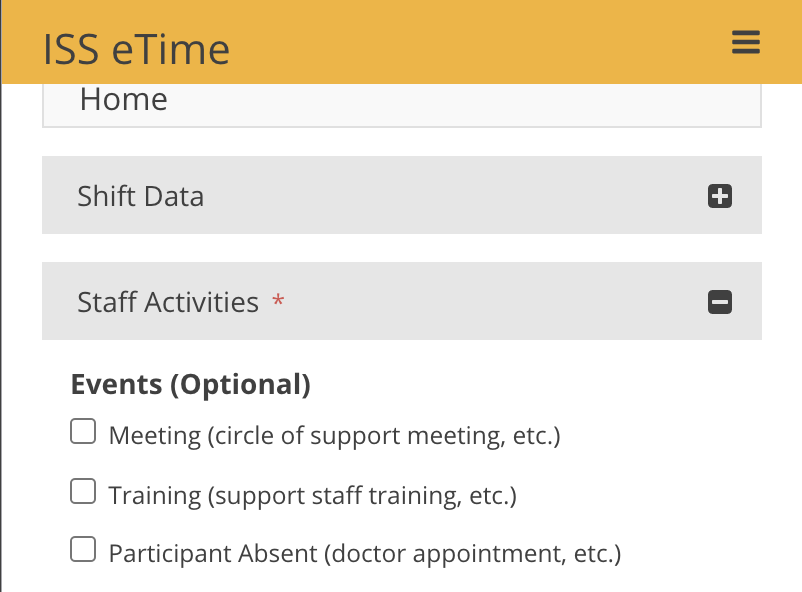](https://help.issny.org/uploads/images/gallery/2021-01/2RX1.png) 2. Once an event is selected, you will be taken to the Shift Event Details form. Fill in the details of the event and then click **Update.** - *If recording a training for a participant with IDGS Non Direct Clinician in his/her budget, see [Special Cases](https://help.issny.org/books/etime/page/special-cases "Special Cases").* [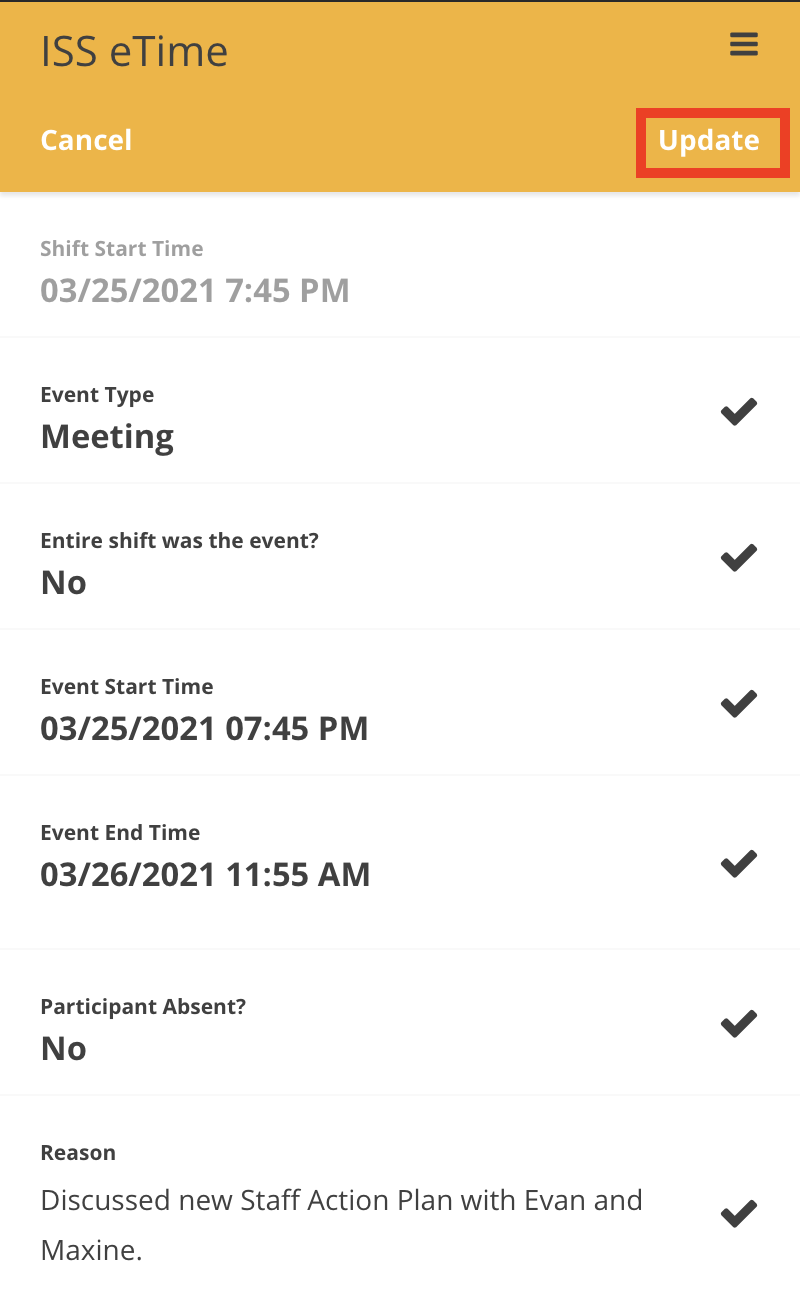](https://help.issny.org/uploads/images/gallery/2021-03/dcv1.png) 3. To add additional events, click on the **Shift Events** section to expand it and then select **Add Event**. [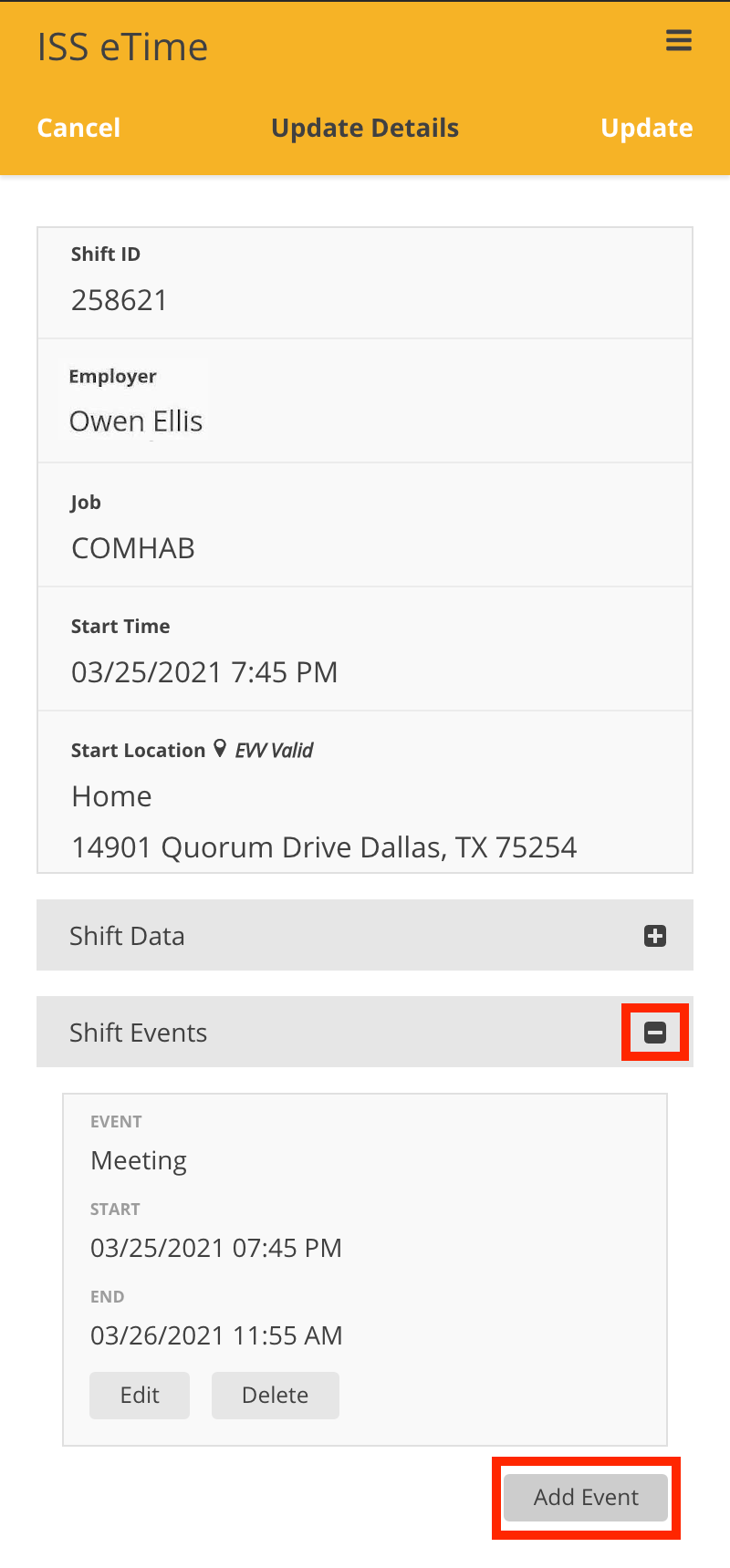](https://help.issny.org/uploads/images/gallery/2021-12/cgw2.png) 4. As before, the Shift Event Details form is shown. Simply select the desired **Event Type** and fill out the form as you previously did earlier and then click **Add** in the top right corner once finished. --- *Disclaimer: All names displayed in the above screen shots are fictional characters. No identification with actual persons (living or dead) is intended or should be inferred.* Updated 2/13/2024 # Editing Start and End TimesPlease note, you cannot submit a missed shift while another shift is actively running
1. To create and submit a forgotten shift, first navigate to eTime Live by clicking **Open eTime** on the home page. - *On mobile, eTime Live will automatically open upon login* 2. From eTime, click **Start Shift [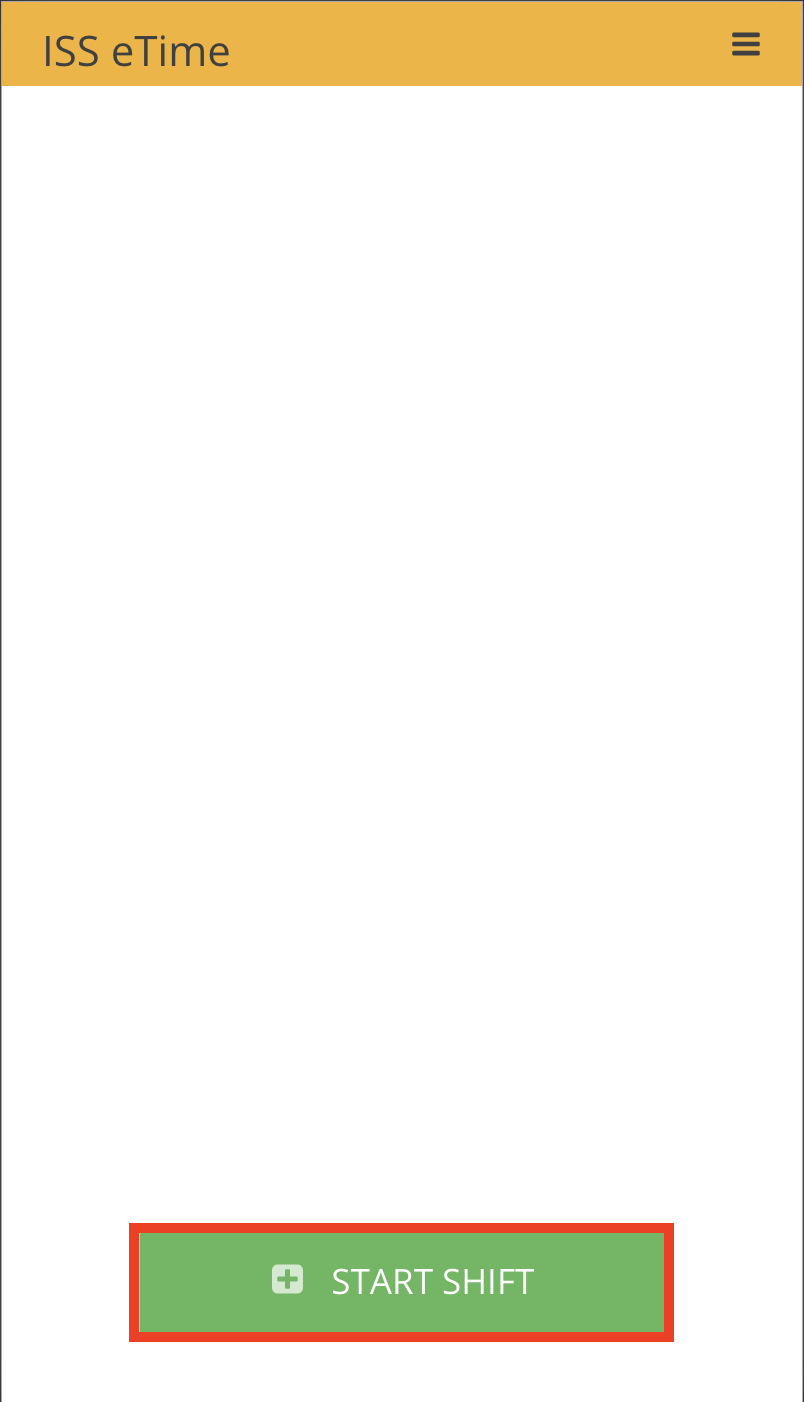](https://help.issny.org/uploads/images/gallery/2020-12/image-1609377719900.png) 3. Next, select the employer, the job, the method and the location for the forgotten shift - **If selecting an EVV required job and method, eTime Live may detect that the device location lies outside of the geofence. If this is the case, confirm the address where the forgotten shift began by clicking the checkbox next to the address and click **Confirm Location** **[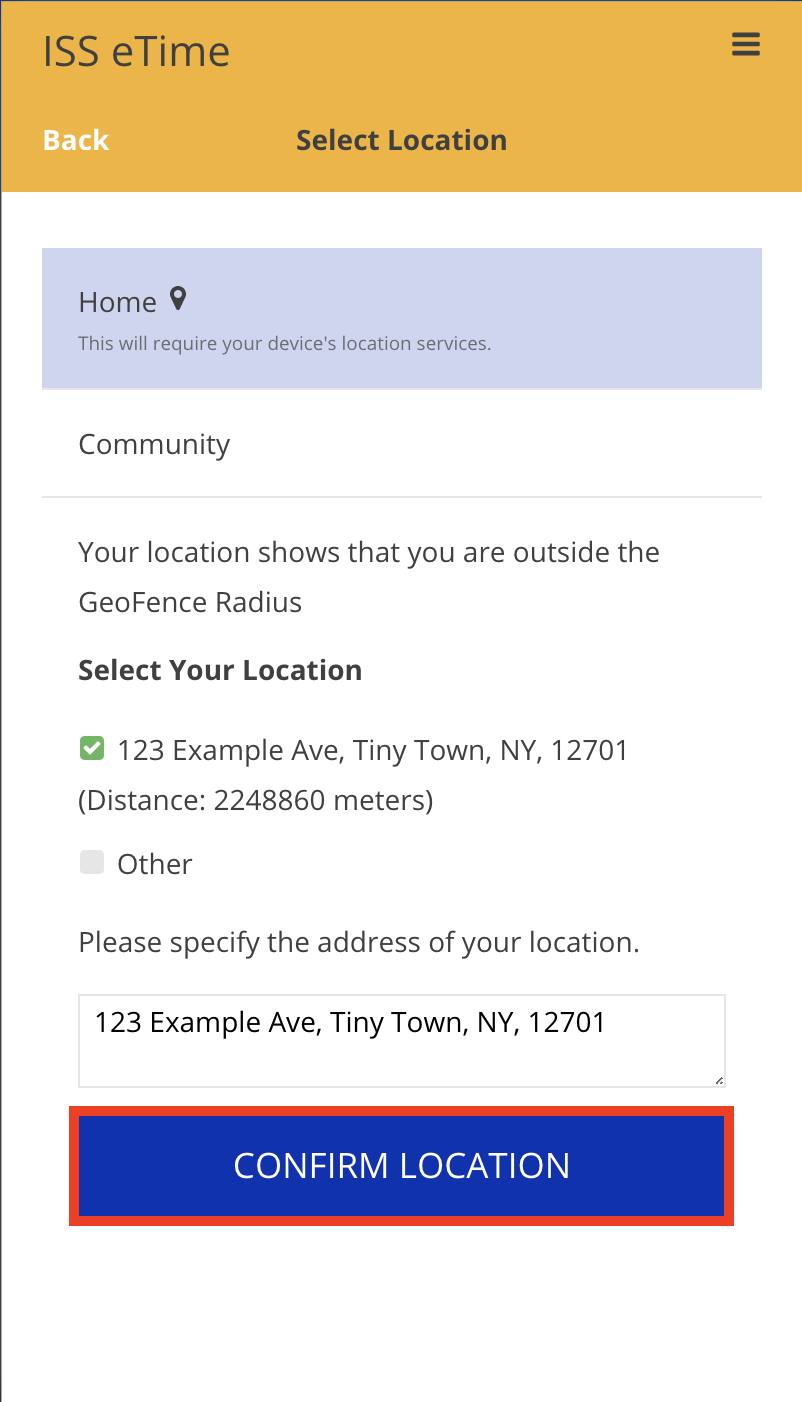](https://help.issny.org/uploads/images/gallery/2020-12/image-1609377762392.png) 4. Once the details of the forgotten shift have been confirmed, click **Add** in the top right hand corner 5. Next, click **End Shift** to stop the eTime timer and verify that all Staff Activities have been logged for the forgotten shift [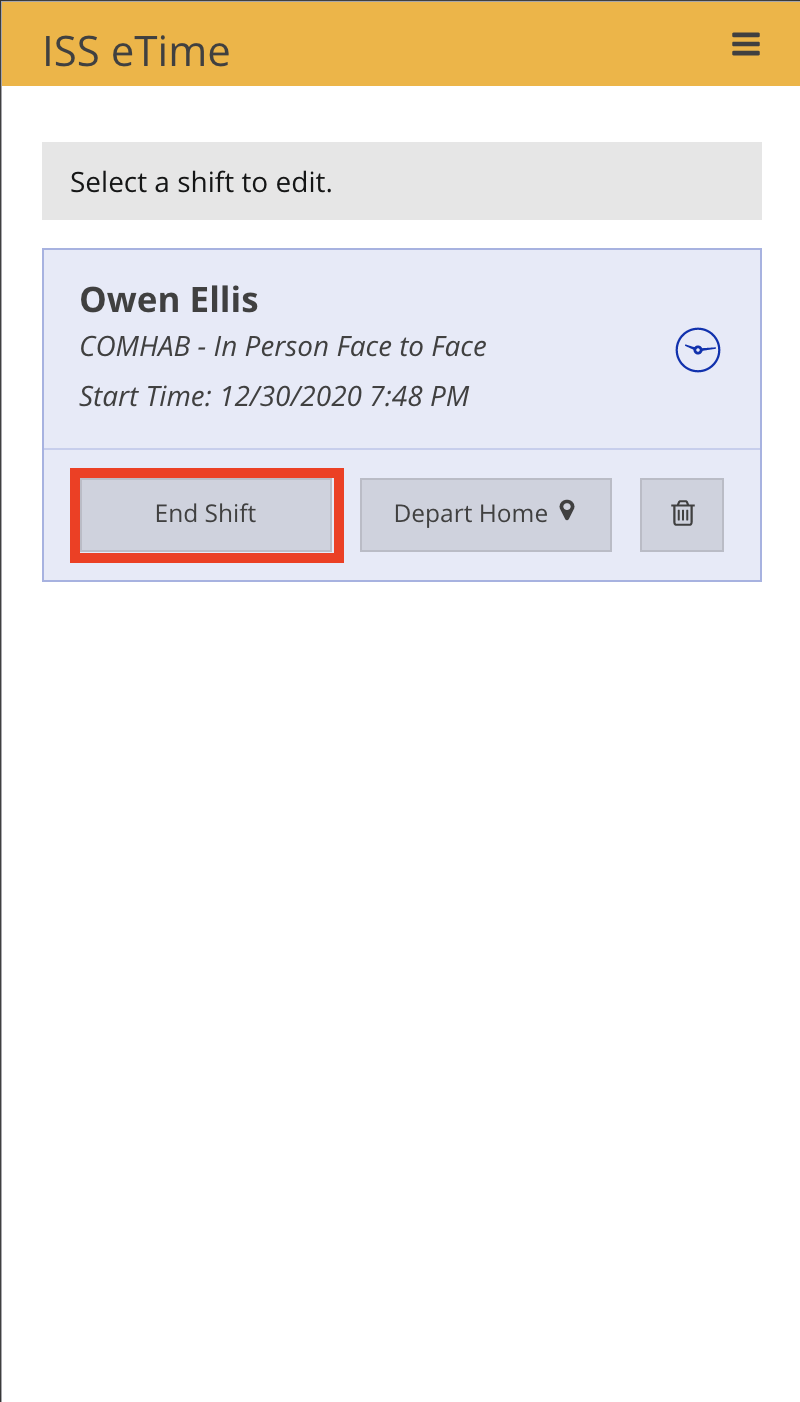](https://help.issny.org/uploads/images/gallery/2020-12/image-1609377832532.png) 6. Once all of the details have been finalized, click **Next** in the top right hand corner of the Finalize Details screen 7. Select the appropriate ending location for the shift - *If selecting an EVV required job and method,* e*Time Live may detect that the device location lies outside of the geofence. If this is the case, confirm the address where the forgotten shift ended by clicking the checkbox next to the address and click **Confirm Location*** [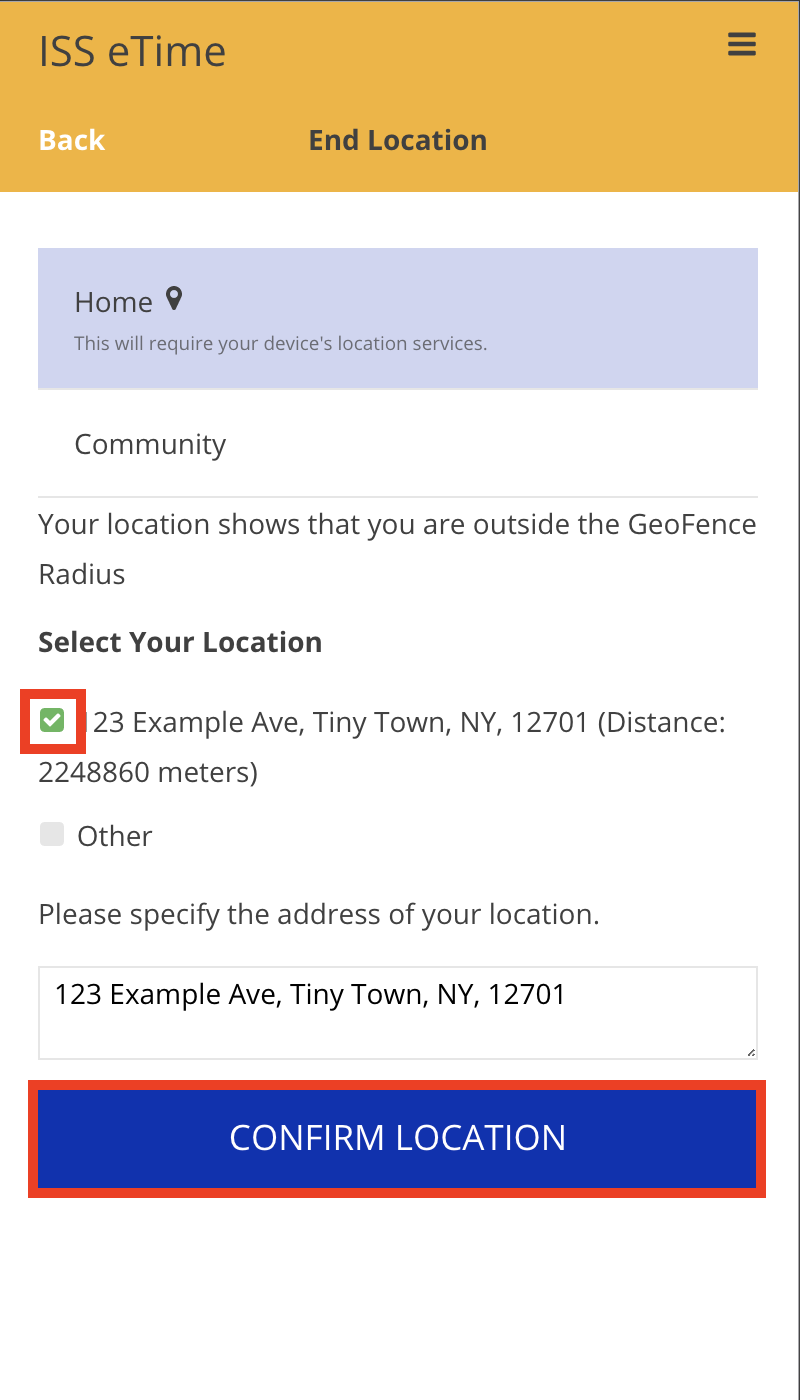](https://help.issny.org/uploads/images/gallery/2020-12/image-1609377935359.png) 8. Click **End** in the top right hand corner to advance to the Final Review screen 9. From the Final Review screen, click **Change** [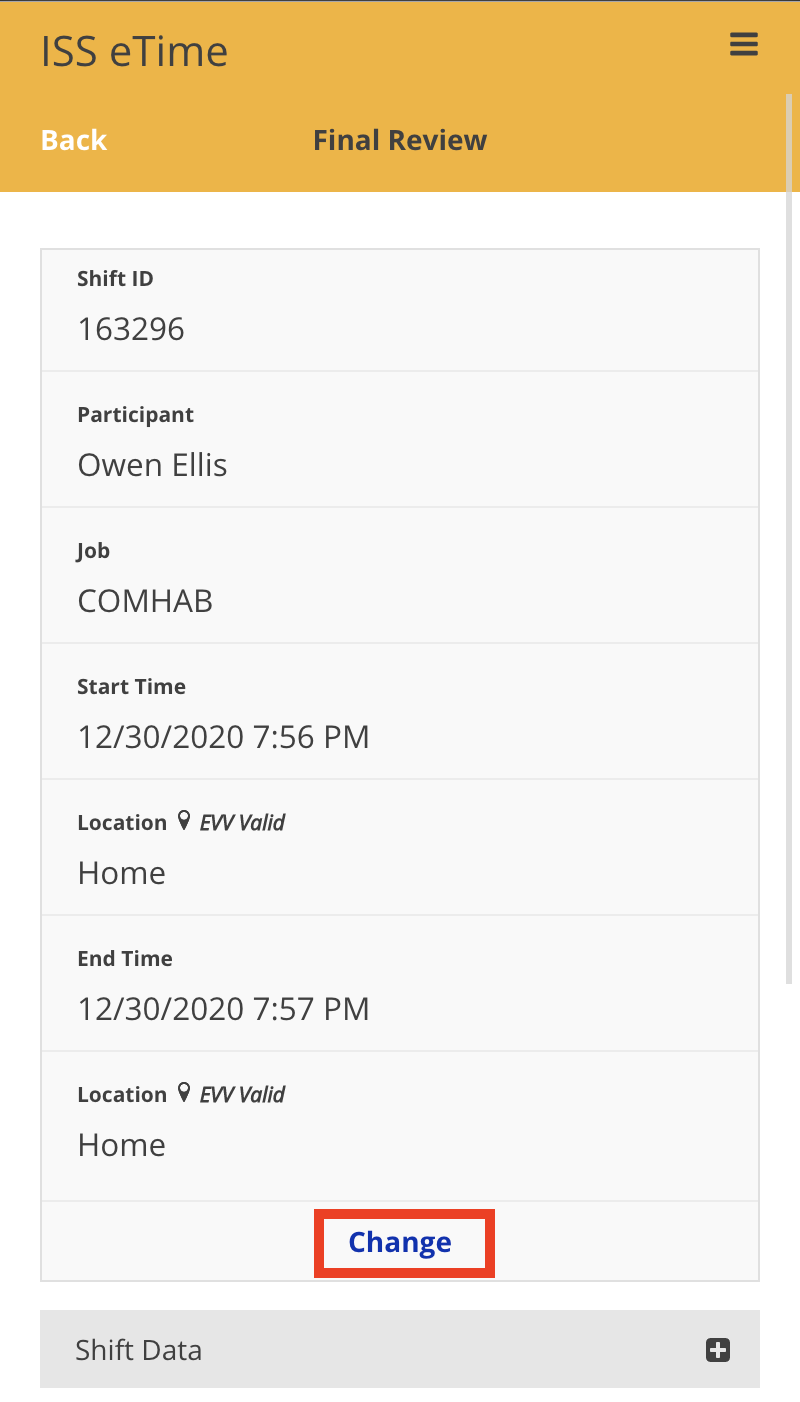](https://help.issny.org/uploads/images/gallery/2020-12/image-1609377994374.png) 10. Select the **Start Time** section to edit the start date, start time and to include a reason why the time and dates are changing for this shift [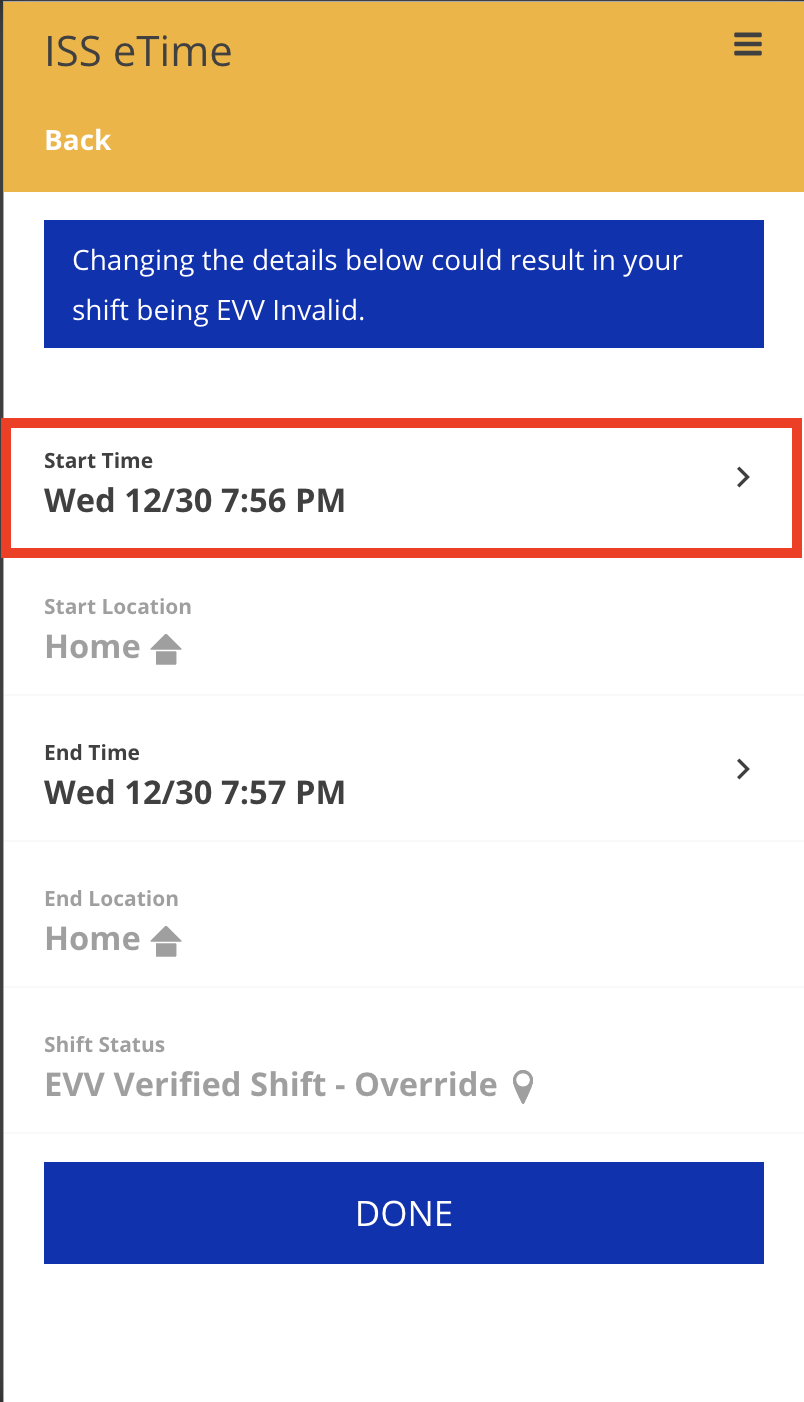](https://help.issny.org/uploads/images/gallery/2020-12/image-1609378046211.png) 11. Once finished, click **Change Start Time** to confirm the changes made [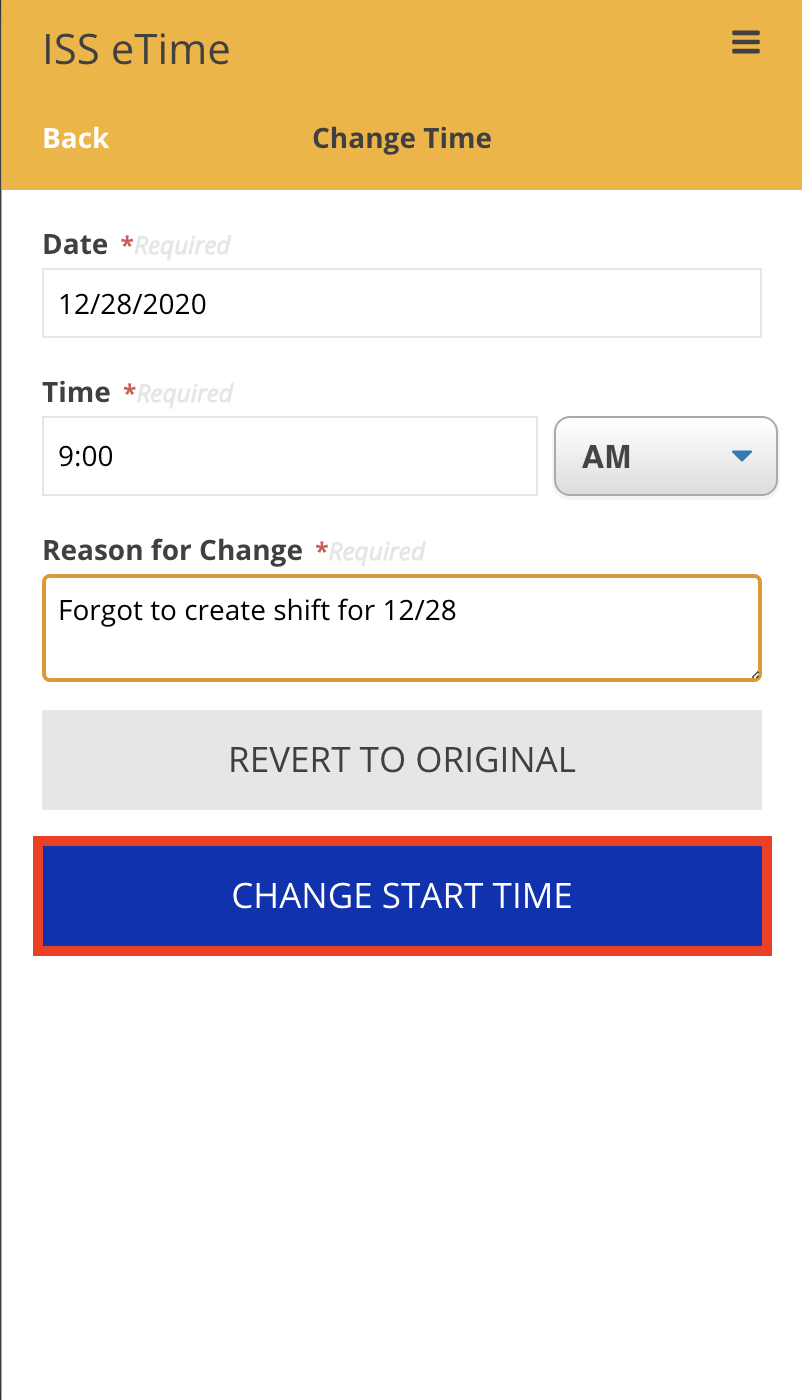](https://help.issny.org/uploads/images/gallery/2020-12/image-1609378088374.png) 12. Select the **End Time** section to edit the end date, end time and to include a reason why the end times are changing for this shift [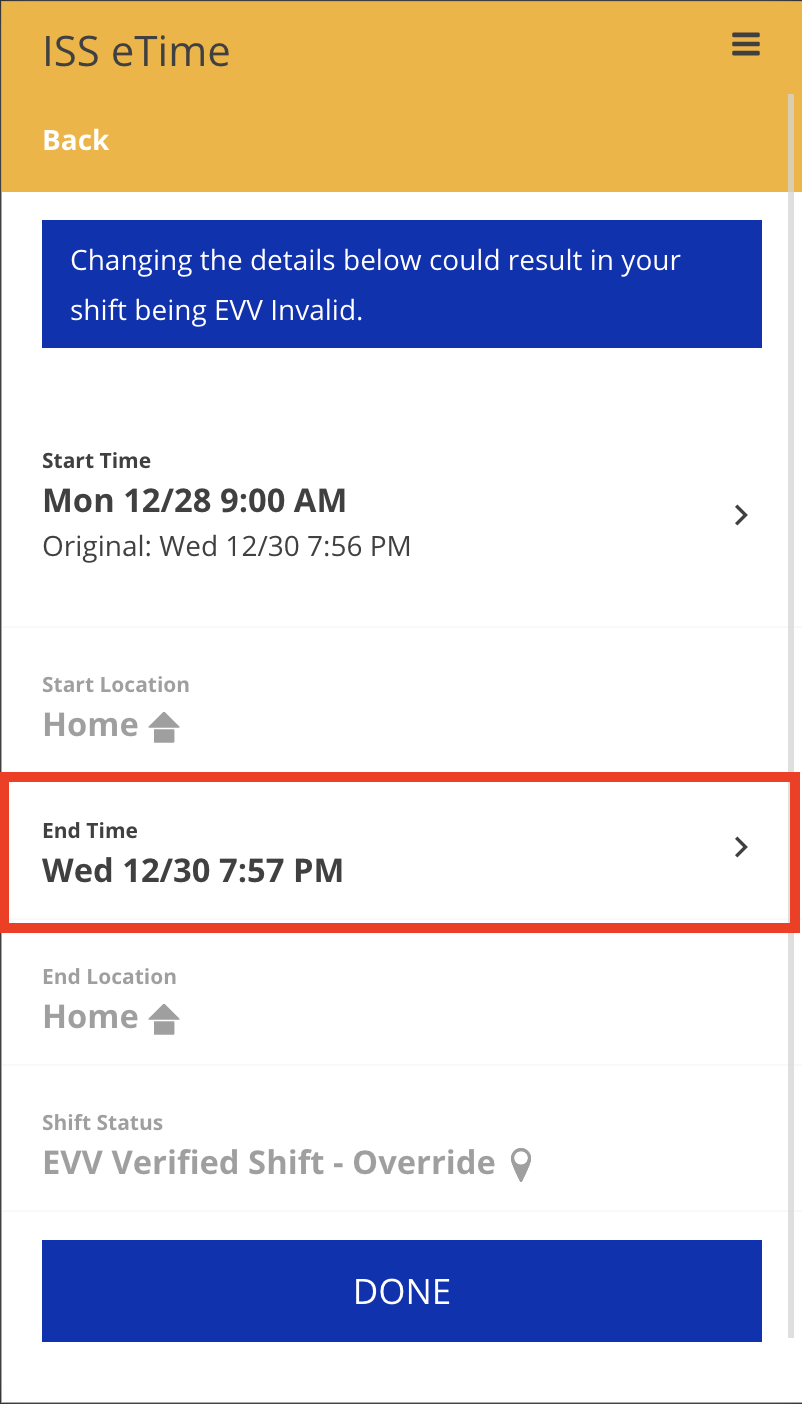](https://help.issny.org/uploads/images/gallery/2020-12/image-1609378125772.png) 13. Once finished, click **Change End Time** to confirm the changes made [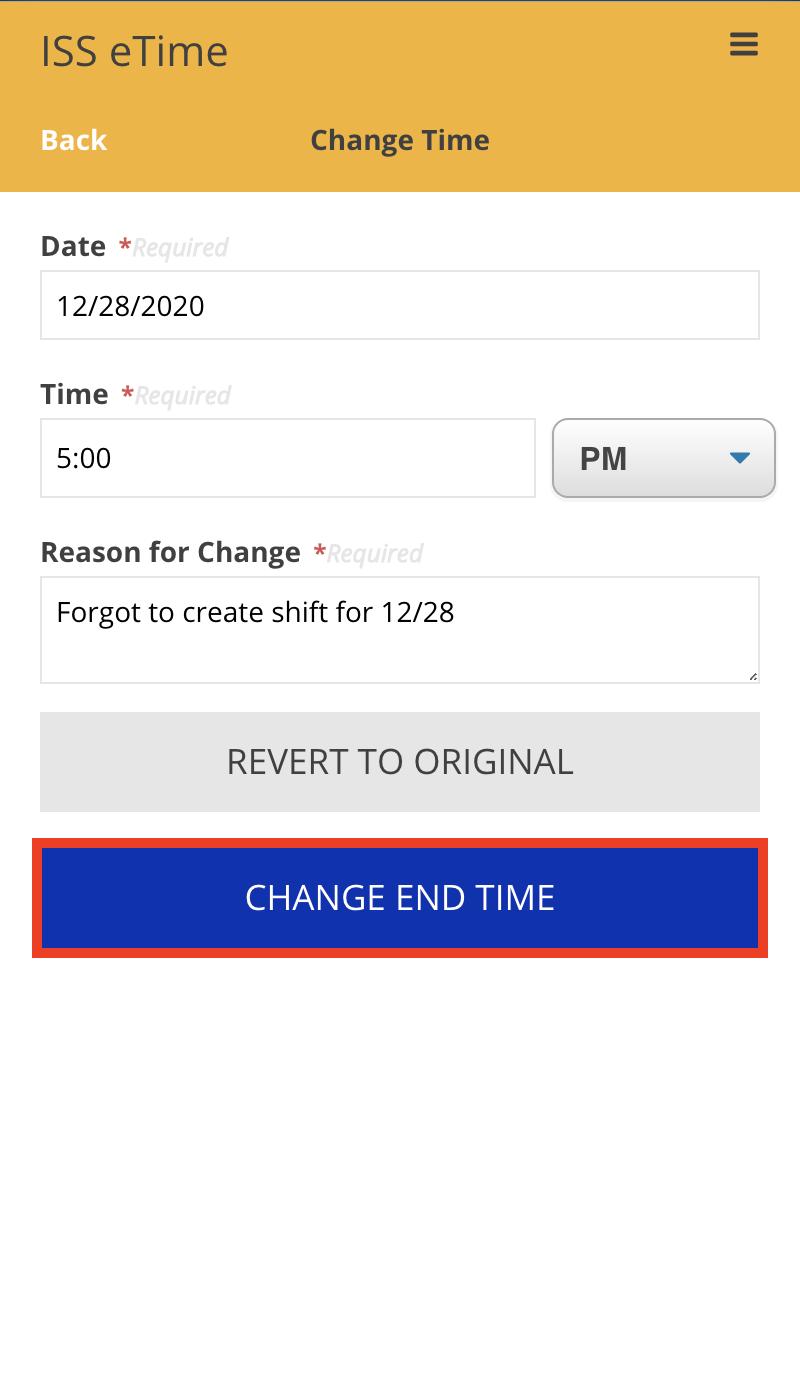](https://help.issny.org/uploads/images/gallery/2020-12/image-1609378186025.png) 14. After editing the Start Time and End Time for the forgotten shift, select **Done** to advance to the Final Review screen 15. From the Final Review screen, verify the accuracy of the shift’s details, scroll down and click **Submit Shift** at the bottom of the screen [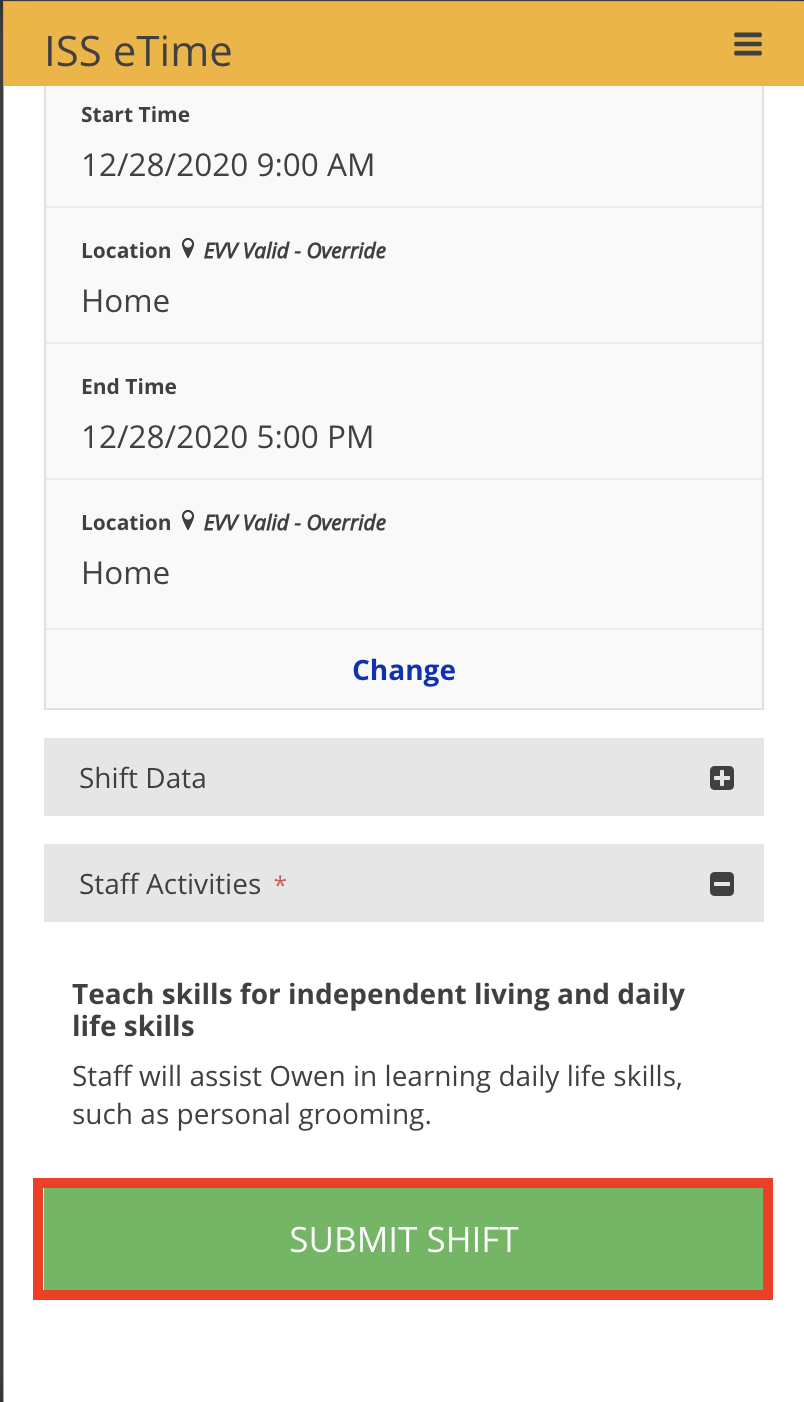](https://help.issny.org/uploads/images/gallery/2020-12/image-1609378239389.png) 16. Click **Submit** from the Confirm Submission dialog window [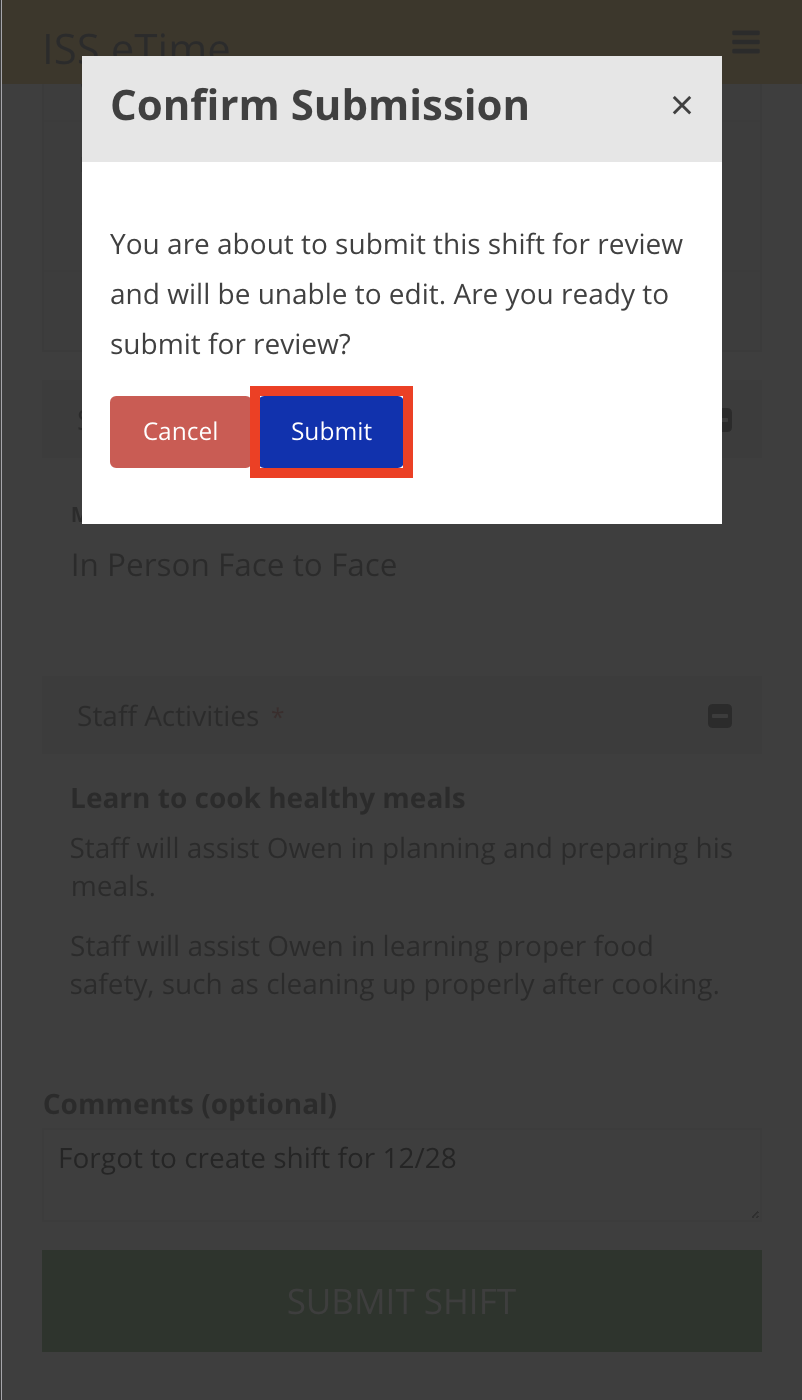](https://help.issny.org/uploads/images/gallery/2020-12/image-1609378278924.png) # Enabling Location Services --- There are two places where location services must be enabled for eTime to have access to your location. They are: - The device's operating system - The web browser's security and privacy settings Below are pathways on various devices to location services #### iOS **Settings** > **Privacy** > **Location Services** - Ensure this is **On**, and portal.issny.org is given permission. **Settings** > **Safari** > **Location** - Ensure this is set to **Ask** or **Allow**. #### macOS **System Preferences** > **Security & Privacy** > **Location Services** - Ensure this is enabled, and the web browser you are using is given permission. #### Safari **Preferences** > **Websites** > **Location** - Ensure that portal.issny.org is set to **Ask** or **Allow**. #### Chrome **Preferences** > **Privacy & Security** > **Site Settings** > **Location** - Ensure that portal.issny.org is listed under Allow. *For more information about enabling location services, please visit the [Enabling Location Services Help Guide](https://help.issny.org/books/etime/chapter/enabling-location-services-guide) section.* # Fixing Location Inaccuracies ### Outside The Geofence --- When beginning or ending a shift, eTime may detect that you are outside of the geofence. When this happens, eTime will provide you with a list of addresses associated with your employer. ##### If the correct address is shown: - Select the checkbox next to the correct address - Click **Confirm** **Location** ##### If the correct address is NOT shown: - Select the checkbox next to **Other** - Type the correct address into the box - Click **Confirm Location** ### Completely Unable To Determine Location --- It is possible that eTime may display an error stating that eTime was completely unable to get your location. When this happens, check the following: - Verify that location settings have been enabled for your phone's operating system - Verify that location settings have been enabled for your phone's browser - Verify that portal.issny.org has been allowed to use your location Once verified that all location settings have been enabled, return to eTime and click **Retry** on the error. If eTime is still unable to get your location, click **Continue Without Location** and then select **I Understand** on the second warning that appears. *\*\*Note that selecting **Continue Without Location** will render the shift EVV Unverified. Continuous unverified shifts will be a cause for ISS intervention, as ISS may not be able to bill for those shifts.* For more information on enabling location services, please visit the [Enabling Location Services Guide](https://help.issny.org/books/etime/chapter/enabling-location-services-guide). --- *Disclaimer: All names displayed in the above screen shots are fictional characters. No identification with actual persons (living or dead) is intended or should be inferred.* Updated 2/13/2024 # Location Services Help --- If eTime is unable to get your location when you start or end a shift, you will be presented with an error dialog. 1. Adjust your device and/or browser settings to [enable location services. ](https://help.issny.org/books/etime/page/enabling-location-services "Enabling Location Services") 2. Click **Retry**. 3. If this still does not work, you can continue without a location. - Proceeding without a location is NOT recommended. Be aware that starting January 1, 2021, if you continue without location, the shift will be EVV Unverified. Continuous unverified shifts will be a cause for ISS intervention, as ISS may not be able to bill for those shifts. [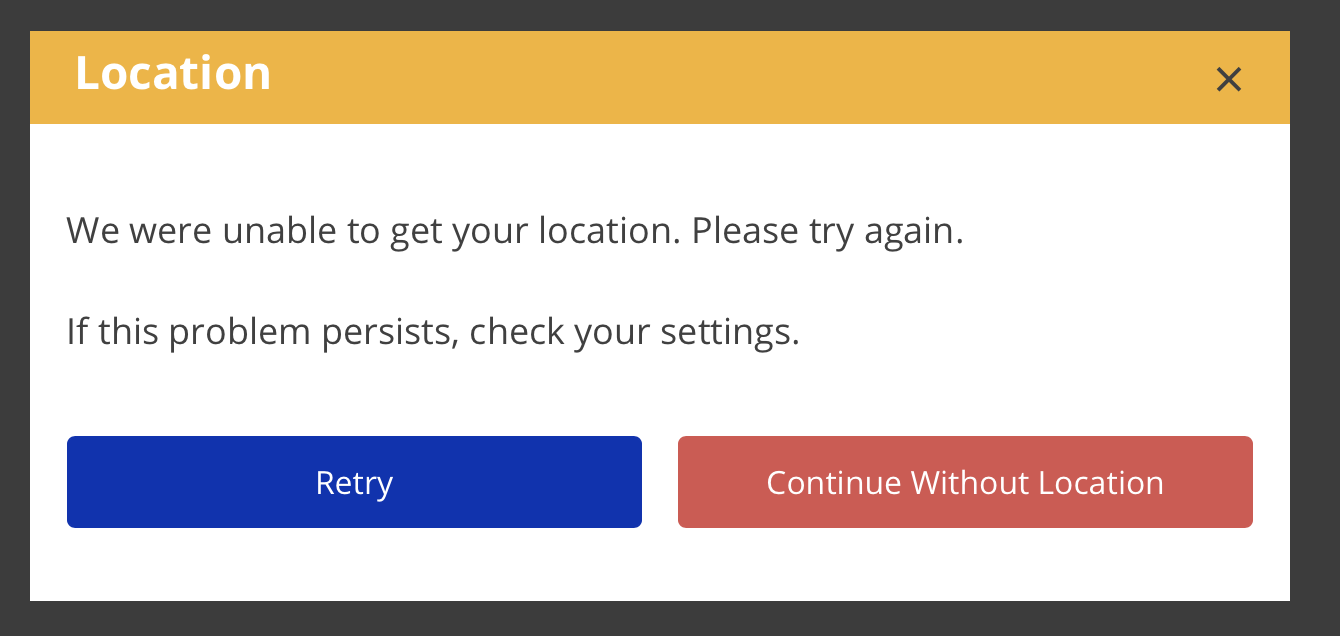](https://help.issny.org/uploads/images/gallery/2020-11/locationErrorA.png) [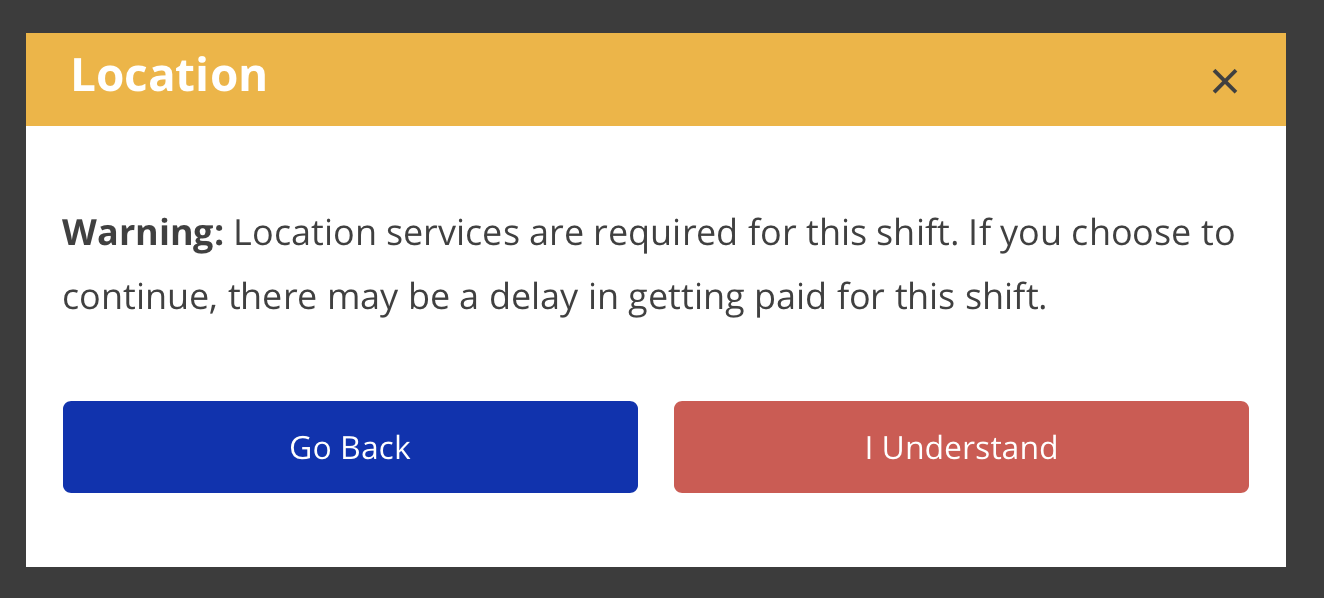](https://help.issny.org/uploads/images/gallery/2020-11/locationErrorB.png) *For more information about enabling location services, please visit the [Enabling Location Services Help Guide](https://help.issny.org/books/etime/chapter/enabling-location-services-guide) section.* # Reviewing A Shift The job of the web approver in the circle of support ("circle approver") is to act as the supervisor of the participant's support staff. That means reviewing and then approving or returning the time submitted by staff. Time is submitted by support staff as individual shifts. Each shift must be individually reviewed and then approved or returned. - Approving a shift submits it to ISS for payroll processing. - Returning a shift returns it to the support staff for corrections with a return reason and description. While reviewing time, the circle approver should look at the following: - **Dates and times ** - This includes location, duration, and any EVV Overrides. - **Job** - Did this staff person work this job on this date for this participant? - **Method** - Is the selected method correct? - *Learn more about[ method options.](https://help.issny.org/books/etime/page/method-options "Method Options")* - **Activities** - Are the selected activities correct? - **Events** - Are the event details present and correct when applicable? - *Learn more about [events](https://help.issny.org/books/etime/page/adding-events-to-a-shift "Adding Events to a Shift").* - **Overlaps** - Ensure the shift does not overlap with another support staff working for the same participant at the same time. --- To review time: 1. Navigate to the **My Staff Work** page. [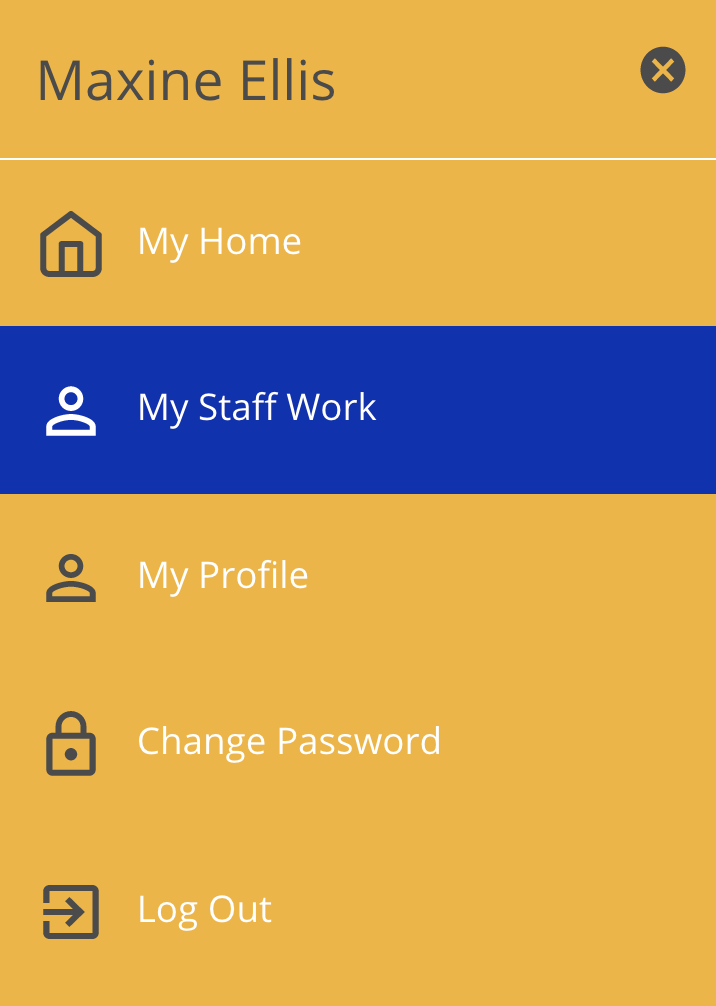](https://help.issny.org/uploads/images/gallery/2020-10/image-1603834895000.png) - My Staff Work shows all eTime shifts for participants for whom you are a circle approver. - The Shifts tab by default shows all [shifts](https://help.issny.org/books/etime/page/glossary-of-terms "Glossary of Terms") needing action. - The Job Periods tab shows a list of all open [job periods](https://help.issny.org/books/etime/page/glossary-of-terms "Glossary of Terms"); that is, all job periods that contain one or more in-progress shifts. 2. Select a shift with a status of *Pending Circle Review*. This will open the shift from within its associated job period. [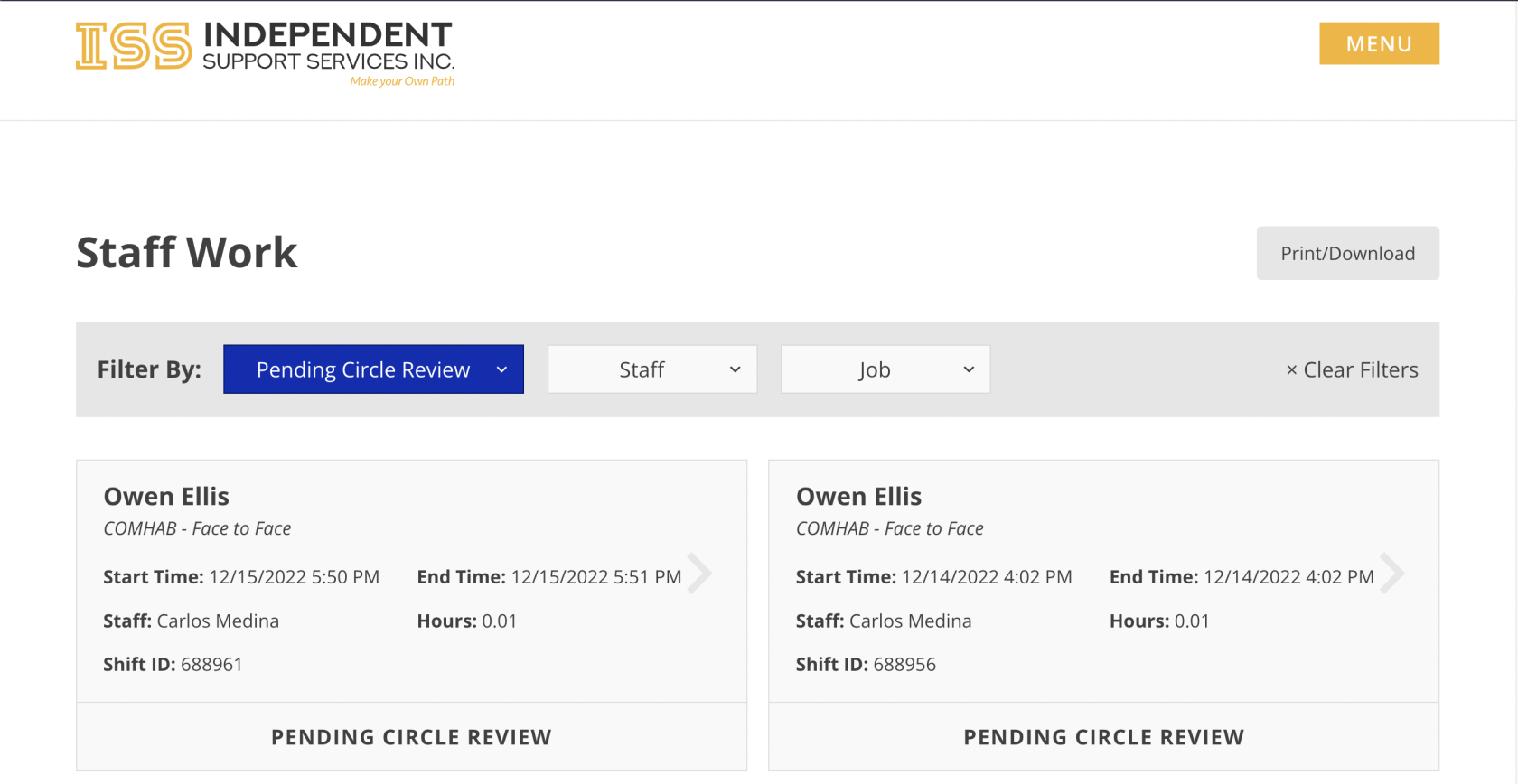](https://help.issny.org/uploads/images/gallery/2023-02/2.png) 3. Review the information entered for the shift (see the list above for things to look for). 4. If the information is correct, click **Approve**. If something is incorrect, click **Return**, then select a reason and provide a description. [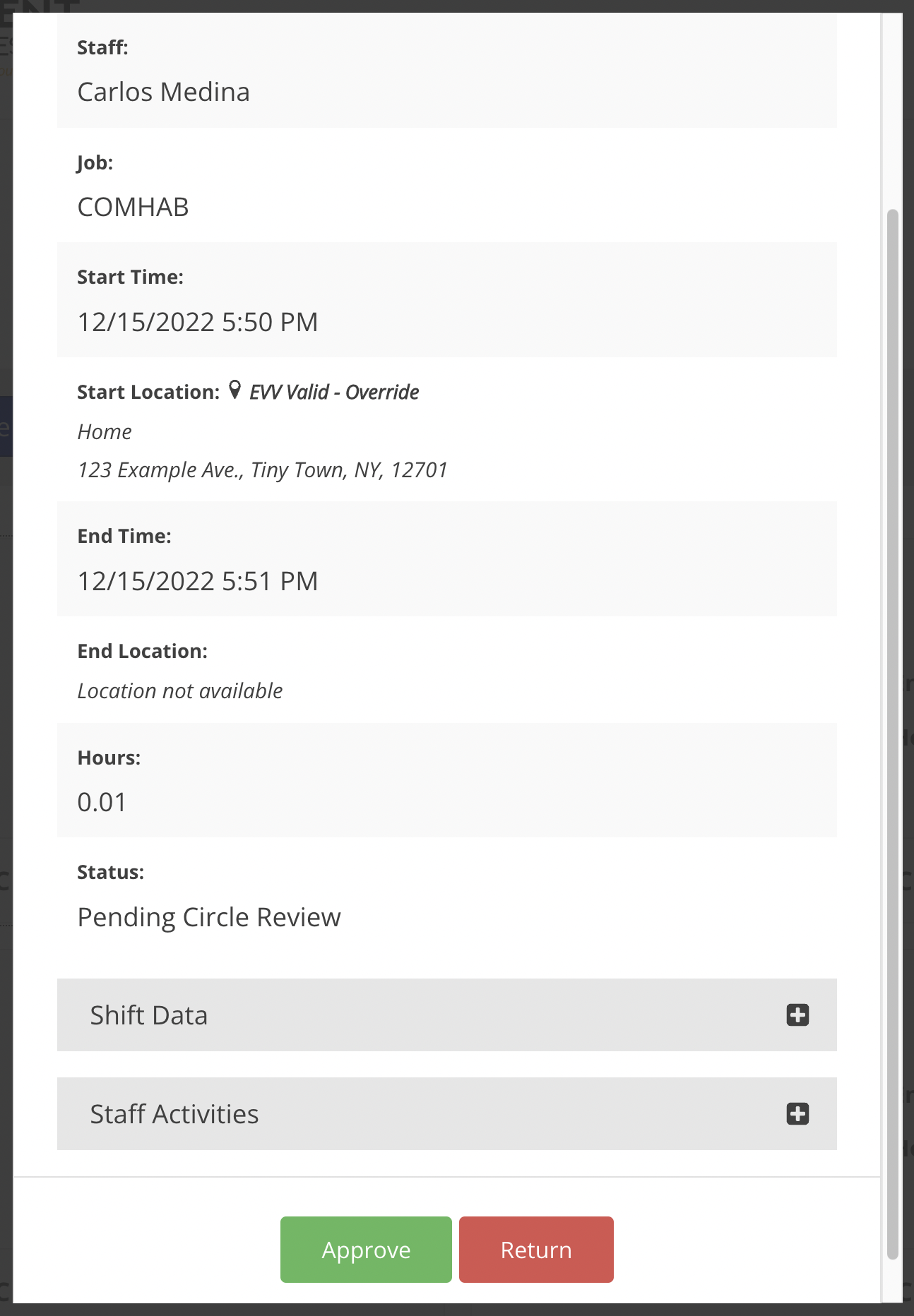](https://help.issny.org/uploads/images/gallery/2023-02/1.png) - If the shift was returned, the staff will need to correct the shift and resubmit for approval. --- #### EVV Override Requests If the staff has requested an override to the start and/or end time, that will be seen as an EVV Override Request. This request must be approved before approving the shift. [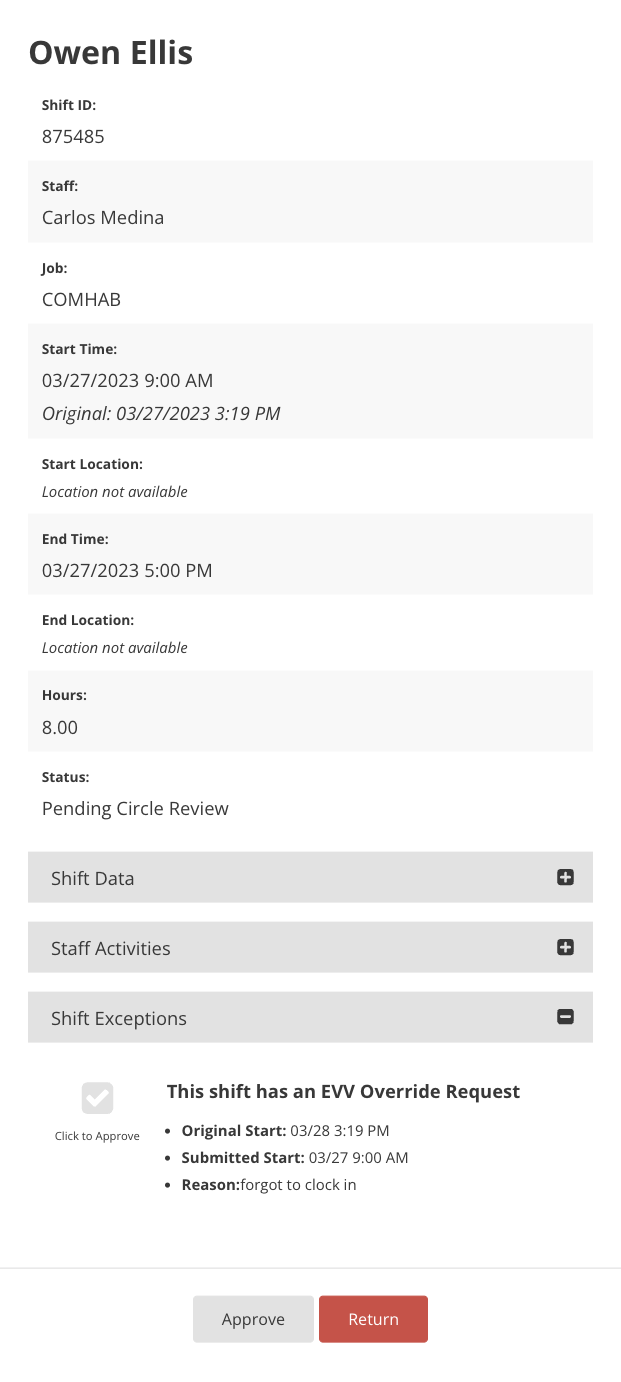](https://help.issny.org/uploads/images/gallery/2023-03/2.png) --- *Disclaimer: All names displayed in the above screen shots are fictional characters. No identification with actual persons (living or dead) is intended or should be inferred.* Updated 07/24/23. # Viewing Shift Comments If a comment was added by staff on a shift, you can view them in two locations: on the shift details screen and on the Print/Download PDF. ### Shift Details Screen If a comment was added, the *Shift Comments* section will display. Click the plus sign on the right to expand it. The section will **only** display if a comment was added. #### Collapsed: [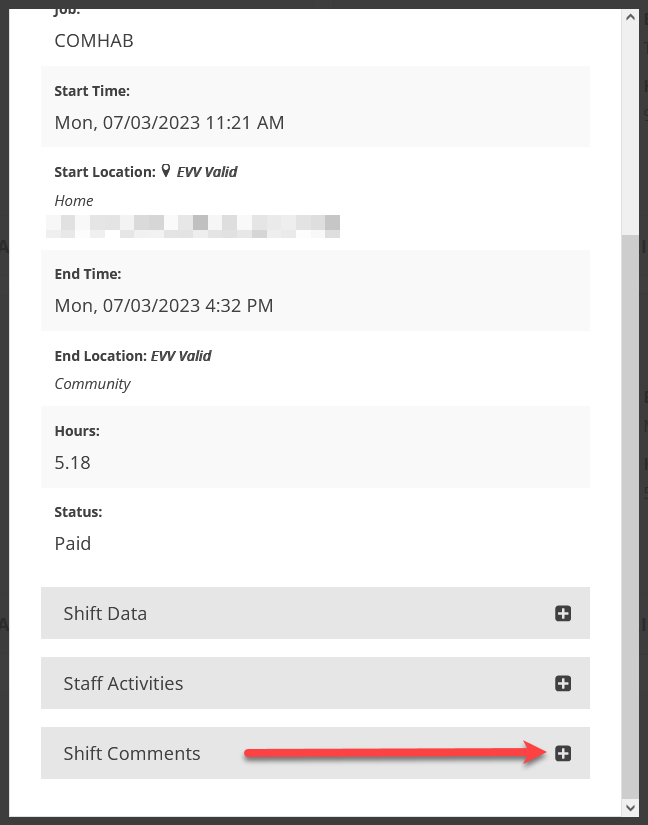](https://help.issny.org/uploads/images/gallery/2024-02/pr3675-shiftcomments-01.png) #### Expanded: [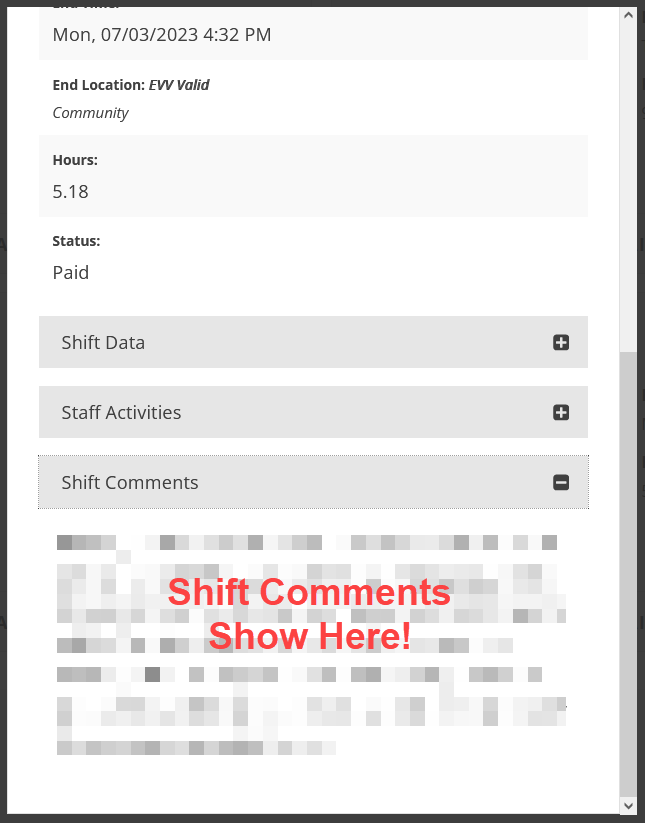](https://help.issny.org/uploads/images/gallery/2024-02/pr3675-shiftcomments-02.png) ### Print/Download PDF If a comment was added, the *Comments* section will display below the shift details and above the Staff Activities on the PDF. [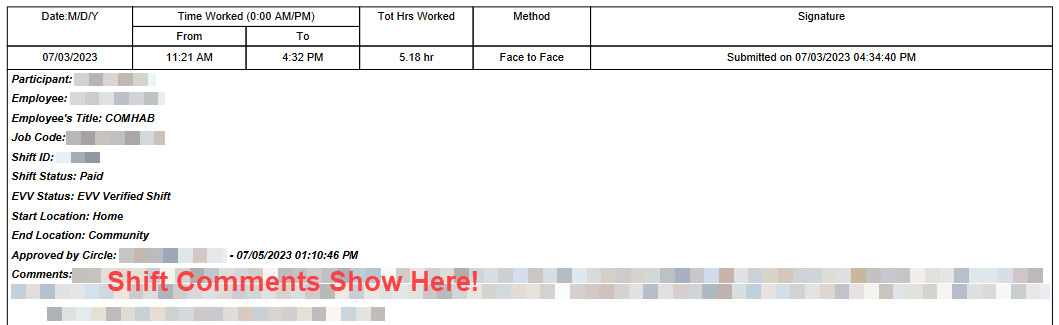](https://help.issny.org/uploads/images/gallery/2024-02/pr3675-shiftcomments-03.png) --- Updated 02/23/24. # Correcting a Shift A shift can be returned for corrections by either the circle approver or by the ISS Payroll department. In both cases, the support staff will receive an email notification that they have time to correct. In eTime, you can see that a shift has been returned because it shows up with a red indicator. A shift cannot be paid until corrections are made and the shift is resubmitted and approved. To correct a shift: 1. Navigate to eTime page. 2. Select the shift. - *Returned shifts will appear at the top of the list.* 3. Review the reason and description for the shift being returned and make any necessary changes. 4. Click **Submit** to resubmit the shift for approval. --- Updated 2/13/2024 # Requesting/Submitting Time OffTime Off can only be submitted **two months into the future**.
##### To request or enter time off from eTime: 1. Click **Add Time Off** at the bottom of eTime. [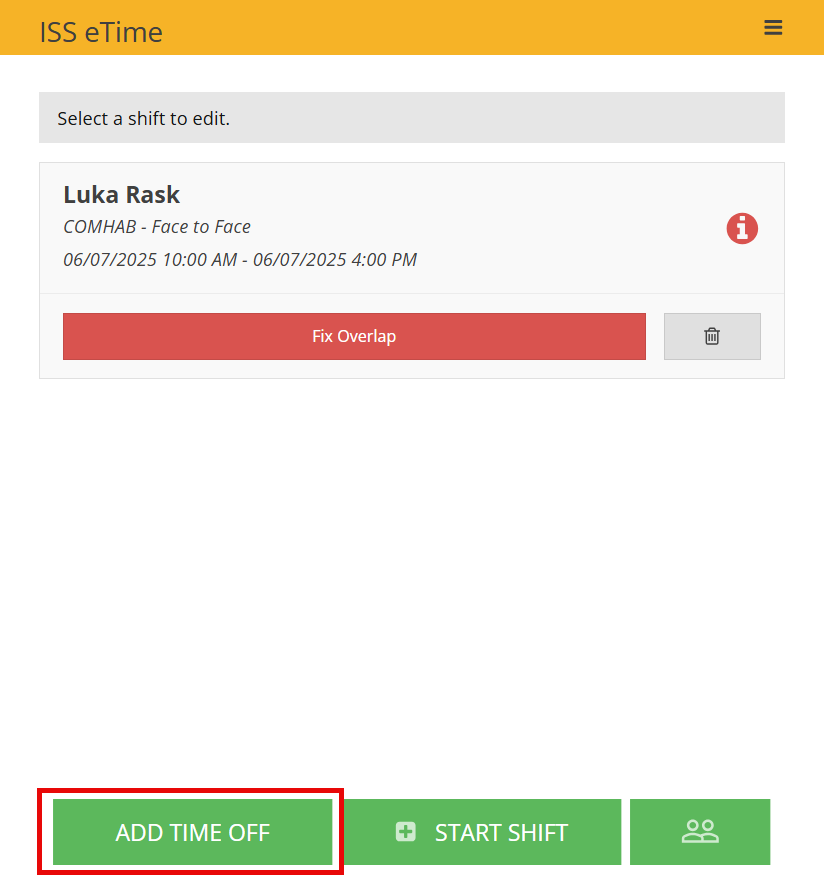](https://help.issny.org/uploads/images/gallery/2025-08/image-1755799093466.png) 2. Choose the participant, the job, fill in a date, fill in the number of hours, select the type of time off, provide a description, and if necessary attach supporting documents. Documentation is required for JURY (Jury Duty) pay. When you are called for Jury Duty, at the end of your service, the court clerk will give you a proof of service which lists the dates that you served. Please upload that with your JURY time off submission. Documentation is required for BEREV (bereavement) pay. This can be in several different forms. It can be a funeral card from attending the services, an obituary or published death notice, or an official death certificate. Please upload whatever documentation you have and put in the note what your relationship to the deceased was (brother, parent, etc). [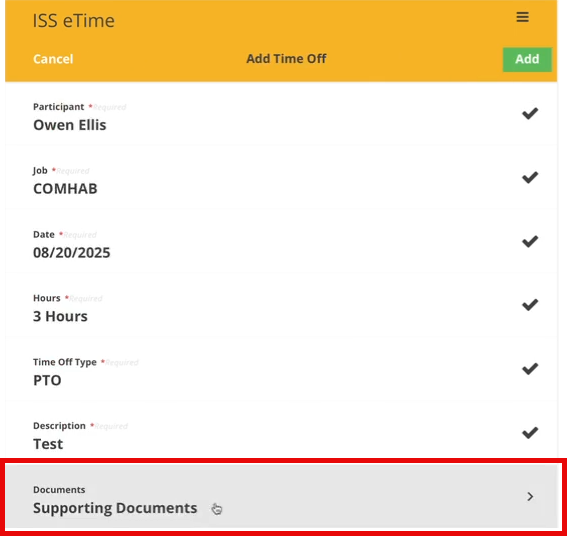](https://help.issny.org/uploads/images/gallery/2025-08/image-1755799775365.png) [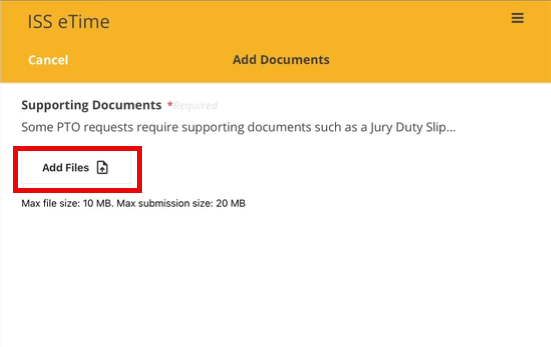](https://help.issny.org/uploads/images/gallery/2025-08/image-1755800042173.png) [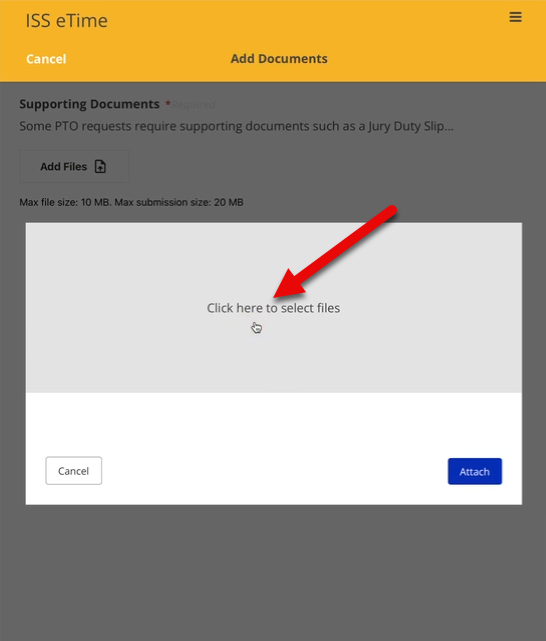](https://help.issny.org/uploads/images/gallery/2025-08/image-1755800107680.png) Once you have selected all the supporting documents, click "Attach" then "Confirm" [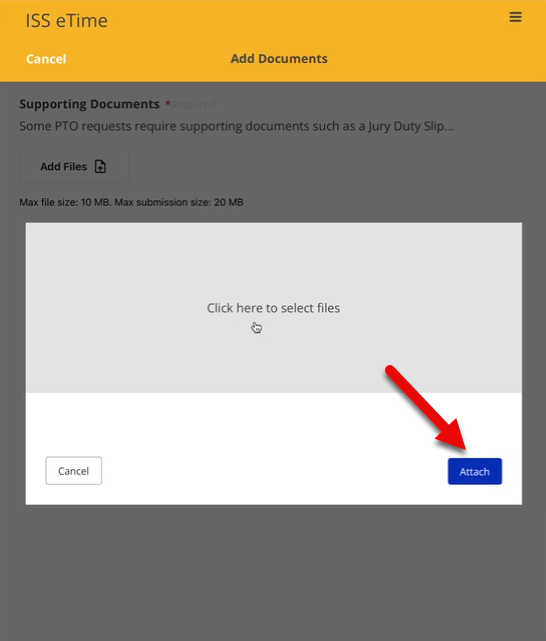](https://help.issny.org/uploads/images/gallery/2025-08/image-1755800316437.png) [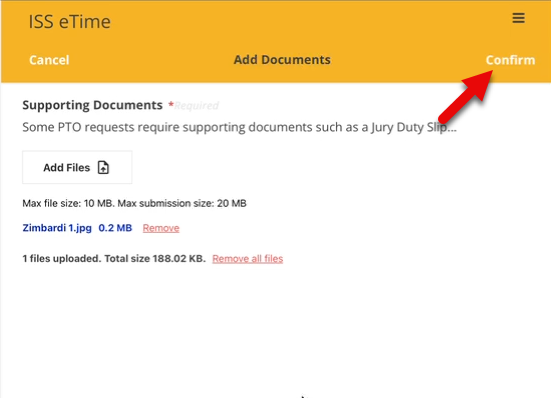](https://help.issny.org/uploads/images/gallery/2025-08/image-1755800378453.png) Once completed, click **Add**. [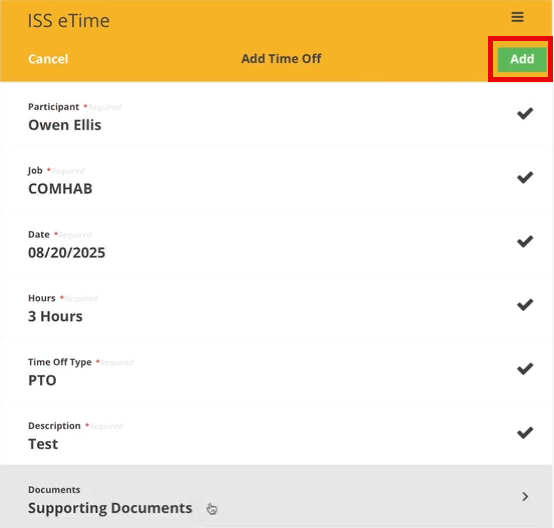](https://help.issny.org/uploads/images/gallery/2025-08/image-1755799814813.png) 3. If you need to edit the details of the time off request, click the **Edit** button in the top right, make the desired changes, and then click **Update** to save the changes. After the details have been verified, enter a comment if applicable and click **Submit Shift**. [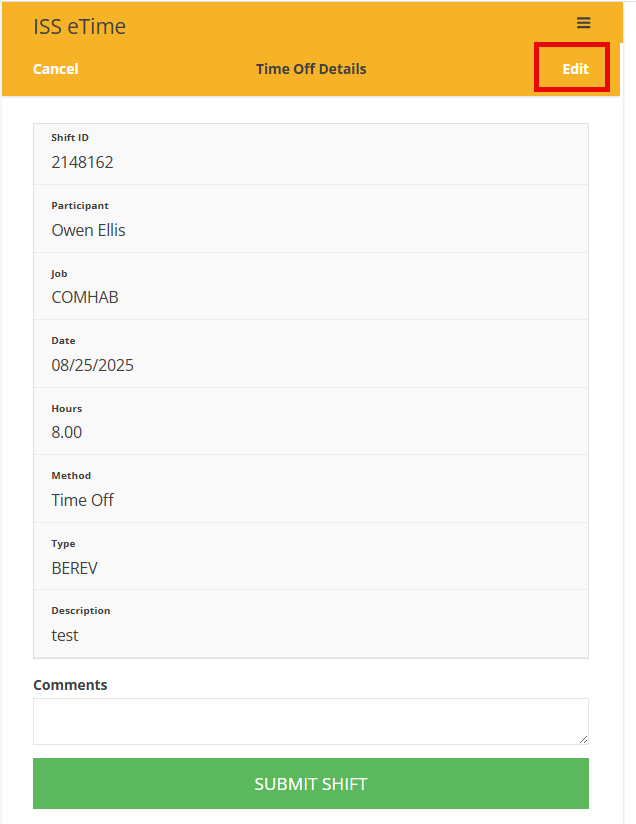](https://help.issny.org/uploads/images/gallery/2025-08/image-1755799874330.png) 4. After clicking the Submit Shift button, a confirmation window pops up. Click **Submit** to finalize and send the shift for circle approval. [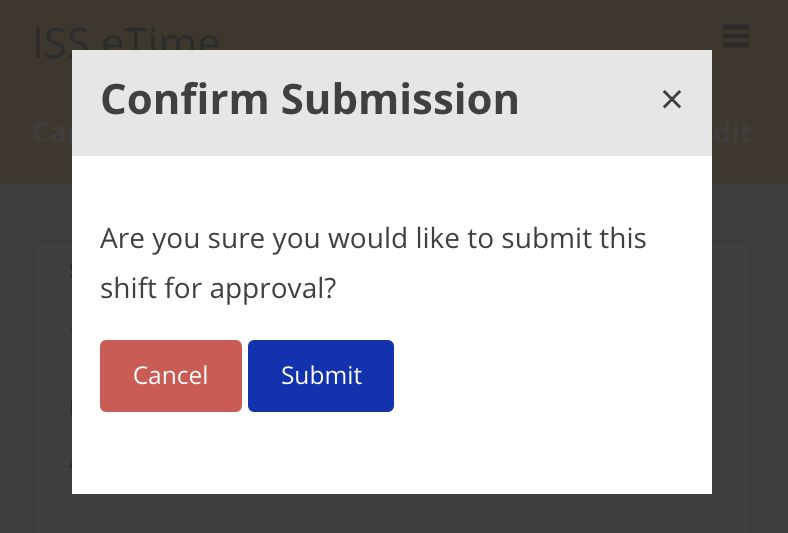](https://help.issny.org/uploads/images/gallery/2021-03/Mja4.png) --- *Disclaimer: All names displayed in the above screen shots are fictional characters. No identification with actual persons (living or dead) is intended or should be inferred.* Updated 08/21/2025. # Deleting a Shift Only support staff can delete their own shifts. Only shifts marked as **Draft** and **Returned to Staff** can be deleted. A support staff may need to delete a shift if they created the shift by accident. If you accidentally started an eTime Live shift, simply end the shift and then delete it. To delete a shift: 1. Navigate to eTime Live and click the trash can icon on the shift to be deleted. 2. Click **Yes, delete this shift** on the shift deletion confirmation window that appears. [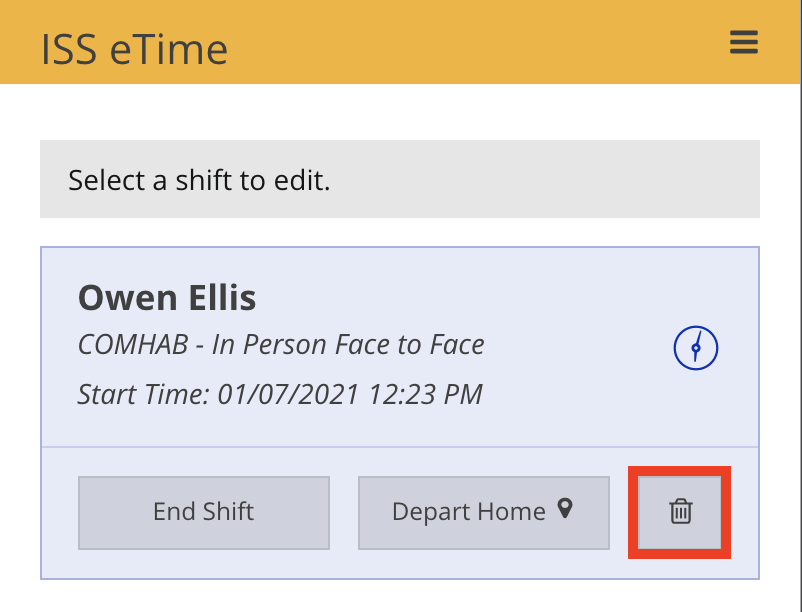. ](https://help.issny.org/uploads/images/gallery/2021-01/iQJ1.png)[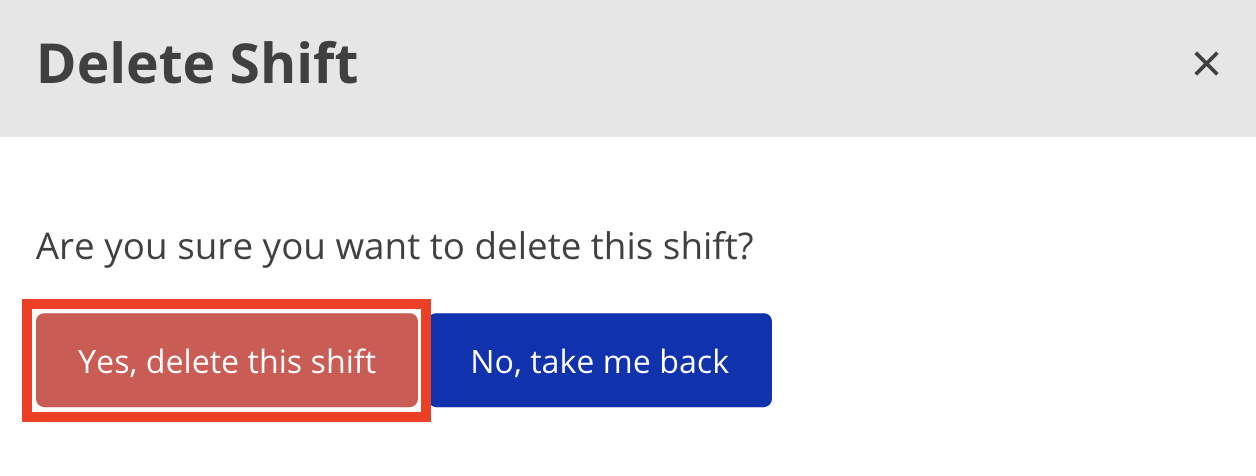](https://help.issny.org/uploads/images/gallery/2021-01/image-1610405979638.png) If you need to delete (or edit) a shift that is not marked as **Draft** or **Returned to Staff**, how you handle it depends on its status. - **Being Processed at ISS** - contact Payroll immediately. Depending on the status of payroll processing, they will either be able to return the shift to you or they will need to process a payroll adjustment. - **Pending Circle Review** - contact your circle approver immediately. They will need to return the shift to you. --- *Disclaimer: All names displayed in the above screen shots are fictional characters. No identification with actual persons (living or dead) is intended or should be inferred.* Updated 07/24/23. # Auto-Deleted eTime Shifts eTime shifts with the following status that have **not been modified in 30 days** will be deleted. - Draft - Returned by Circle - Returned by ISS You can find these auto-deleted shifts by going to *My Work* and filtering to all *Deleted* shifts. All deleted shifts appear here, including the ones you deleted. Remember, you cannot view more details on deleted shifts and you cannot modify them. If a shift was deleted that shouldn't have been, use the instructions to [create a forgotten shift](https://help.issny.org/books/etime/page/creating-and-submitting-a-forgotten-shift) to re-create the shift. [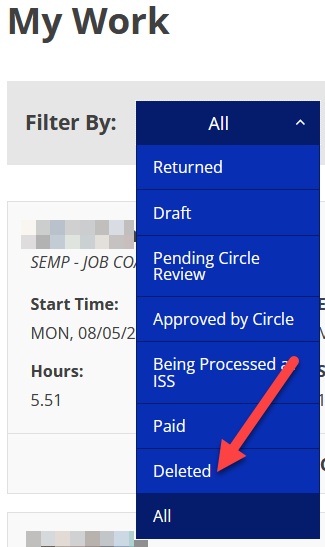](https://help.issny.org/uploads/images/gallery/2024-08/pr2135-autodel-01a.png) --- *Disclaimer: All names displayed in the above screen shots are fictional characters. No identification with actual persons (living or dead) is intended or should be inferred.* Created 08/06/24. # Method Options --- #### In Person Face-to-Face - Any service provided that directly involves the participant and support staff in which both are physically present. This is the most common method. - Activities must be selected. #### Virtual Face-to-Face - Any service provided that directly involves the participant and support staff which occurs over the internet using a two-way audio-visual technology. Audio-only is NOT permitted. - Should be used ONLY when the service can be effectuated through verbal prompting and cueing. - Should NOT be used where a service or support requires the physical presence of a support staff for the health and safety of the participant. - Requires additional information to be captured, including the technology used, location of both the participant and support staff, names of any additional support staff or circle of support members who attended, and if there were any technical issues. - Activities must be selected. #### Non Face-to-Face - Any service provided or action taken on behalf of the participant, but without the participant's presence or involvement. - Requires a description of the service provided. - Activities must be selected. #### Time Off - Use this method for requesting/submitting all types of time off, then select the appropriate type of time off from the dropdown. Learn more about [Requesting/Submitting Time Off](https://help.issny.org/books/etime/page/requestingsubmitting-time-off "Requesting/Submitting Time Off"). # Recording a Virtual Face to Face Shift --- Certain jobs can be worked using the virtual method. Virtual Face to Face should be used ONLY when the service can be effectuated through verbal prompting and cueing. Virtual Face to Face should not be used where a service or support requires the physical presence of a support staff for the health and safety of the participant. Audio-only is not permitted, meaning that a virtual shift cannot be done via a normal phone call. ##### Examples of two-way audio-visual technology: - Skype - FaceTime - Zoom - WhatsApp - Google Duo ##### To record a virtual shift: 1. Log into eTime and click **Start Shift** 2. Select the employer, the job, choose **Virtual Face to Face** as the method. 3. Click **Add** in the top right corner 4. Click the shift that was just created 5. Fill in the required information for Virtual Face to Face shifts: - Software Used - Additional Attendees - Staff Location - Participant Location - Technical Issues *\*Note - Once the shift has ended, you will be able to fill these details on the Finalize Details screen\** 6. Once finished, click **Update** in the top right corner --- *Disclaimer: All names displayed in the above screen shots are fictional characters. No identification with actual persons (living or dead) is intended or should be inferred.* # Data Validation --- #### Overlaps A support staff is not allowed to submit shifts that overlap one another. Prior to submitting a shift, the eTime mechanism will check for overlaps against all the support staff’s shifts, excluding those shifts with a status of Draft or Returned to Staff. A shift can be saved if overlaps exist, but it cannot be submitted. #### Future Dates Future dates are not allowed on shifts. eTime will not allow you to save or submit a shift with a future date. All time should be recorded at time of service on paper, and then transferred to eTime after the fact. #### Activities Activities must be selected for most all shifts, regardless of job or method. The only exceptions to this are Time off and Respite shifts. Activities do not need to be selected for Respite shifts since the activity, by definition, is always the same. # Special Cases --- #### Respite Respite shifts do not require the selection of Activities. #### Recording Non Direct Clinician ServicesAfter approving an overlapping shift and submitting it to ISS, the shift will still display that an overlap exists and that it was approved.
#### Return an Overlap To reject an overlap, click **Return,** select a reason and provide a description for returning the overlap. Note that clicking Return will send the shift back to the support staff in order for them to make corrections. [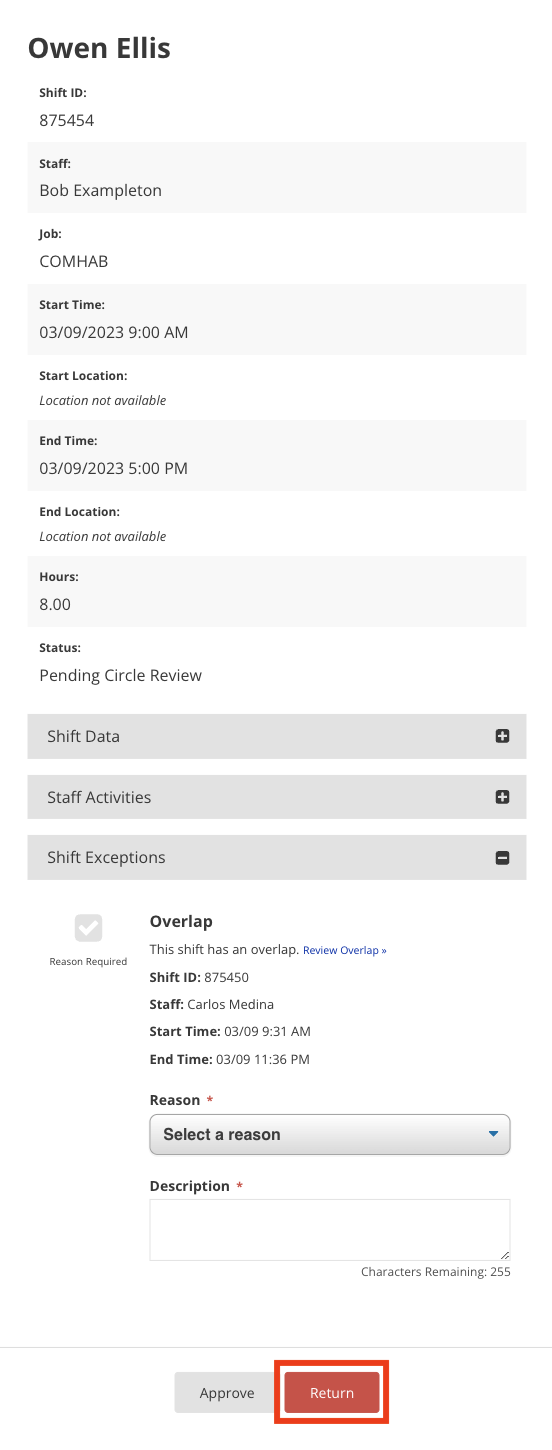](https://help.issny.org/uploads/images/gallery/2023-03/reject.png) [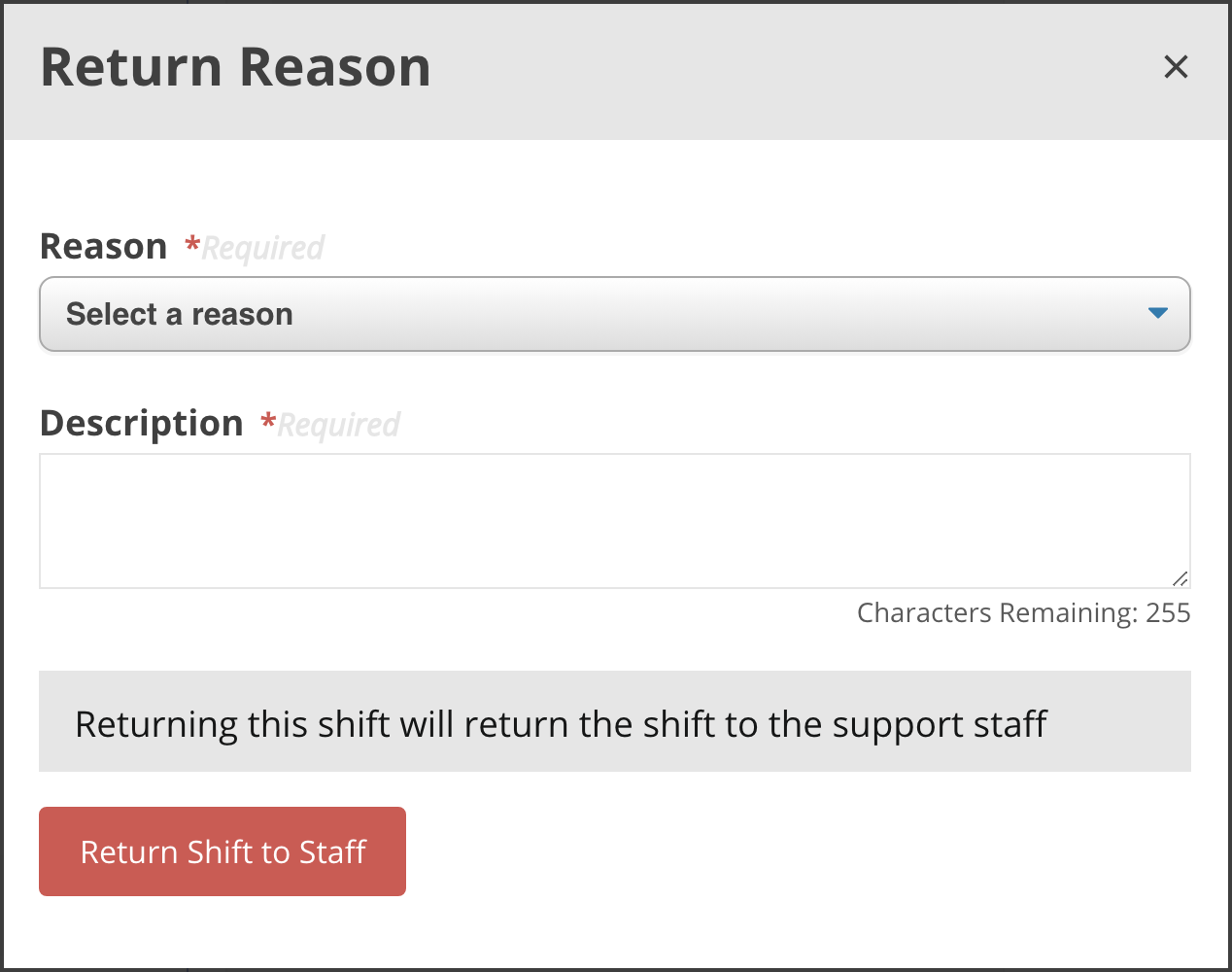](https://help.issny.org/uploads/images/gallery/2021-03/5.png) --- *Disclaimer: All names displayed in the above screen shots are fictional characters. No identification with actual persons (living or dead) is intended or should be inferred.* Updated 07/24/23. # Tips for Preventing and Solving Common Issues ---| [](https://help.issny.org/uploads/images/gallery/2021-06/source-etime-live-white.png) | Indicates the shift was recorded using eTime Live. |
| [](https://help.issny.org/uploads/images/gallery/2021-06/etime-entry-white.png) | Indicates the shift was recorded using eTime Entry, which is now only used for Time Off. |
| [](https://help.issny.org/uploads/images/gallery/2021-06/method-face-to-face-white.png) | Indicates the shift is Face to Face. |
| [](https://help.issny.org/uploads/images/gallery/2021-06/method-virtual-face-to-face-white.png) | Indicates the shift is Virtual Face to Face. |
| [](https://help.issny.org/uploads/images/gallery/2021-06/method-non-face-to-face-white.png) | Indicates the shift is Non-Face to Face. |
| [](https://help.issny.org/uploads/images/gallery/2021-06/method-pto-white.png) | Indicates the shift is Time Off. |
| [](https://help.issny.org/uploads/images/gallery/2021-06/location-home-white.png) | Indicates a start/end location of home. |
| [](https://help.issny.org/uploads/images/gallery/2021-06/location-community-white.png) | Indicates a start/end location of community. |
| [](https://help.issny.org/uploads/images/gallery/2021-06/location-override-w.png) | Indicates a start/end location outside the geofence, but overridden to home. |
| [](https://help.issny.org/uploads/images/gallery/2021-06/location-verifiedvalid-w.png) | Indicates the shift is EVV Verified. |
| [](https://help.issny.org/uploads/images/gallery/2021-06/location-unverifiedinvalid-white.png) | Indicates the shift is EVV Unverified. |
| [](https://help.issny.org/uploads/images/gallery/2021-06/geolocation-override-white.png) | Indicates the shift is EVV Valid - Override, meaning the start and/or end time and/or location was overridden. |