# Reviewing A Shift
The job of the web approver in the circle of support ("circle approver") is to act as the supervisor of the participant's support staff. That means reviewing and then approving or returning the time submitted by staff.
Time is submitted by support staff as individual shifts. Each shift must be individually reviewed and then approved or returned.
- Approving a shift submits it to ISS for payroll processing.
- Returning a shift returns it to the support staff for corrections with a return reason and description.
While reviewing time, the circle approver should look at the following:
- **Dates and times ** - This includes location, duration, and any EVV Overrides.
- **Job** - Did this staff person work this job on this date for this participant?
- **Method** - Is the selected method correct?
- *Learn more about[ method options.](https://help.issny.org/books/etime/page/method-options "Method Options")*
- **Activities** - Are the selected activities correct?
- **Events** - Are the event details present and correct when applicable?
- *Learn more about [events](https://help.issny.org/books/etime/page/adding-events-to-a-shift "Adding Events to a Shift").*
- **Overlaps** - Ensure the shift does not overlap with another support staff working for the same participant at the same time.
---
To review time:
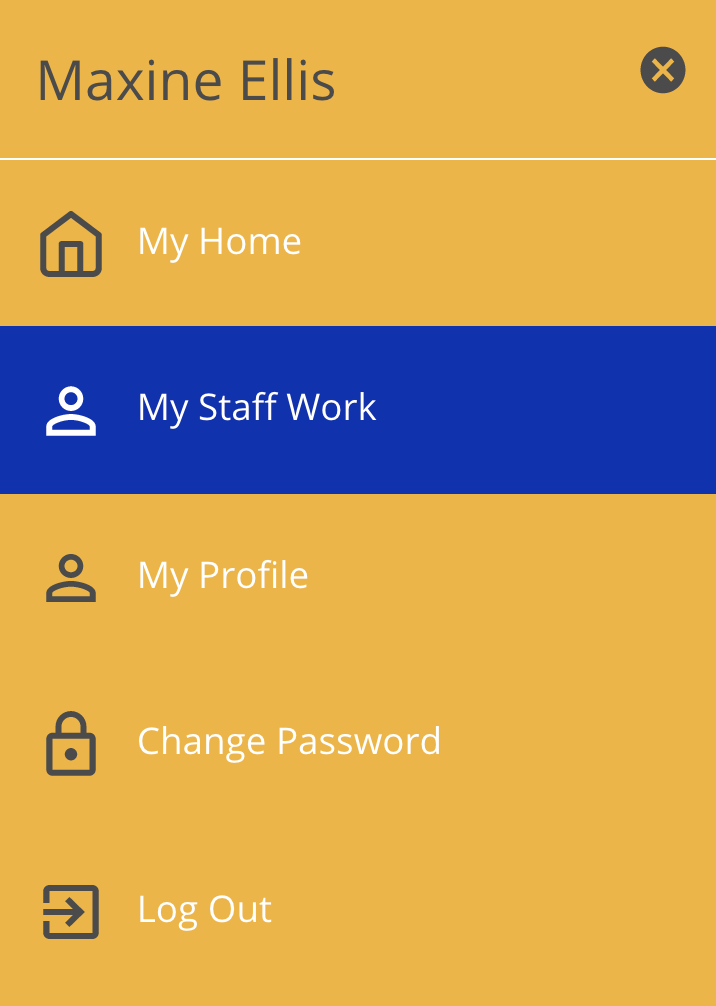
1. Navigate to the **My Staff Work** page.
[](https://help.issny.org/uploads/images/gallery/2020-10/image-1603834895000.png)
- My Staff Work shows all eTime shifts for participants for whom you are a circle approver.
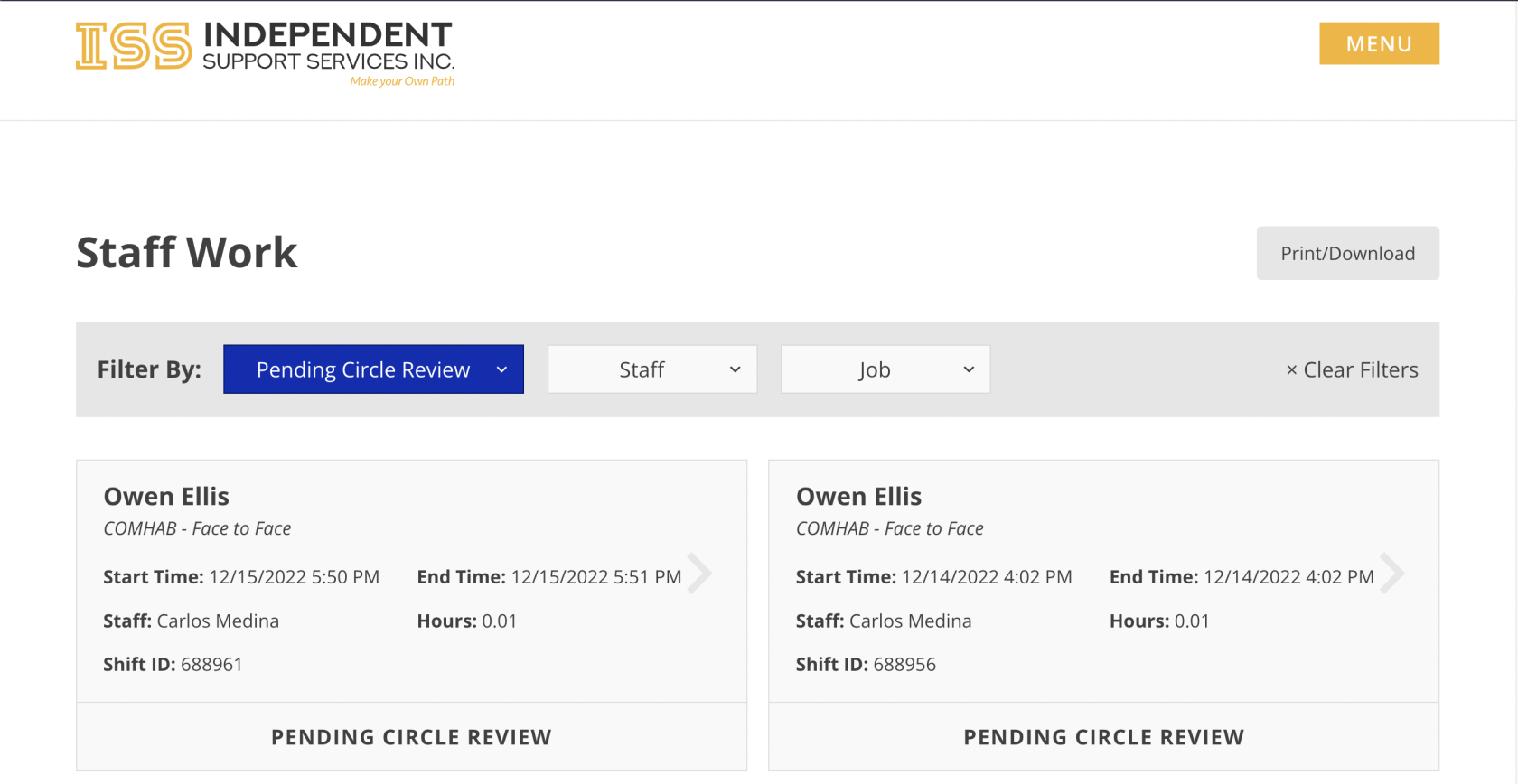
- The Shifts tab by default shows all [shifts](https://help.issny.org/books/etime/page/glossary-of-terms "Glossary of Terms") needing action.
- The Job Periods tab shows a list of all open [job periods](https://help.issny.org/books/etime/page/glossary-of-terms "Glossary of Terms"); that is, all job periods that contain one or more in-progress shifts.
2. Select a shift with a status of *Pending Circle Review*. This will open the shift from within its associated job period.
[](https://help.issny.org/uploads/images/gallery/2023-02/2.png)
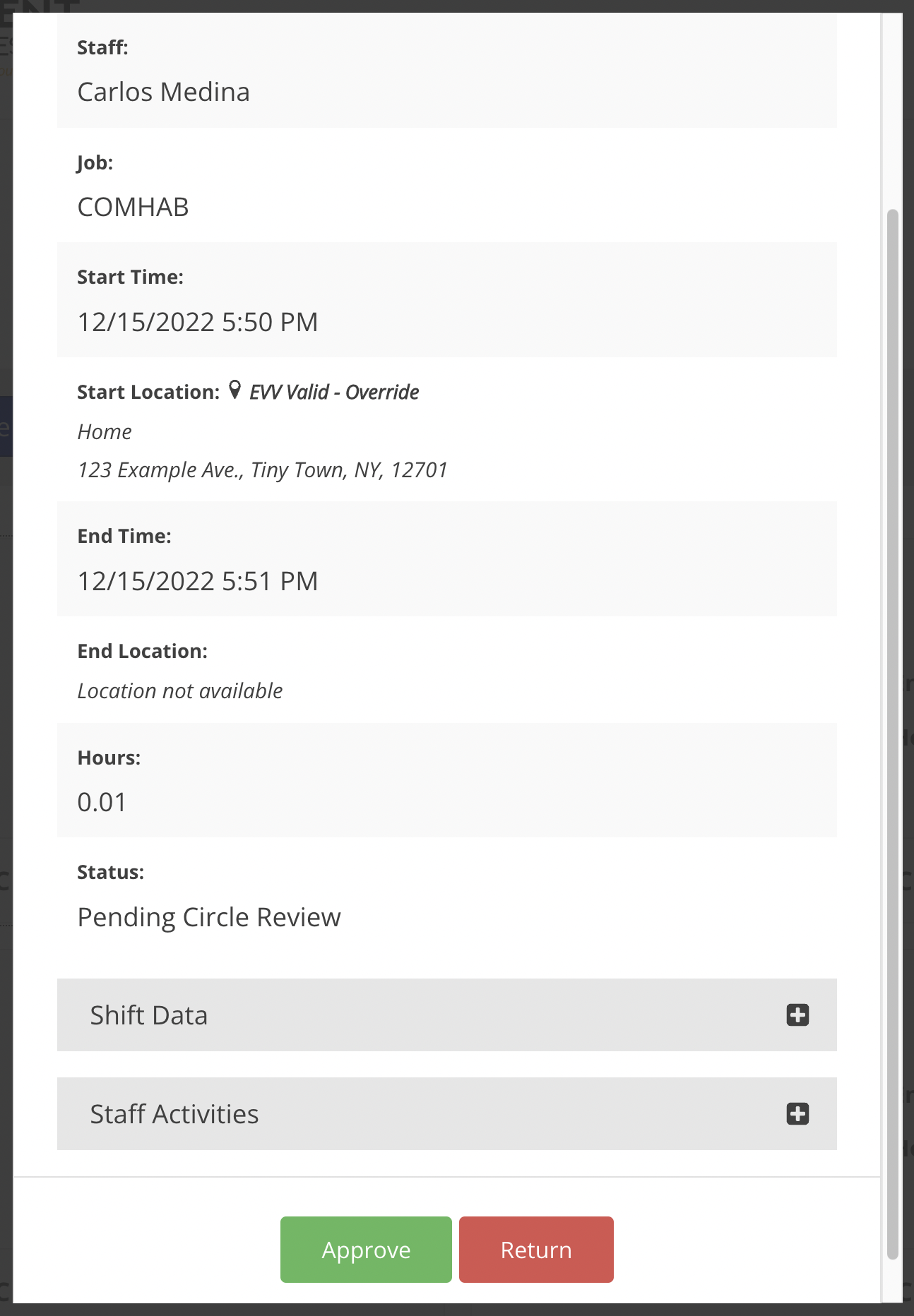
3. Review the information entered for the shift (see the list above for things to look for).
4. If the information is correct, click **Approve**. If something is incorrect, click **Return**, then select a reason and provide a description.
[](https://help.issny.org/uploads/images/gallery/2023-02/1.png)
- If the shift was returned, the staff will need to correct the shift and resubmit for approval.
---
#### EVV Override Requests
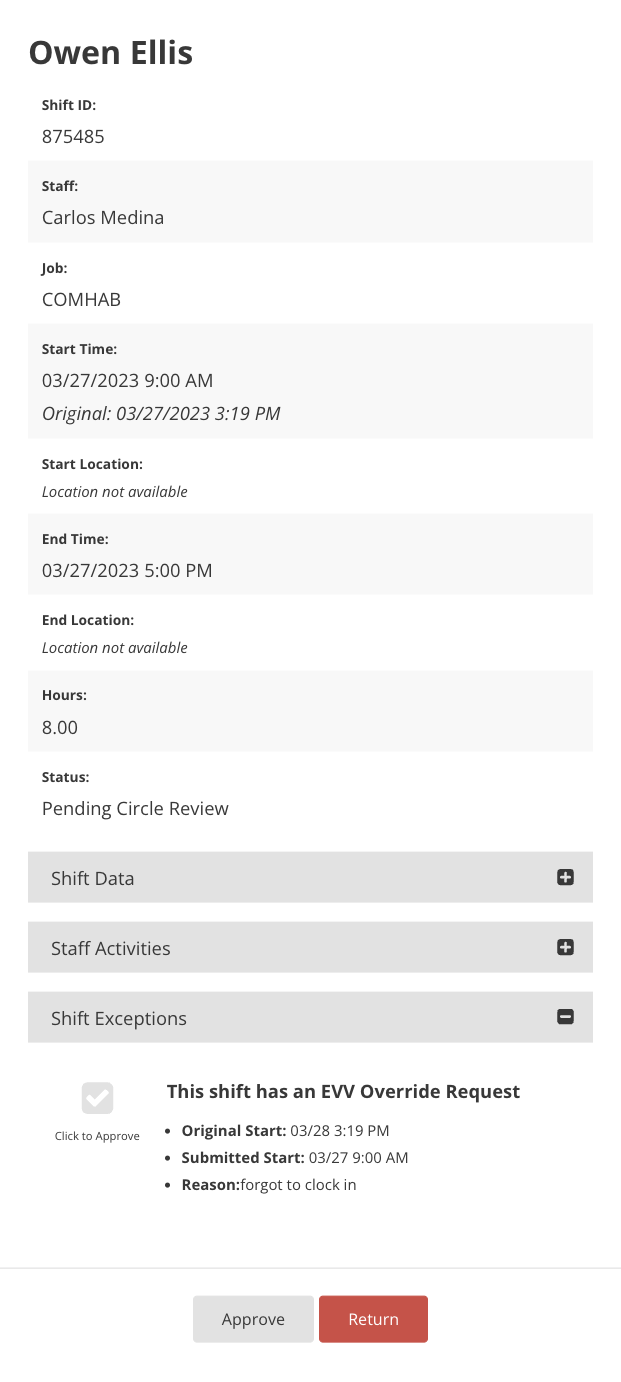
If the staff has requested an override to the start and/or end time, that will be seen as an EVV Override Request. This request must be approved before approving the shift.
[](https://help.issny.org/uploads/images/gallery/2023-03/2.png)
---
*Disclaimer: All names displayed in the above screen shots are fictional characters. No identification with actual persons (living or dead) is intended or should be inferred.*
Updated 07/24/23.