The included screenshots serve as examples only. You will see the actual courses assigned specifically to you.
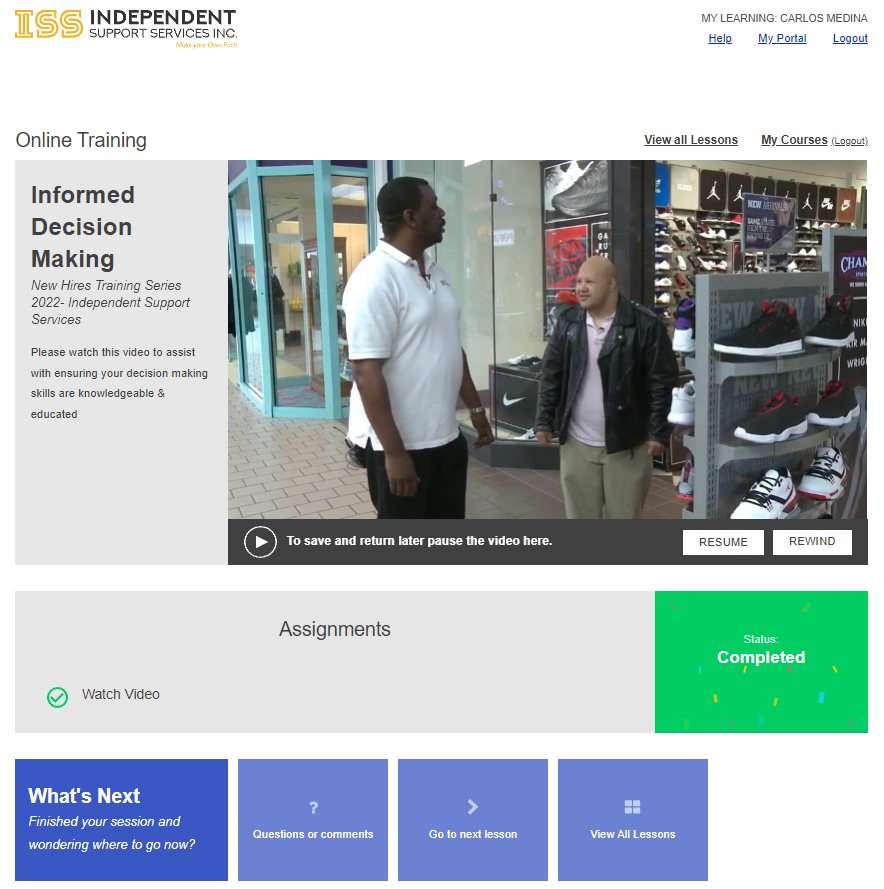
[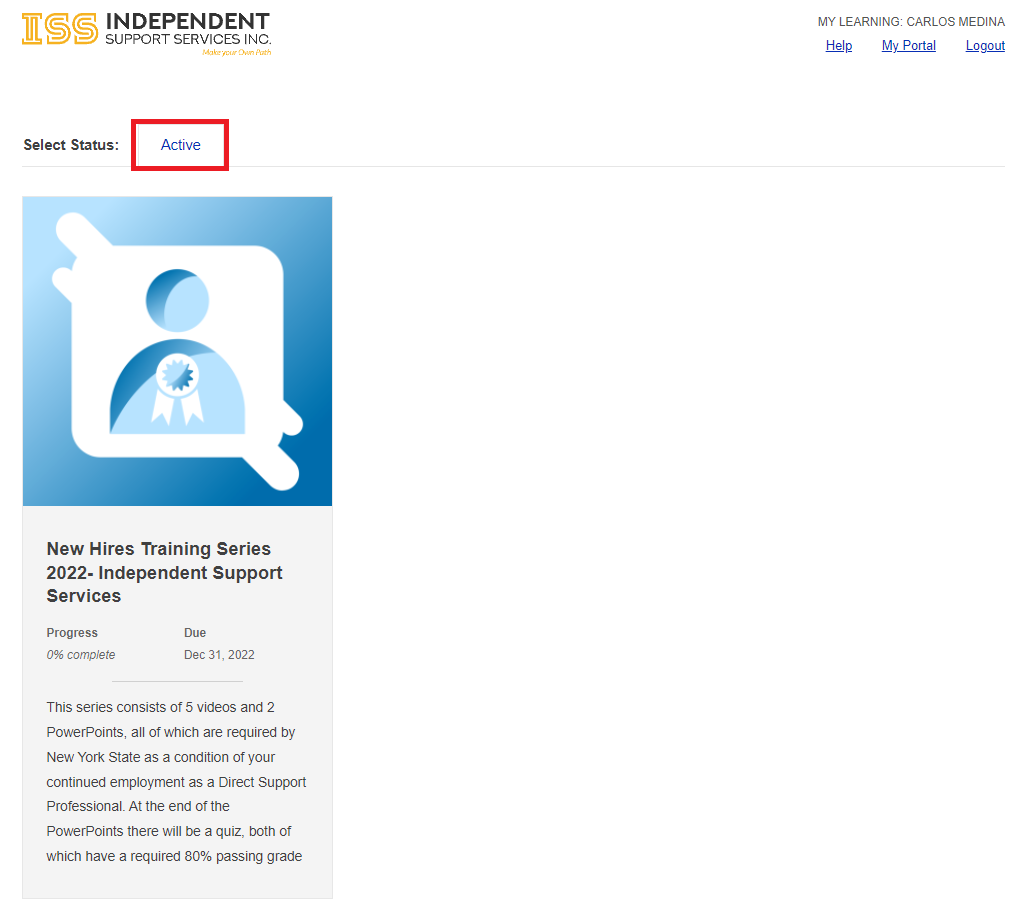](https://help.issny.org/uploads/images/gallery/2022-03/2nd-image-lms-course.PNG) To begin a lesson, click the desired lesson widget and it will begin. The Learning Management System will remember progress that has been made on each lesson and will resume where left off. 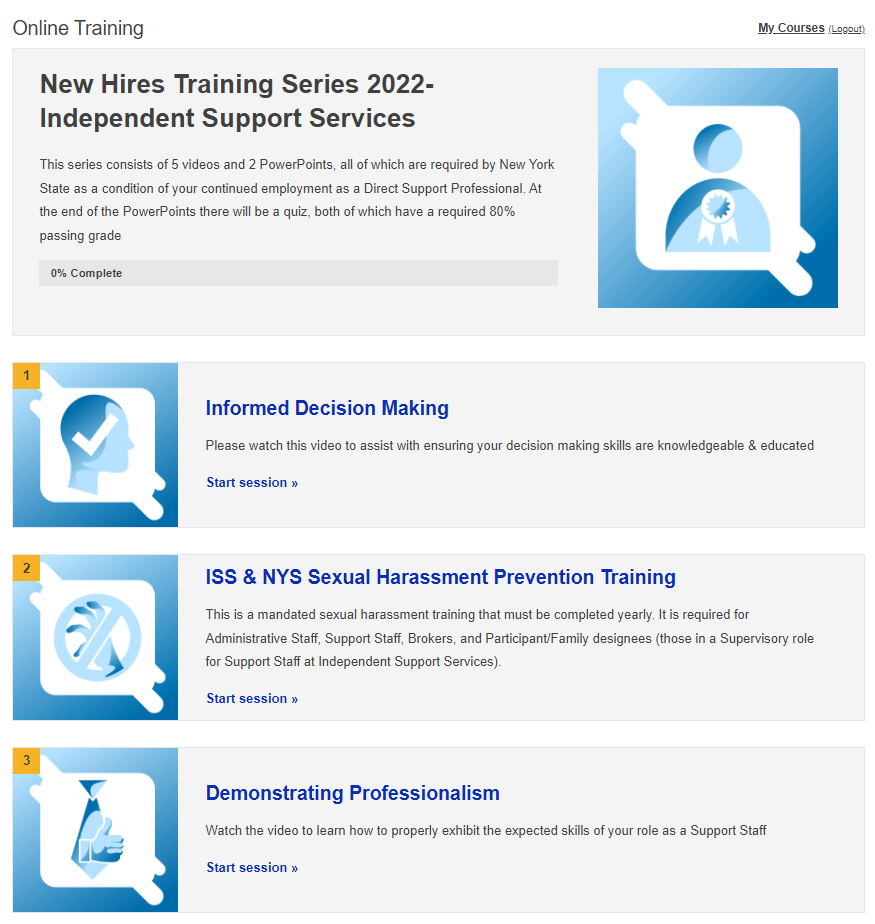 Complete the assignments to finish the lesson. Once all assignments have been completed, click the **Go To Next Lesson** button at the bottom of the page. Please note that quiz assignments are pass/fail and can be retaken as many times as needed.While watching videos, your progress is saved every two minutes. In the event that you have to re-log in because of a session timeout, closing a window, or other disconnection from the server, you can resume the video at the last saved spot.
Finishing video playback will unlock the video control bar.
[](https://help.issny.org/uploads/images/gallery/2022-03/2nd-image-lms-course2.PNG) #### Completion Certificates After completing a Course, if desired, you will have the option to download a certificate. To do so, click the “View All Lessons” button to open up the course that was just completed. Your green status bar will show 100% completion, with a blue button below stating “Download Certificate”. [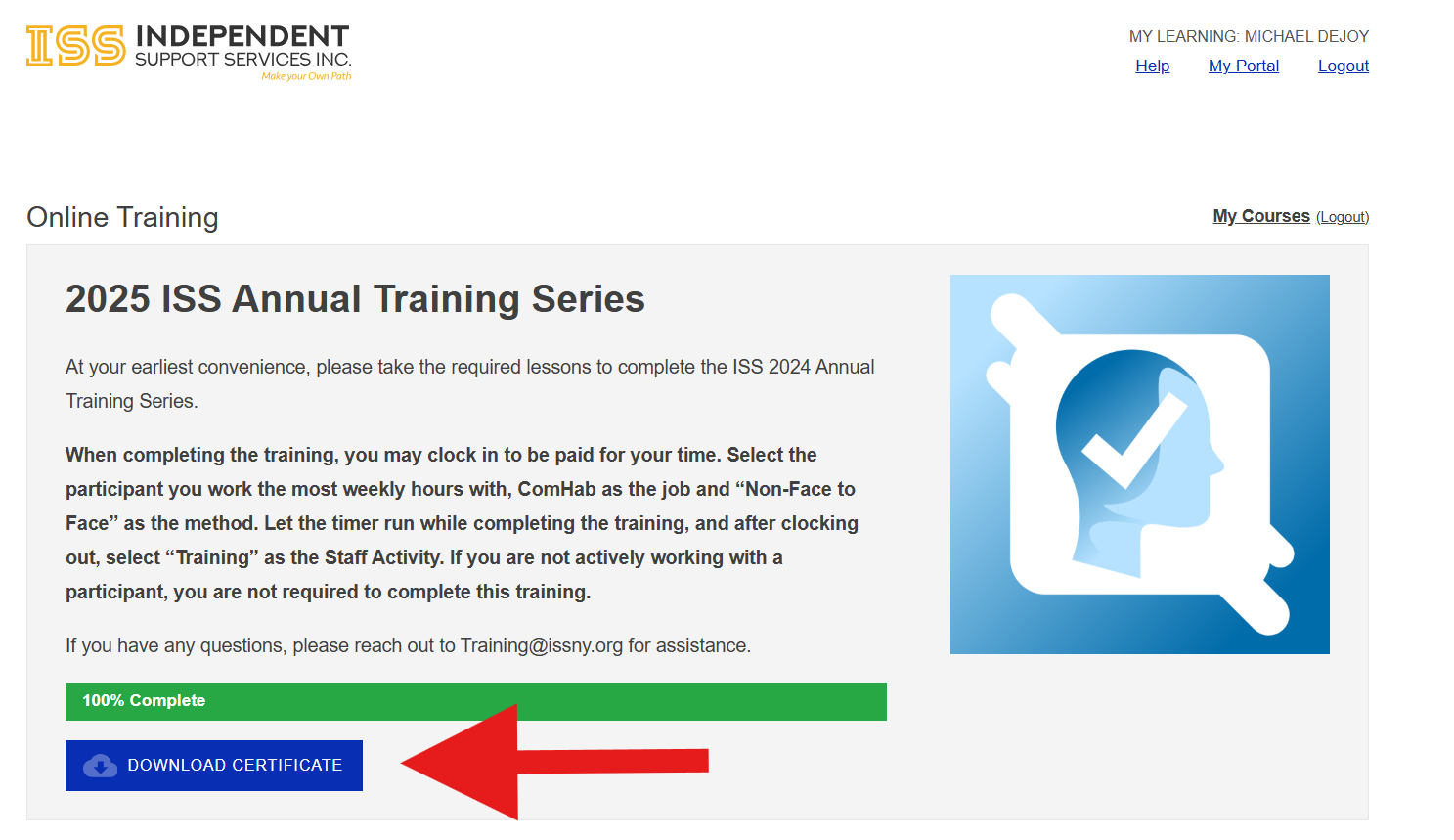](https://help.issny.org/uploads/images/gallery/2025-12/lms-completion-certificates-01.png) Clicking the button will open a new window containing your certificate of completion. [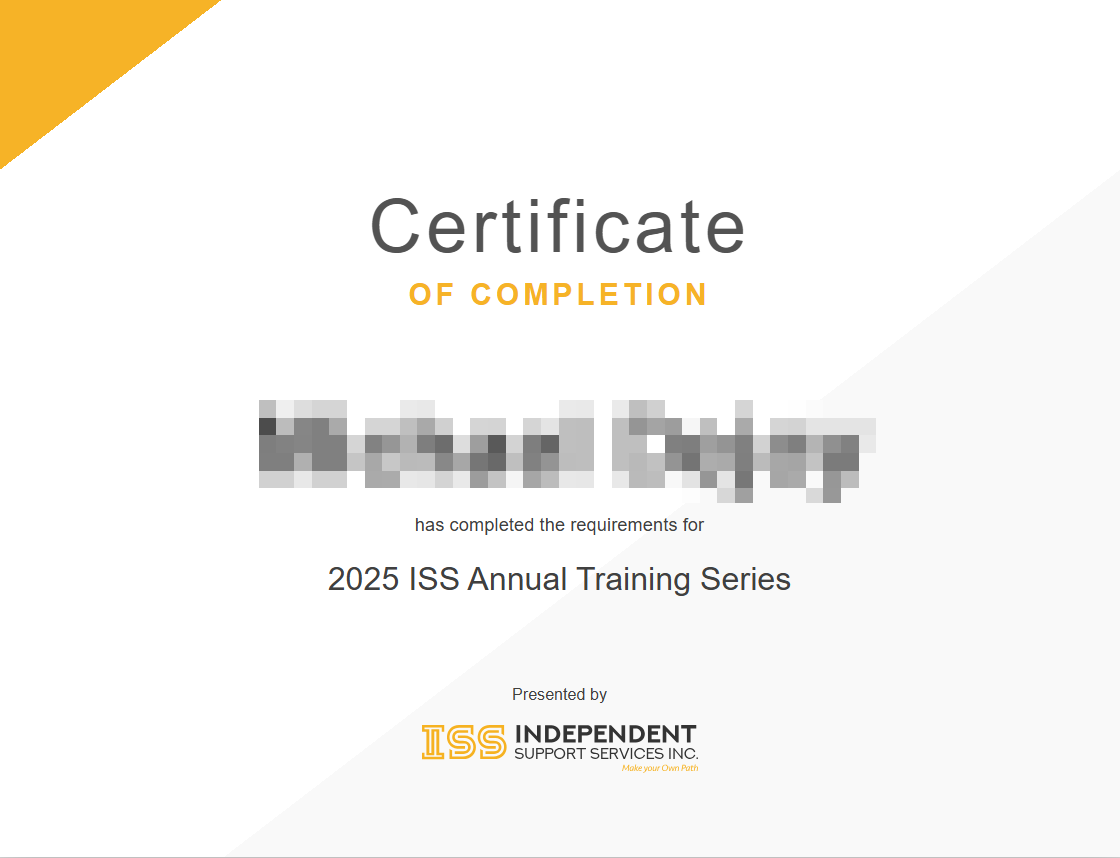](https://help.issny.org/uploads/images/gallery/2025-12/lms-completion-certificates-02.png) **Please be aware that certificates of completion are given at the end of the entire course, not after each individual lesson.** --- Updated 12/24/25.