Budget Summary Drill Down Guide
- Accessing Item Detail
- Budget Discovery (When & Which)
- Index Discovery (Who & What)
- Item Detail
- Overtime (OT)
- Paid Time Off (PTO)
- Request Documents
- FAQ
Accessing Item Detail
There are two avenues by which to find and view timesheet and expense details, as demonstrated by the infographic below: Budget Discovery and Index Discovery.
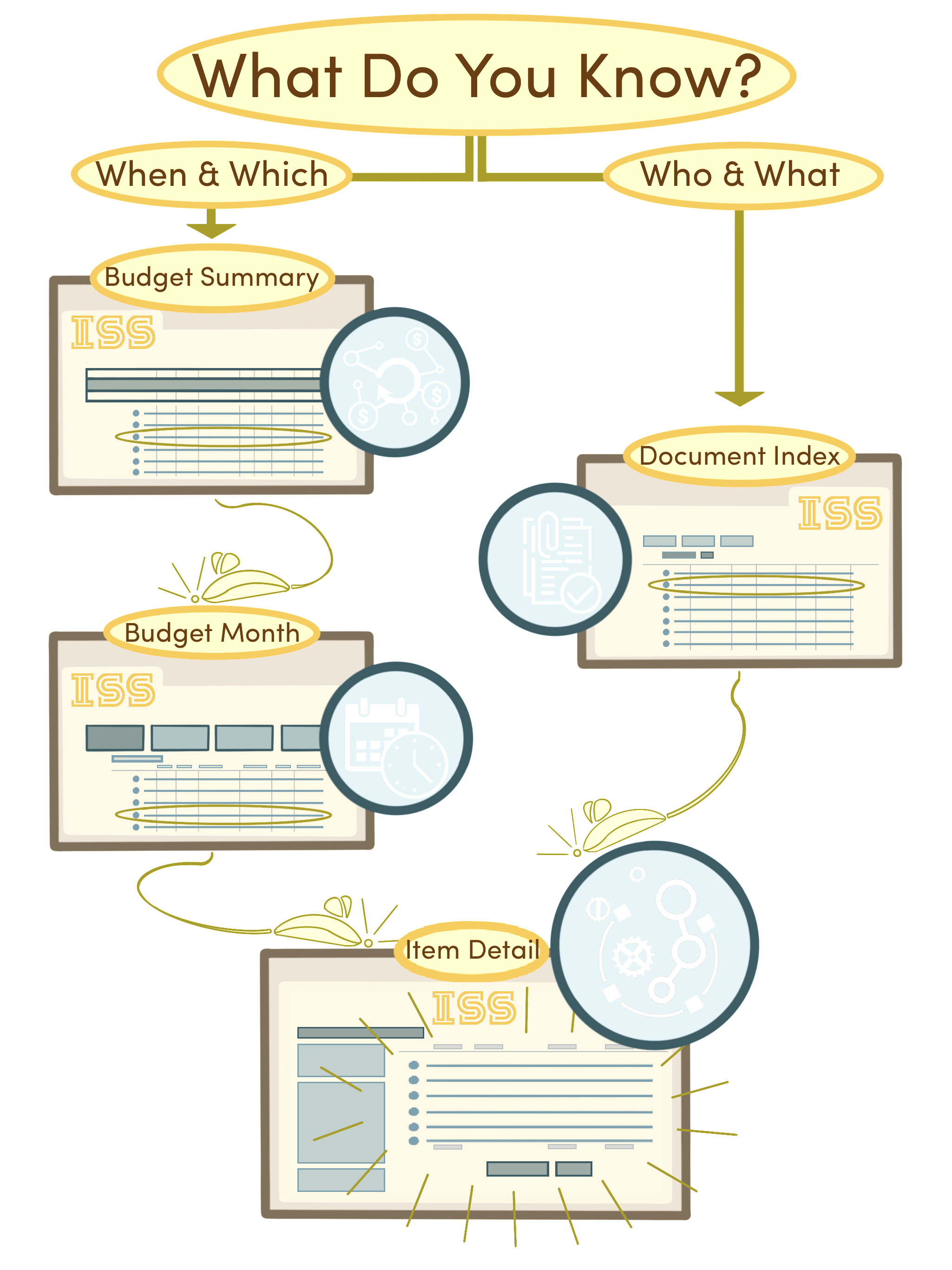
Budget Discovery (When & Which)
The Budget Discovery method can be used when the when (month, year) and which (budget line) of a timesheet or expense are known.
Budget Summary View
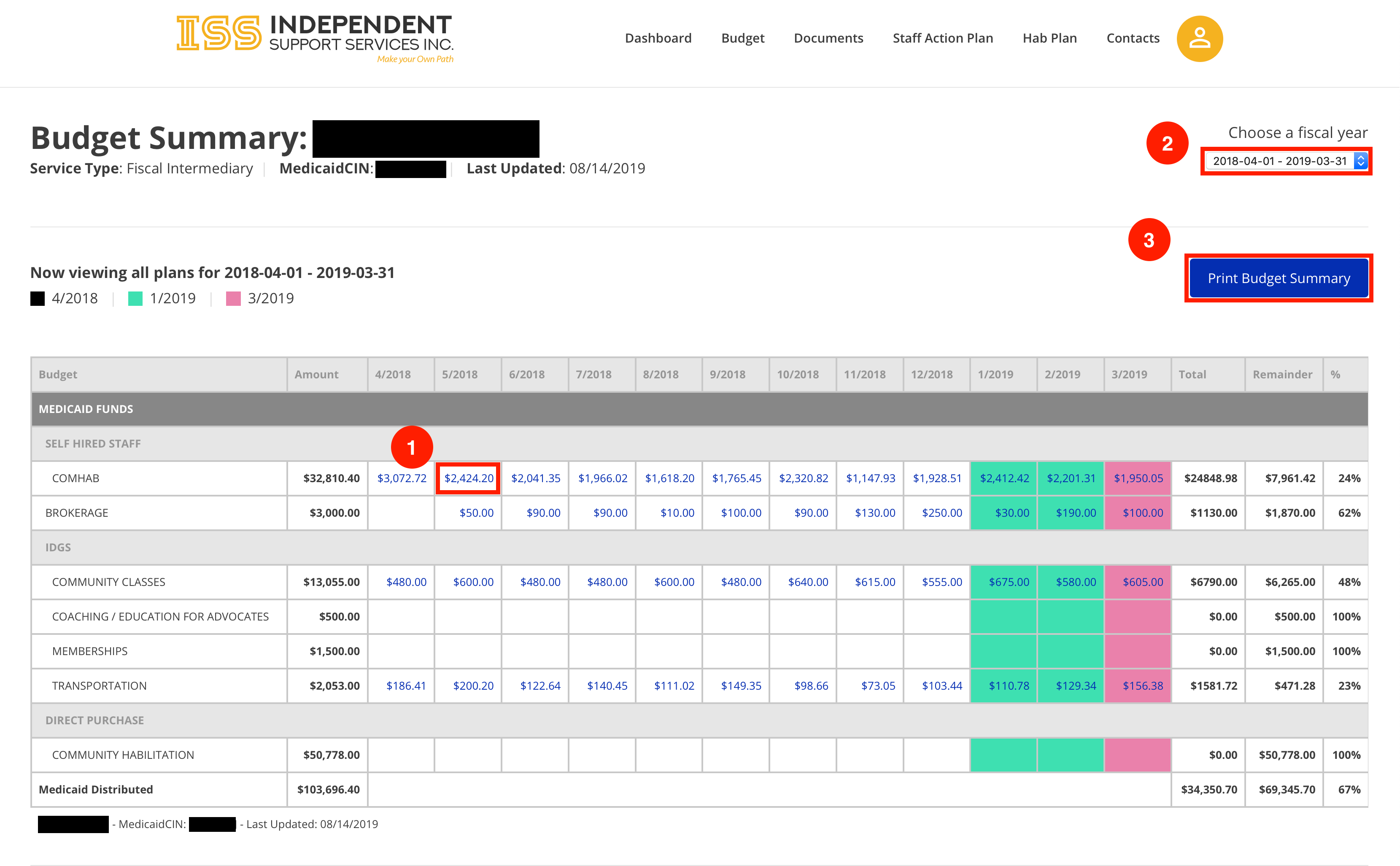
- Click any linked item to view the Budget Month page.
- Use the dropdown to change the fiscal year being viewed.
- Click Print to print the currently viewed Budget Summary
Budget Month View
The Budget Month view shows the intersection of a given budget line with a given month. It provides summary data and list of all items that contribute to the total of a given Budget Month.
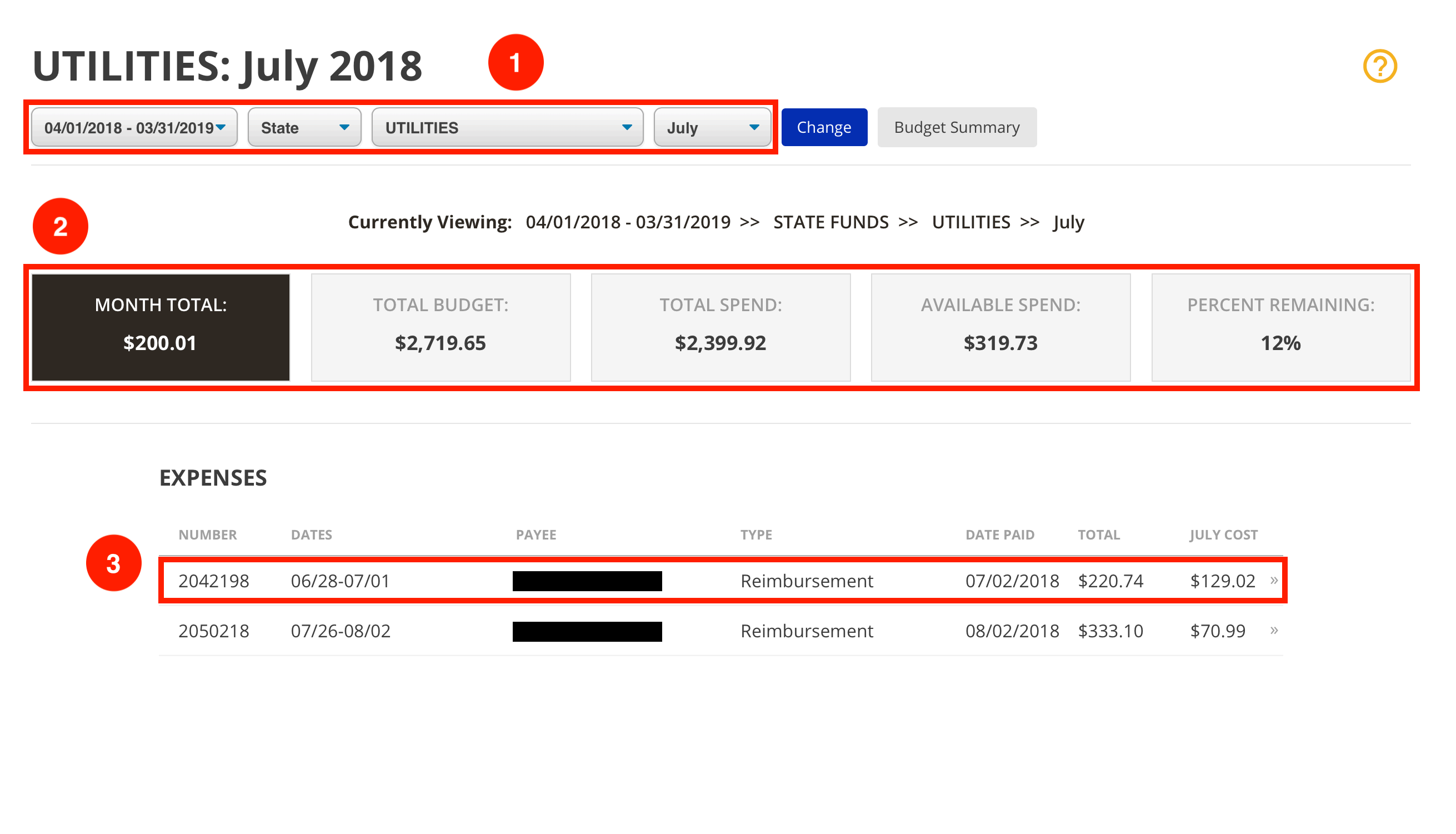
- Use the dropdowns to quickly navigate between fiscal years, fund types, budget lines, and months without returning to the Budget Summary.
*Click Change to refresh the page according to the new dropdown selections. - This section provides a summary of information for the given budget line and month. These include:
• Month Total - total dollar amount spent on the budget line in the currently Mth Ttl
• Total Budget - total dollar amount allocated for the budget line for the fiscal year
• Total Spend - total dollar amount spent on the budget line from the start of Ttl Sd
• Available Spend - total dollar amount remaining in the budget for the budget line for the fiscal year
• Percent Remaining - percent of the budget line’s Total Budget remaining for Pt Rii of Total Budget) - Select an item to view the Item Detail page.
Index Discovery (Who & What)
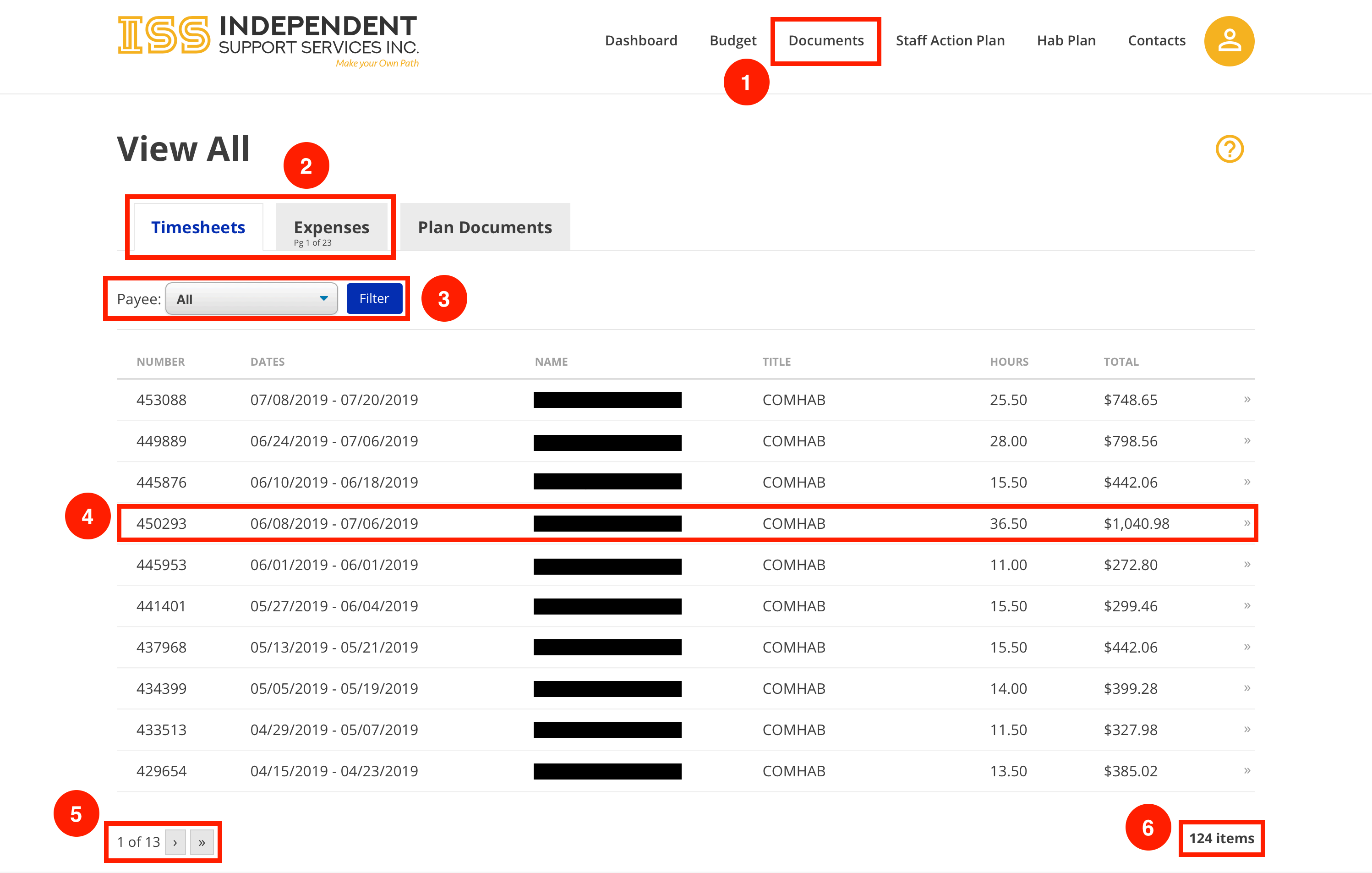
The Index Discovery method can be used when the who (name, payee) and what (timesheet or expense) are known.
Document Index View
Item Detail
The exact information displayed in the Item Detail will vary based on the type of item.
There are 6 (six) different types of items:
- Reimbursement Expenses
- Mileage Expenses
- Brokerage (previously Contractor Invoice) Expenses
- Timesheets
- Correction Expenses
- Adjustments (does not have a detail view)
Item Detail View
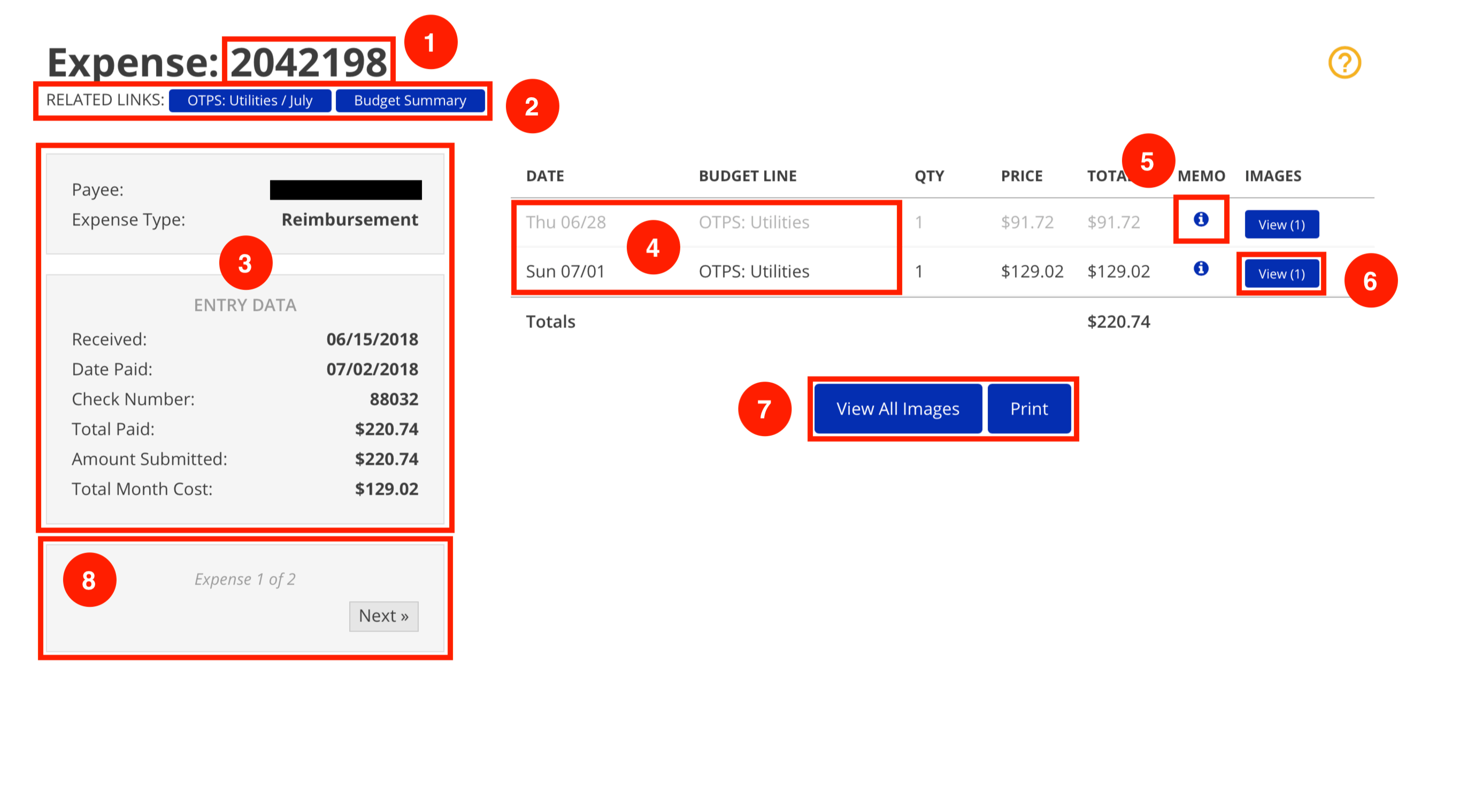
- The ID number of the expense or timesheet is listed at the top.
- Related Links will vary based on the method used to access the Item Detail.
- If accessed via the Budget Discovery method, the related links will include the Budget Summary and the Budget Month used to access the item.
- In the example shown, clicking the first related link (Budget Month link) would take you to the Budget Month view for OTPS: Utilities for July of the applicable fiscal year.
- If accessed via the Index Discovery method, the related links will include a link back to either all timesheets or all expenses, depending on the item type.
- If accessed via the Budget Discovery method, the related links will include the Budget Summary and the Budget Month used to access the item.
- Various summary data about the item is listed on the left. The data listed will
vary depending on the item type. - If accessed via the Budget Discovery method, some lines may appear gray.
Lines that belong to the selected Budget Month are shown in black. All other
lines are shown in gray. - If ISS has added a comment to a line, a memo button will appear on the line.
Click the memo button to read the comment. - If a line has any supporting document(s) (e.g. receipt), a View button will appear on the line. Click this button to view the image(s).
- Click View All Images to view all images associated with the item in a carousel.
- Click Print for a printer-friendly version of the Item Detail page.
- Use the navigation buttons to move between items in the selected Budget Month.
*These navigation buttons do not appear when Item Detail is accessed via the
Index Discovery method.
Overtime (OT)
How is OT displayed?
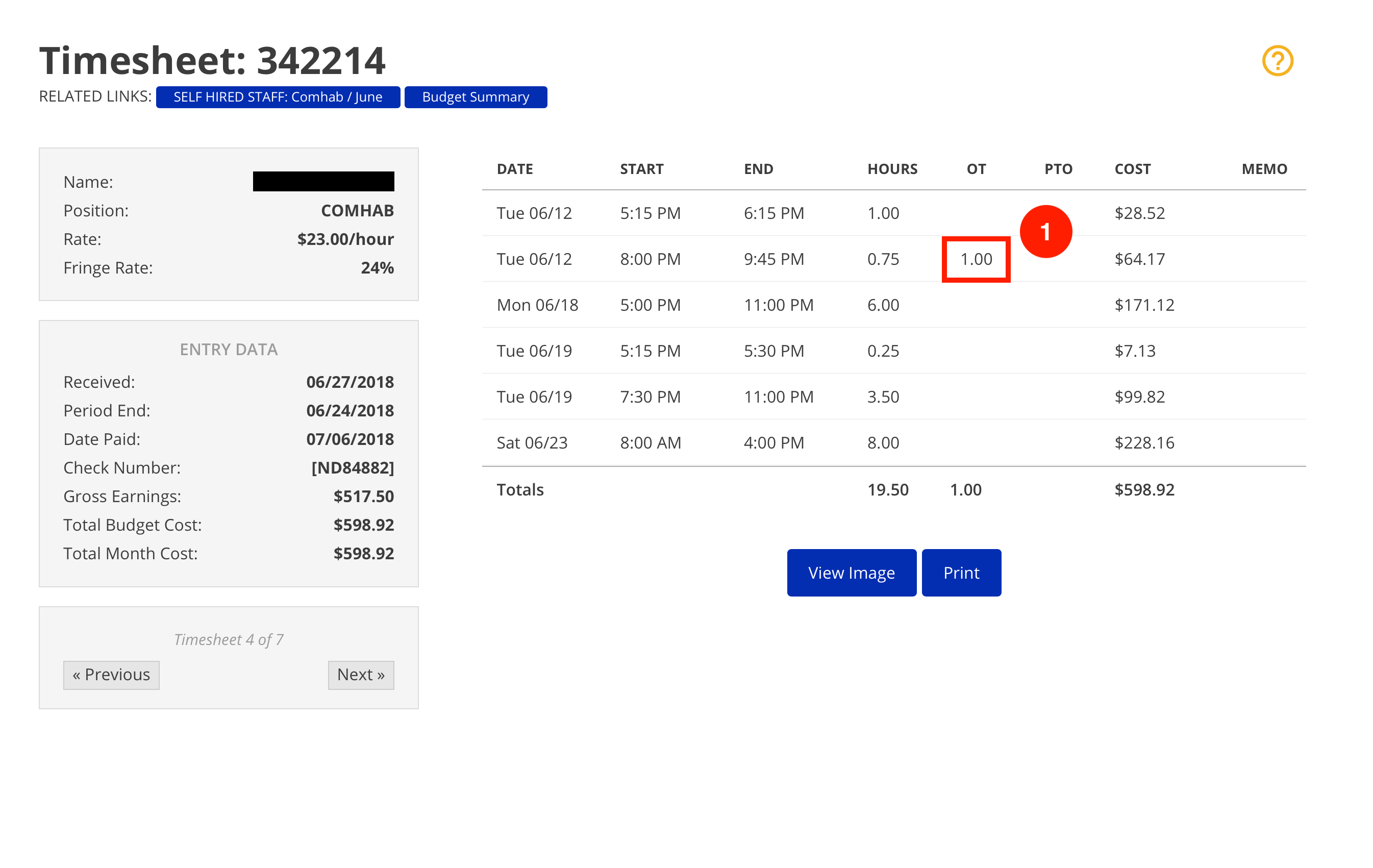
A timesheet containing OT can be identified only on the Item Detail view. A column titled "OT" will appear, with the number of OT hours listed for each line with OT.
How does OT affect the budget?
OT affects the budget just like any other line on a timesheet.
How is OT calculated?
OT hours are paid at time and a half, plus fringe. The formula below shows how the cost for a line with OT is calculated, along with an example using the numbers above.
Cost = [ (Regular Hours)(Rate)(1 + Fringe Rate) ] + [ (OT Hours)(1.5)(Rate)(1 + Fringe Rate) ]
Cost = [ (0.75)(23.00)(1 + 24%) ] + [ (1.00)(1.5)(23.00)(1 + 24%) ]
Cost = [ (0.75)(23.00)(1 + 0.24) ] + [ (1.00)(1.5)(23.00)(1 + 0.24) ]
Cost = [ (17.25)(1.24) ] + [ (34.50)(1.24) ]
Cost = (21.39) + (42.78)
Cost = 64.17
Paid Time Off (PTO)
How is PTO displayed?
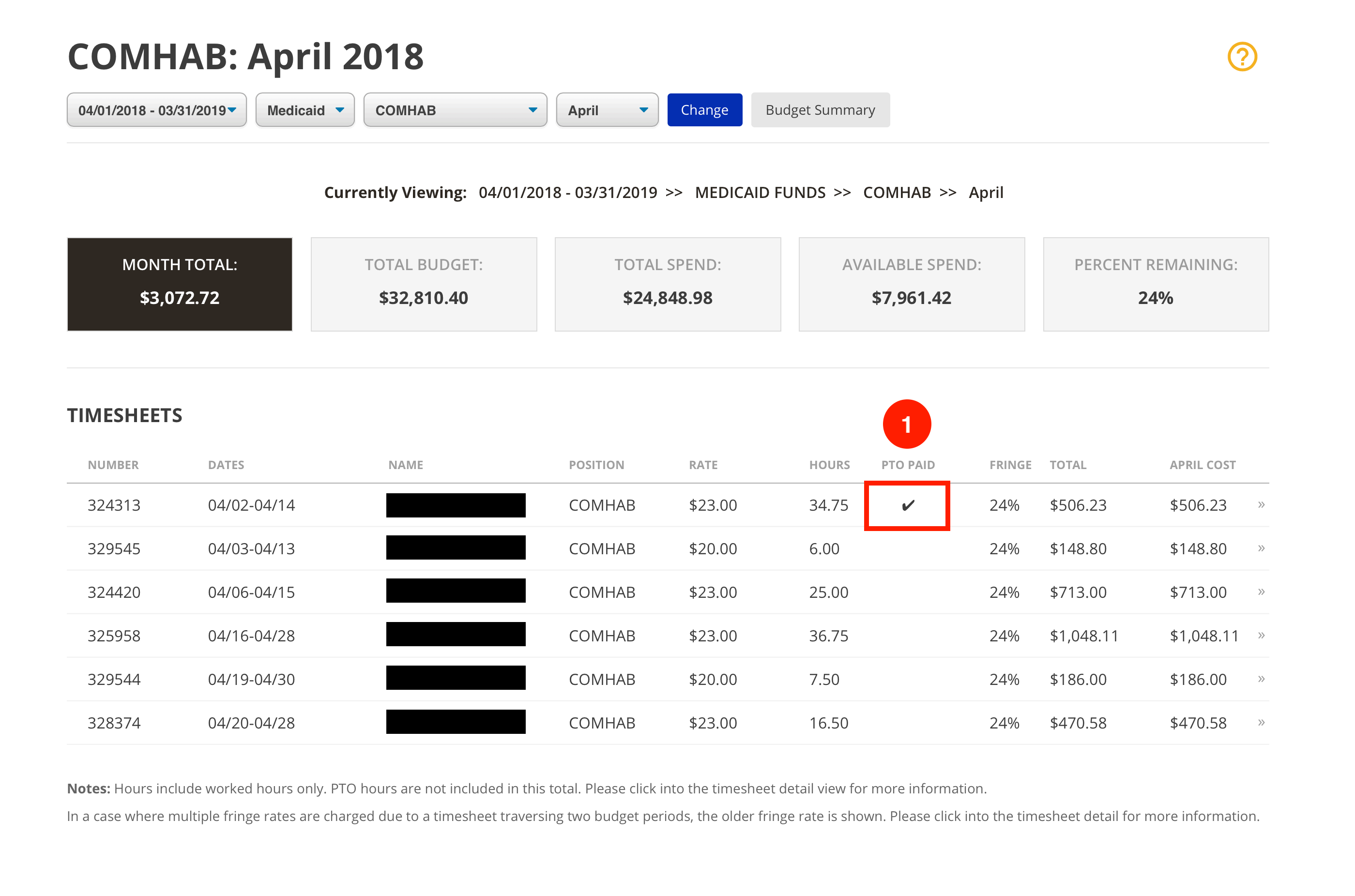
A timesheet containing PTO can be identified on the Budget Month view by a checkmark in the PTO Paid column.
A timesheet containing PTO can be identified on the Item Detail view by a checkmark in the PTO column.
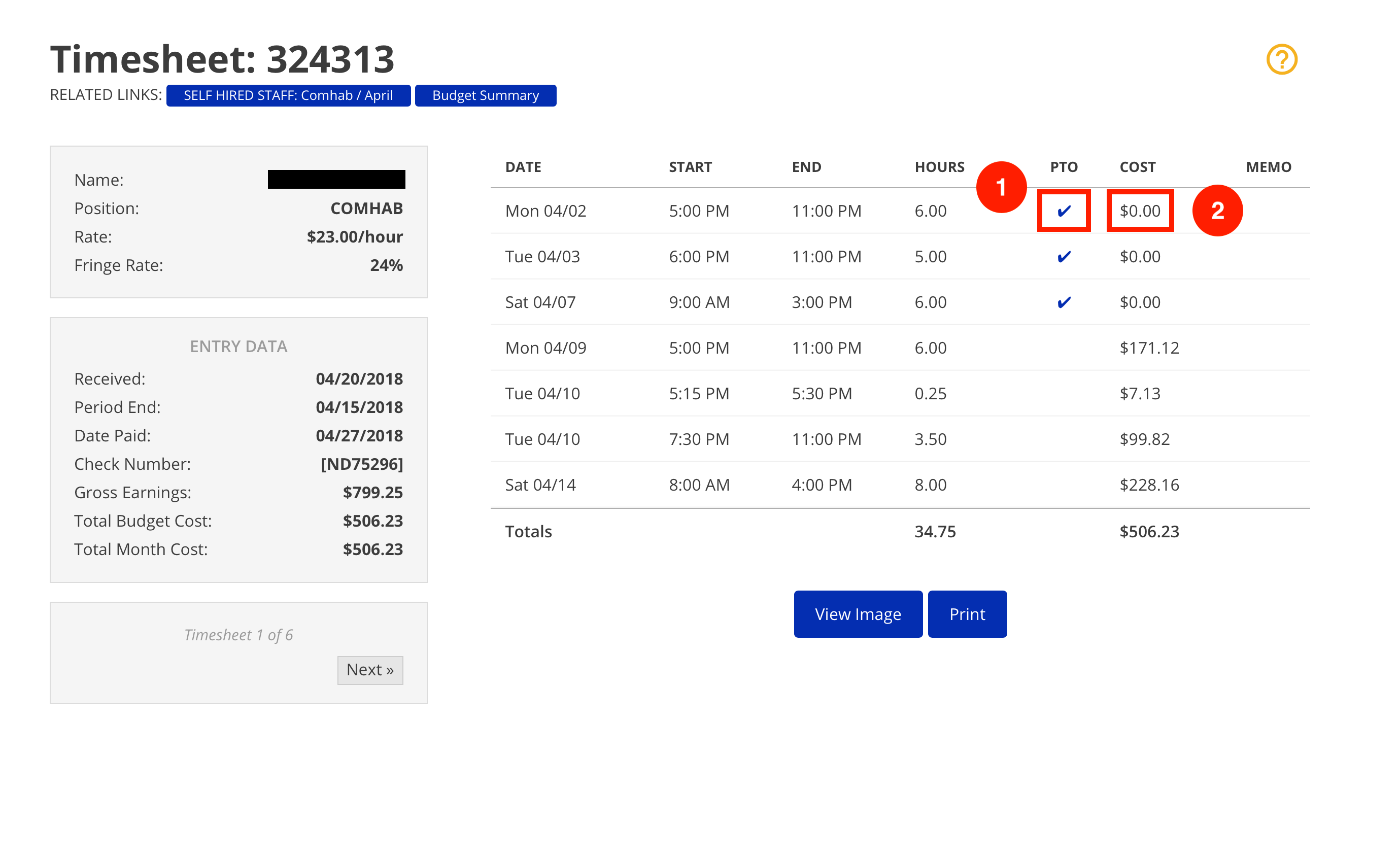
- Click the checkmark to view detail about the type of PTO.
- The cost for PTO is always $0.00. See “How does PTO affect the budget?” below for more information
How does PTO affect the budget?
Although the staff person is paid, PTO does not count against the budget, which is why the
cost for a PTO line is always $0.00.
Request Documents
Due to the massive number of source documents (multiple millions) associated with the drill down, some of them have not yet been moved to a location readily accessible to the portal. In this event, a Request Documents button will appear rather than the View All Images button. Clicking this button sends a request to the system for those specific documents to be retrieved and made available to the portal. The requested documents will be available in the portal no later than the next day.

FAQ
Why is the Amount Submitted different from the Total Paid?(Reimbursement Expenses)
There are two main reasons why Amount Submitted and Total Paid for a Reimbursement Expense may not match.
-
All lines were paid. However, the sum that was submitted is different from the sum that ISS calculated.
-
Not all lines were paid. Certain lines may not be paid for various reasons. In these cases, click the memo button on the line to see a note about why the line was not paid.
Why is the Amount Submitted different from the Total Paid? (Mileage Expenses)
There are three main reasons why Amount Submitted and Total Paid for a Mileage Expense may not match.
-
The most common reason is a rounding issue. Lines of a mileage expense are calculated on a per-line basis (miles * rate). The totals of the lines are then summed. You may calculate a slightly different number if you multiply the rate by the sum of the miles.
-
The rate used on the submitted expense may have been the incorrect rate.
-
Certain lines may not be paid for various reasons. Click the memo button on the line to see a note about why the line was not paid.
Why is Gross Earnings different from the Total Budget Cost (Timesheets)
Gross Earnings is the amount paid to the staff person. Total Budget Cost is the amount that was charged to the budget. Gross Earnings does not include fringe, while Total Budget Cost does include fringe, so Total Budget Cost will usually be higher than Gross Earnings.
What do the different colored columns in the Budget Summary mean?
Each new column color on the Budget Summary denotes an amendment to the budget for that fiscal year.
How do I download documents associated with a timesheet or expense?
To download documents associated with a timesheet or expense: