Monthly Summary Notes
This section explains how to submit and view Monthly Summary Notes through the portal.
- Submitting Monthly Summary Notes with ISS' AI Summary Helper
- Submitting Monthly Summary Notes
- Viewing Monthly Summary Notes
- Monthly Summary Notes FAQ
Submitting Monthly Summary Notes with ISS' AI Summary Helper
Monthly Summary Notes act as progress indicators of the work being done as part of a participant's Staff Action Plan.
The MSN widget on the Portal home page shows any Monthly Summary Notes that are ready to be completed. The new MSN process brings the month's activities, summary, and callouts together in one place. It can also create a draft response for each question to help you get started.
The draft is based on the information shown in the MSN. Be sure to read each response and make any needed changes before submitting it.
Images in this guide use fictional names and sample information.
The MSN Widget
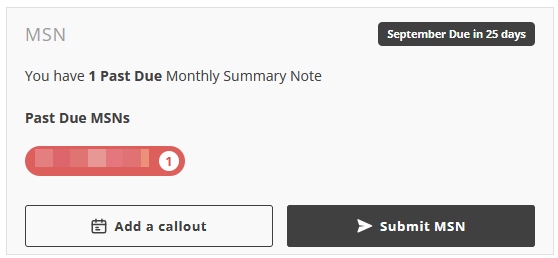
The MSN widget is located on the Portal home page. It shows:
- The number of past due Monthly Summary Notes
- The participant who needs a Monthly Summary Note
- Add a callout button
- Submit MSN button

Adding a Callout
A callout is a short note about something that happened during the month. You can add a callout for an accomplishment, a new skill, an important event, or a concern. You cannot add callouts for past MSNs.
Callouts are only available to the Portal user who creates them. If another Portal user has permission to do an MSN for the same participant, they will not see callouts created by another user.
Callouts are included with the other information used to create draft responses so make sure the callout is for the correct participant, Bill Type, and month.
From the home page:
- Click Add a callout in the MSN widget.
- Check the month shown at the top of the window.
- Select the Participant.
- Select the Bill Type.
- Enter the note in the Callout field.
- Click Add callout.
Use clear and specific information in a callout. Remember that the information may appear in a draft Monthly Summary Note.

Step By Step Instructions
From the home page:
- Click Submit MSN in the MSN widget.
- Select the participant from the dropdown.
- Find the Monthly Summary Note you want to complete.
- Click the row for that Bill Type and month.
A red Past Due label shows if that Monthly Summary Note is overdue. The number of callouts for the month is shown on the right.

Reviewing the Monthly Information
The Monthly Summary Note opens with three tabs: Activity, Summary, and Callouts. The number beside each tab shows how many items are available.
Review all three tabs before completing the questions.
Activity
The Activity tab shows the activities worked on during the month. It also shows the hours, number of times, and the staff who provided support.

Summary
The Summary tab gives an overview of the support provided during the month.

Callouts
The Callouts tab shows the callouts added for the month. Check that each callout belongs to the Monthly Summary Note you are completing.

When you are finished reviewing the information, click Next.
Completing the Questions
There are a few questions to complete. The circles and page number at the bottom of the window show your progress.
For each question:
- Read the question.
- Click Generate Draft.
- Wait for the response to appear.
- Read the entire response.
- Make any needed changes in the response field.
- Click Next to continue.

The draft may include information from the Activity, Summary, and Callouts tabs. If you see something you did not expect, go back and check those tabs. Correct anything that is inaccurate before continuing.
Click Previous if you need to return to an earlier question.
Submitting the Monthly Summary Note
On the last question:
- Read the question and the full response.
- Make any needed changes.
- Click Submit MSN.

Only one Monthly Summary Note per month and Bill Type can be submitted. After it is submitted, it will no longer show as available in the MSN widget.
You can still add callouts when there are no Monthly Summary Notes ready to submit.
Disclaimer: All names displayed in the above screen shots are fictional characters. No identification with actual persons (living or dead) is intended or should be inferred.
Created 10/01/26.
Submitting Monthly Summary Notes
We have released a new MSN AI Summary Helper! Visit Submitting Monthly Summary Notes with ISS' AI Summary Helper for more information. We'll be leaving the old MSN feature online for now.
A Monthly Summary Note must be submitted for each Budget Group (ComHab and SEMP) for each month that support staff has worked a ComHab or SEMP job for a participant. For example, if a participant has staff working Job Developer and ComHab during July 2020, two different Monthly Summary Notes will need to be submitted for that month, one for SEMP (Job Developer) and one for ComHab.
A Monthly Summary Note for a given month can be submitted no earlier than the last day of that month. For example, a Monthly Summary Note for September 2020 can be submitted anytime on or after September 30, 2020, but not before.
Step By Step Instructions
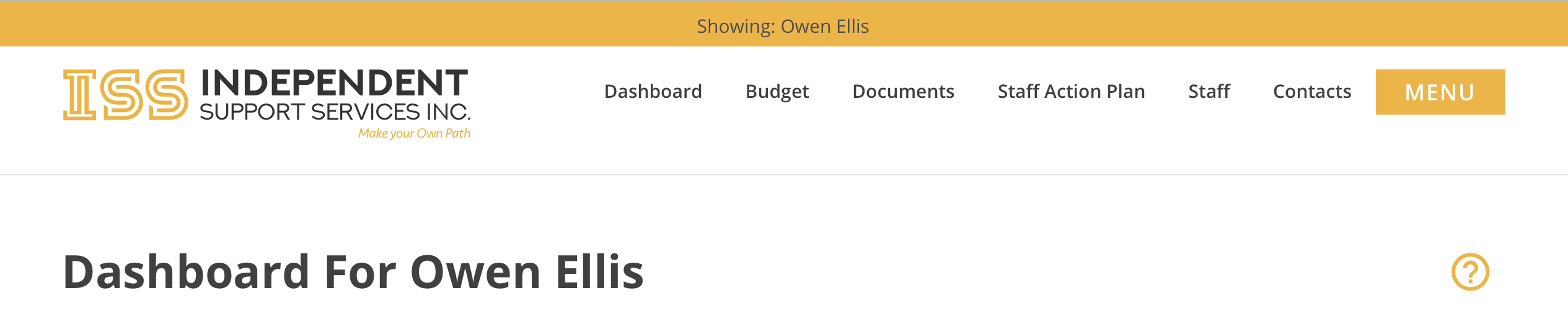
To submit Monthly Summary Notes, first navigate to the Plan Docs section of the participant for whom you are submitting.
From the home page,
- Select the participant.

- Select the Documents tab.

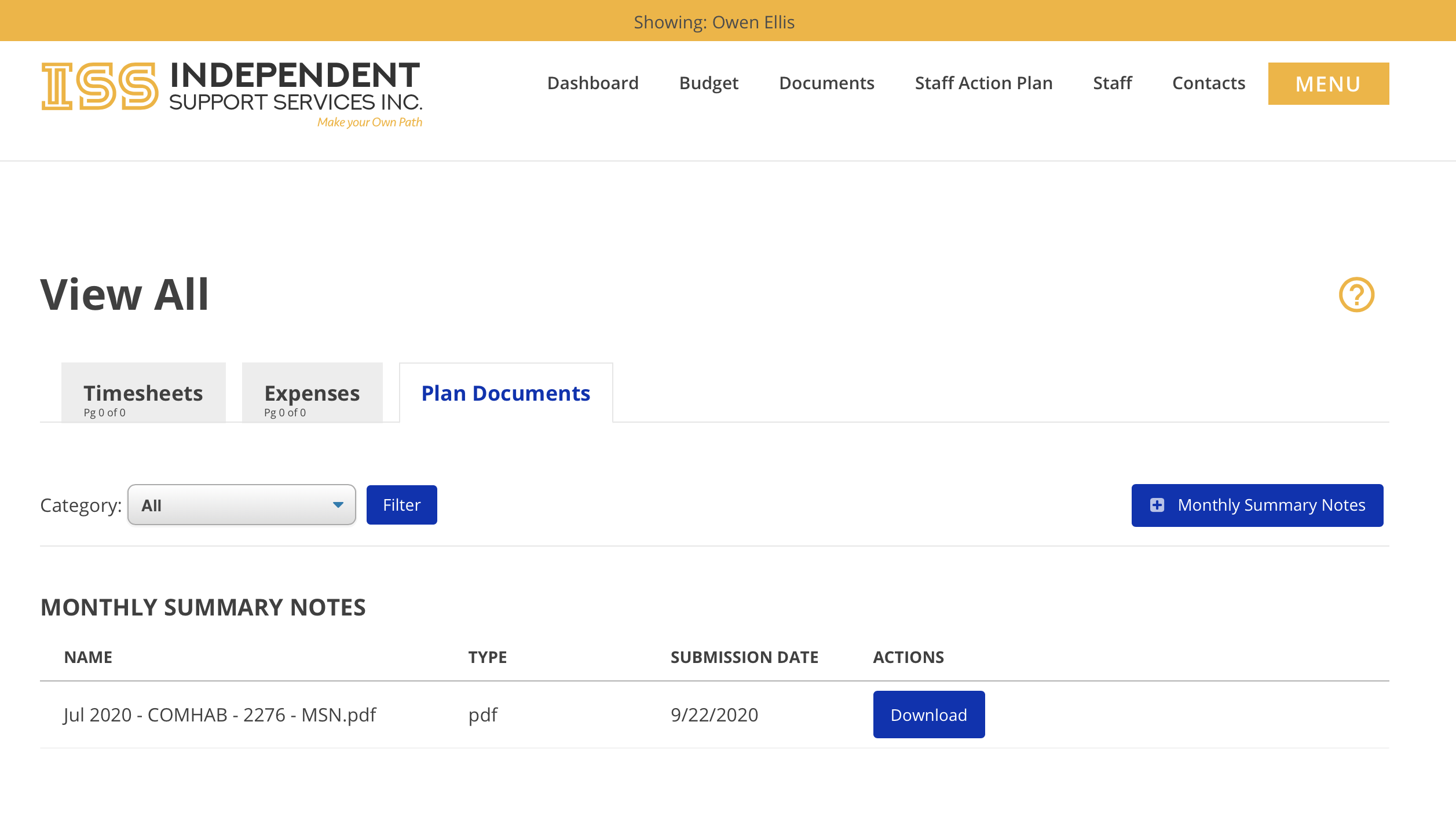
- Select the Plan Docs tab.

- Click + Monthly Summary Notes.
- Fill in Month/Year and Budget Group.
- Month/Year must be in the form MM/YYYY.
- Budget Group is either ComHab or SEMP.
- Don't see what you're looking for? See Monthly Summary Notes FAQ.
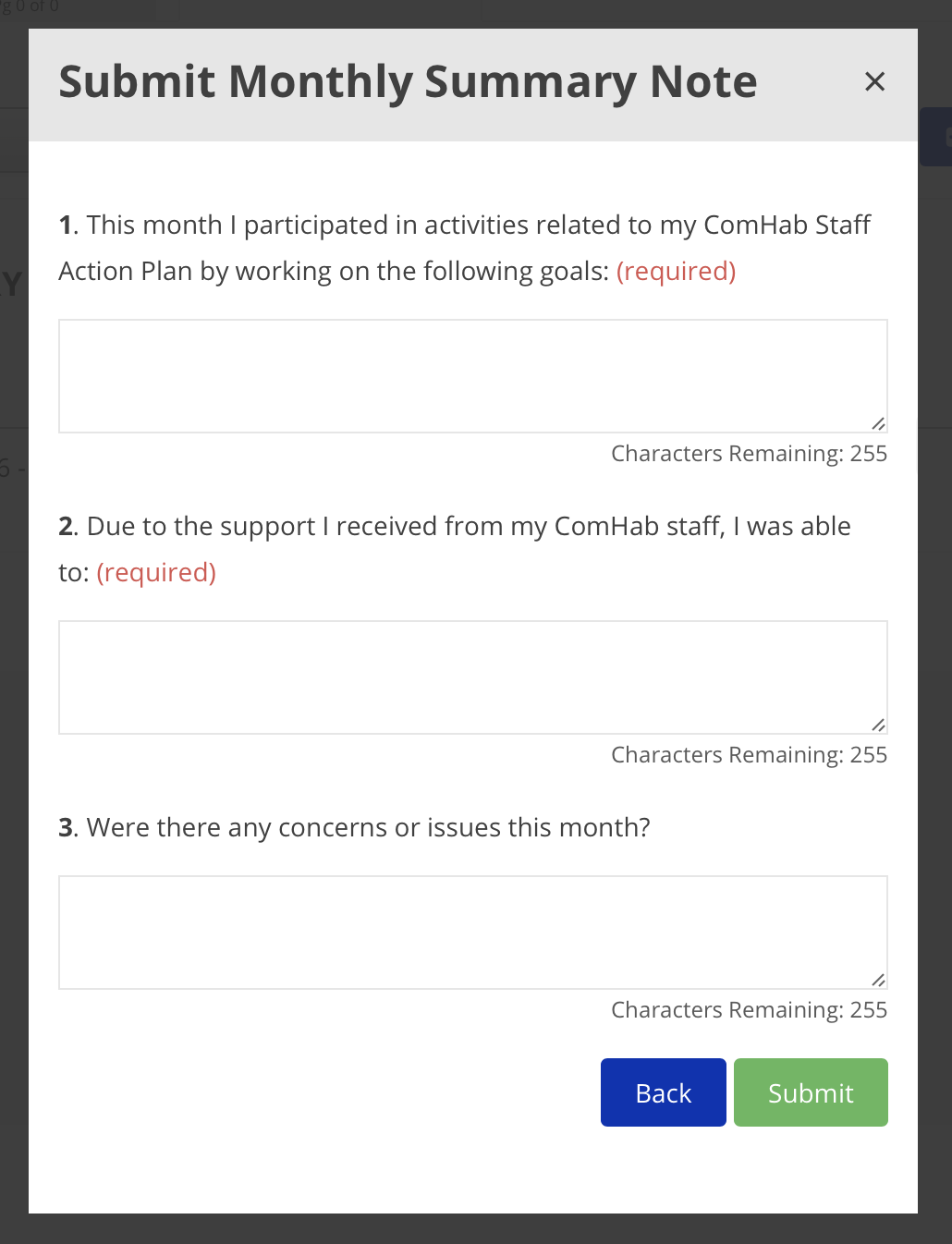
- Click View Draft to view a draft of the Monthly Summary Note.

- Click Next to complete the form.
- Fill in all required fields.
- Only one Monthly Summary Note per month per Budget Group is allowed.

- Click Submit when done.


The participant's SD Coordinator will receive an email notification to review the Monthly Summary Note.
The person who submitted the Monthly Summary Note will receive a confirmation email when the SD Coordinator either approves or rejects the Monthly Summary Note. If it is rejected, a new one will need to be submitted.
Disclaimer: All names displayed in the above screen shots are fictional characters. No identification with actual persons (living or dead) is intended or should be inferred.
Updated 10/01/26.
Viewing Monthly Summary Notes
Now that we've released our MSN AI Summary Helper, how you view MSNs will be changing. We will update this help document when that happens.
Monthly Summary Notes show under the Plan Docs tab in the Documents section of a participant.
From the home page,
- Select a participant.
- Select the Documents tab.
- Select the Plan Docs tab.
- To view one of the listed Monthly Summary Notes, click Download.
What shows on the downloadable PDF?
Disclaimer: All names displayed in the above screen shots are fictional characters. No identification with actual persons (living or dead) is intended or should be inferred.
Updated 10/01/26.
Monthly Summary Notes FAQ
General Questions
What are Monthly Summary Notes?
Monthly Summary Notes act as progress indicators of the work being done as part of the participant's Staff Action Plan.
Why are Monthly Summary Notes required?
Monthly Summary Notes are part of the feedback mechanism required by law to be eligible to bill Medicaid.
Submission Questions
When is a Monthly Summary Note due?
Monthly Summary notes are due on the first day of the month for services provided the previous month. For example, September's MSN is due on October first.
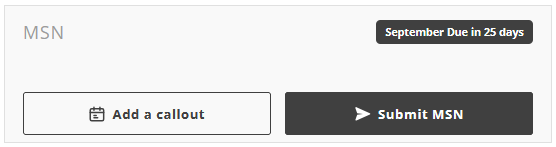
A count down will show on the upper right of the MSN widget on your Portal home page. That count down will show you how long before the currently due MSN is considered past due. The count down starts on the first of the month.
ISS requests that MSNs be submitted by the 10th of the following month. Please contact your Self-Direction Coordinator if you have any questions regarding due dates and compliance.
How often do I need to submit Monthly Summary Notes?
A Monthly Summary Note must be submitted for each Bill Type / Budget Group (ComHab and SEMP) for each month that support staff work a ComHab or SEMP job for a participant.
Billable work is what triggers the requirement for an MSN. If PTO is the only thing paid during a month, then an MSN is not required.
For example, if a participant has support staff who worked hours for Job Developer and ComHab during September 2020, two different Monthly Summary Notes need to be submitted for that month: one for SEMP (Job Developer) and one for ComHab.
When can I submit a Monthly Summary Note?
A Monthly Summary Note can be submitted no earlier than the first day of the following month. For example, September's MSN is due on October 1st.
The old Monthly Summary Note feature allowed MSNs to be completed on the last day of the month. The MSN AI Summary Helper has been aligned better with OPWDD requirements and ISS business rules as noted above.
If staff only worked near the end of a month, a Monthly Summary Note may not appear to be needed until ISS has finished processing and billing the payroll that covers all the dates at the end of the month. Depending on the calendar and how late in the month the staff worked, the need for an MSN may not appear until after the first or second staff payday of the following month.
When is a Monthly Summary Note Past Due?
A Monthly Summary Note is past due at the end of the month following the month of service. For example, September's MSN is due on October 1st and is past due on November 1st.
The MSN widget on your Portal home page will let you know if you have any past due MSNs. You will see a note that tells you how many are past due and you will see a list of the Participants with past due MSNs in red ovals with the number of MSNs that are past due indicated on the right in a white circle.
Who can submit Monthly Summary Notes?
The following can submit Monthly Summary Notes, if they have a portal account:
- Participant
- Primary Contact
- Parent/Guardian (if designated as an approver)
- Family/Circle Contact (if designated as an approver)
- Support Broker (if designated as an approver)
To designate someone as an approver, contact your SD Coordinator.
Why don't I see the MSN widget or Submit MSN button?
You must be assigned the permission to submit a Monthly Summary Note for a given participant. If you believe you should have access, but do not see the MSN options, reach out to your SD Coordinator.
What is a "Draft" Monthly Summary Note?
The "draft" Monthly Summary Note shows a list of all the activities on the Staff Action Plan that was active during the month/year selected for the Bil Type / Budget Group selected. If multiple Staff Action Plans were active, the activities for each will be shown. If the selected month/year falls before the participant's first Staff Action Plan, activities from the oldest Staff Action Plan on file will be shown.
What shows on the PDF version of the Monthly Summary Note?
The downloadable PDF of the Monthly Summary note shows a list of all the activities on the Staff Action Plan that was active during the month/year selected for the Bil Type / Budget Group selected, as well as the responses provided to each question. If multiple Staff Action Plans were active for the month/year and Bill Type / Budget Group selected, the activities for each will be shown. If the selected month/year falls before the participant's first Staff Action Plan, activities from the oldest Staff Action Plan on file will be shown.
Bill Type and Budget Group Questions
What is a "Bill Type" or "Budget Group"?
Bill Type (on the new MSN with AI Summary Helper) or Budget Group (on the old MSN feature) is related to the participant's Budget Summary. Bill Type / Budget Group is what is used to bill Medicaid, and can be the parent to other budget lines. For instance, a number of budget lines are all included under the IDGS Budget Group.
For the purposes of Monthly Summary Notes, the only Bill Types or Budget Groups that apply are ComHab and SEMP.
The Bill Type or Budget Group I'm looking for doesn't show up. What do I do?
The values in the Bill Type and Budget Group dropdown are based on past and currently active support staff for the participant. If, for instance, SEMP does not show up as an option in the dropdown, that means the participant does not currently have a support staff hired into a SEMP job role.
If the Bill Type or Budget Group you are looking for doesn't show as an option, contact ISS People Services at peopleservices@issny.org.
Why is a Bill Type or Budget Group I no longer have still showing?
The values in the Bill Type and Budget Group dropdown are based on past and currently active support staff for the participant. If you previously had both ComHab and SEMP in your plan and staff working those jobs, you will continue to see both options even if one of them is no longer in your plan.
Both choices must remain active to allow a Monthly Summary Note to be created for any that are due currently as well as might not have been done in the past and are still due.
Updated 10/07/26.