# Portal Basics

Information about getting up and running on the portal.

# Ask Kelly! Your Portal AI Assistant

[![ask_kelly_portal-button.png](https://help.issny.org/uploads/images/gallery/2026-04/scaled-1680-/ask-kelly-portal-button.png)](https://help.issny.org/uploads/images/gallery/2026-04/ask-kelly-portal-button.png)ISS' Portal AI Assistant Kelly went live in April 2026. Kelly is ISS' chat bot and she is available 24/7 to answer your questions on the Portal.

### Who has access to Kelly?

All Portal users have access to Kelly once they are logged in.

### How do you access Kelly?

Kelly is located on the bottom right of the Portal's footer. Kelly will show after you have logged in and is on all pages except those where she would block what you need to process on the screen such as the eTime shift screens and the expense upload form.

### [![ask_kelly_portal-01.png](https://help.issny.org/uploads/images/gallery/2026-04/scaled-1680-/ask-kelly-portal-01.png)](https://help.issny.org/uploads/images/gallery/2026-04/ask-kelly-portal-01.png)How does it work?

Just click on the Ask Kelly! button and the chat window will open.

[![ask_kelly_portal-02.png](https://help.issny.org/uploads/images/gallery/2026-04/scaled-1680-/ask-kelly-portal-02.png)](https://help.issny.org/uploads/images/gallery/2026-04/ask-kelly-portal-02.png)

### Do you have an example?

<iframe allowfullscreen="allowfullscreen" frameborder="0" height="450" src="//player.vimeo.com/video/1185498704" title="video player" width="800"></iframe>

### What are those buttons at the top of the chat window?

[![ask_kelly_portal-controls.png](https://help.issny.org/uploads/images/gallery/2026-04/scaled-1680-/ask-kelly-portal-controls.png)](https://help.issny.org/uploads/images/gallery/2026-04/ask-kelly-portal-controls.png)

There are three buttons at the top right of the *Help Assistant* chat window. All three are not always visible.

#### (1) Clear chat

Kelly will remember the questions that you've asked and the answers that she has provided. This allows you to continue the conversation with her and ask follow-up questions. If you want her to forget any previously asked questions and start a new conversation, you can click the *Clear chat* button.

#### (2) Shrink / Expand

The *Help Assistant* chat window will automatically size based on the device you are using. This button will show as either *Shrink* or *Expand* depending on the current size of the window. If the window is large and you want to make it smaller, click *Shrink*. If the window is small and you want to make it larger, click *Expand*.

#### (3) Minimize

Clicking *Minimize* allows you to hide the *Help Assistant* chat window from view. You can minimize the window and open it up again on another page of the Portal to continue your conversation.

### Do I have to rate the answers?

No, but it would be helpful if you did.

After each answer, you will get the option to "rate this answer" with a thumbs up for "this was helpful" or a thumbs down for "this wasn't helpful."

[![ask_kelly_portal-rate.png](https://help.issny.org/uploads/images/gallery/2026-04/scaled-1680-/ask-kelly-portal-rate.png)](https://help.issny.org/uploads/images/gallery/2026-04/ask-kelly-portal-rate.png)

Rating the answers helps ISS know that Kelly is performing well and find things that aren't being answered correctly.

### Where does Kelly get her answers?

Kelly answers only from the ISS Help Website located at [https://help.issny.org/shelves/portal](https://help.issny.org/shelves/portal). We have done this to prevent Kelly from making up answers or answering questions that have nothing to do with ISS or Self-Direction.

### Does Kelly know who I am?

No. Kelly does not have any knowledge of the user asking her questions or their role so she will not gear her answers to the specific user. You can, however, tell Kelly your role and that you need her to answer for that role. For example, "I am a participant, how do I submit expenses?"

We are working on a future version of Kelly that will be "role aware."

### What do I do if Kelly doesn't answer my question?

While AI is pushing the boundaries of what we can do with technology and ISS continues to develop tools using AI, people remain at the center of what we do. You can always reach out to your assigned Self-Direction Coordinator. If you are staff, you can also contact the Staff Support Liaison at <staffsupport@issny.org>.

---

Created 04/22/26.

# How to Change Your Password

##### To change your password while logged in:

1. Click **Menu** in the top right corner and select **Change Password**.  
      
    [![image-1612224228741.png](https://help.issny.org/uploads/images/gallery/2021-02/scaled-1680-/image-1612224228741.png)](https://help.issny.org/uploads/images/gallery/2021-02/image-1612224228741.png)[![image-1612224245431.png](https://help.issny.org/uploads/images/gallery/2021-02/scaled-1680-/image-1612224245431.png)](https://help.issny.org/uploads/images/gallery/2021-02/image-1612224245431.png)
2. Provide your current password, a new password and then repeat the new password. Once you are finished, click **Change Password**.  
      
    [![7.png](https://help.issny.org/uploads/images/gallery/2021-02/scaled-1680-/7.png)](https://help.issny.org/uploads/images/gallery/2021-02/7.png)
3. You will now be able to log into the portal with your new password.

*Disclaimer: All names displayed in the above screen shots are fictional characters. No identification with actual persons (living or dead) is intended or should be inferred.*

---

Updated 2/23/2023

# How to Login to the ISS Portal

<iframe frameborder="0" height="405" src="//player.vimeo.com/video/882515291?title=0&amp;byline=0" title="How to Login to the Portal" width="720"></iframe>

### Step By Step Instructions

Logging in is a simple 3 step process. In order to start, you’ll need to go to the ISS Portal website. On your device’s web browser, go to the address bar and type in “portal.issny.org” or click on the link here: [https://portal.issny.org/](https://portal.issny.org/)

[![image-1675888504288.png](https://help.issny.org/uploads/images/gallery/2023-02/scaled-1680-/image-1675888504288.png)](https://help.issny.org/uploads/images/gallery/2023-02/image-1675888504288.png)[  
![image-1675888508916.png](https://help.issny.org/uploads/images/gallery/2023-02/scaled-1680-/image-1675888508916.png)](https://help.issny.org/uploads/images/gallery/2023-02/image-1675888508916.png)

1\. At the **PORTAL LOGIN** page, enter your email address and your password. Then click **LOGIN .**

[![image-1675888536175.png](https://help.issny.org/uploads/images/gallery/2023-02/scaled-1680-/image-1675888536175.png)](https://help.issny.org/uploads/images/gallery/2023-02/image-1675888536175.png)2. If the login information was correct, you will be taken to the **TWO-FACTOR INFORMATION** page. Here you can choose whether you’d like your One-Time Passcode (OTP) delivered to you via **EMAIL** or **TEXT** message. Click on the option you prefer and allow up to 5 minutes for delivery to your phone or email address.

[![image-1675888660789.png](https://help.issny.org/uploads/images/gallery/2023-02/scaled-1680-/image-1675888660789.png)](https://help.issny.org/uploads/images/gallery/2023-02/image-1675888660789.png)

*Information provided in the screenshot is an example*

3\. Once you choose your OTP delivery method, you will be redirected to the **CONFIRM LOGIN** page. When you receive your OTP code, enter the 6-digit number into the **ONE-TIME PASSCODE** field and your homepage will automatically load after the number is typed in.

<p class="callout warning">Keep this webpage open while you’re waiting to get your OTP code. Closing the page, clicking “Back to Login”, or reloading the page will reset the login process and you’ll have to start from step 1 again.</p>

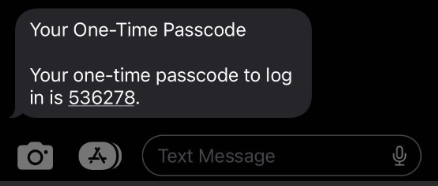
- In the example below, I choose the TEXT Option. If you choose EMAIL, you'll get the same message with a passcode.

[![image-1675889133810.png](https://help.issny.org/uploads/images/gallery/2023-02/scaled-1680-/image-1675889133810.png)](https://help.issny.org/uploads/images/gallery/2023-02/image-1675889133810.png)
[![image-1675888835096.gif](https://help.issny.org/uploads/images/gallery/2023-02/image-1675888835096.gif)](https://help.issny.org/uploads/images/gallery/2023-02/image-1675888835096.gif)
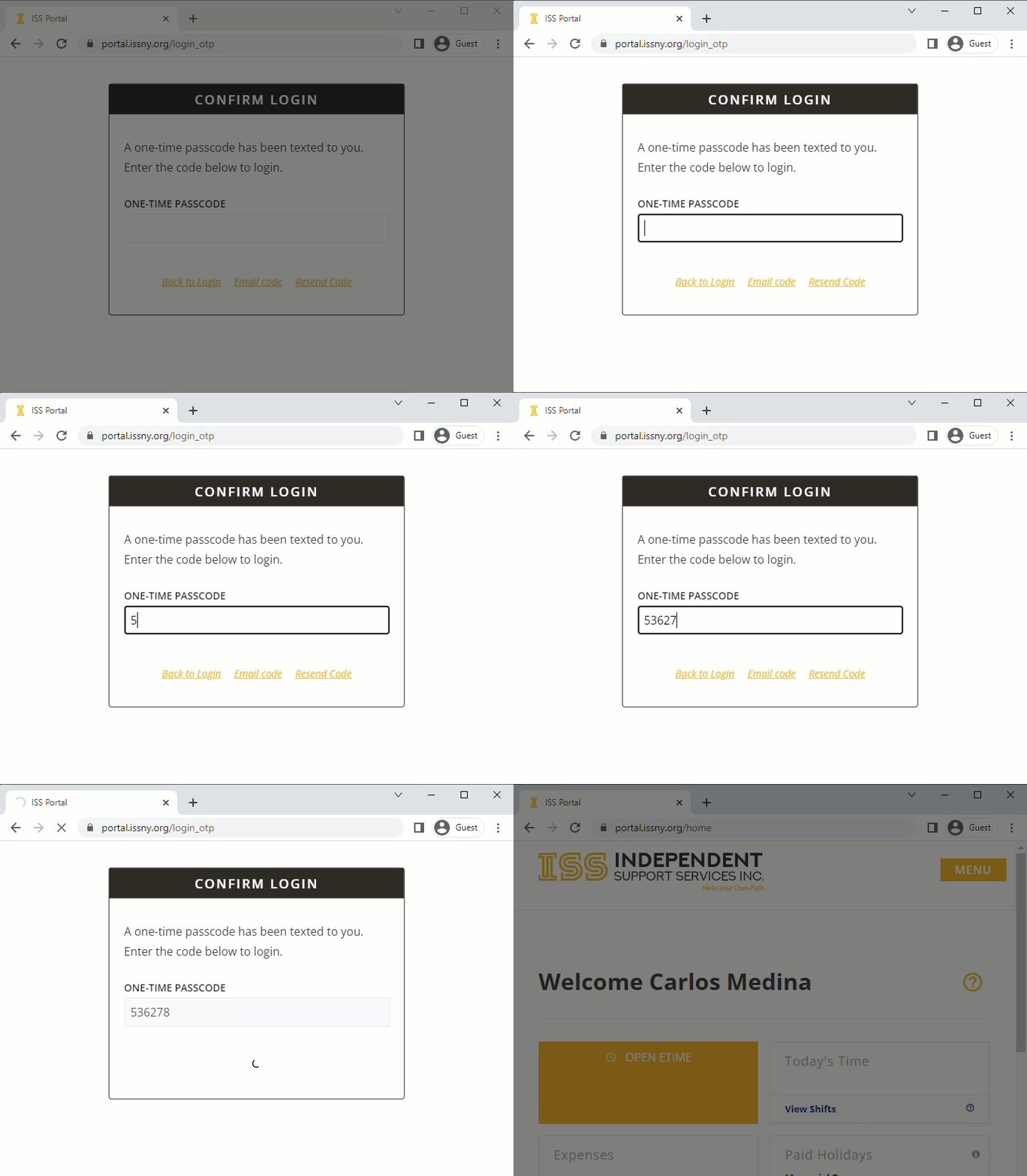
*Information provided in the screenshot is an example. Carlos Medina is a demo Participant.*

#### FAQ

##### What is a web browser?

Your web browser is the application that you use to explore the internet. Common web browsers include Google Chrome, Mozilla Firefox, Safari, etc.

##### I forgot my login information, how can I reset my credentials?

See our help page at [Reset Your Password / Forgot Your Password?](https://help.issny.org/books/portal-basics/page/reset-your-password-forgot-your-password)

##### Where can I find more information on the ISS Portal?

Please visit the [Portal Best Practices](https://help.issny.org/books/portal-basics/page/portal-best-practices) page for the most up to date information regarding everyday use of the ISS Portal. As we continue to update and improve the Portal on a regular basis, this help page is meant to assist our users with the most relevant and useful information available.

---

Updated 11/8/2023

# How to Reset Your Password

##### Reset password using "Forgot your password?":

1. On the Portal login page, click **Forgot your password?** underneath the Login button.  
      
    [![image-1677168776793.png](https://help.issny.org/uploads/images/gallery/2023-02/scaled-1680-/image-1677168776793.png)](https://help.issny.org/uploads/images/gallery/2023-02/image-1677168776793.png)
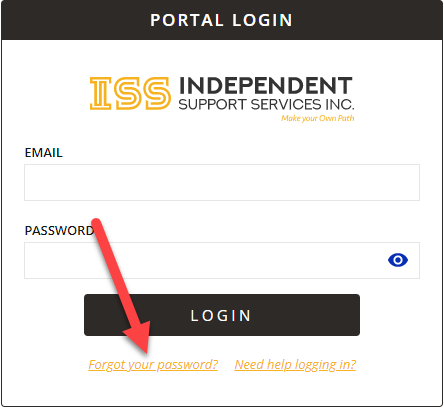
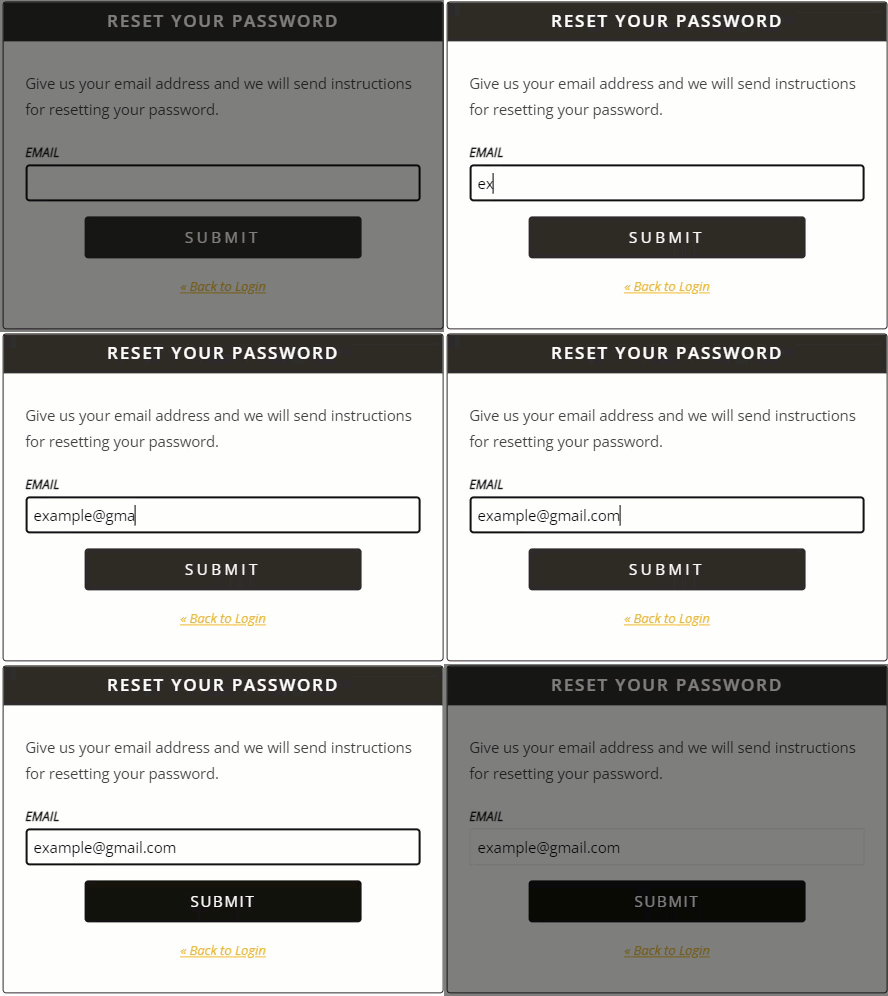
2. Enter the email address on file with ISS and click **Submit**. Instructions will be sent to the email address you provide.

<p class="callout info">Make sure you are typing the email you provided to ISS as your contact. If you do not remember which email address you provided, please reach out to your assigned Self Direction Coordinator.</p>

[![image-1677169380389.gif](https://help.issny.org/uploads/images/gallery/2023-02/image-1677169380389.gif)](https://help.issny.org/uploads/images/gallery/2023-02/image-1677169380389.gif)

1. Check your email for the instructions sent from websupport@issny.org. Open the email and click the blue **Reset Password** button.  
    [![image-1677169196426.png](https://help.issny.org/uploads/images/gallery/2023-02/scaled-1680-/image-1677169196426.png)](https://help.issny.org/uploads/images/gallery/2023-02/image-1677169196426.png)
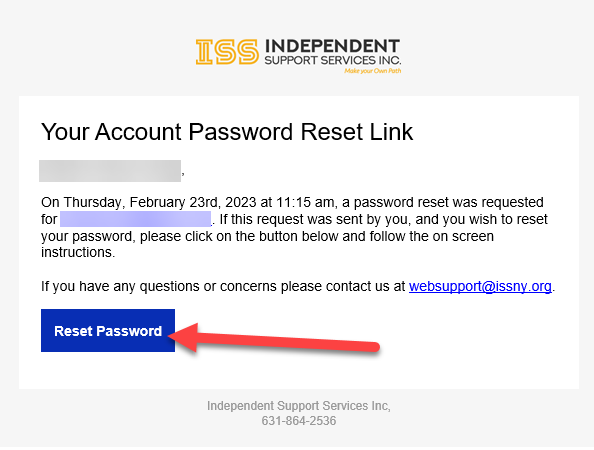
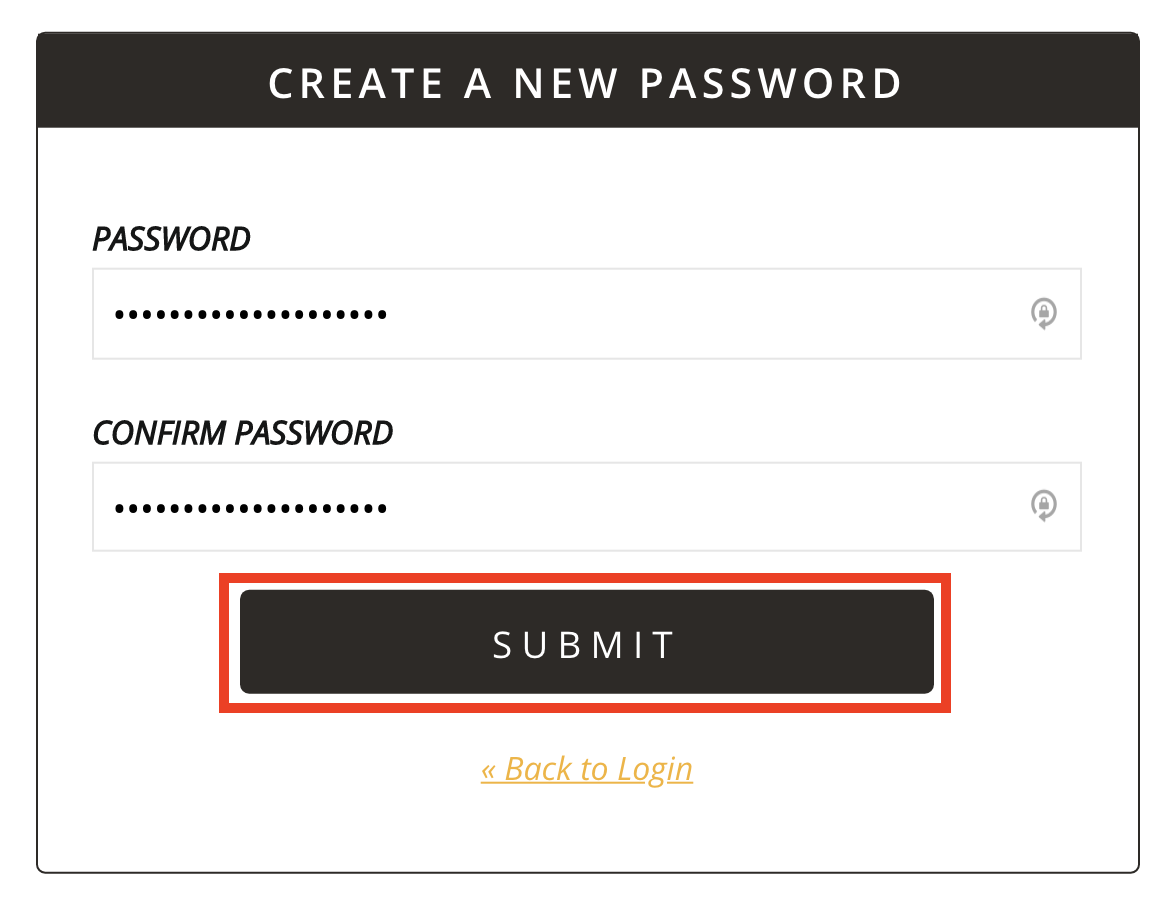
2. Provide a new password and confirm the password by typing it into the second box. Once finished, click **Submit**. You will be taken back to the login screen after submitting your new password. From the login screen, use the password you just set to log into your account.  
      
    [![3.png](https://help.issny.org/uploads/images/gallery/2021-02/scaled-1680-/3.png)](https://help.issny.org/uploads/images/gallery/2021-02/3.png)
---

##### Resetting your password using the "Portal Access Information" email:

If you requested a password reset from ISS directly, you will receive an email entitled "**ISS Portal Access Information**".

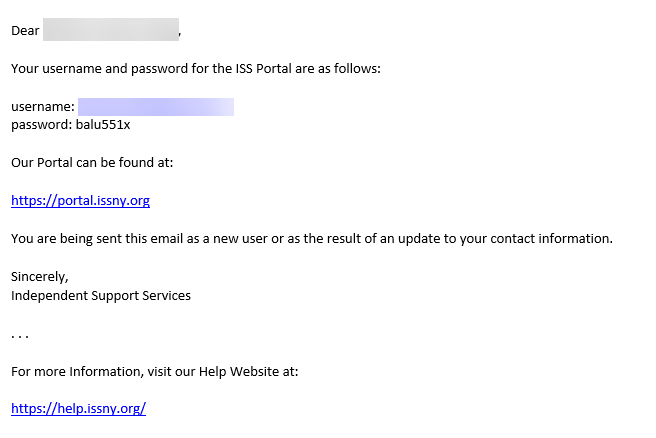
<p class="callout info">Below is an example of the Portal Access Information email. It may look different depending on your email client, but the contents are the same. The username and password you will receive will be unique. Please make sure to reference and use the information in the email you receive and not the example.</p>

[![image-1677170972747.png](https://help.issny.org/uploads/images/gallery/2023-02/scaled-1680-/image-1677170972747.png)](https://help.issny.org/uploads/images/gallery/2023-02/image-1677170972747.png)


<p class="callout warning">The password provided in this email is a temporary password. Upon successful login, you will be required to change your password and the temporary password will no longer work. </p>

1. Go to the Portal login page and type in the provided username/email and the temporary password.  
    [![image-1677171496196.png](https://help.issny.org/uploads/images/gallery/2023-02/scaled-1680-/image-1677171496196.png)](https://help.issny.org/uploads/images/gallery/2023-02/image-1677171496196.png)
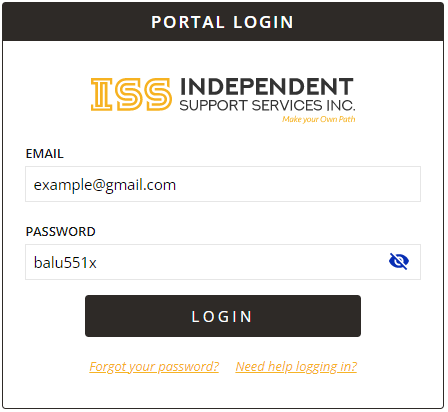
2. Upon successful login, you will taken to the **Profile Settings** page where it will ask you to create a new password. Enter the temporary password in the "Current Password" field. Next, provide a new password in the "New Password" field and confirm the password by typing it into "Repeat New Password" box. Once finished, click **Change Password**. You will be taken to the **Two-Factor information page** where you'll able to proceed with login process.

[![image-1677171696934.png](https://help.issny.org/uploads/images/gallery/2023-02/scaled-1680-/image-1677171696934.png)](https://help.issny.org/uploads/images/gallery/2023-02/image-1677171696934.png)
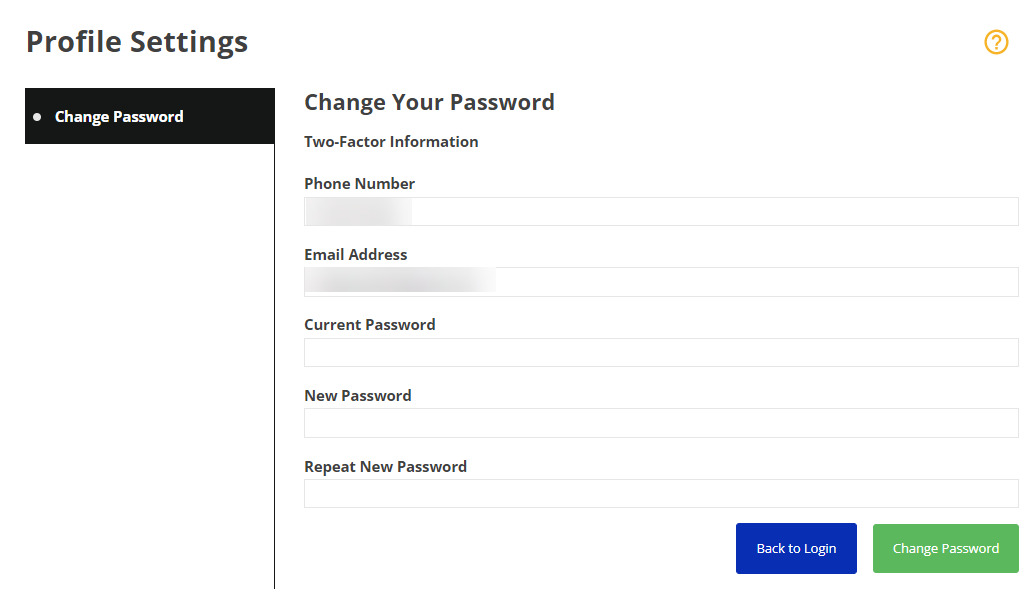
<p class="callout info">In the **Current Password** field, enter the temporary password from the email **ISS Portal Access Information** email. </p>

---

Updated 2/23/2023

# How to Update your Contact Information

It is very important to update your information with ISS when you have a change. The information that we have for you is how we contact you, how you access the ISS Portal, how we send payments and tax documents, and all manner of things.

### Participants

[![contactinfo_pax.png](https://help.issny.org/uploads/images/gallery/2024-02/scaled-1680-/contactinfo-pax.png)](https://help.issny.org/uploads/images/gallery/2024-02/contactinfo-pax.png)
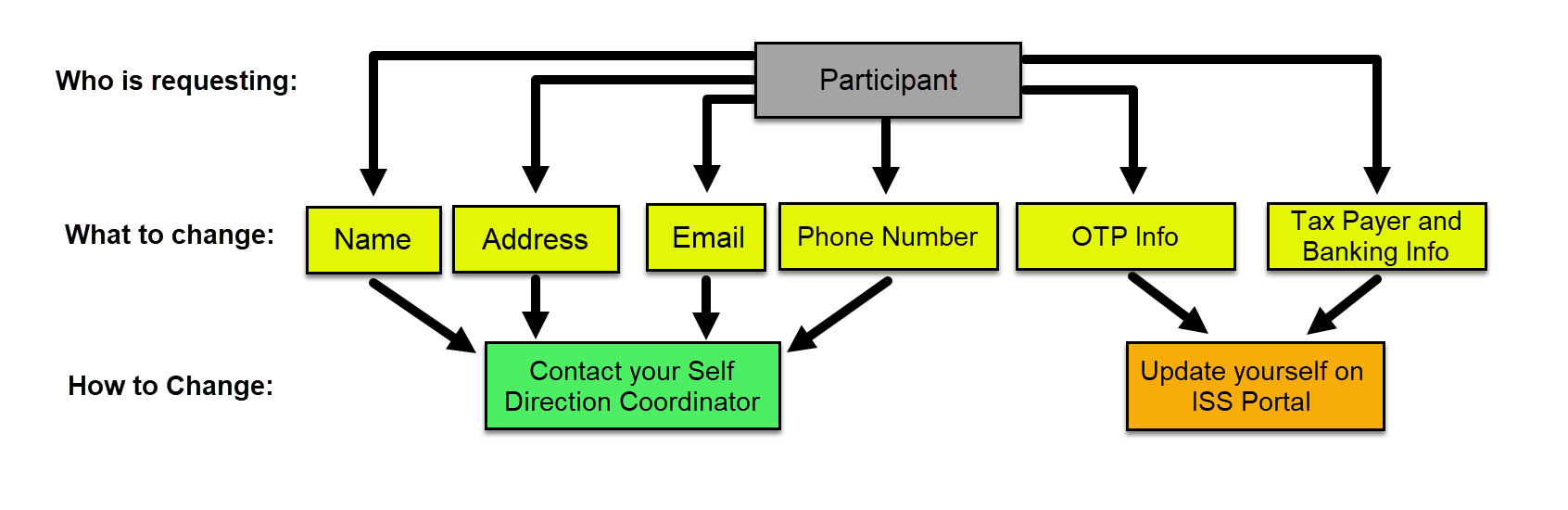
#### Name and Address Changes

The only way ISS can update a Participant's name and/or address is if the information has been updated with Medicaid first. Please contact your Self-Direction Coordinator once Medicaid is updated. They will notify the correct ISS staff to get ISS' systems updated.

#### Email and Phone Number Changes

Please contact your Self-Direction Coordinator. They will notify the correct ISS staff to get ISS' systems updated.

#### OTP Information / Multi-Factor Authentication

You need to maintain this information yourself on the ISS Portal. Visit [https://help.issny.org/books/portal-basics/page/multi-factor-authentication](https://help.issny.org/books/portal-basics/page/multi-factor-authentication) for instructions on how to do this.

Please remember to also update ISS of any change in your email address or cell phone if what you use to receive the one-time passcode (OTP) is also what ISS has on file as your contact information.

#### Taxpayer and Banking Information

You need to maintain this information yourself on the ISS Portal. Visit [https://help.issny.org/books/electronic-payments](https://help.issny.org/books/electronic-payments) for instructions on how to do this.

---

### Circle of Support, Brokers, Care Managers, Vendors, Etc.

[![contactinfo_cos.png](https://help.issny.org/uploads/images/gallery/2024-02/scaled-1680-/contactinfo-cos.png)](https://help.issny.org/uploads/images/gallery/2024-02/contactinfo-cos.png)
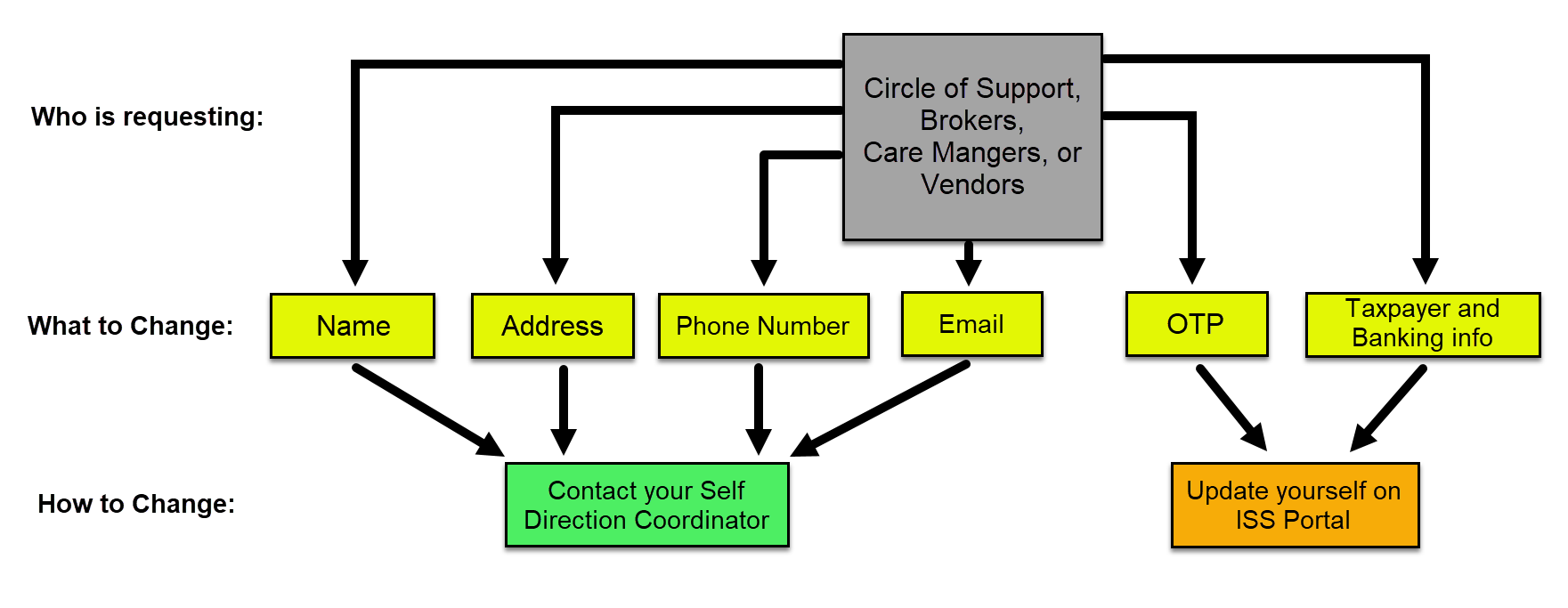
#### Name, Address, Email, and Phone Number Changes

Please contact your Self-Direction Coordinator. They will notify the correct ISS staff to get ISS' systems updated.

#### OTP Information / Multi-Factor Authentication

You need to maintain this information yourself on the ISS Portal. Visit [https://help.issny.org/books/portal-basics/page/multi-factor-authentication](https://help.issny.org/books/portal-basics/page/multi-factor-authentication) for instructions on how to do this.

Please remember to also update ISS of any change in your email address or cell phone if what you use to receive the one-time passcode (OTP) is also what ISS has on file as your contact information.

#### Taxpayer and Banking Information

You need to maintain this information yourself on the ISS Portal. Visit [https://help.issny.org/books/electronic-payments](https://help.issny.org/books/electronic-payments) for instructions on how to do this.

---

### Support Staff

[![contactinfo_staff.png](https://help.issny.org/uploads/images/gallery/2024-02/scaled-1680-/contactinfo-staff.png)](https://help.issny.org/uploads/images/gallery/2024-02/contactinfo-staff.png)
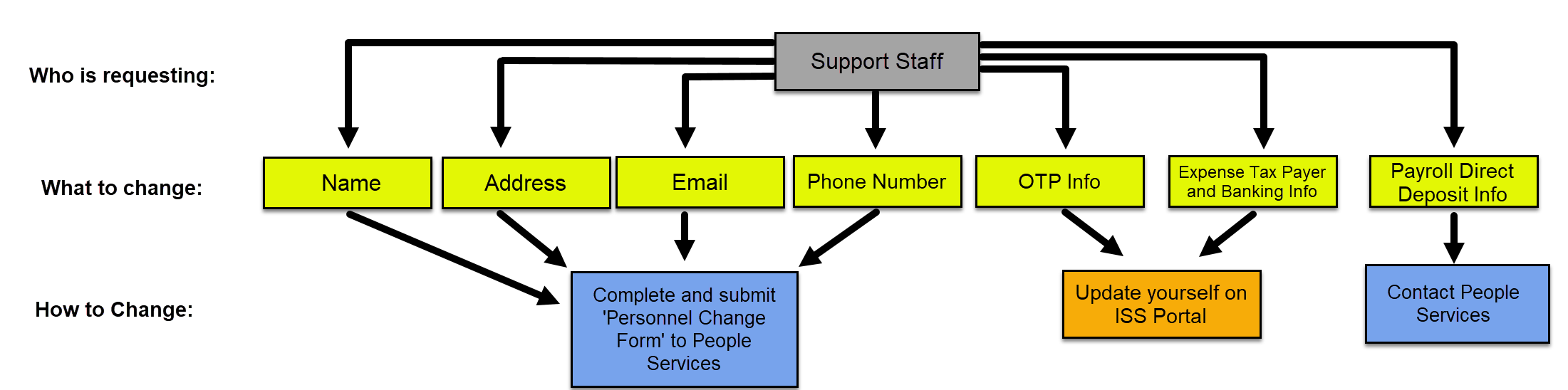
#### Name Changes

Please visit the forms page at [https://www.issny.org/forms/](https://www.issny.org/forms/), download the *Personnel Change Form*, complete it, and submit it to People Services at <peopleservices@issny.org>.

Please note that name changes require a copy of your new Social Security Card along with the completed form.

#### Address, Email, and Phone Number Changes

Please visit the forms page at [https://www.issny.org/forms/](https://www.issny.org/forms/), download the *Personnel Change Form*, complete it, and submit it to People Services at <peopleservices@issny.org>.

#### OTP Information / Multi-Factor Authentication

You need to maintain this information yourself on the ISS Portal. Visit [https://help.issny.org/books/portal-basics/page/multi-factor-authentication](https://help.issny.org/books/portal-basics/page/multi-factor-authentication) for instructions on how to do this.

Please remember to also update ISS of any change in your email address or cell phone if what you use to receive the one-time passcode (OTP) is also what ISS has on file as your contact information.

#### Expense Taxpayer and Banking Information

You need to maintain this information yourself on the ISS Portal. Visit [https://help.issny.org/books/electronic-payments](https://help.issny.org/books/electronic-payments) for instructions on how to do this.

#### Payroll Direct Deposit Banking Information

Please visit the forms page at [https://www.issny.org/forms/](https://www.issny.org/forms/), download the *Direct Deposit Authorization Form*, complete it, and submit it to People Services at <peopleservices@issny.org>.

---

Updated 04/21/26.

# Inviting New Brokers to the Portal

Hello Brokers!

Welcome aboard! We are excited to have you with us! Below is information on our Portal. This information will include an explanation of the portal, its use, what you should be doing in the portal, and how to login.

The Portal has three different levels of access to the same data: read only access, approver level access for day to day operational control (such as approval of timesheets and expenses), and setup access for SD Plan setup and adjustments (broker level access).

Each broker will have a dashboard for all the people he or she supports, which shows all the information in one place. This information will include the submitted timesheets for staff, the year to date budget summaries, approved budgets, and a place to complete the Staff Action Plan so that it is uploaded to our system and then can generate timesheets and other documentation.

The Participant or their family will have access to all of the same things as the broker, in addition to being able to sign off on documentation.

We are so excited for you to see this Portal and all that it has to offer. We are confident that it will benefit everyone involved! The Portal will be able to provide information on how much has been spent out on each budget line, as well as how much is remaining. You will be able to access that information whenever you would need to, and it will be more accurate than the year to date reports of the past.

Here's where we need your help:

**Verify / Approve Contacts:**

In order to assist everyone in the best way possible, we need to verify that the Portal has all the correct contact information. We need you to verify and/or correct the contact information for each of the three main contacts: participant, primary contact, and broker. We are asking for your assistance in making sure we have the correct contact information for each person that you support. Correct email addresses are absolutely crucial to ensure the Portal can function in the best way possible. Once you have acknowledged the accuracy of the participant and primary contact information, we will automatically invite them to the Portal.

**Populate Participant Staff Action Plans:**

We're providing you with the ability to populate the Staff Actions Plan, both Outcomes and Safeguards, for each participant. Upon completion, we will create and send to you a formatted and complete PDF that you can send to the Care Manager. In addition, we will use this information to create new integrated time and billing sheets for support staff.

**How do you log in?**

Simply point your browser to: [https://portal.issny.org/](https://portal.issny.org/)

If this is your first time logging in, your temporary credentials will be emailed to you.

Please take the time to sign into the Portal and update the contact information. If you have technical issues, please email our Web Support Team (<websupport@issny.org>) directly.

Thank you so much!

---

Updated 08/30/21

# Inviting New Participants and their Circle of Support to the Portal

Hello Participants and Circle of Support!

We are excited to have you with us! Below is information on our Portal. This information will include an explanation of the portal, its use, what you should be doing in the portal, and how to login.

Each participant and primary contact will have a Dashboard, which shows all their information in one place. This information will include all paperwork submitted to ISS by or on behalf of the participant (i.e. time sheets, expenses), the year to date budget summaries, approved budgets, and a place for the Broker to complete the Staff Action Plan so that it is uploaded to our system. In order for us to update staff time sheets (which removes the need for a separate billing sheet!), we need brokers to create staff action plans in our portal and send us the signed copy.

We are so excited for you to see and explore the Portal and all that it has to offer. We are confident that it will benefit everyone involved! The Portal will be able to provide information on how much has been spent out on each budget line, as well as how much is remaining. You will be able to access that information whenever you would need to, and it will be more accurate than the year to date reports of the past.

We have created the following videos to assist you with logging into the Portal and learning how to navigate it. Please take the time to watch the videos.

[How to Log In](https://help.issny.org/books/portal-basics/page/how-to-log-in "How to Log In")

[Introducing the New ISS Portal](https://help.issny.org/books/portal-basics/page/introducing-the-new-iss-portal "Introducing the New ISS Portal")

Please take the time to sign in and explore the Portal.

**How do you log in?**

Simply point your browser to: [https://portal.issny.org/](https://portal.issny.org/ "https://portal.issny.org/")

If this is your first time logging in, your temporary credentials will be emailed to you.

If you have technical issues, please email our Web Support Team ([websupport@issny.org](mailto:websupport@issny.org "websupport@issny.org")) directly.

Thank you so much!

---

Updated 08/30/21

# Multi-Factor Authentication

Multi-factor authentication (sometimes also called two-factor authentication) is used on the Portal to increase security and help protect your data. After entering your username and password, you will be sent a one-time passcode (OTP) which you will enter to complete your log in.

<p class="callout info">Be sure to add both your email address and a cell phone number capable of receiving text messages in your preferences. In case you don't receive the OTP at one, you can use the other method as a back up.</p>

### Existing Users

Upon login, existing users will select whether to receive the code via email or text message. You can only choose from the email address or cell phone number that you set up in your OTP preferences.

<div id="bkmrk-"></div><div id="bkmrk--0">[![image (1).png](https://help.issny.org/uploads/images/gallery/2023-01/scaled-1680-/image-1.png)](https://help.issny.org/uploads/images/gallery/2023-01/image-1.png)</div>### New Users

<div id="bkmrk-as-part-of-the-initi">As part of the initial login process, along with resetting the temporary password, you are required to specify your multi-factor authentication preferences. After providing an email address and cell phone number, a one-time passcode will be sent via the method you choose.</div><div id="bkmrk--1">[![8.png](https://help.issny.org/uploads/images/gallery/2023-01/scaled-1680-/8.png)](https://help.issny.org/uploads/images/gallery/2023-01/8.png)</div><div id="bkmrk--2"></div>---

### Edit Multi-Factor Authentication Details

<div id="bkmrk-to-edit-your-existin">To edit your existing multi-factor authentication preferences:</div>1. <div>Click the **Menu** button.</div>
2. <div><div>Click **My Profile**.  
      
    [![menudrawer-myprofile.png](https://help.issny.org/uploads/images/gallery/2023-01/scaled-1680-/menudrawer-myprofile.png)](https://help.issny.org/uploads/images/gallery/2023-01/menudrawer-myprofile.png)</div></div>
3. <div>Make the desired changes.</div>
4. <div><div>Click **Update**.  
      
    [![7.png](https://help.issny.org/uploads/images/gallery/2023-01/scaled-1680-/7.png)](https://help.issny.org/uploads/images/gallery/2023-01/7.png)</div></div>

---

### FAQ

#### The one-time passcode isn't working.

- Only the most recently requested code is valid. This means that if you trigger a code to be resent, whether by the same or different method, any previously requested codes will not work.

#### I didn't receive the one-time passcode.

- It may take up to a minute to receive the passcode. If you still haven't received it, you can click  **Resend Code**  to send a new code using the same method. To receive a code using an alternate method, click  **Email Code**  or  **Text Code**.
- Users can send themselves a code once every three minutes.
- A red error banner will appear if you attempt to send yourself three or more codes without waiting - one initial code on login and two resend attempts. The error message will remain until the time limit passes and you can once again request a code.
- Do not go back to the login screen, you won't be able to get back to the OTP screen to enter your code. You need to wait for the three-minute timer to rundown before you can request another OTP.  
      
    [![toomanyattemptserror.png](https://help.issny.org/uploads/images/gallery/2023-12/scaled-1680-/toomanyattemptserror.png)](https://help.issny.org/uploads/images/gallery/2023-12/toomanyattemptserror.png)

#### Entered one-time passcode, back at Login?

<div id="bkmrk-please-make-sure-tha">- Please make sure that you are only entering the OTP code. Do not hit enter/return afterwards. Hitting enter is not necessary and if you are doing so, it is most likely what is causing you to unintentionally “click” the link that takes you back to the login screen.
- Once you enter the sixth and final numeric digit in our OTP code, the Portal will automatically take you to the home screen or display the red error banner if you entered the wrong code.  
    [![OTPscreen.png](https://help.issny.org/uploads/images/gallery/2021-07/scaled-1680-/otpscreen.png)](https://help.issny.org/uploads/images/gallery/2021-07/otpscreen.png)

</div><div id="bkmrk--3"></div>#### Email or Text option is grayed out.

<div id="bkmrk-this-happens-when-th"><div>- This happens when the information entered is invalid in some way. For example: an email address missing the @, spaces or carriage returns before or after the email or phone number.
- Please correct or re-enter your information by following the steps above under the *Edit Multi-Factor Authentication Details* section.  
      
    [![otpchanges-grayedout.png](https://help.issny.org/uploads/images/gallery/2023-01/scaled-1680-/otpchanges-grayedout.png)](https://help.issny.org/uploads/images/gallery/2023-01/otpchanges-grayedout.png)

</div></div><div id="bkmrk--6"></div>---

<div id="bkmrk-updated-03%2F16%2F23.">Updated 03/16/23.</div>

# Portal Best Practices

We hope the tips below help.

#### Set websupport@issny.org as Preferred Sender

To ensure you receive our emails successfully, please make sure to set websupport@issny.org or the entire domain @issny.org as a Preferred Sender (sometimes called safe sender or whitelisted). You will need to do this within your email app or on your email's website.

<p class="callout info">*If you are using Gmail for example, if any user accidentally reports one of our emails as SPAM, Gmail will automatically identify all of our emails as SPAM and will send them to SPAM. This means that if one person reports one of our emails as SPAM, it can cause email delivery issues for everyone involved (staff, families, the participant, etc.). By setting your Preferred Sender, you can prevent this issue from happening to you.*</p>

---

#### Logging On and Logging Off

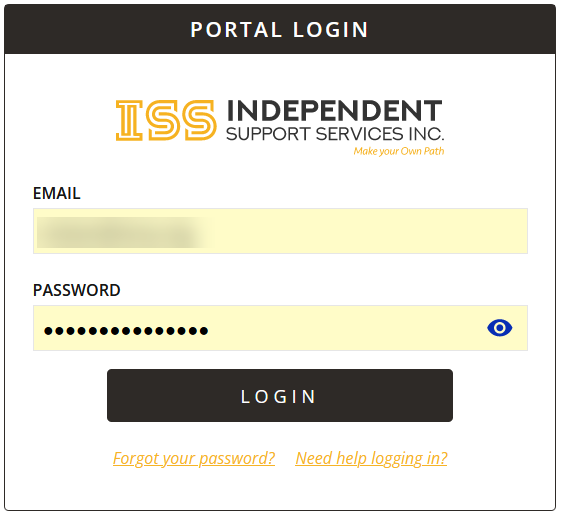
<span style="font-family: 'Arial',sans-serif;">The Portal is only accessible through your web browser. Please go to </span>[<span style="font-family: 'Arial',sans-serif;">https://portal.issny.org/</span>](https://portal.issny.org/)<span style="font-family: 'Arial',sans-serif;"> on your device's web browser to find the login page for the Portal.</span>

<span style="font-family: 'Arial',sans-serif;">Visit </span>[https://help.issny.org/books/security/page/multi-factor-authentication-f45](https://help.issny.org/books/security/page/multi-factor-authentication-f45) for information on Multi-Factor Authentication and One Time Passcodes (OTP).

*Tip: We recommend logging into the Portal with a new web browser page every time you use it. This will prevent any issues that might occur while having the Portal open for too long!*

*[![portalbasics_url.png](https://help.issny.org/uploads/images/gallery/2022-02/scaled-1680-/portalbasics-url.png)](https://help.issny.org/uploads/images/gallery/2022-02/portalbasics-url.png)*

[![portalbasics_login.png](https://help.issny.org/uploads/images/gallery/2022-02/scaled-1680-/portalbasics-login.png)](https://help.issny.org/uploads/images/gallery/2022-02/portalbasics-login.png)
---

#### Secure Your Password

<p class="callout danger">Never share your password with anyone, not even ISS staff providing you with support. Your password is yours alone and the first step in your account's security.</p>

---

#### Your Current Password

There are three locations you may be asked to enter your current password:

1. Your first ever login. The current password is the new, temporary password that has been emailed to you.
2. You are choosing to change your password. The current password is the one you had before and have decided to change. This is the process detailed at [https://help.issny.org/books/portal-basics/page/reset-your-password-forgot-your-password](https://help.issny.org/books/portal-basics/page/reset-your-password-forgot-your-password).
3. Your Portal account has been reset by ISS. The current password is the new, temporary password that has been emailed to you.

<p class="callout info">*ISS does not know your password. It is encrypted in our system. This is why when you forget it, we have to reset your account.* </p>

<p class="callout warning">*The Portal and UKG (formerly UltiPro) are not the same. Your user name will be different. Make sure you are using the right access info!*</p>

---

#### One-Time Passcode (OTP) Not Received / Issues:

Please visit help at [https://help.issny.org/books/security/page/multi-factor-authentication-f45](https://help.issny.org/books/security/page/multi-factor-authentication-f45) for information on Multi-Factor Authentication and One Time Passcodes (OTP).

*Tip: Be patient! The OTP code can take up to a minute to arrive. The last code requested is the only one that will work!*

---

#### Bookmarks and Favorites

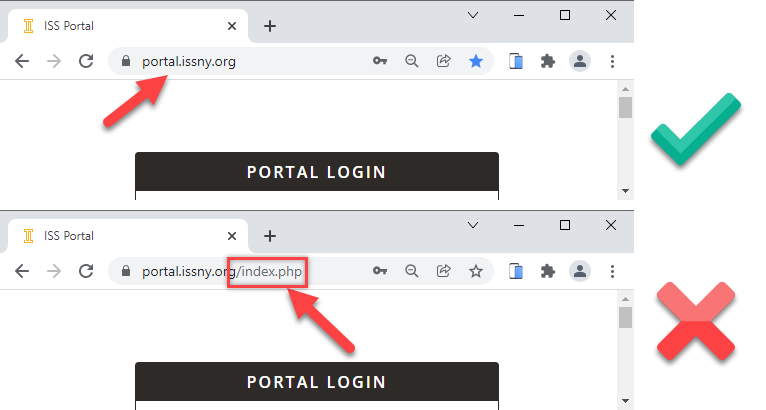
We do not recommend bookmarking any Portal page except for the home page which is [https://portal.issny.org/](https://portal.issny.org/). Make sure you set your bookmark **before** you log in.

*Tip: Although your web browser may only display "portal.issny.org", there may be hidden characters in the web URL (see image below). This can possibly cause a problem with accessing that bookmarked page in the future. Bookmarking the page as instructed above will prevent that issue in the future!*

[![image-1639508930723.png](https://help.issny.org/uploads/images/gallery/2021-12/scaled-1680-/image-1639508930723.png)](https://help.issny.org/uploads/images/gallery/2021-12/image-1639508930723.png)
---

#### Clearing Cookies, History, and Cache

It is very important to routinely clear the cookies, history, and cache on your device to avoid running into problems. We recommend that you know how to clear cookies, history, and cache from the browser you are using.

Here are the instructions on how to clear cookies on the iPhone and Google Chrome browser:

iPhones:  
[https://support.apple.com/en-us/HT201265](https://support.apple.com/en-us/HT201265)

Androids:  
[https://support.google.com/chrome/answer/2392709?hl=en&amp;co=GENIE.Platform%3DAndroid](https://support.google.com/chrome/answer/2392709?hl=en&co=GENIE.Platform%3DAndroid)

Web Browsers:  
[https://support.google.com/chrome/answer/95647?p=rl\_error&amp;hl=en&amp;visit\_id=637729269701255217-2377492424&amp;rd=1](https://support.google.com/chrome/answer/95647?p=rl_error&hl=en&visit_id=637729269701255217-2377492424&rd=1)

---

#### Too Many Redirects - Error 500

This is an issue on your device with your browser.

Too many redirects or Error 500 is a web browser error that can occur when you are using a long URL. You may only see the first part of the URL because your browser shortens it for readability.

Please use only this URL: [https://portal.issny.org/](https://portal.issny.org/)

Make sure your browser doesn’t auto-fill the address with anything else.

We recommend clearing your cookies and browser cache. For help with that, visit [https://help.issny.org/books/portal-basics/page/portal-best-practices#bkmrk-clearing-cookies%2C-hi](https://help.issny.org/books/portal-basics/page/portal-best-practices#bkmrk-clearing-cookies%2C-hi)

---

#### Website is automatically loading incorrect login credentials:

Our website doesn’t generate login information on its’ own. Typically, this is done by a setting in your web browser or phone usually called “Autofill”, which automatically fills in fields with user designated information (i.e. Name, email, address, etc.). You’ll have to look into your device’s settings and adjust those settings appropriately.

---

#### Backup Browser and Device

We recommend that you always have a backup browser and device should you run into problems with one or the other. Plan for this in case your primary browser/device fails.

*Tip: Not all web browsers are built the same! For this reason, some websites will work better on Chrome verses Mozilla Firefox. It's always best practice to have an alternate web browser to double check if a website is working or if it's your web browser having trouble!*

---

#### Help Website Link

We recommend you save helpful documents and links and be sure to bookmark the ISS help website so it's there when you need it. This is always handy when you need to trouble shoot.

Our help website can be found at [https://help.issny.org/](https://help.issny.org/) and the link direct to our extensive eTime section is [https://help.issny.org/books/etime](https://help.issny.org/books/etime).

Be sure to save the links pertaining to your needs. It is safe to bookmark/favorite any page of our help website.

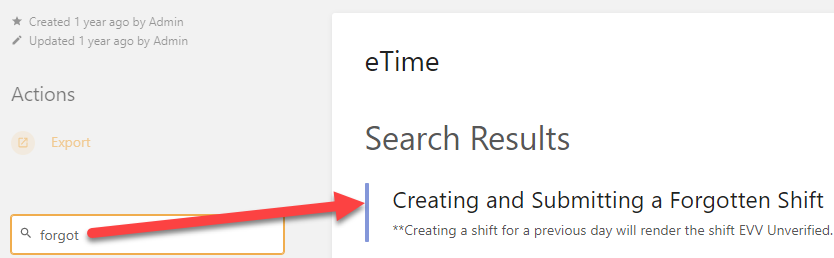
*Tip: The help website's search feature is very powerful and a single word might get you exactly the results you need.*

*[![portalbasics_searchhelp.png](https://help.issny.org/uploads/images/gallery/2022-02/scaled-1680-/portalbasics-searchhelp.png)](https://help.issny.org/uploads/images/gallery/2022-02/portalbasics-searchhelp.png)*
---

#### Still need help?

Always remember to check the help site at [https://help.issny.org/](https://help.issny.org/).

For those looking for support for their Self Direction Program, please reach out to your assigned Self Direction Coordinator.

If you are a staff member looking for direct support, please reach out to our Staff Support Liaison at <staffsupport@issny.org>.

Email <websupport@issny.org> for technical issues related to the Portal. We will answer you within 1 to 2 business days.

*If you do decide to leave a voice message, please be aware, we may not get to it right away and you will not receive a call back. All issues and concerns are addressed via email.*

If you do email web support, be specific in your description with as much detail regarding the problem, issue or concern as possible. The more detail you provide, the quicker we can respond and assist you in a resolution.

---

Updated 03/16/2023

# Portal Quick Start Guide

---

**Log in URL: [https://portal.issny.org](https://portal.issny.org)**

- To log into the portal, navigate with your computer or mobile device browser to [https://portal.issny.org](https://portal.issny.org)

**Username &amp; Password:**

- Your login credentials have been carried forward from the old ISS Participant Portal. Enter them and click the “Login” button.  
    [![1.png](https://help.issny.org/uploads/images/gallery/2020-12/scaled-1680-/1.png)](https://help.issny.org/uploads/images/gallery/2020-12/1.png)

**Forgot your password:**

- If you’ve forgotten your login credentials, simply click the “Forgot your Password?” link on the login screen. Clicking this link will take you to the following page. Enter your email address, press submit, and you will be sent a password reset link.  
      
    ![2.png](https://help.issny.org/uploads/images/gallery/2020-12/scaled-1680-/2.png)

**Your new Portal Home:**

- Once logged in you will be taken to your new Portal Home. Here you can select a participant by clicking on the participant’s name. You can always return to this page by clicking the ISS icon in the upper left hand corner or by clicking the person button in the upper right hand corner and selecting home. Additional future options are planned for this page.  
    [![3.png](https://help.issny.org/uploads/images/gallery/2020-12/scaled-1680-/3.png)](https://help.issny.org/uploads/images/gallery/2020-12/3.png)

**The Person button:**

- Clicking the person icon ( from any page will expose the user options panel shown on the right. From here you currently have three options: 
    - **Home:** will return you to the home screen
    - **Change Password:** will allow you to change your password
    - **Log Out:** will log you out of the Portal  
          
        [![4.png](https://help.issny.org/uploads/images/gallery/2020-12/scaled-1680-/4.png)](https://help.issny.org/uploads/images/gallery/2020-12/4.png)

**Your new Participant Dashboard:**

- Selecting a participant from the home screen will take you to the Participant Dashboard. Once you’ve selected a specific participant, all links relate to that participant. The current participant dashboard view provides a quick preview of the selected fiscal year’s budget. Additional future dashboard options will be added below the budget summary.  
      
    [![5.png](https://help.issny.org/uploads/images/gallery/2020-12/scaled-1680-/5.png)](https://help.issny.org/uploads/images/gallery/2020-12/5.png)

**Your new Dynamic Budget Summary:**

- Clicking on Budget will bring you to the new Dynamic Budget Summary page. This budget summary is very similar looking to the new budget summary PDFs delivered in the Old Participant Portal in 2018. Unlike those PDFs, however, these budget summaries are dynamic web code with which you may directly interact. All data shown is accurate as of final postings on the prior business day. Future additions will add the ability for you to click on any monthly cell to drill down to the timesheets and expenses generating that cost.  
      
    [![6.png](https://help.issny.org/uploads/images/gallery/2020-12/scaled-1680-/6.png)](https://help.issny.org/uploads/images/gallery/2020-12/6.png)

**Your new Staff Action Plan:**

- Clicking on Staff Action Plan will bring you to the new Staff Action Plan viewer / editor. If you are a broker, you will be able to add and edit Staff Action Plans (Instructions for editing these plans will be provided elsewhere). All other users are able to view and download the current and draft plans. Please note that if your broker has not yet started your Staff Action Plan, this page will be blank.  
      
    [![7.png](https://help.issny.org/uploads/images/gallery/2020-12/scaled-1680-/7.png)](https://help.issny.org/uploads/images/gallery/2020-12/7.png)

**Old Participant Portal pages:**

- There are three participant sections of the portal which are still supported through the Old Participant Portal. These are the **Documents**, **Hab Plan**, and **Contact**. Documents and Contacts will be migrated to the Portal in the future. Hab Plans will remain on the Old Participant Portal until they are no longer needed.
    
    Clicking any of the links will automatically take you to the correct portal without having to re-login.  
      
    [![8.png](https://help.issny.org/uploads/images/gallery/2020-12/scaled-1680-/8.png)](https://help.issny.org/uploads/images/gallery/2020-12/8.png)
    
    When switching between the Old Participant Portal and the new Portal, you may briefly see the following redirect screens. Your browser should automatically forward to the correct portal property. If it does not, click the button on the redirect screen.  
      
    [ ![9.png](https://help.issny.org/uploads/images/gallery/2020-12/scaled-1680-/9.png) ](https://help.issny.org/uploads/images/gallery/2020-12/9.png)[![10.png](https://help.issny.org/uploads/images/gallery/2020-12/scaled-1680-/10.png)](https://help.issny.org/uploads/images/gallery/2020-12/10.png)

**Old Participant Portal dashboard:**

- When logging into or navigating across to the Old Participant Portal, you may still be taken to the Old Participant Portal dashboard. Links which remain on this dashboard work without modification. Certain functions have been removed including View My Plan, and the State Funds (Over PRA and MES IDGS buttons). The functions are obsolete. As we migrate additional functionality into the new Portal, we will continue to remove links and options from the Old Participant Portal Dashboard.  
      
    [![11.png](https://help.issny.org/uploads/images/gallery/2020-12/scaled-1680-/11.png)](https://help.issny.org/uploads/images/gallery/2020-12/11.png)

**Old Documents:**

- The Documents page works as before. This page and feature will be replaced in the future with drill down functionality from the dynamic budget summary.  
      
    [![12.png](https://help.issny.org/uploads/images/gallery/2020-12/scaled-1680-/12.png)](https://help.issny.org/uploads/images/gallery/2020-12/12.png)

**Old Hab Plans:**

- The **Hab Plan** page works as before. This feature is currently deprecated and replaced by the Staff Action Plans in the new Portal. The Hab Plan editor / viewer will remain available in the Old Participant Portal until no longer needed.  
      
    [![13.png](https://help.issny.org/uploads/images/gallery/2020-12/scaled-1680-/13.png)](https://help.issny.org/uploads/images/gallery/2020-12/13.png)

**Old Contacts:**

- The **Contacts page** works as before. This page and feature will be replaced in the future with a new contacts management section in the new Portal.  
      
    [![14.png](https://help.issny.org/uploads/images/gallery/2020-12/scaled-1680-/14.png)](https://help.issny.org/uploads/images/gallery/2020-12/14.png)

**Old Participant Portal Login:**

- You are still able to log into the Old Participant Portal using the existing URL. Navigate your browser to https://participant.issny.org, and you will be taken to the Old Participant Portal login. You may use the same credentials to log into the Old Participant Portal and the New Portal.  
      
    [![15.png](https://help.issny.org/uploads/images/gallery/2020-12/scaled-1680-/15.png)](https://help.issny.org/uploads/images/gallery/2020-12/15.png)
- Logging into the Old Participant Portal will present you with the same **Choose a Participant** screen that you have always used to select the desired participant.  
      
    [![16.png](https://help.issny.org/uploads/images/gallery/2020-12/scaled-1680-/16.png)](https://help.issny.org/uploads/images/gallery/2020-12/16.png)

---

Updated 12/01/20

# Portal User Deactivated due to Inactivity

For security purposes, ISS Portal Users are subject to deactivation after a certain period of time:

- Support Staff are subject to deactivation after **3 months of inactivity**
- Participants, COS, Brokers, and all other Portal users are subject to deactivation after **6 months of inactivity**

To ensure your account stays active, login to the Portal at least once within these time spans.

---

#### How do I reactivate my Portal User Account?

You will be notified at the login page if your account is inactive. As per the banner message, please reach out to [websupport@issny.org.](mailto:websupport@issny.org)

[![image-1683320003095.png](https://help.issny.org/uploads/images/gallery/2023-05/scaled-1680-/image-1683320003095.png)](https://help.issny.org/uploads/images/gallery/2023-05/image-1683320003095.png)

---

Update 08/10/2023