Make sure you are typing the email you provided to ISS as your contact. If you do not remember which email address you provided, please reach out to your assigned Self Direction Coordinator.
[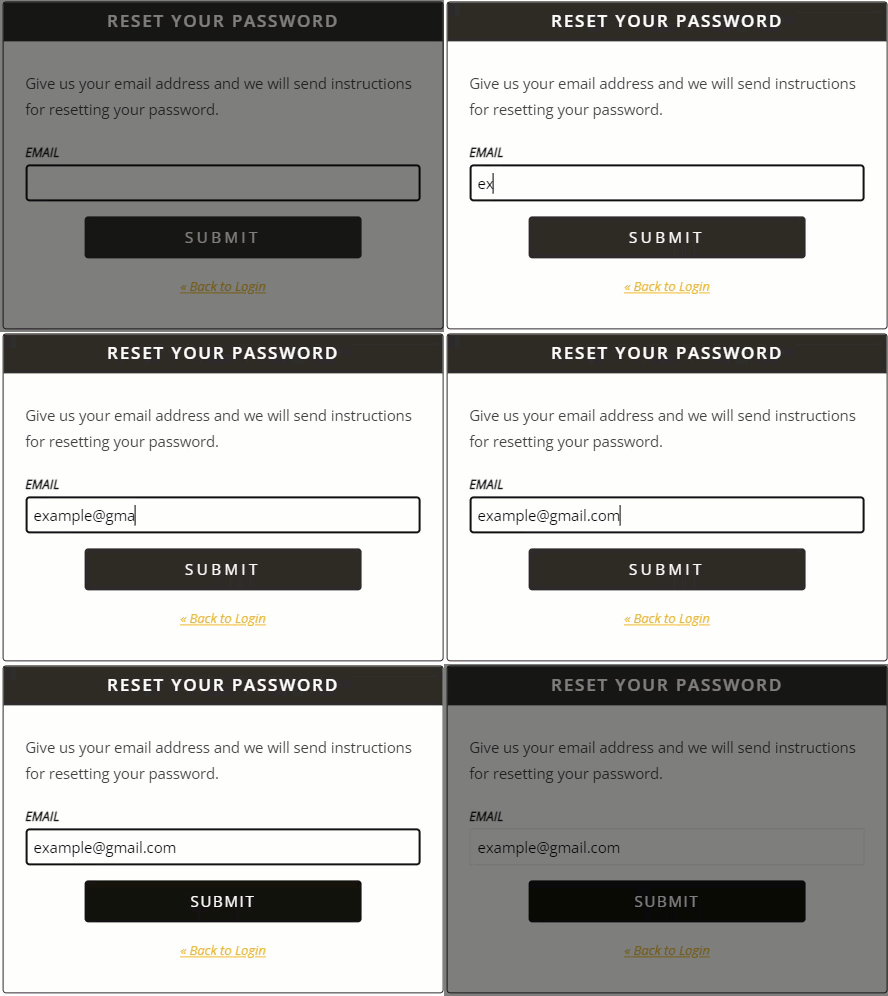](https://help.issny.org/uploads/images/gallery/2023-02/image-1677169380389.gif) 1. Check your email for the instructions sent from websupport@issny.org. Open the email and click the blue **Reset Password** button. [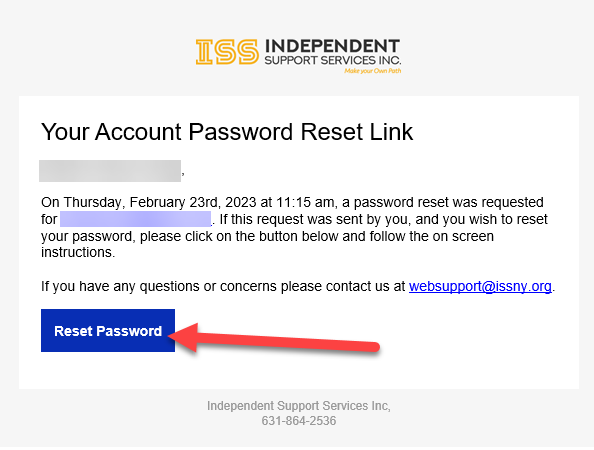](https://help.issny.org/uploads/images/gallery/2023-02/image-1677169196426.png) 2. Provide a new password and confirm the password by typing it into the second box. Once finished, click **Submit**. You will be taken back to the login screen after submitting your new password. From the login screen, use the password you just set to log into your account. [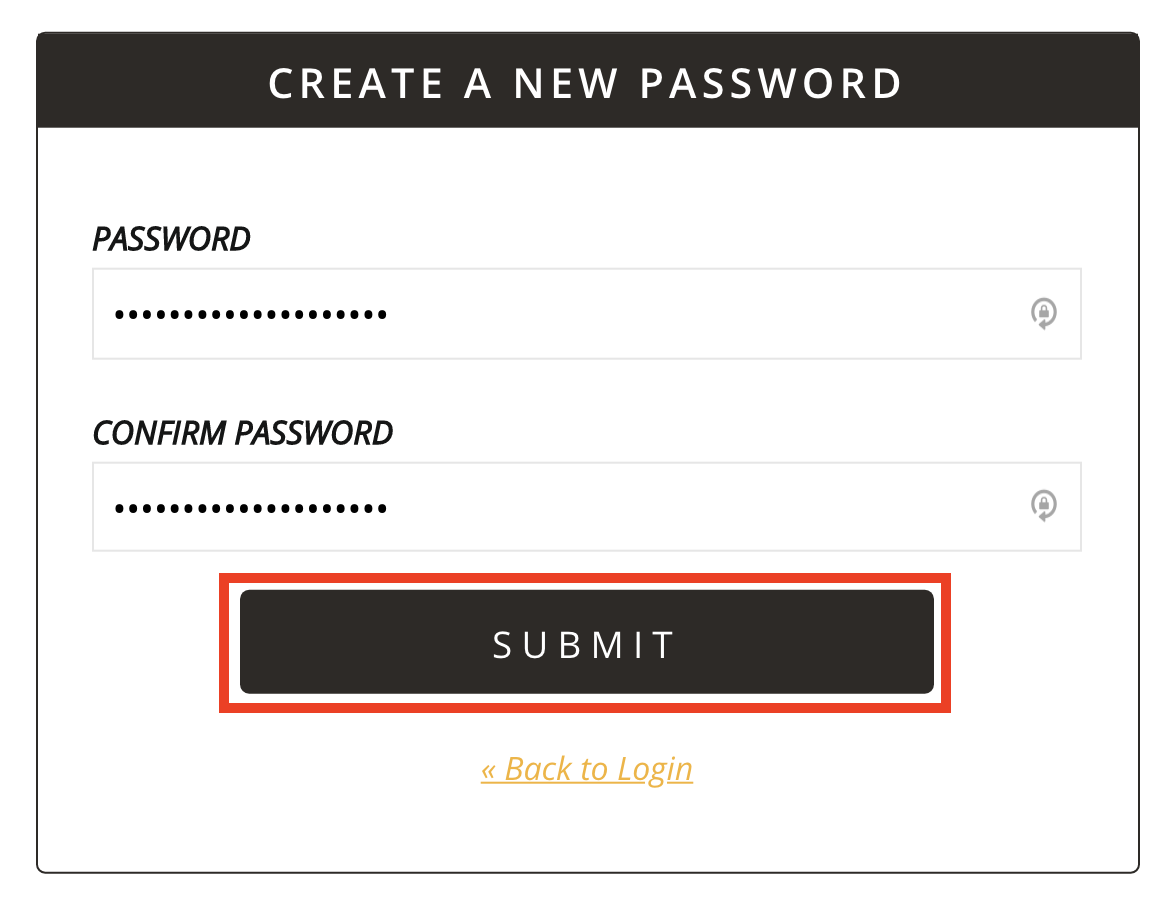](https://help.issny.org/uploads/images/gallery/2021-02/3.png) --- ##### Resetting your password using the "Portal Access Information" email: If you requested a password reset from ISS directly, you will receive an email entitled "**ISS Portal Access Information**".Below is an example of the Portal Access Information email. It may look different depending on your email client, but the contents are the same. The username and password you will receive will be unique. Please make sure to reference and use the information in the email you receive and not the example.
[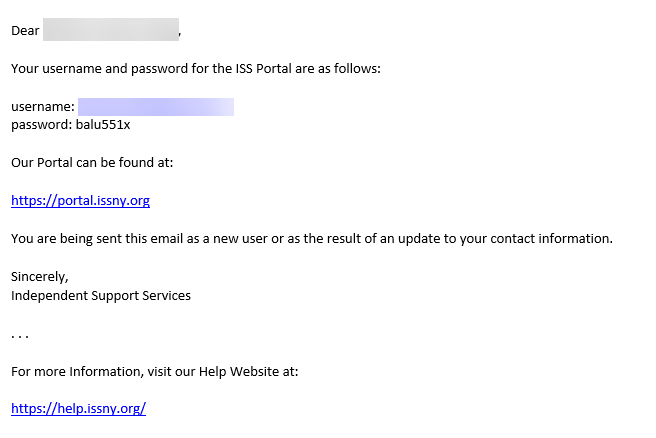](https://help.issny.org/uploads/images/gallery/2023-02/image-1677170972747.png)The password provided in this email is a temporary password. Upon successful login, you will be required to change your password and the temporary password will no longer work.
1. Go to the Portal login page and type in the provided username/email and the temporary password. [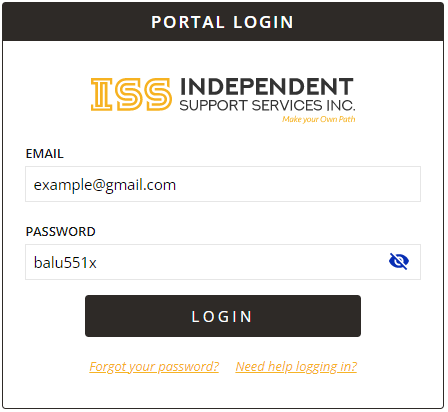](https://help.issny.org/uploads/images/gallery/2023-02/image-1677171496196.png) 2. Upon successful login, you will taken to the **Profile Settings** page where it will ask you to create a new password. Enter the temporary password in the "Current Password" field. Next, provide a new password in the "New Password" field and confirm the password by typing it into "Repeat New Password" box. Once finished, click **Change Password**. You will be taken to the **Two-Factor information page** where you'll able to proceed with login process. [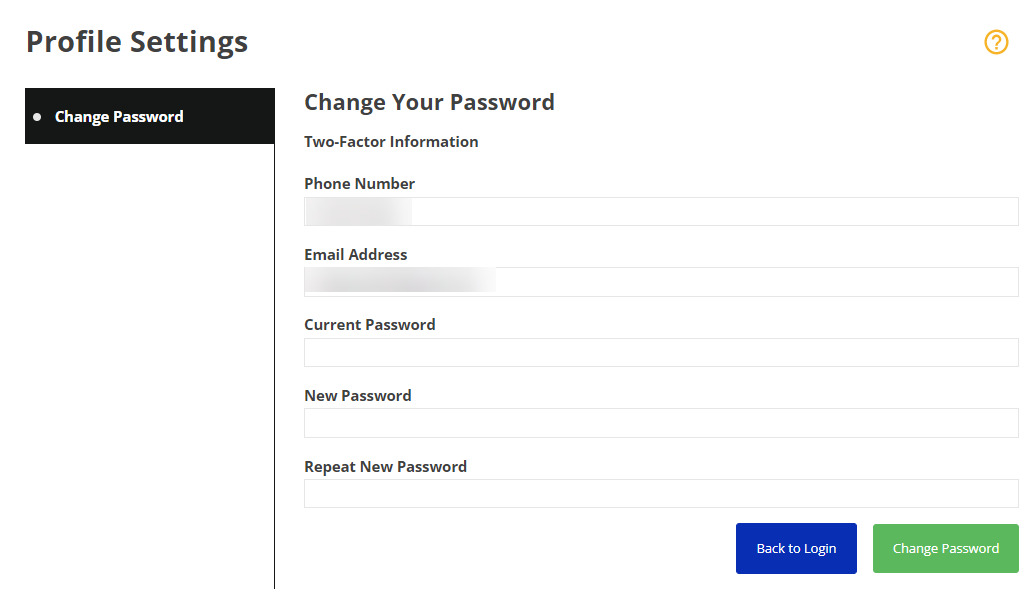](https://help.issny.org/uploads/images/gallery/2023-02/image-1677171696934.png)In the **Current Password** field, enter the temporary password from the email **ISS Portal Access Information** email.
--- Updated 2/23/2023