# Security
Information about the security measures employed on the portal.
# Electronic Payments User Information Security
ISS takes data security very seriously. Our system is built using industry standards in data security.
While ISS' system is not obligated to be PCI compliant, all taxpayer and banking information is handled and stored in a PCI compliant manner. This includes, but is not limited to: all data is encrypted at rest and in transit, sensitive information is never stored or transmitted as plain text, and no employee of ISS or its vendors has access to your information.
Additionally, only you can modify your taxpayer or banking information. It is not possible for ISS staff to complete either the *Tax Information* or *Electronic Payment Setup* (ePay) forms on your behalf.
What does PCI stand for?
The full acronym is PCI DSS and that stands for Payment Card Industry Data Security Standard. PCI is a set of rules and guidelines that businesses must follow in order to protect cardholders while supporting credit card transactions.
---
Updated 01/12/24
# ISS Portal Flagged by Antivirus Software
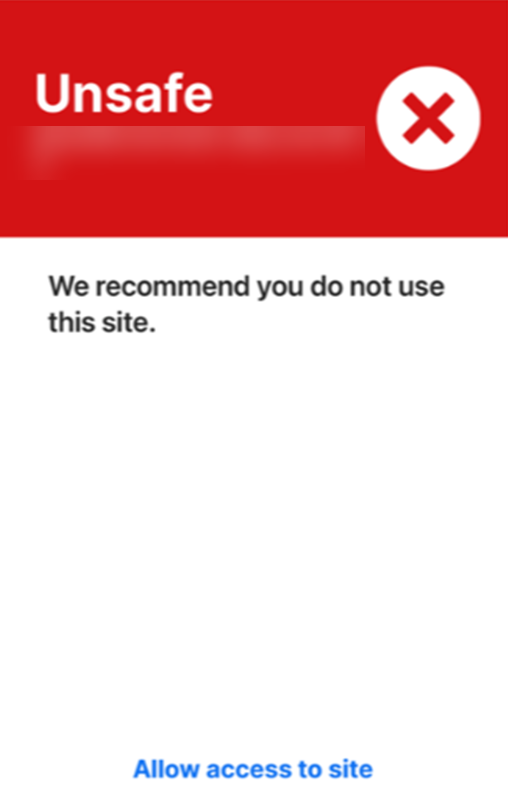
If you are receiving an error message stating that 'portal.issny.org' is unsafe or you are being blocked from entering the site due to a possible security risk, rest assured that the ISS Portal **is in fact safe.** Below are examples of error messages that have been reported by users. Please note that this error can be presented in different ways depending on the software you use.
Your antivirus software is giving a **false positive** and flagging the site as potentially harmful. We've run security tests and the website is up to safety compliance. Our development team is reaching out various to Anti-Virus software companies to have our website verified as safe. However, we do not know the internal processes of those AV companies so we do not have a timeline on when that resolution will happen.
At this time, you will need to either reach out to your Anti-Virus provider concerning access to our website or to make an exception on your Anti-Virus software to allow access to portal.issny.org
[](https://help.issny.org/uploads/images/gallery/2024-12/image-1734035732210.png)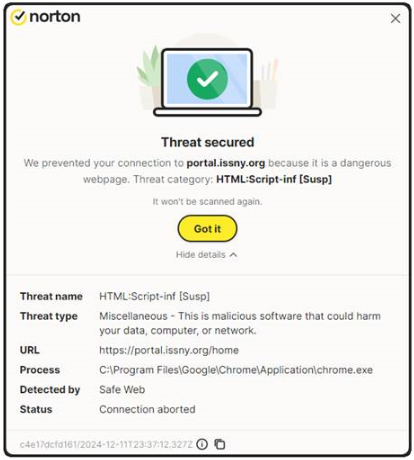
---
Last Updated 12/18/2024
# Multi-Factor Authentication
Multi-factor authentication (sometimes also called two-factor authentication) is used on the Portal to increase security and help protect your data. After entering your username and password, you will be sent a one-time passcode (OTP) which you will enter to complete your log in.
Be sure to add both your email address and a cell phone number capable of receiving text messages in your preferences. In case you don't receive the OTP at one, you can use the other method as a back up.
### Existing Users
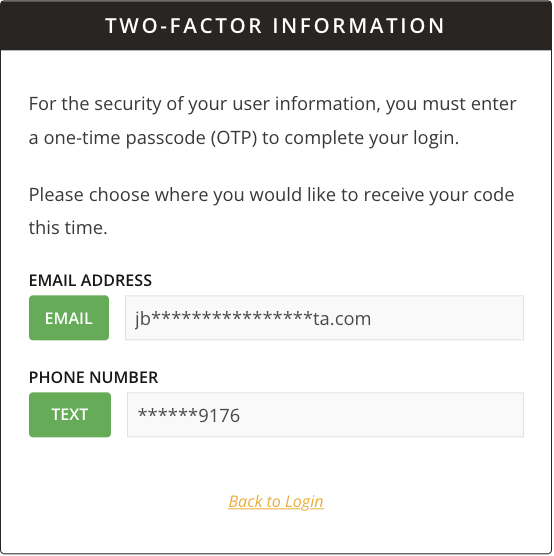
Upon login, existing users will select whether to receive the code via email or text message. You can only choose from the email address or cell phone number that you set up in your OTP preferences.
[](https://help.issny.org/uploads/images/gallery/2023-01/image-1.png)
### New Users
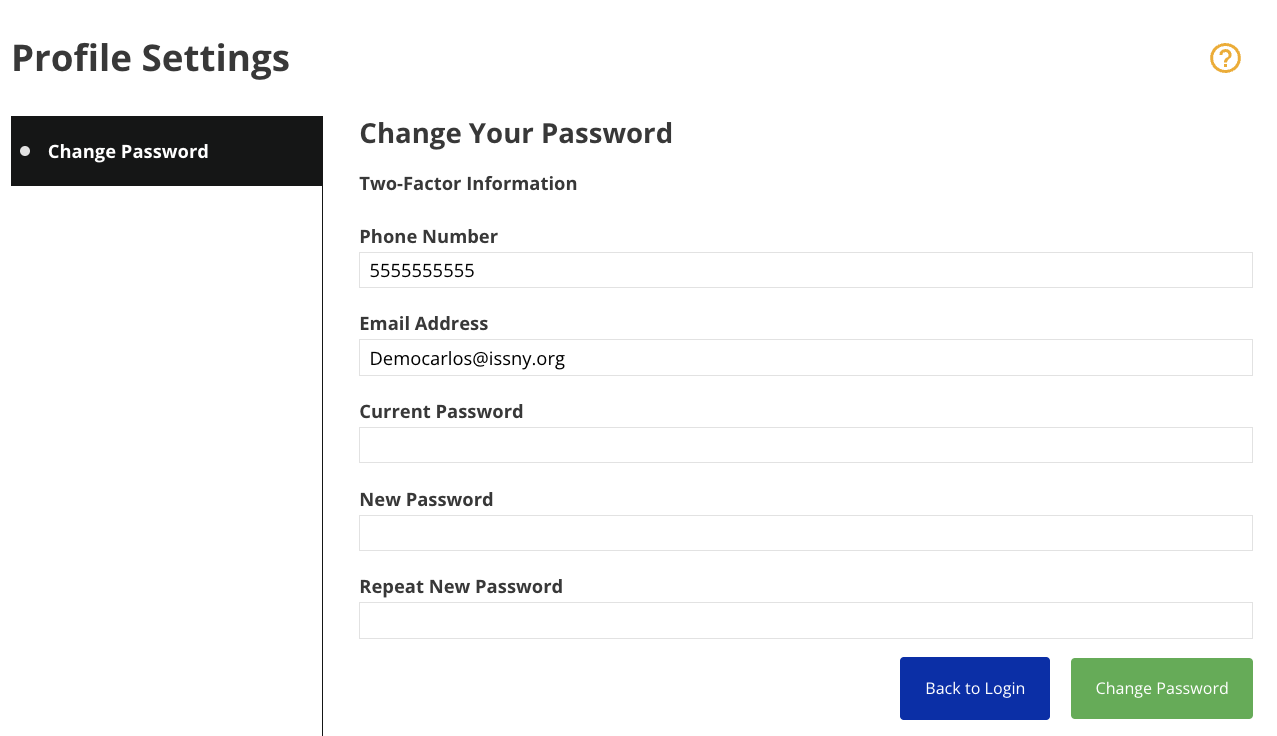
As part of the initial login process, along with resetting the temporary password, you are required to specify your multi-factor authentication preferences. After providing an email address and cell phone number, a one-time passcode will be sent via the method you choose.
[](https://help.issny.org/uploads/images/gallery/2023-01/8.png)
---
### Edit Multi-Factor Authentication Details
To edit your existing multi-factor authentication preferences:
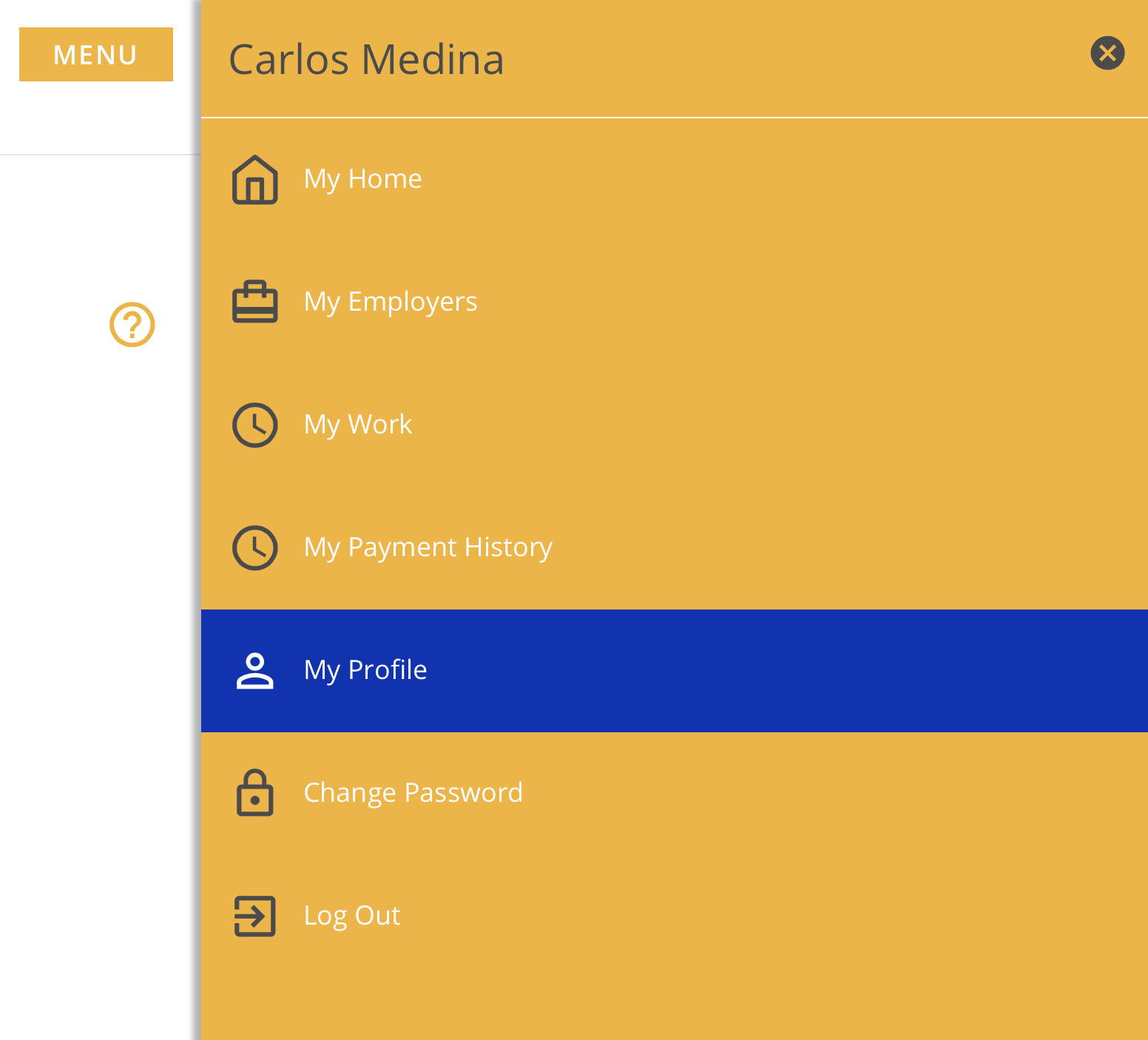
1. Click the **Menu** button.
2. Click **My Profile**.
[](https://help.issny.org/uploads/images/gallery/2023-01/menudrawer-myprofile.png)
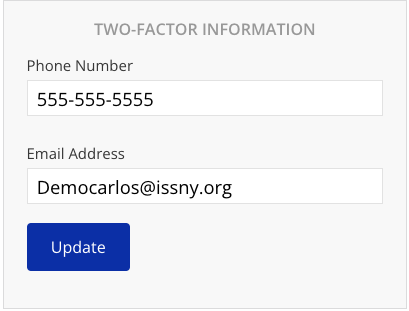
Make the desired changes.
4. Click **Update**.
[](https://help.issny.org/uploads/images/gallery/2023-01/7.png)
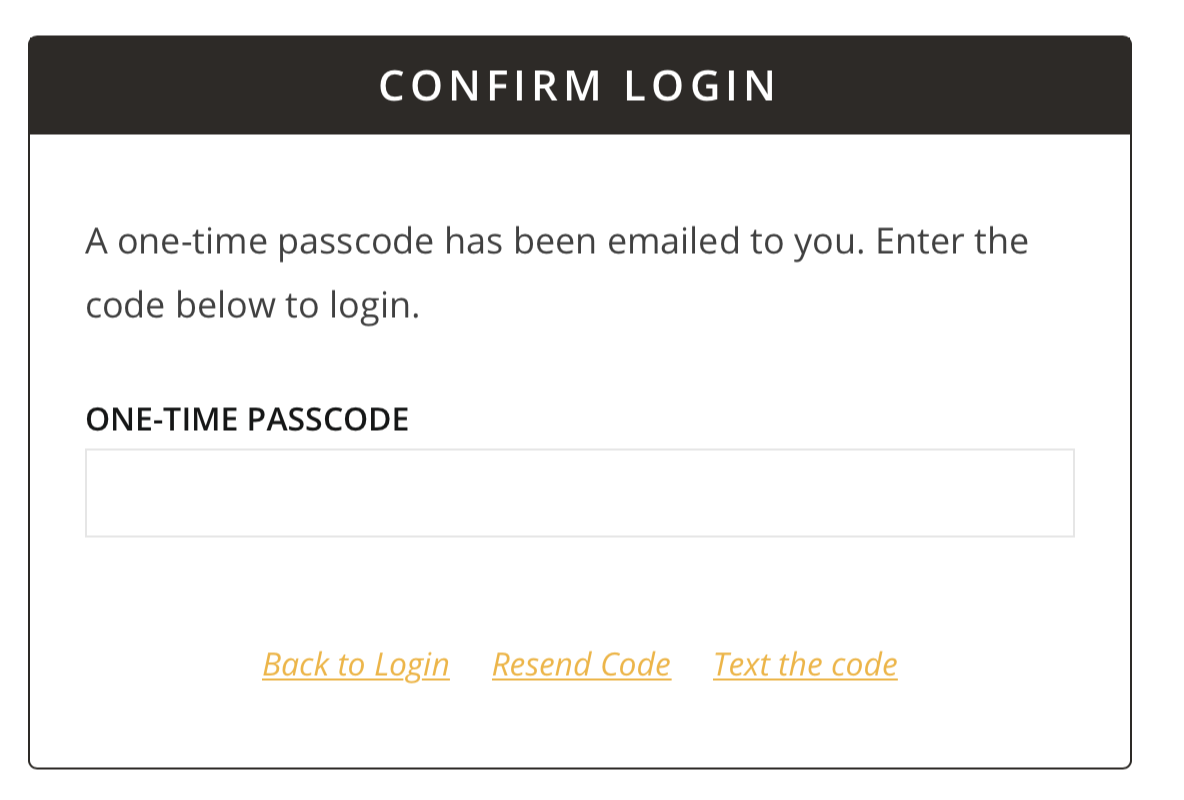
- Please make sure that you are only entering the OTP code. Do not hit enter/return afterwards. Hitting enter is not necessary and if you are doing so, it is most likely what is causing you to unintentionally “click” the link that takes you back to the login screen.
- Once you enter the sixth and final numeric digit in our OTP code, the Portal will automatically take you to the home screen or display the red error banner if you entered the wrong code.
[](https://help.issny.org/uploads/images/gallery/2021-07/otpscreen.png)
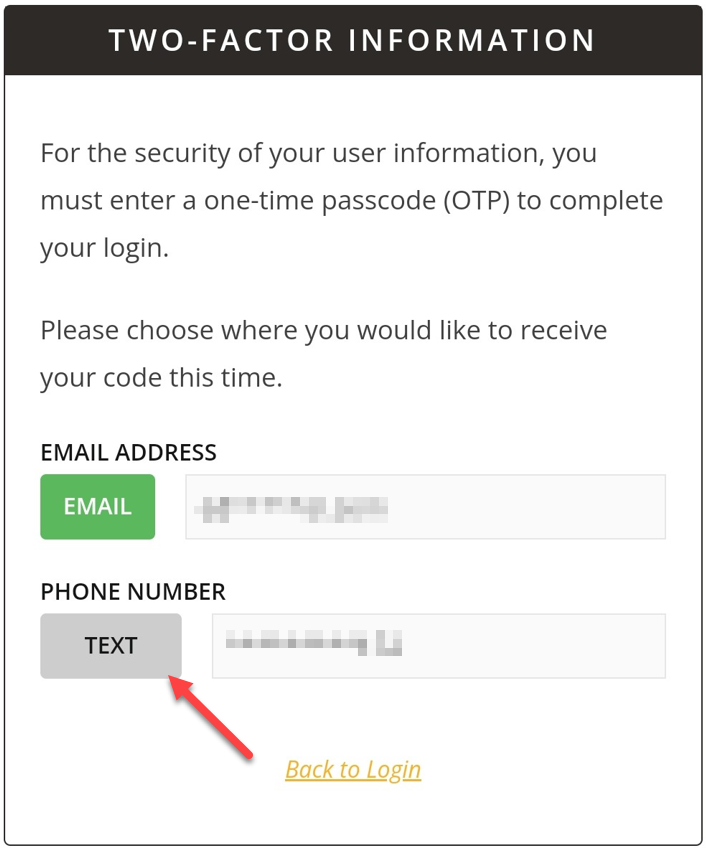
#### Email or Text option is grayed out.
- This happens when the information entered is invalid in some way. For example: an email address missing the @, spaces or carriage returns before or after the email or phone number.
- Please correct or re-enter your information by following the steps above under the *Edit Multi-Factor Authentication Details* section.
[](https://help.issny.org/uploads/images/gallery/2023-01/otpchanges-grayedout.png)
Updated 03/16/23.
# Portal Security FAQ
---
##### **Q: Is my personal information secure on portal.issny.org?**
**A:** Yes! ISS utilizes 256 bit encryption to encrypt data during transfer and while data is at rest so that it cannot be read by unauthorized parties. This, paired with user authentication, ensures that your information is only accessible by ISS.
#####
**Q: Why does [issny.org](http://issny.org) say that it is insecure?**
**A:** This is because the home page at [issny.org](http://issny.org) does not handle personal user data and it is not currently using the 256 bit encryption that other ISS services that manage sensitive user data utilize.
Simply visiting [https://issny.org](https://issny.org) will show you the secure version of our website.
#####
**Q: How can I verify that my connection to issny.org is secure?**
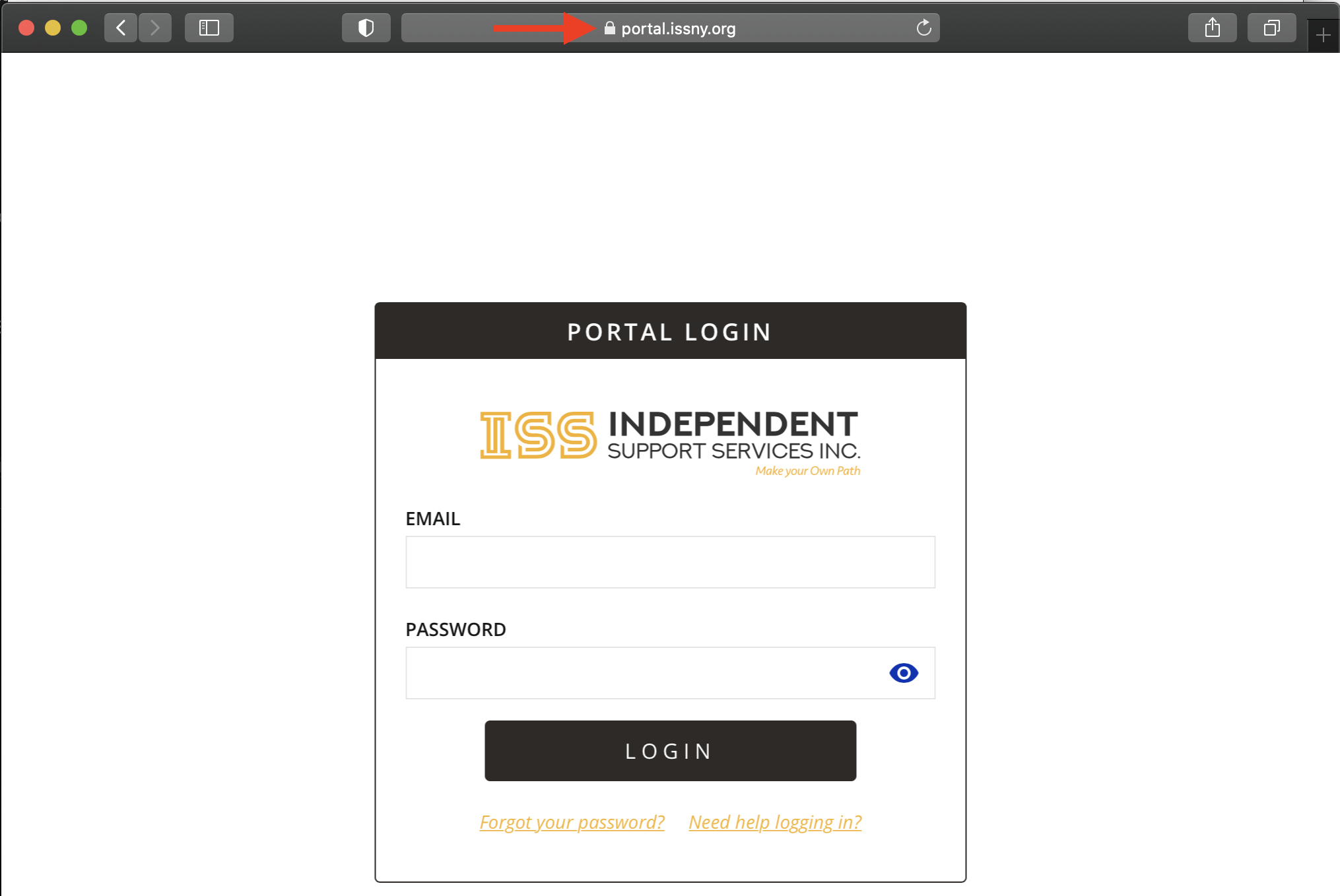
**A:** When visiting web pages, you may notice a small padlock next to the URL at the top of the web page. This padlock icon means that your connection to that website is safe and sound!
[](https://help.issny.org/uploads/images/gallery/2021-05/image-1621357441388.png)