
Uploading Multiple Images from iOS (iPhone)
Updated 6/6/2024
If you are using iOS (iPhone) to upload expense images, please note that if you use the "Take Photo or Video" option, you will only be able to upload a single image. Due to the way iOS works, if you were to use this option multiple times, the new photo will always replace and delete the previous photo you took.
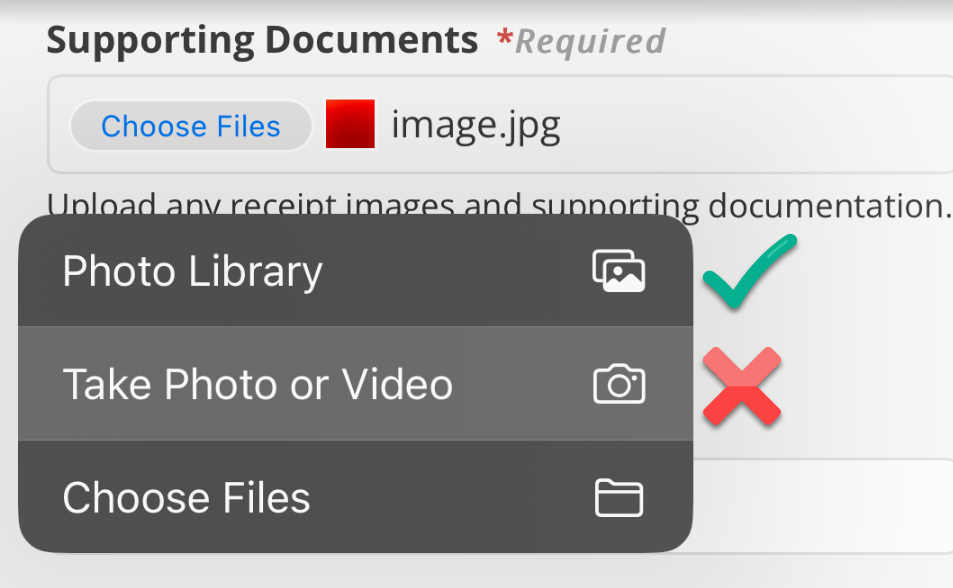
If you would like to upload multiple images from your iPhone, please take pictures of the documents using the Photo app then select "Photo Library". At the Photo Library screen, click the images you want to upload. Once all images are selected, click Add to complete image selection.