
Accessing and Submitting Portal Forms
Accessing Portal Forms Via Portal:
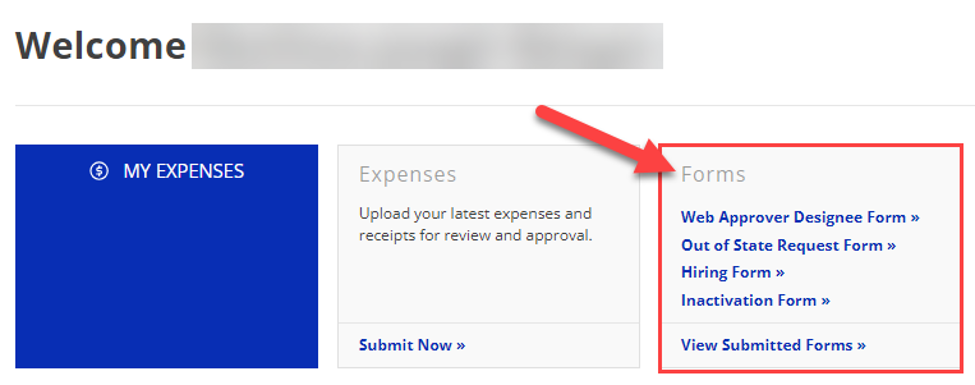
Forms are available on the Portal and located on the homepage upon login. They are accessible from the Forms widget.
Click on the form you would like to submit, and it will open the form in a new window. Once the form is filled in and submitted, you will receive a confirmation page informing you that it has been successfully submitted.
Viewing Submitted Forms:
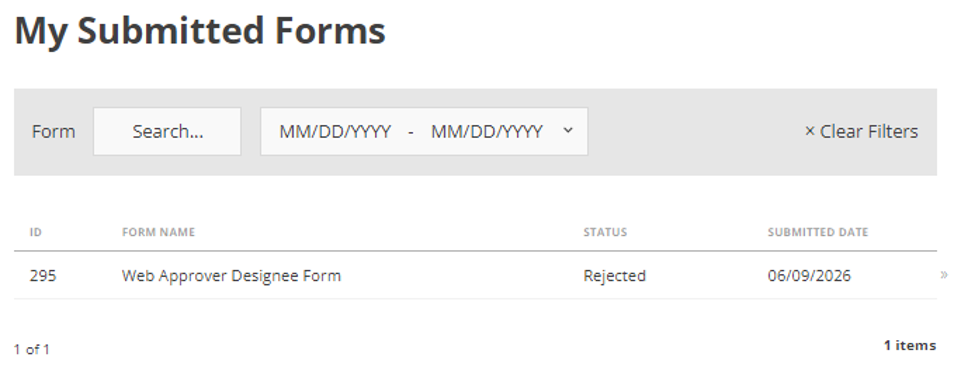
Users can review and check the status of forms that have been submitted via the My Submitted Forms page.
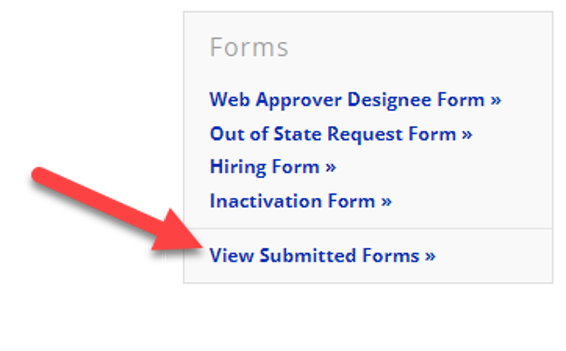
Clicking on the View Submitted Forms link in the Forms widget will take you to the My Submitted Forms page where you can see a full history of submissions made. At a glance, you can see the ID, Form Name, Status, and Submitted Date of every submission. For more detail, you can click on a submission to see the full submission.
FAQ
Which fields need to be answered?
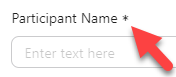
If a question has an asterisk (*), it is a required field and must be filled in before proceeding or submitting. You will not be able to proceed or submit if those fields are left empty.
Why can I not proceed past the first page of the Web Approver Designee form?
You will need to review and check off the acknowledgments before proceeding. Once those three check boxes are selected, the “Next” button will appear.
Created 06/10/2026.