
Submitting Monthly Summary Notes (MSNs) with ISS' AI Summary Helper
Monthly Summary Notes act as progress indicators of the work being done as part of a participant's Staff Action Plan.
The MSN widget on the Portal home page shows any Monthly Summary Notes that are ready to be completed. The new MSN process brings the month's activities, summary, and callouts together in one place. It can also create a draft response for each question to help you get started.
The draft is based on the information shown in the MSN. Be sure to read each response and make any needed changes before submitting it.
Images in this guide use fictional names and sample information.
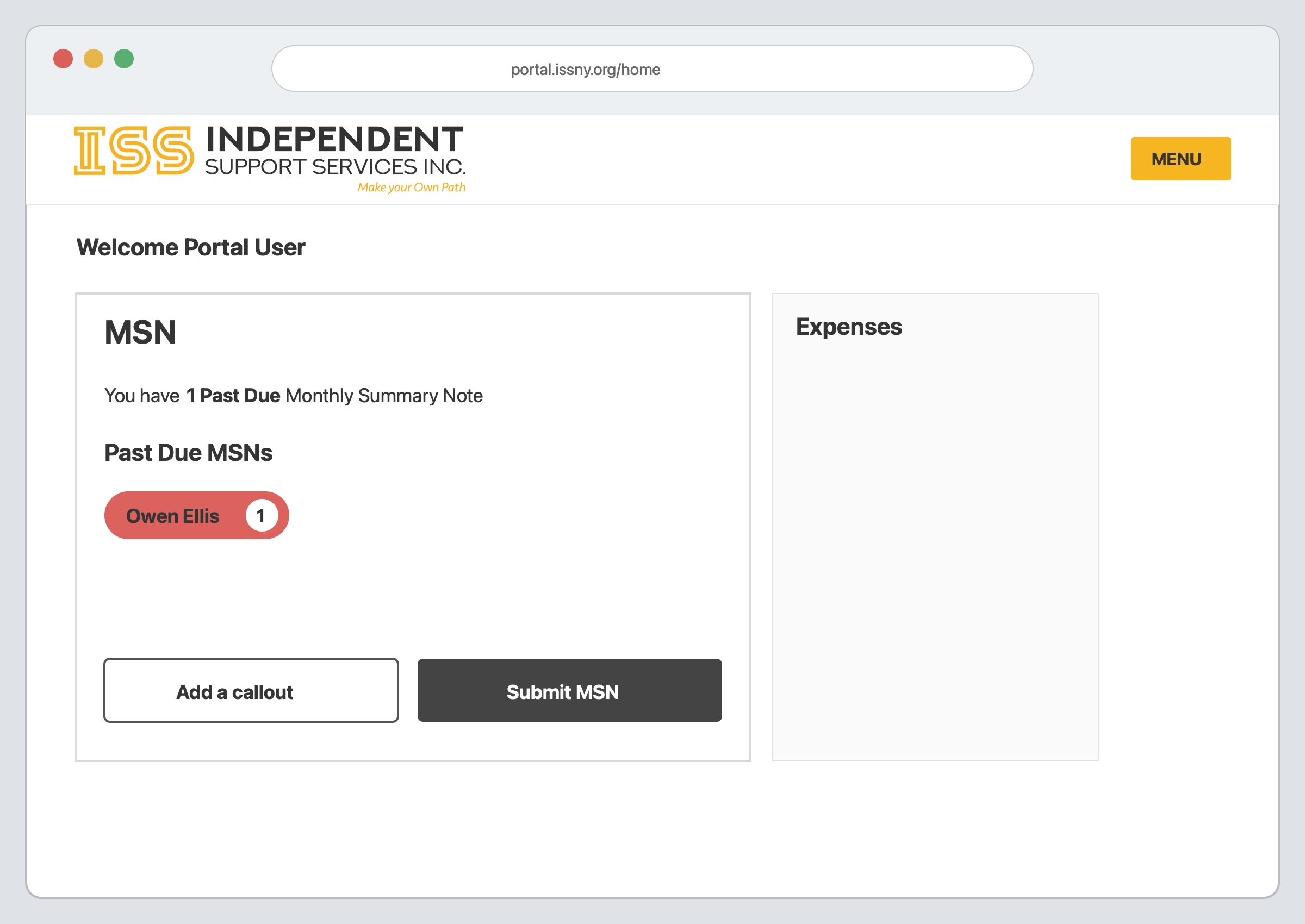
The MSN Widget
The MSN widget is located on the Portal home page. It shows:
- The number of past due Monthly Summary Notes
- The participant who needs a Monthly Summary Note
- Add a callout button
- Submit MSN button
Adding a Callout
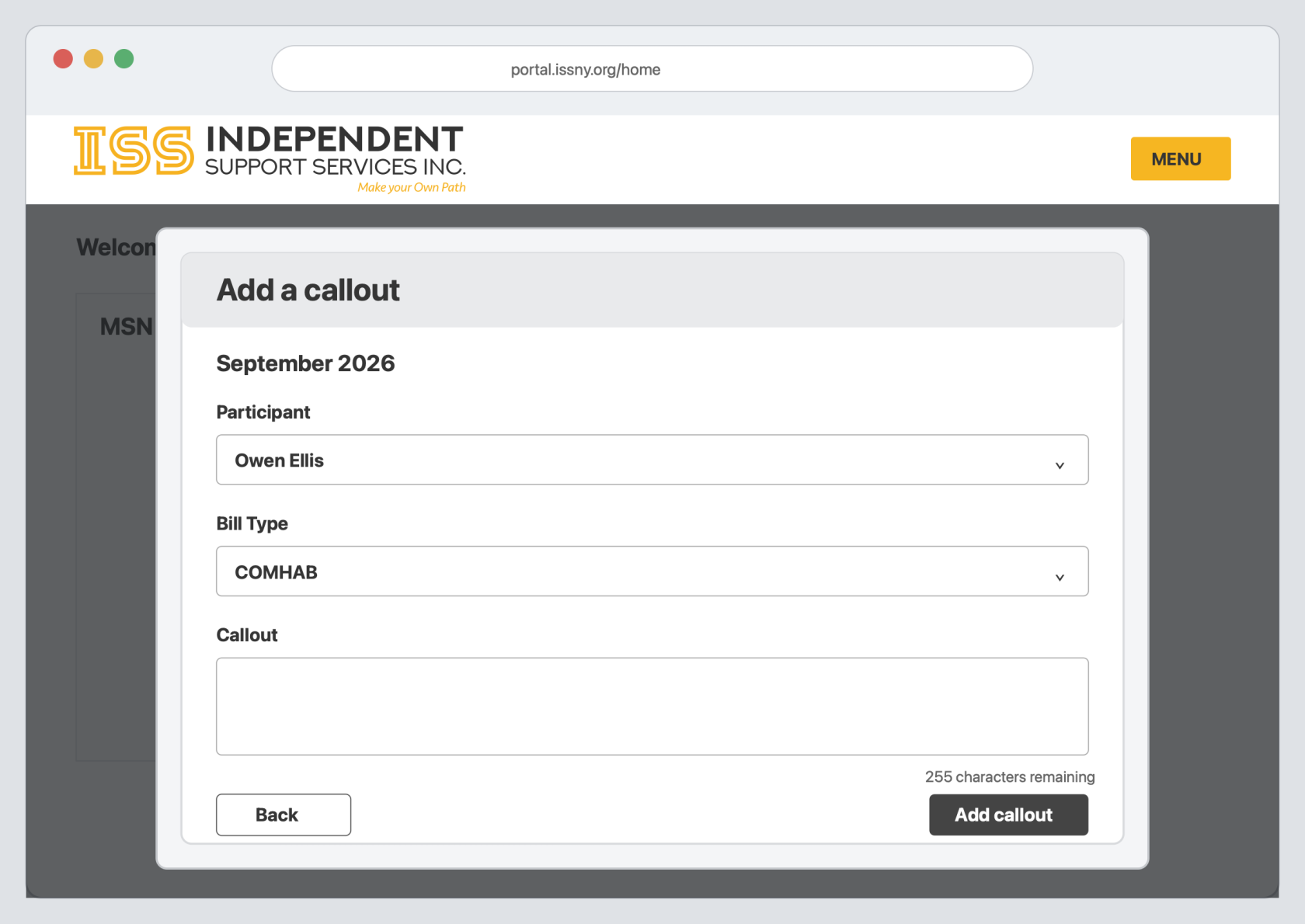
A callout is a short note about something that happened during the month. You can add a callout for an accomplishment, a new skill, an important event, or a concern. You cannot add callouts for past MSNs.
Callouts are only available to the Portal user who creates them. If another Portal user has permission to do an MSN for the same participant, they will not see callouts created by another user.
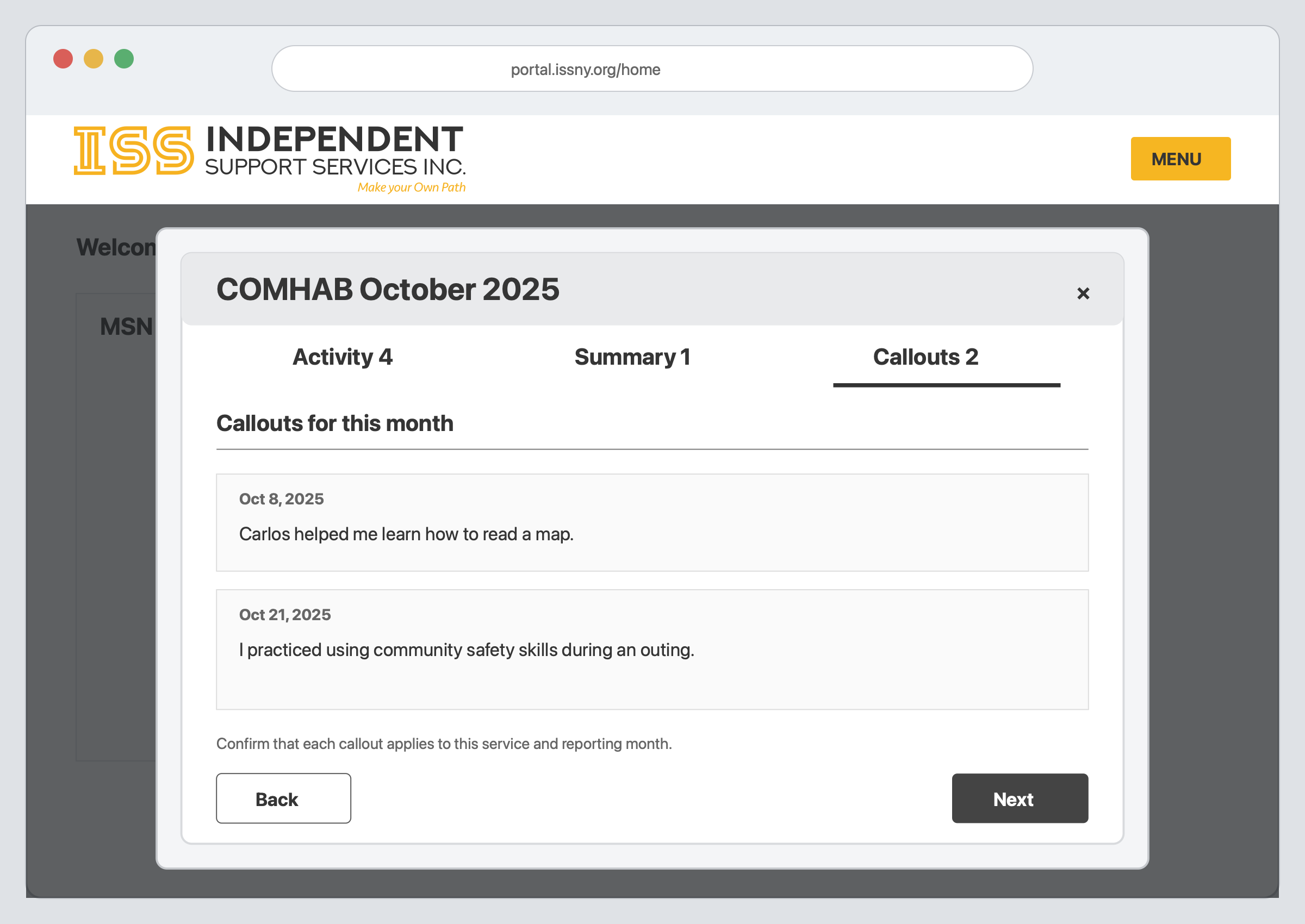
Callouts are included with the other information used to create draft responses so make sure the callout is for the correct participant, Bill Type, and month.
From the home page:
- Click Add a callout in the MSN widget.
- Check the month shown at the top of the window.
- Select the Participant.
- Select the Bill Type.
- Enter the note in the Callout field.
- Click Add callout.
Use clear and specific information in a callout. Remember that the information may appear in a draft Monthly Summary Note.
Step By Step Instructions
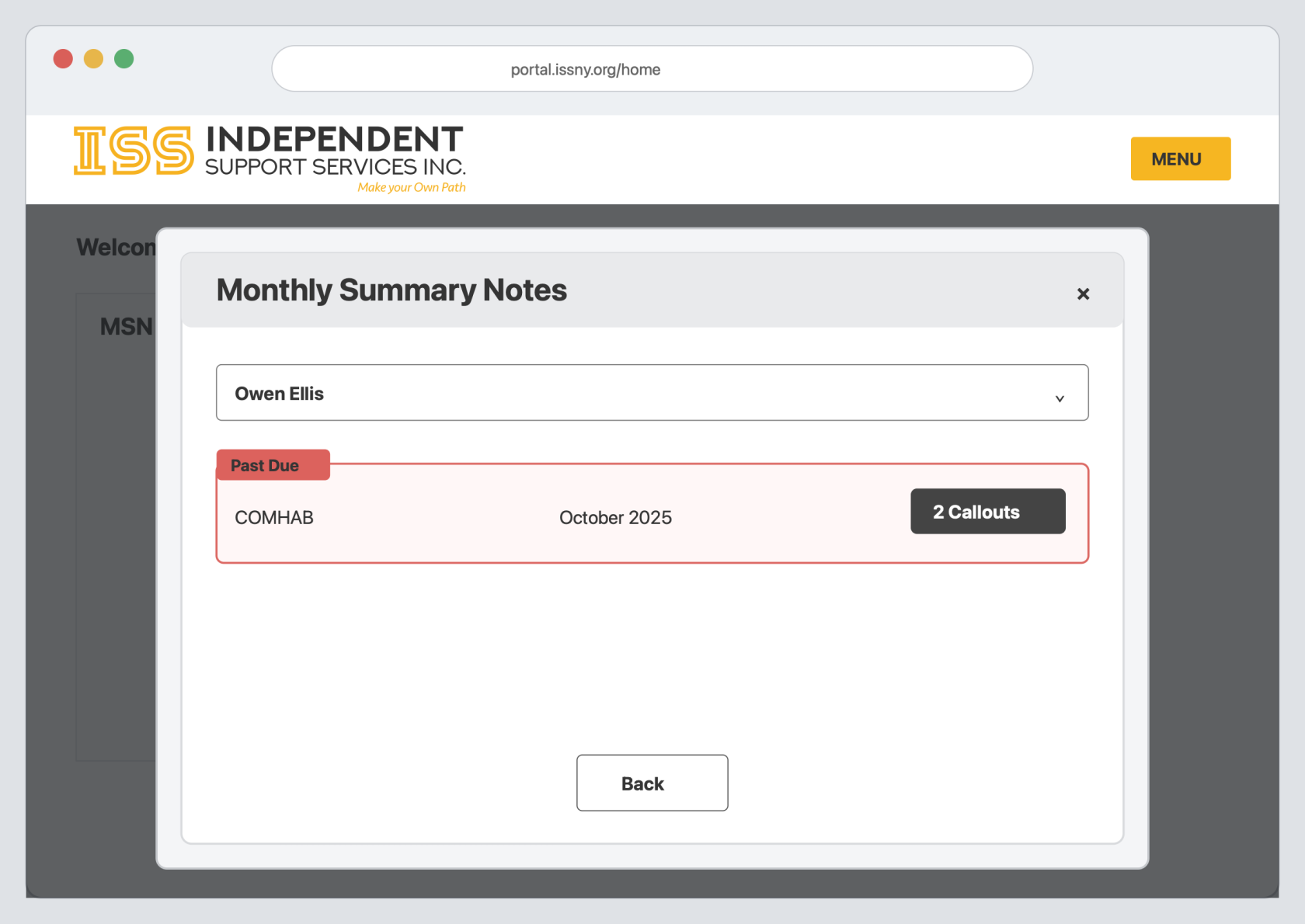
From the home page:
- Click Submit MSN in the MSN widget.
- Select the participant from the dropdown.
- Find the Monthly Summary Note you want to complete.
- Click the row for that Bill Type and month.
A red Past Due label shows if that Monthly Summary Note is overdue. The number of callouts for the month is shown on the right.
Reviewing the Monthly Information
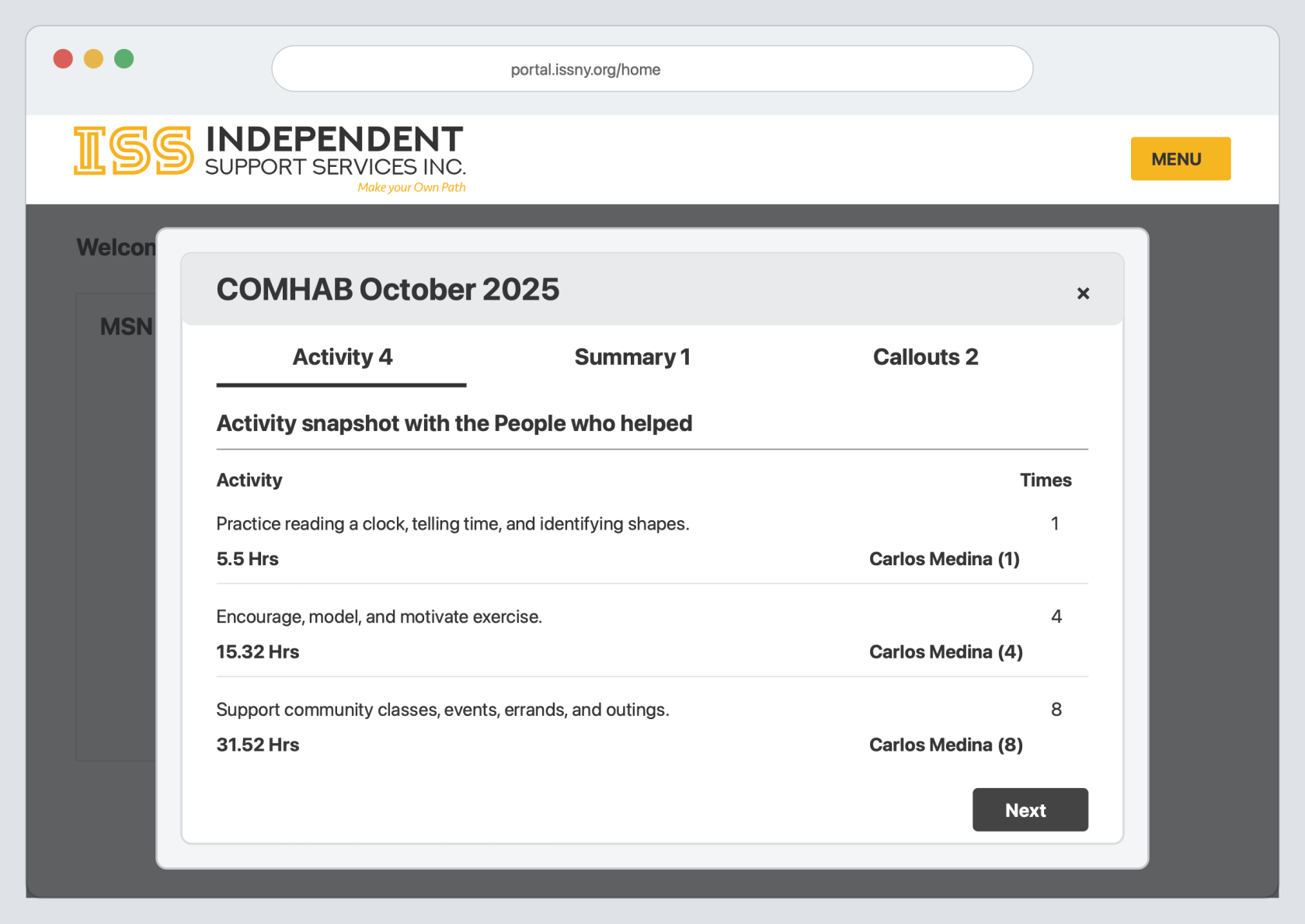
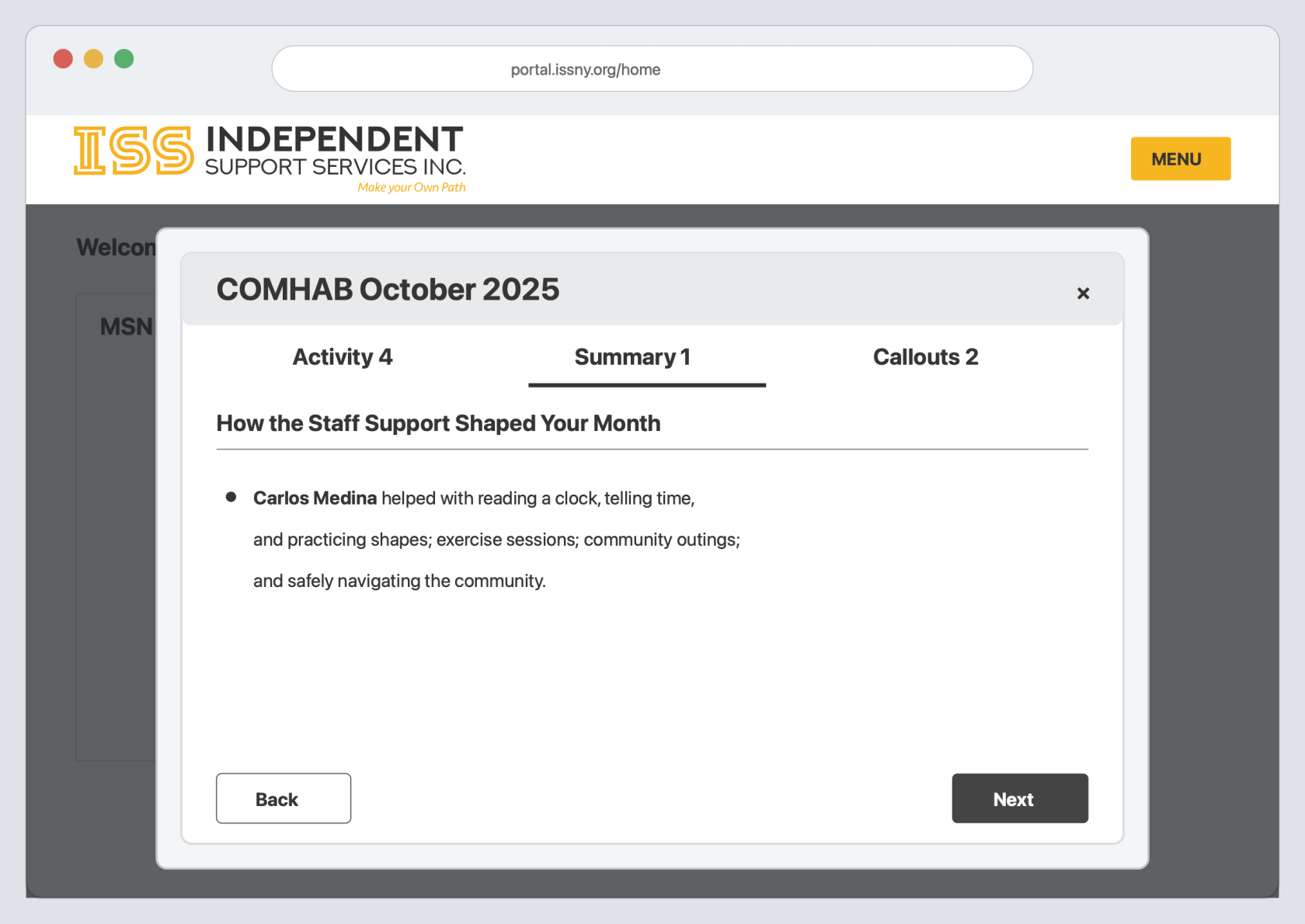
The Monthly Summary Note opens with three tabs: Activity, Summary, and Callouts. The number beside each tab shows how many items are available.
Review all three tabs before completing the questions.
Activity
The Activity tab shows the activities worked on during the month. It also shows the hours, number of times, and the staff who provided support.
Summary
The Summary tab gives an overview of the support provided during the month.
Callouts
The Callouts tab shows the callouts added for the month. Check that each callout belongs to the Monthly Summary Note you are completing.
When you are finished reviewing the information, click Next.
Completing the Questions
There are a few questions to complete. The circles and page number at the bottom of the window show your progress.
For each question:
- Read the question.
- Click Generate Draft.
- Wait for the response to appear.
- Read the entire response.
- Make any needed changes in the response field.
- Click Next to continue.
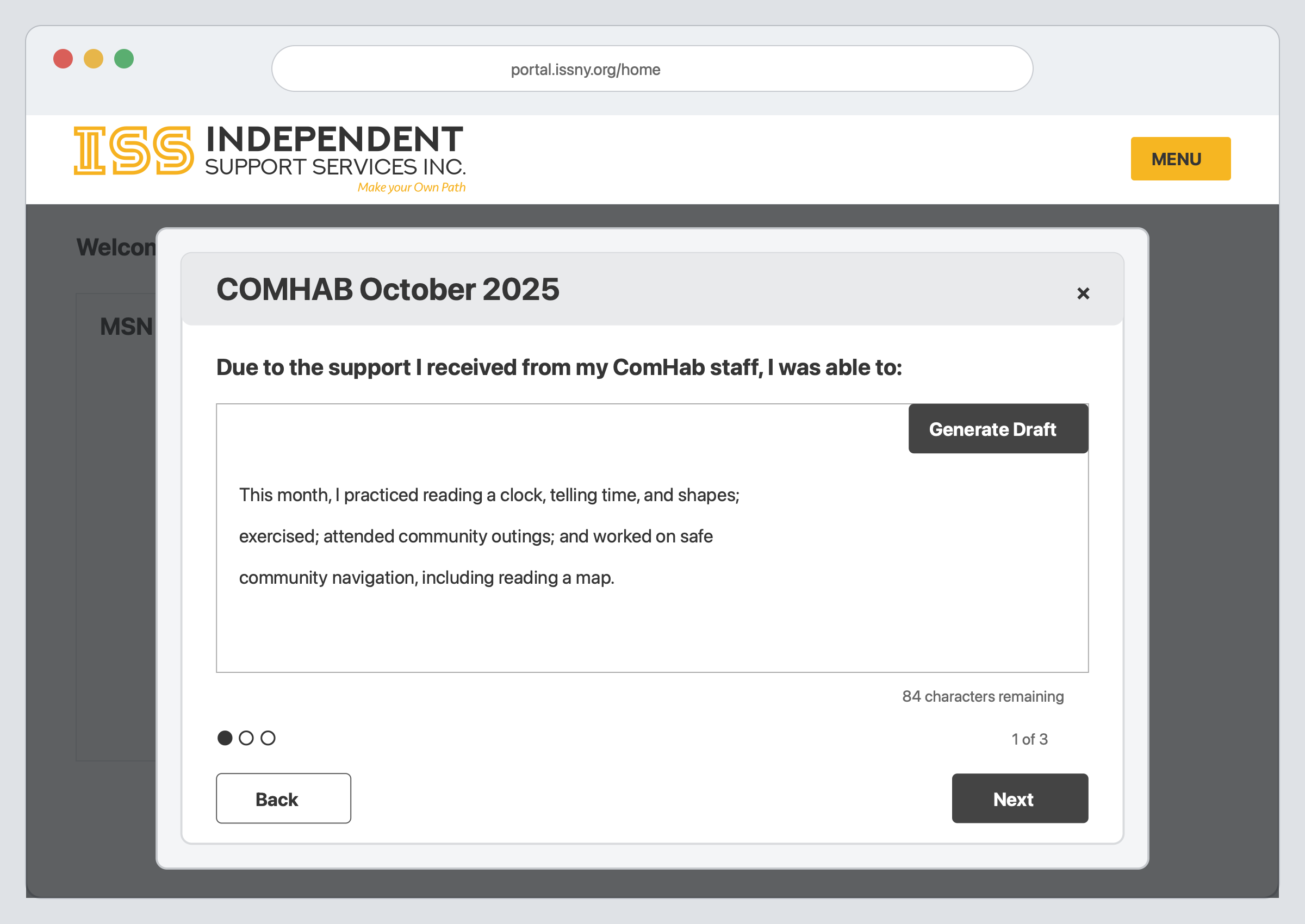
The draft may include information from the Activity, Summary, and Callouts tabs. If you see something you did not expect, go back and check those tabs. Correct anything that is inaccurate before continuing.
Click Previous if you need to return to an earlier question.
Submitting the Monthly Summary Note
On the last question:
- Read the question and the full response.
- Make any needed changes.
- Click Submit MSN.
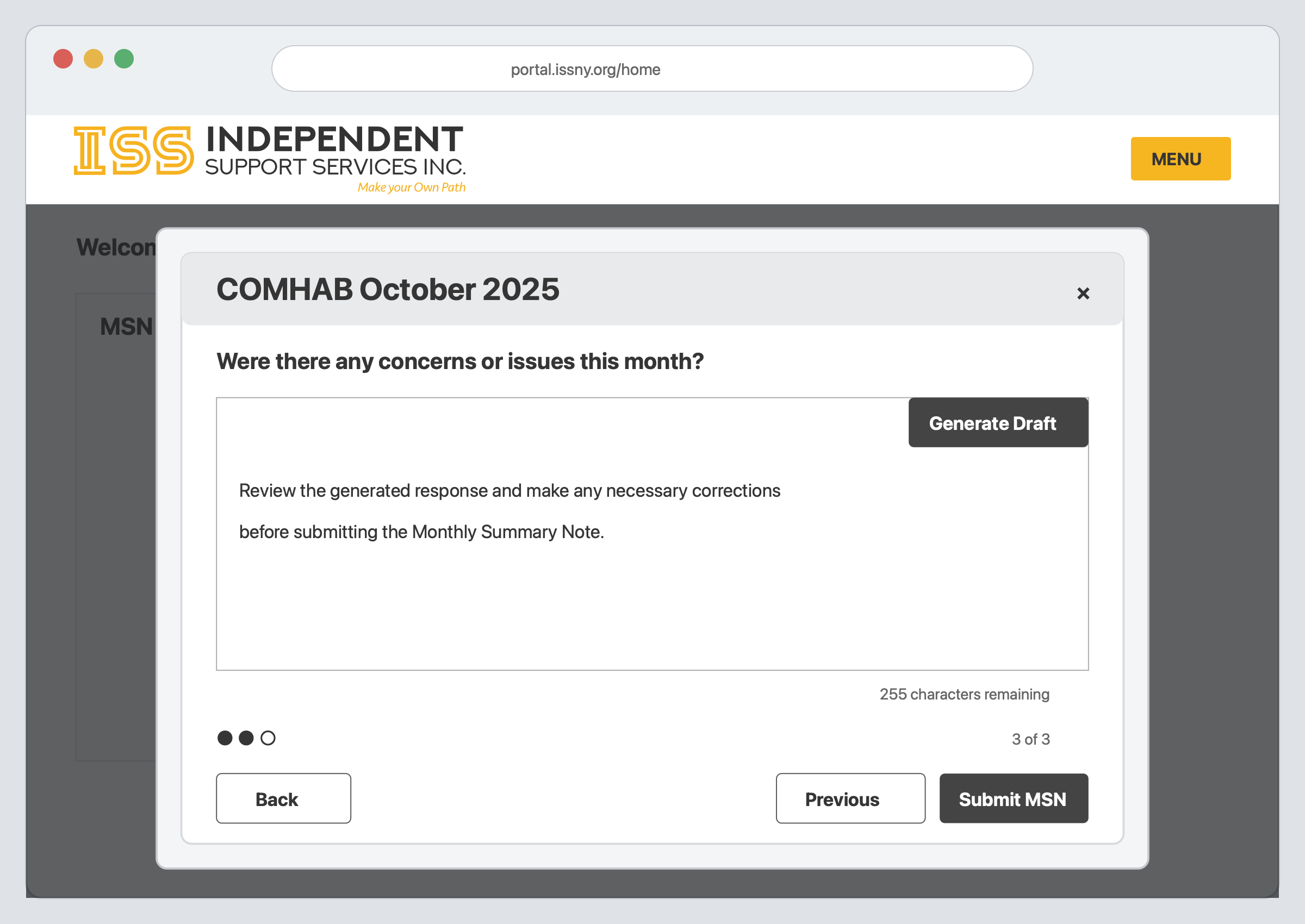
Only one Monthly Summary Note per month and Bill Type can be submitted. After it is submitted, it will no longer show as available in the MSN widget.
You can still add callouts when there are no Monthly Summary Notes ready to submit.
Created 10/01/26.