
How to Reset Your Password
Updated
2/23/2023
ToReset resetusing "Forgot your lost or forgotten password:password?":
ClickOn the Portal login page (https://portal.issny.org/portal/login), and click Forgot your password? underneath the Loginbutton on the login page.button.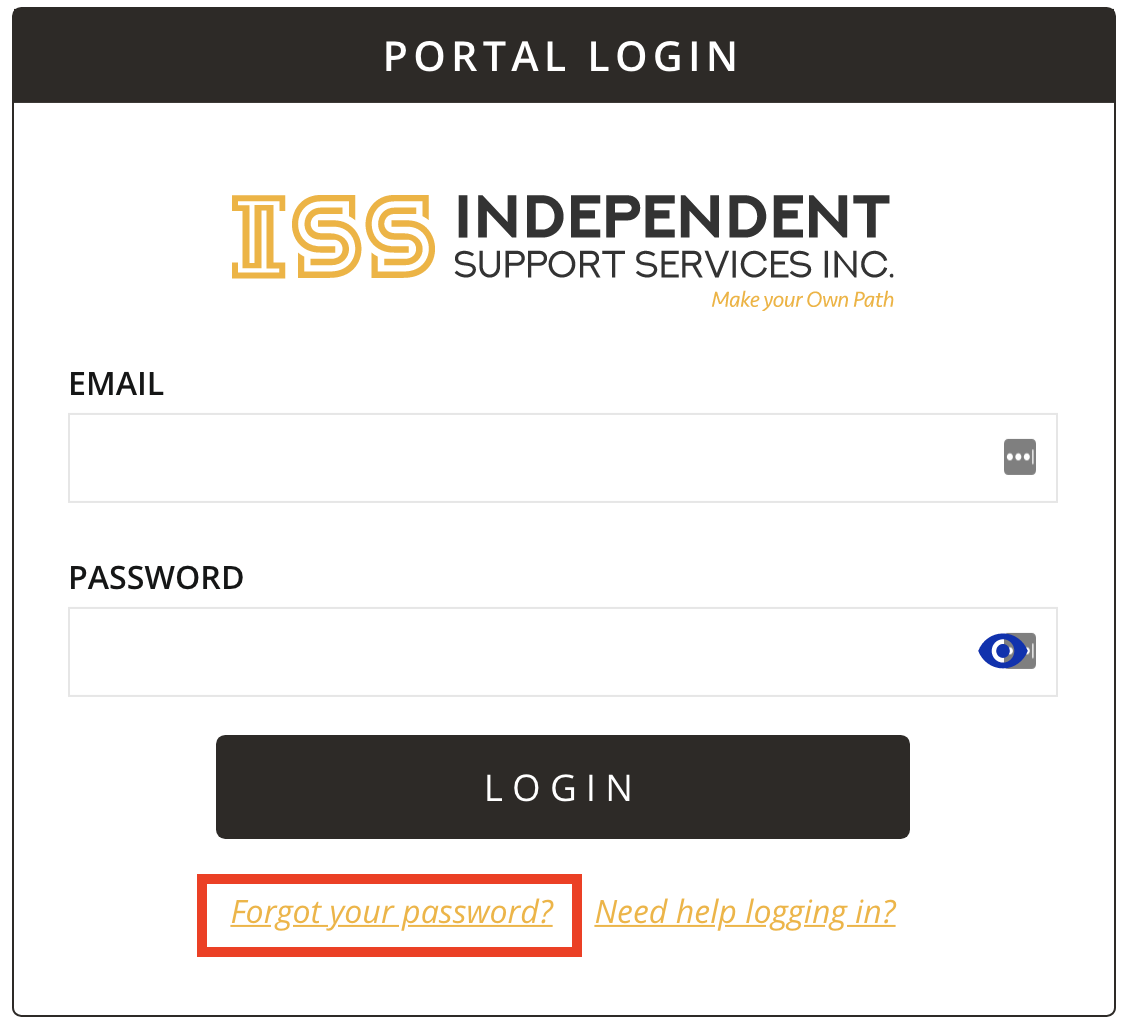
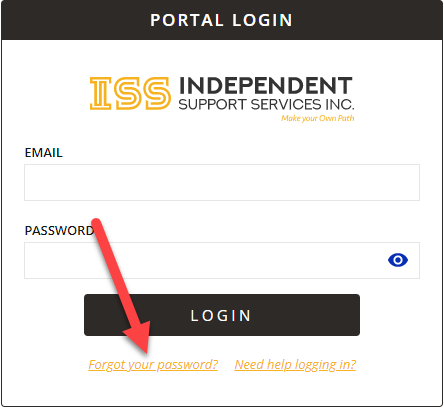
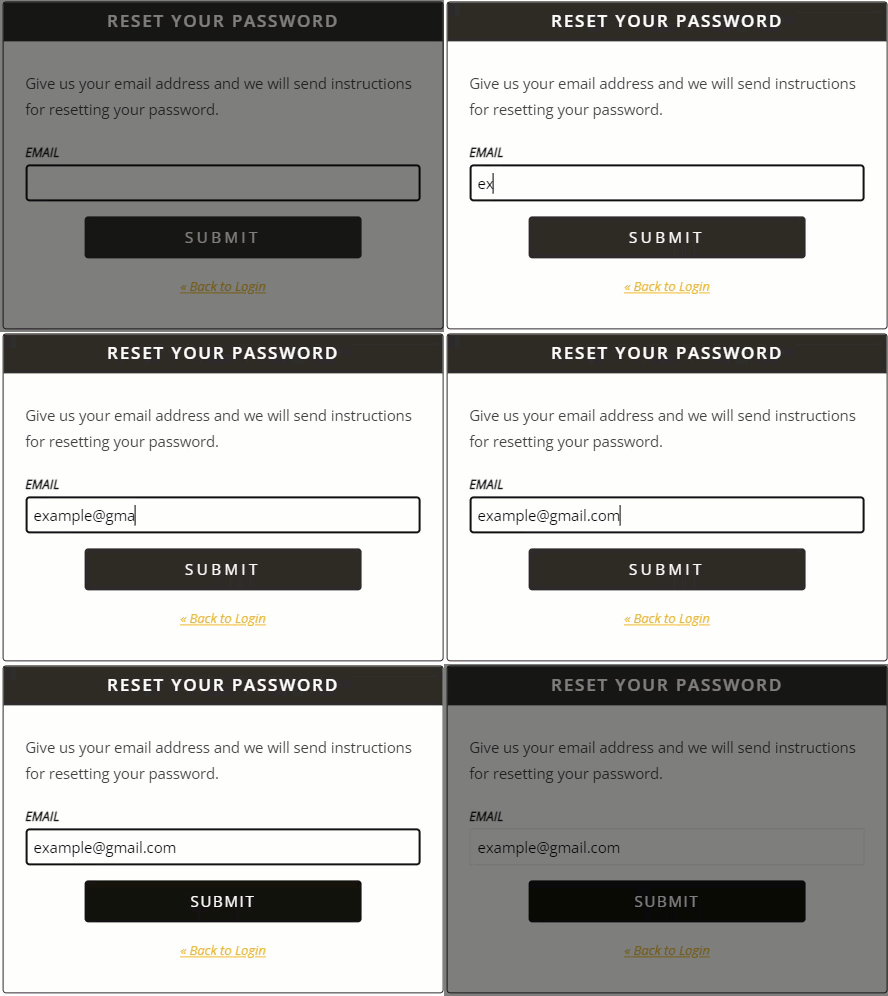
Next, enterEnter the email address on file with ISS andclickclick Submit. Instructions will be sent to the email address you provide.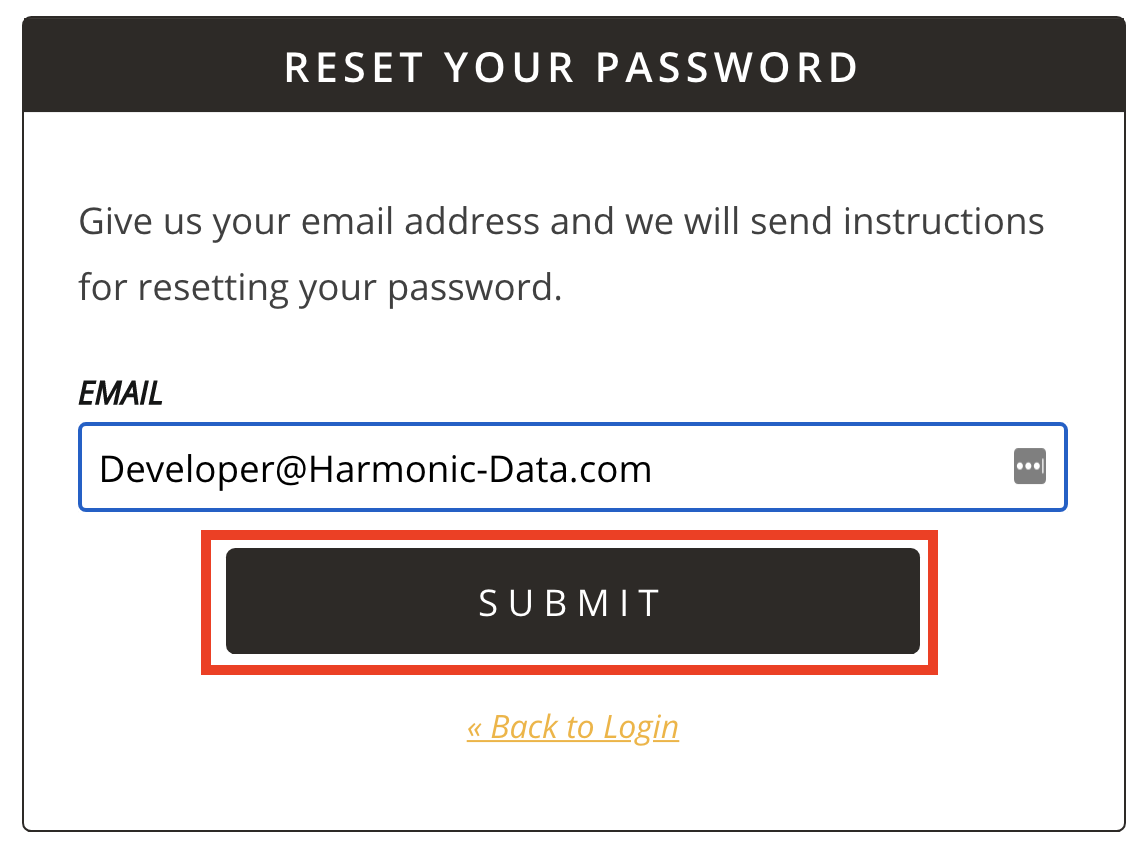
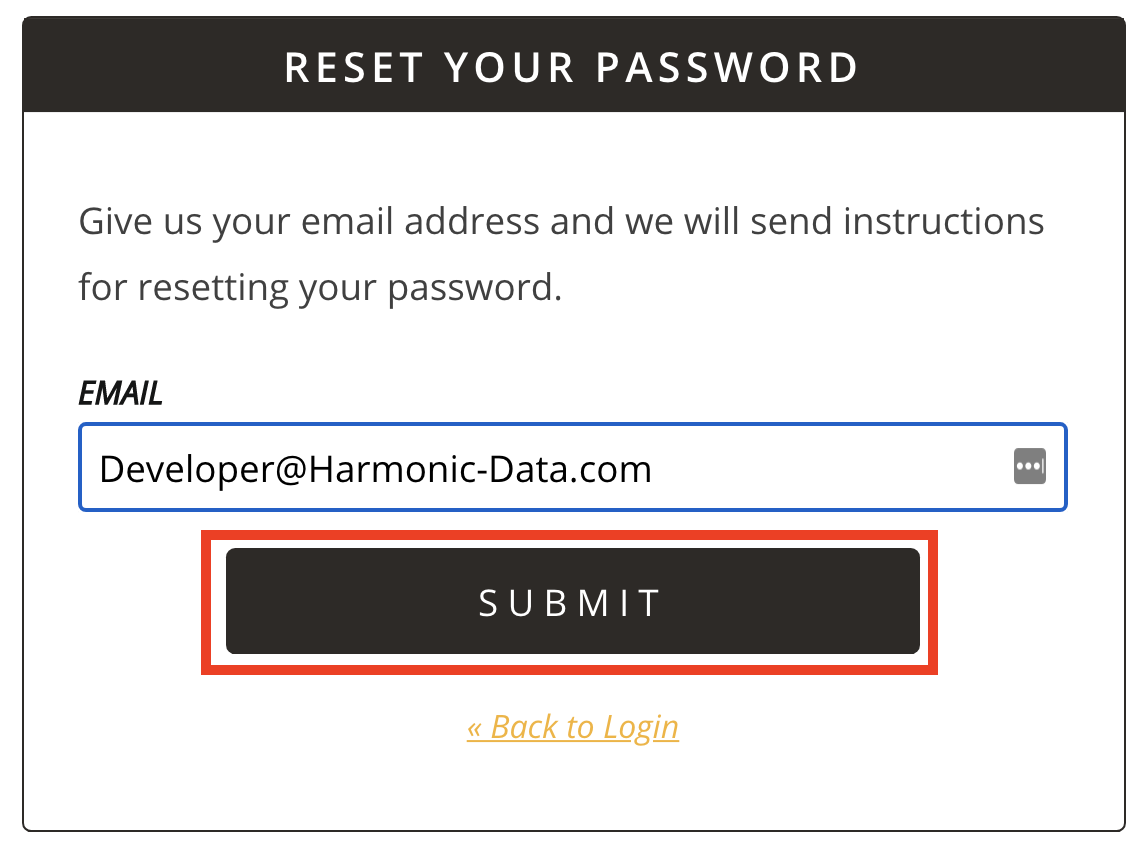
Make sure you are typing the email you provided to ISS as your contact. If you do not remember which email address you provided, please reach out to your assigned Self Direction Coordinator.
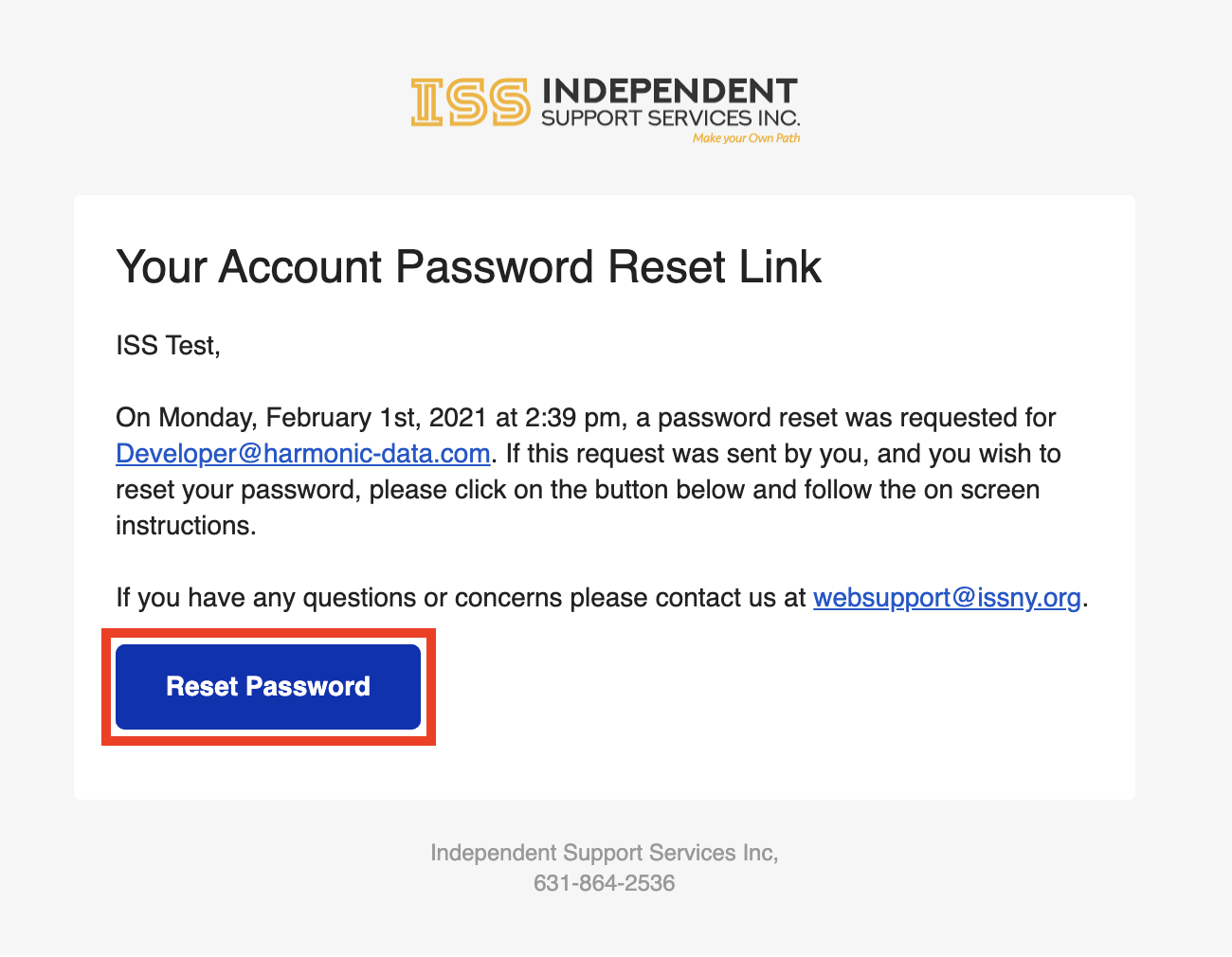
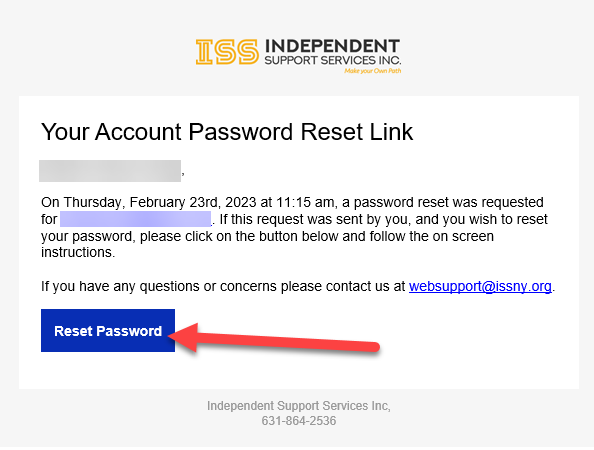
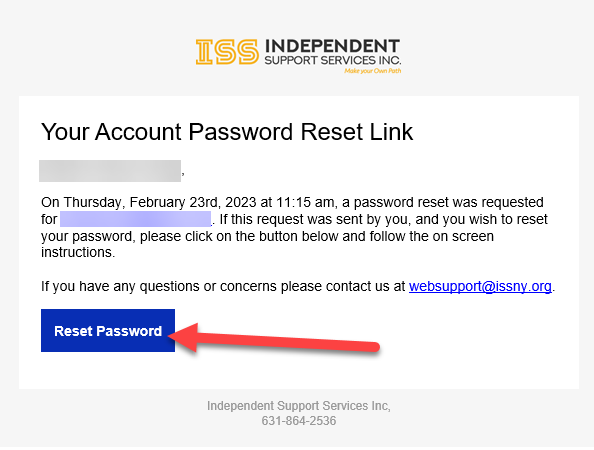
- Check your email for the instructions sent from websupport@issny.org. Open the email and click the blue Reset Password button.
- Provide a new
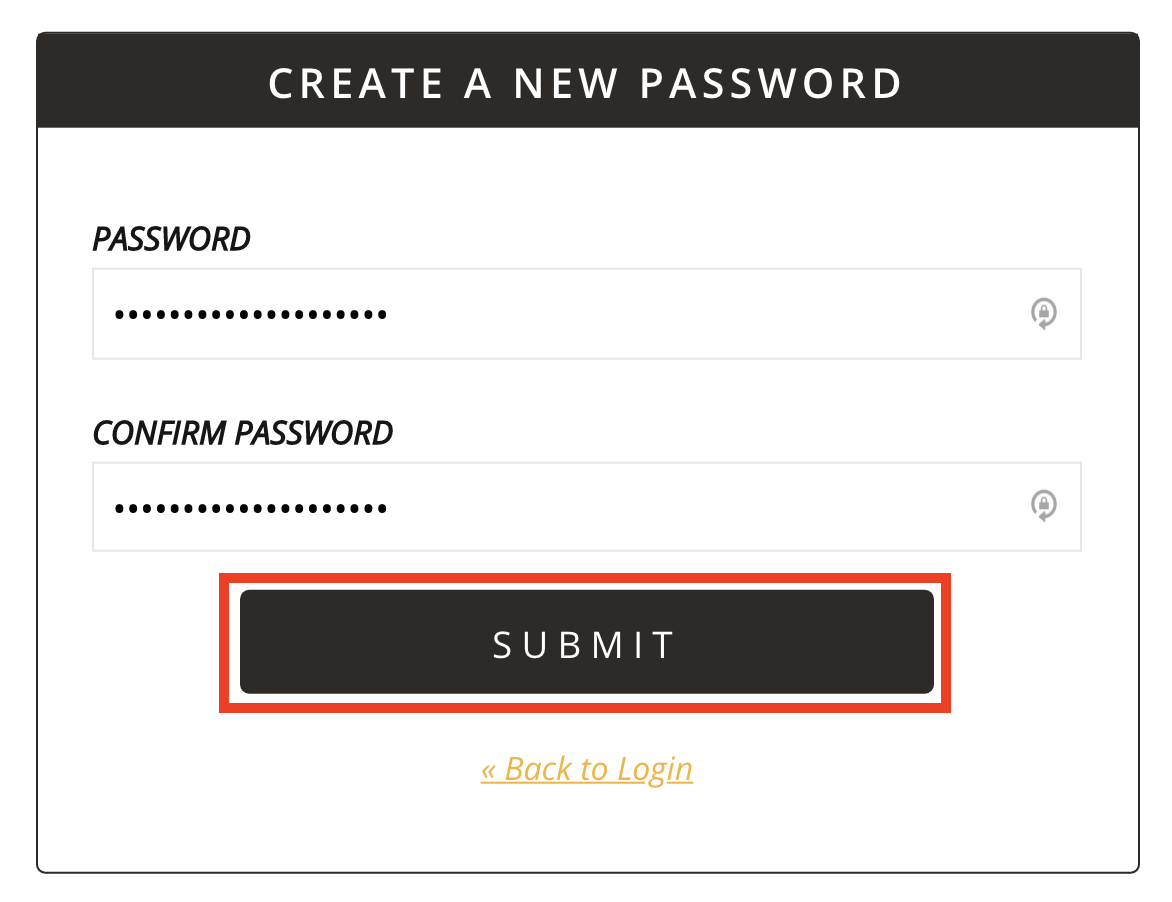
password,password and confirm the password by typing it into the secondboxbox.and onceOnce finished, click Submit. You will be taken back to the login screen after submitting your new password.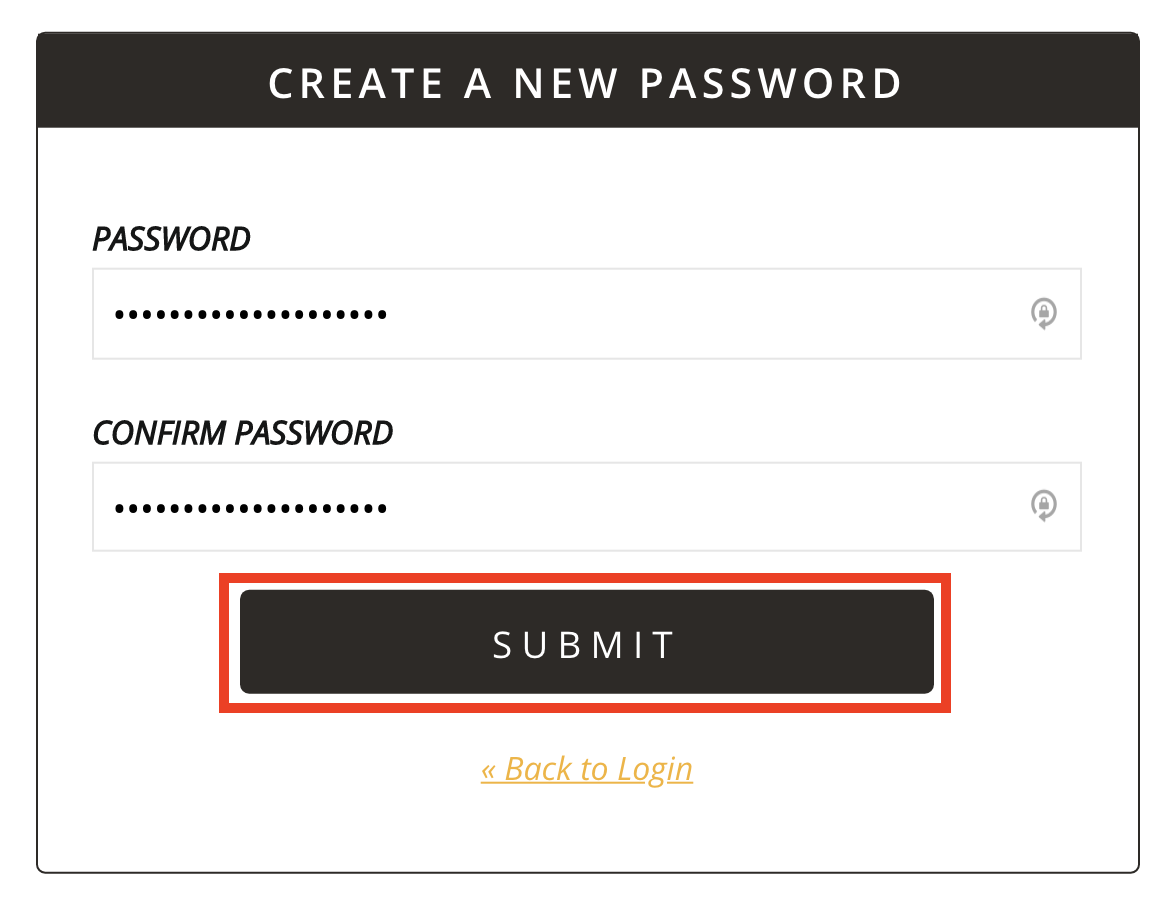
- From the login screen, use the password you just set to log into your account.
To change your password while logged in:
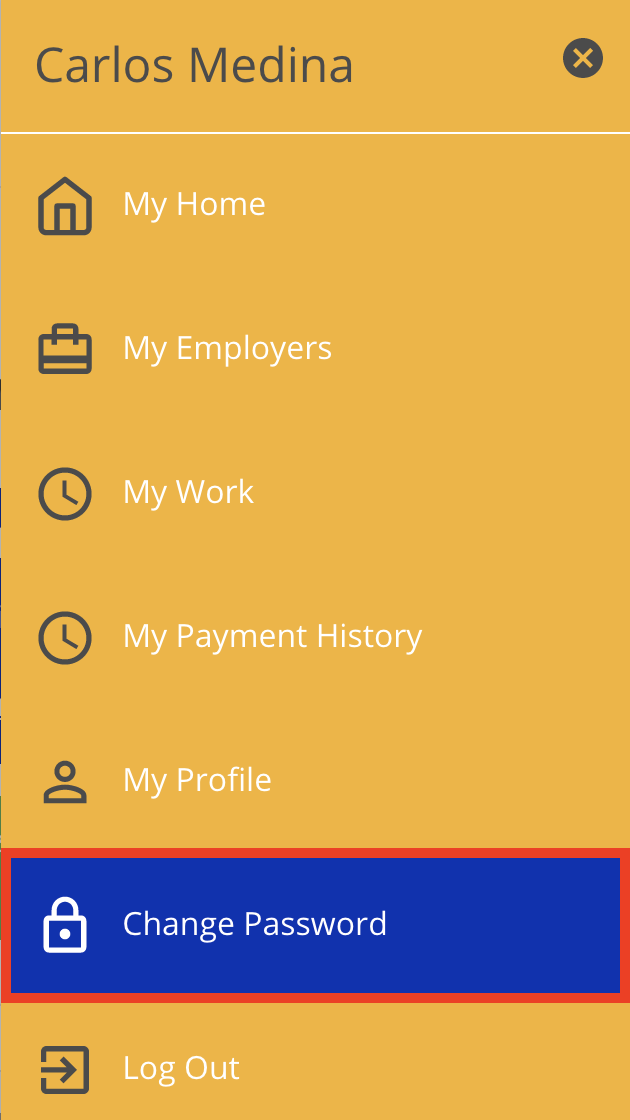
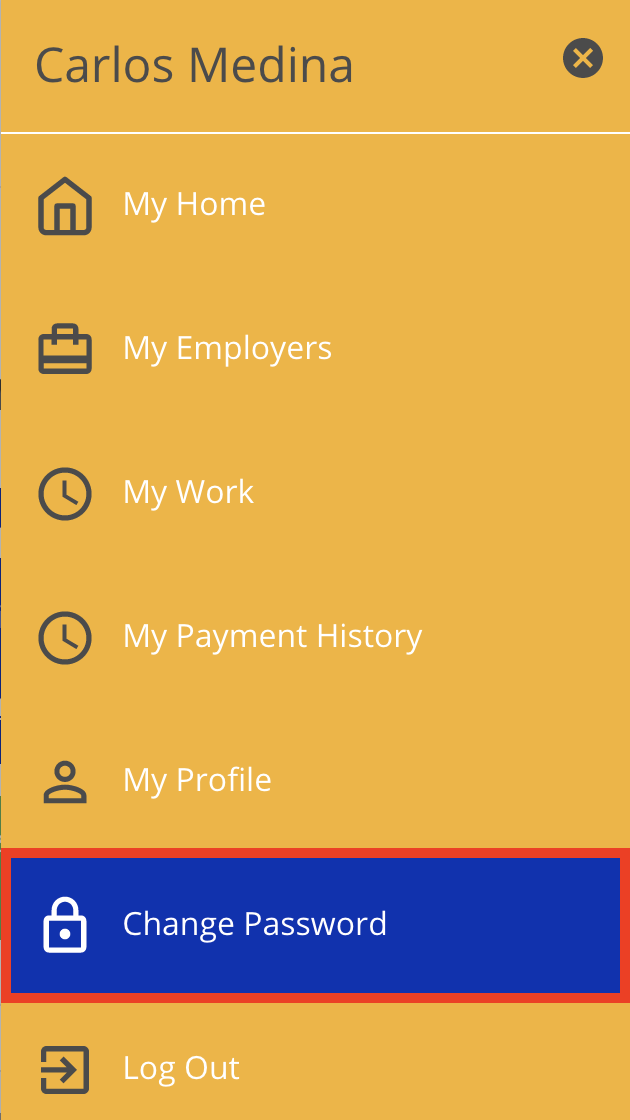
- Click Menu in the top right corner and select Change Password.

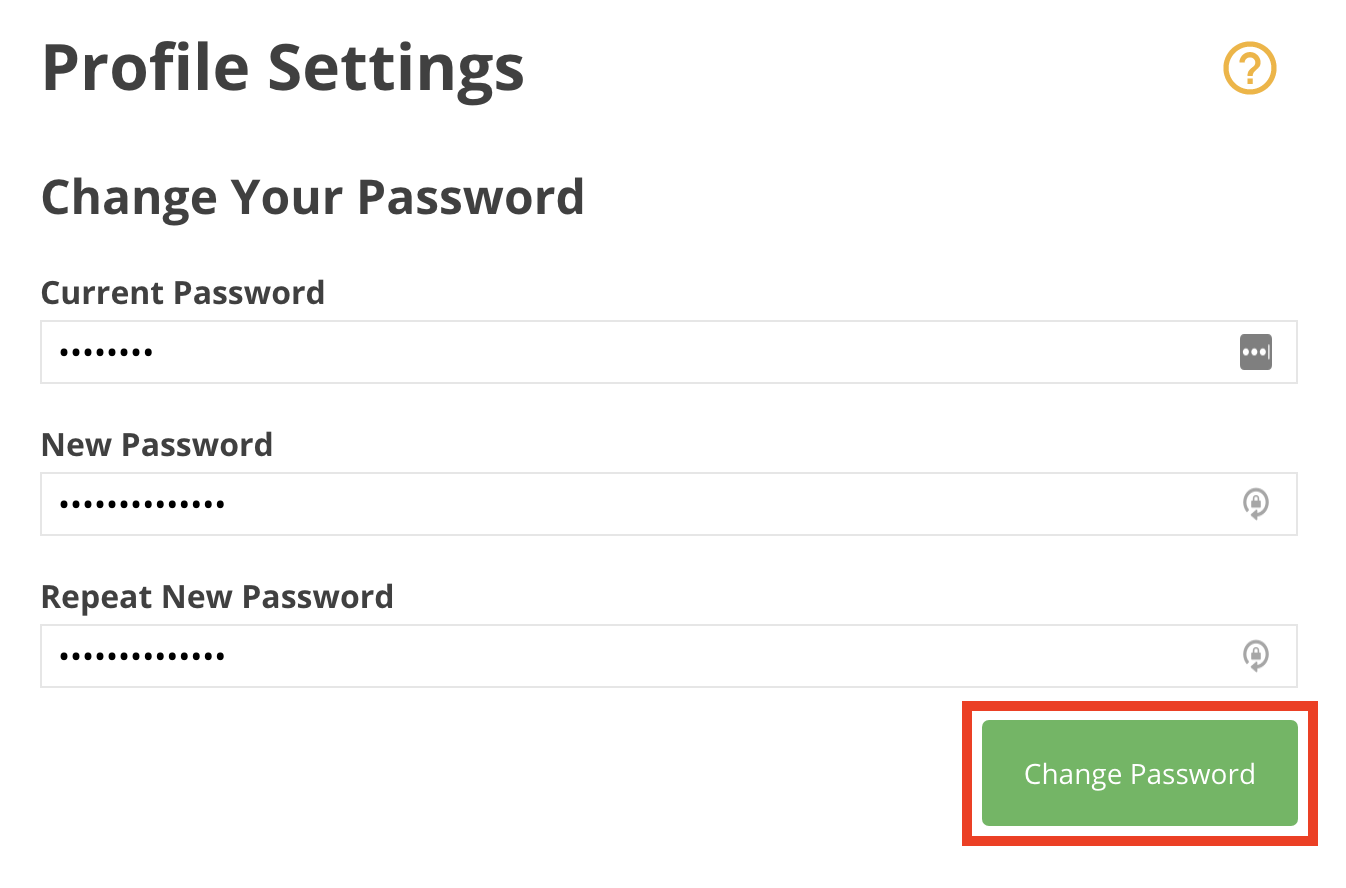
- Provide your current password, a new password and then repeat the new password. Once you are finished, click Change Password.
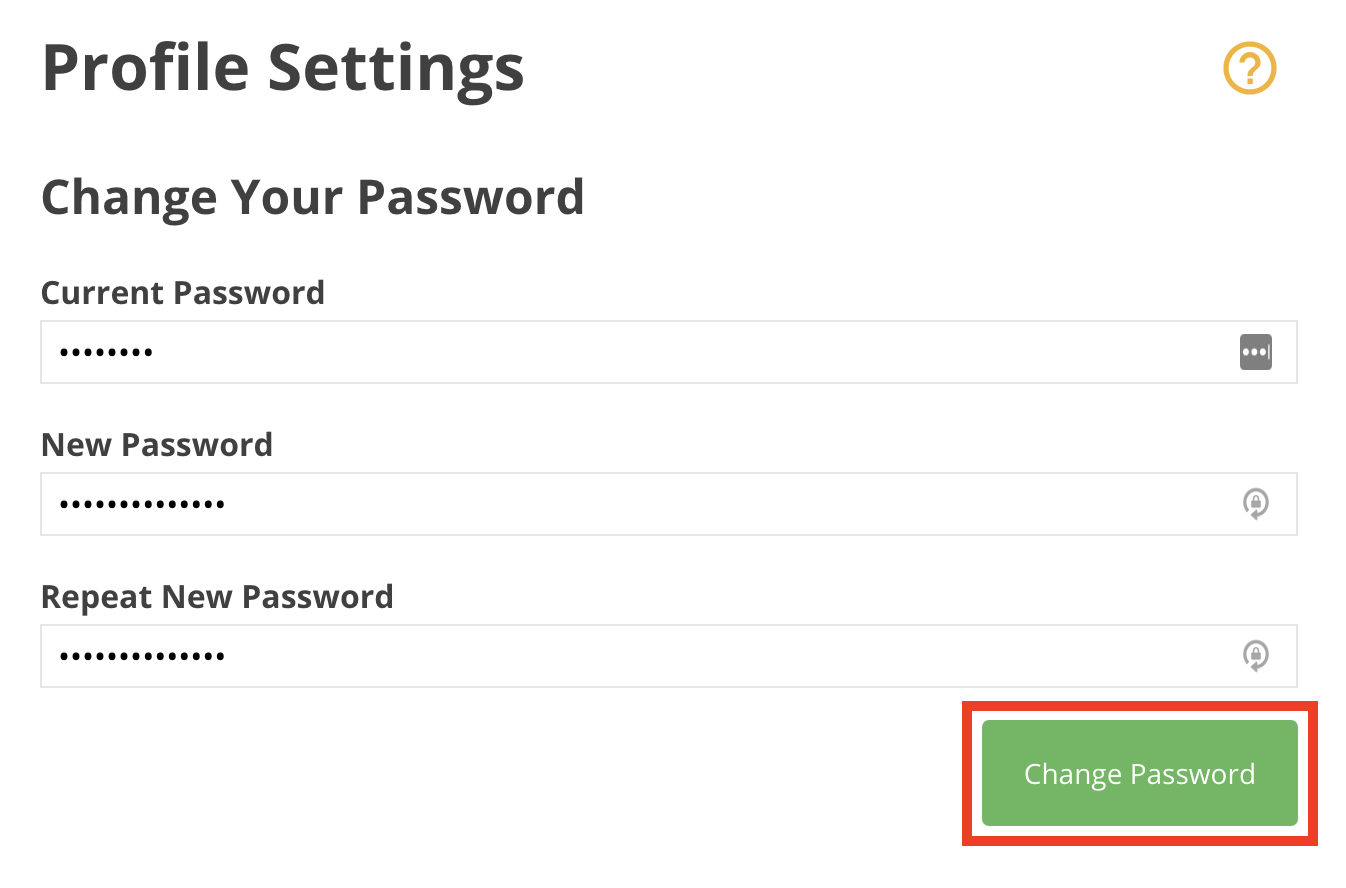 You will now be able to log into the portal with your new password.
The Current Password field is where you enter the temporary password you were emailed as part of the reset process.

Disclaimer: All names displayed in the above screen shots are fictional characters. No identification with actual persons (living or dead) is intended or should be inferred.