
Reviewing Expenses / Mileage in eTime - Circle of Support
TheVerify inverse of the things listed above.that (Make1) sure SS are using two separate trips and not doing one round trip, etc.)
Timeline steps
If a shift has a mileage/expenses, it can only be approved after those are reviewed- Starting locations and destination make
sensesense, distance(2)orthe activity makes sense, (3) the amountofmakesmileagesense,make(4)senseand ActivityAmountDoesthat the provided documentationcorroborate withconfirms thestory?written - story. If something
doesn’doesn't make sense return the entire shift
1.
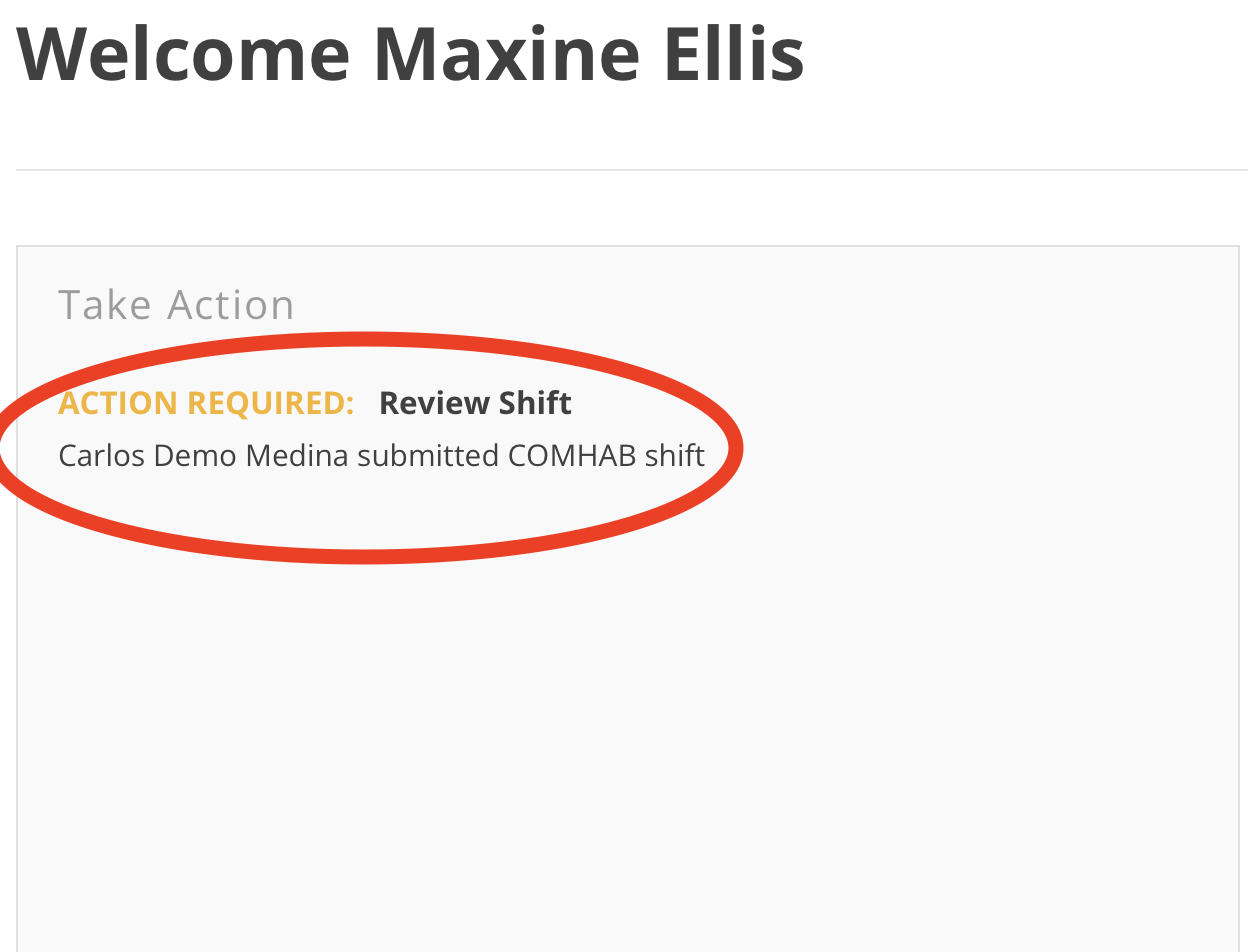
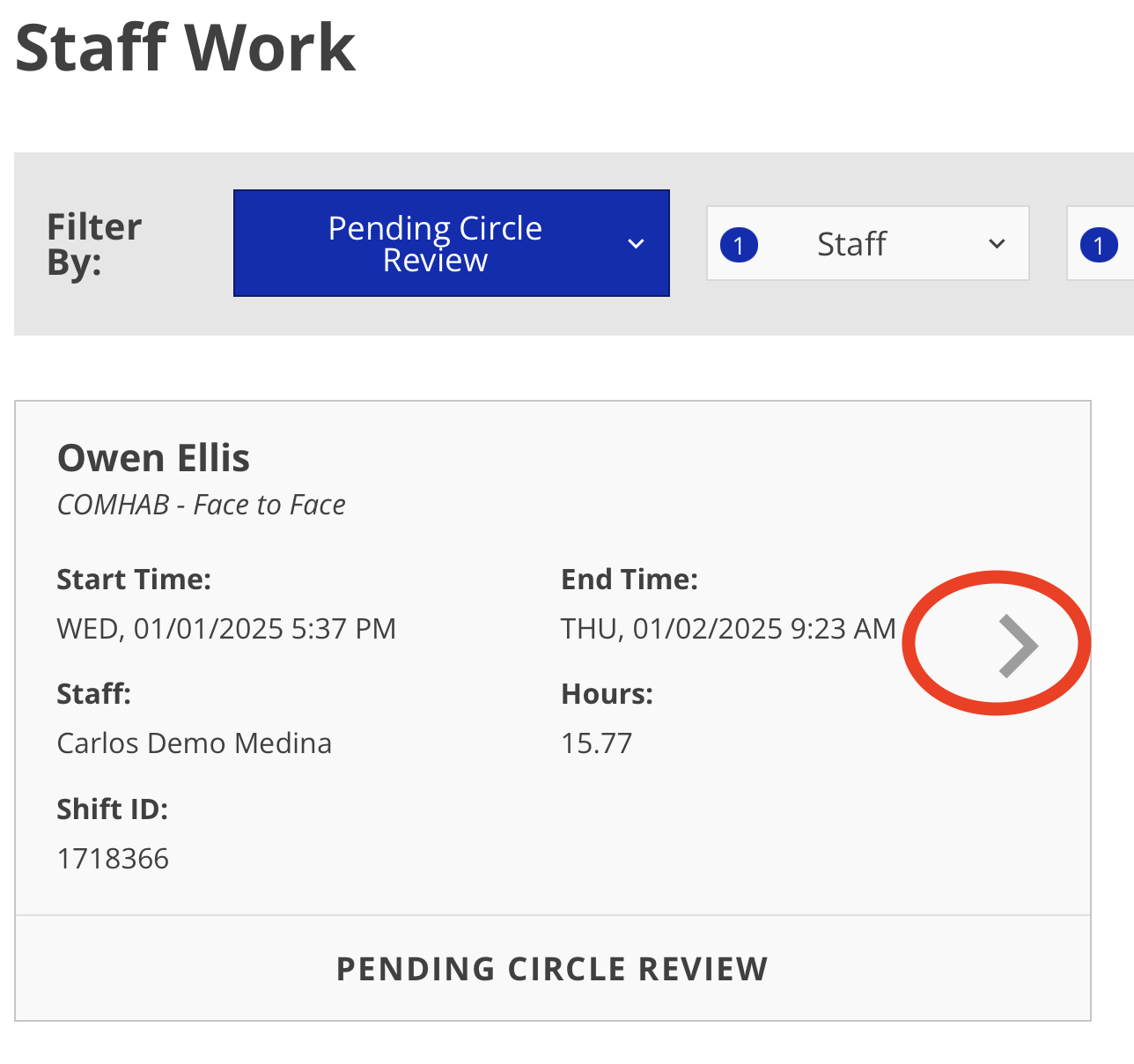
2. Tap into the shift
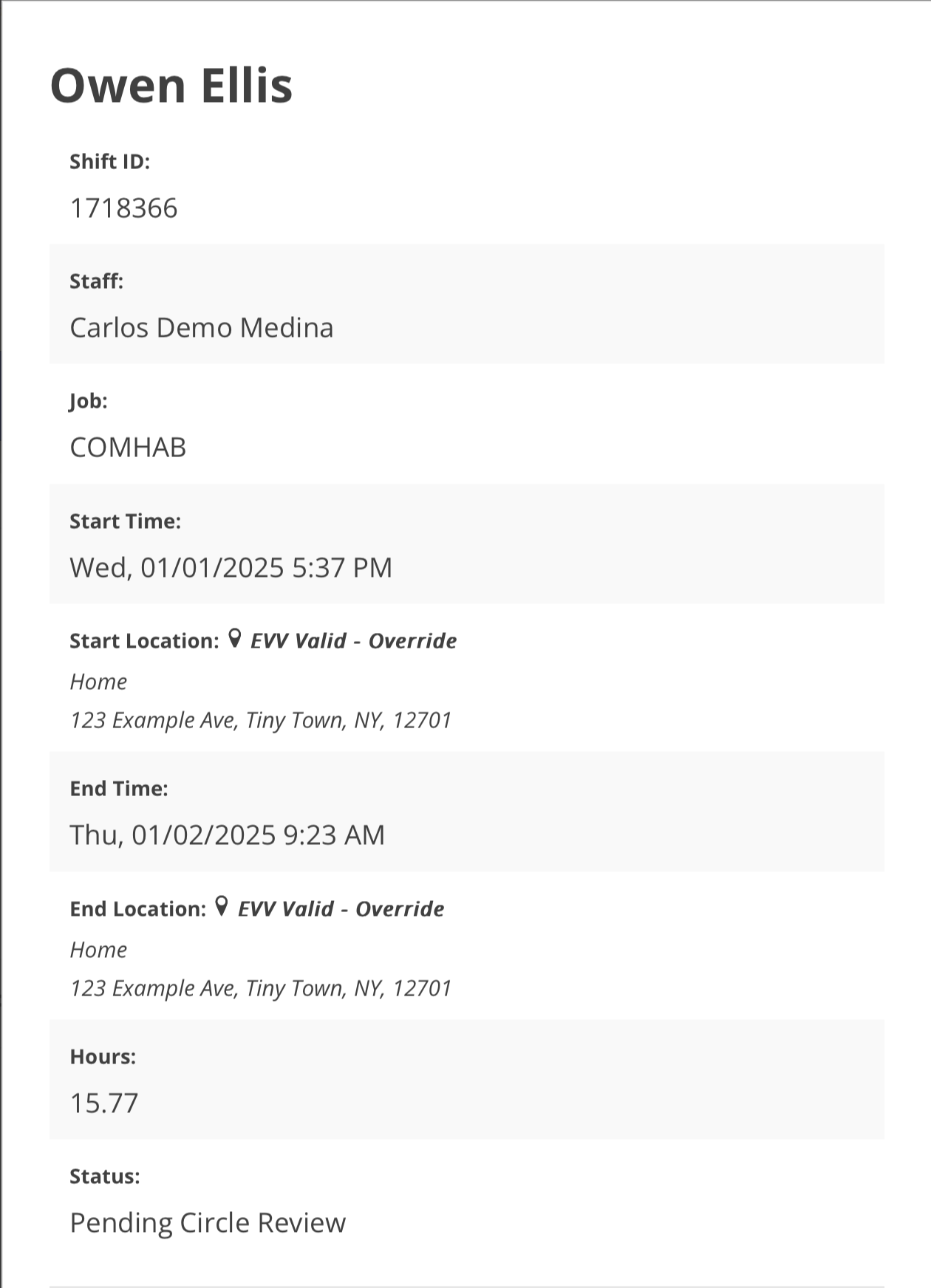
3. Verify that the basic information of the shift looks correct
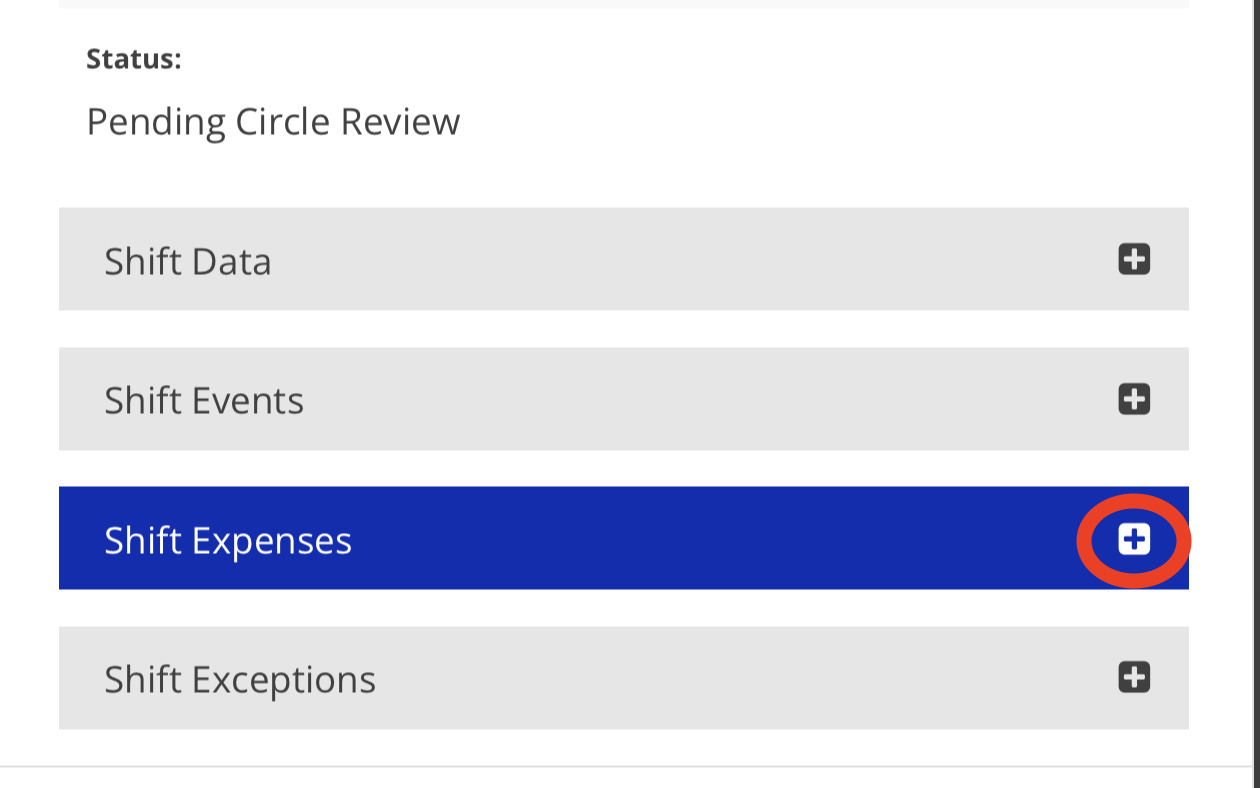
4. Tap on any section to reveal details. In this case, tap on "Shift Expenses"
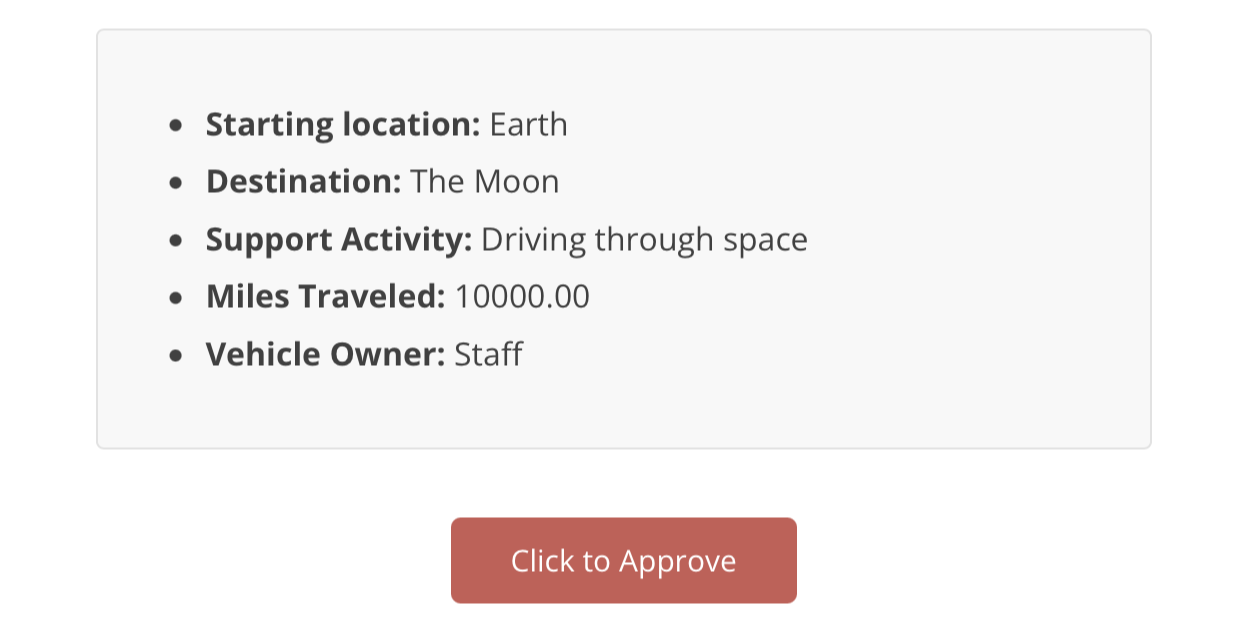
5. Review the Mileage and Expense details
Verify that (1) Starting locations and destination make sense, (2) the activity makes sense, (3) the amount makes sense, (4) and that the provided documentation confirms the written story.
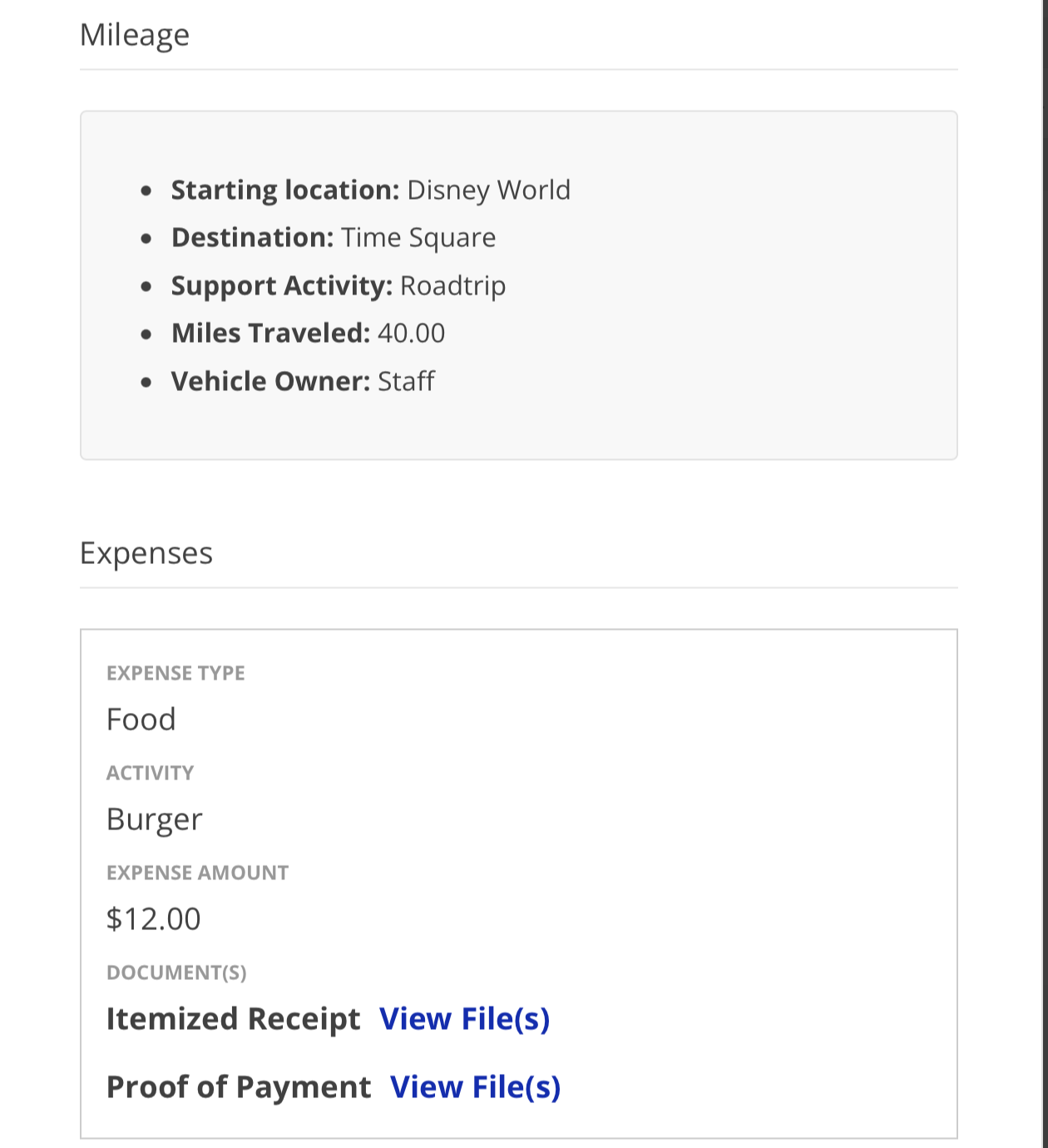
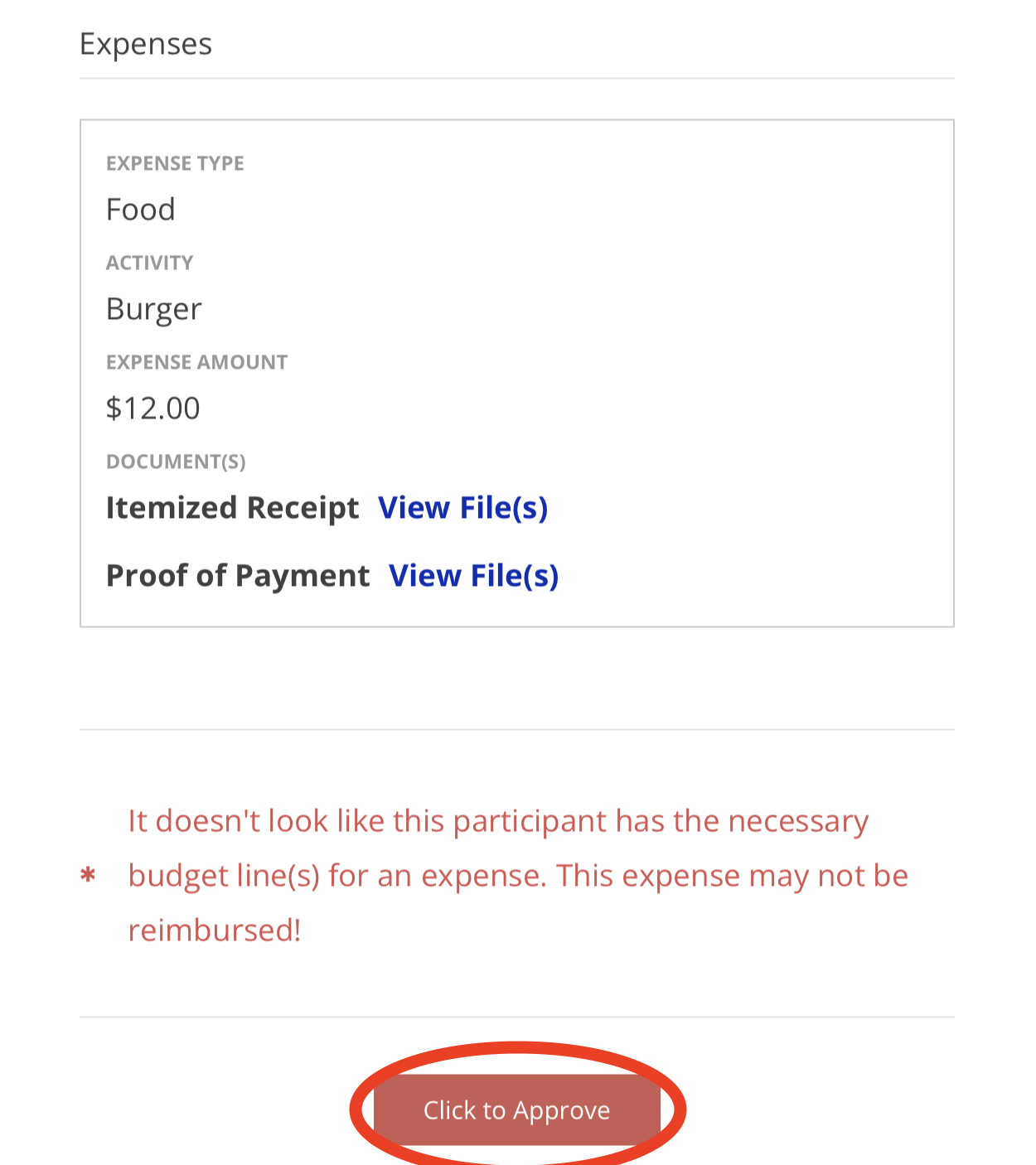
6. Underneath the details, take note of any budget line warnings
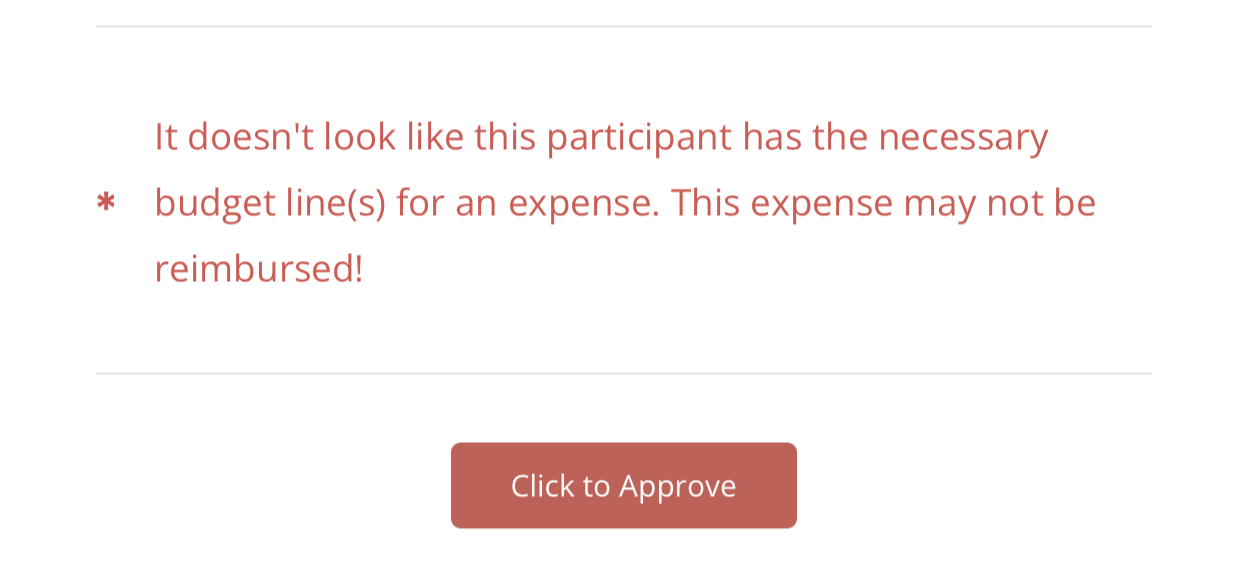
7. If everything looks good with any Mileage and Expenses, tap the 'Click to Approve' button
8. In the "Shift Exceptions" section, take note of any EVV Override requests
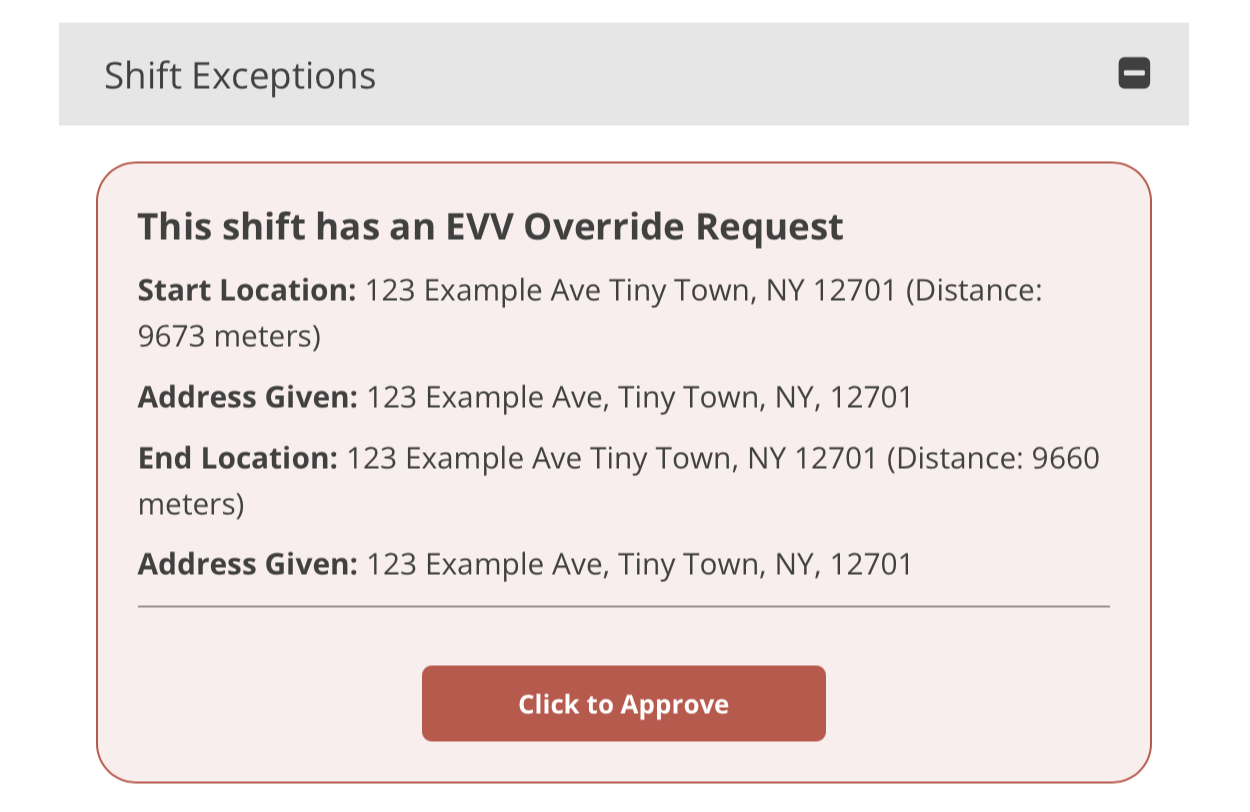
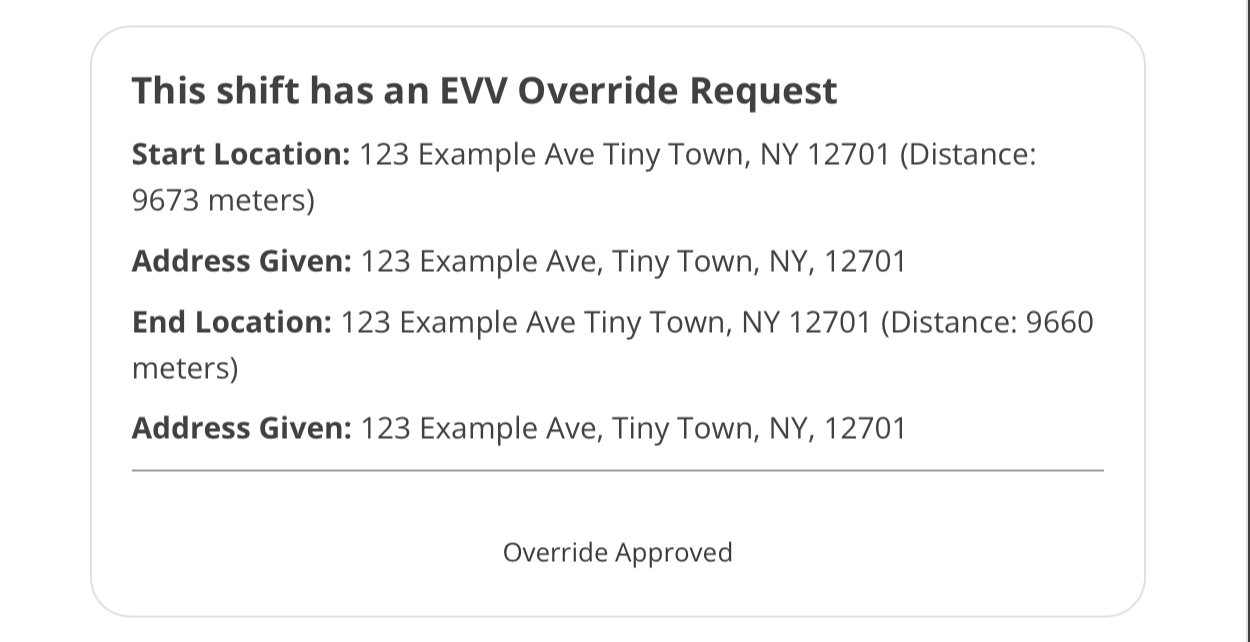
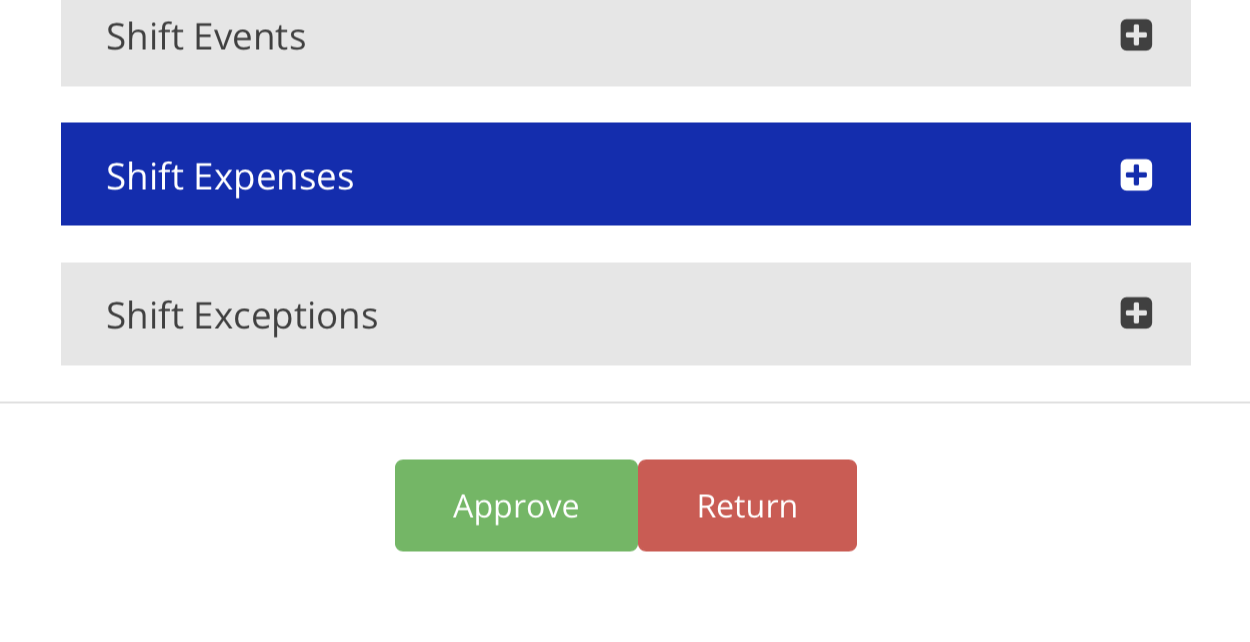
9. If everything looks good, tap the green ' Approve' button
10. If the shift has an issue, as seen below, it will need to be returned
Common issues are (1) incorrect starting locations and destinations, (2) incorrect activities, (3) incorrect dollar amounts, (4) and issues with provided documentation.
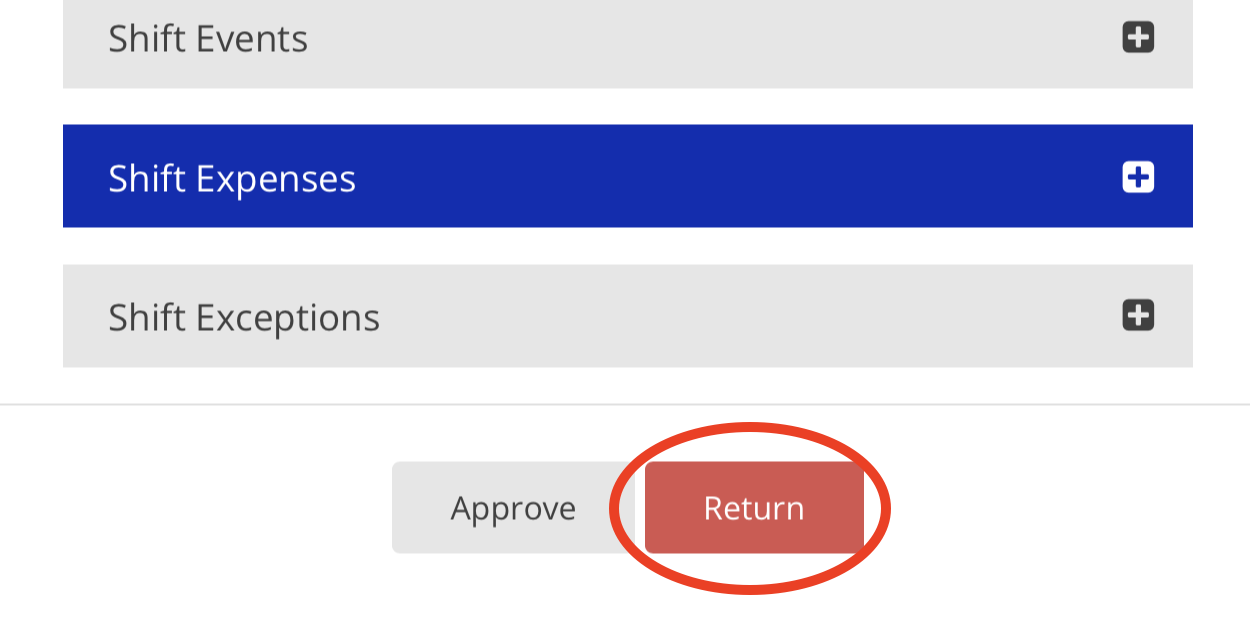
11. To return a shift, tap the 'Return' button
If the shift has one issue of any kind, the whole thing must be returned.
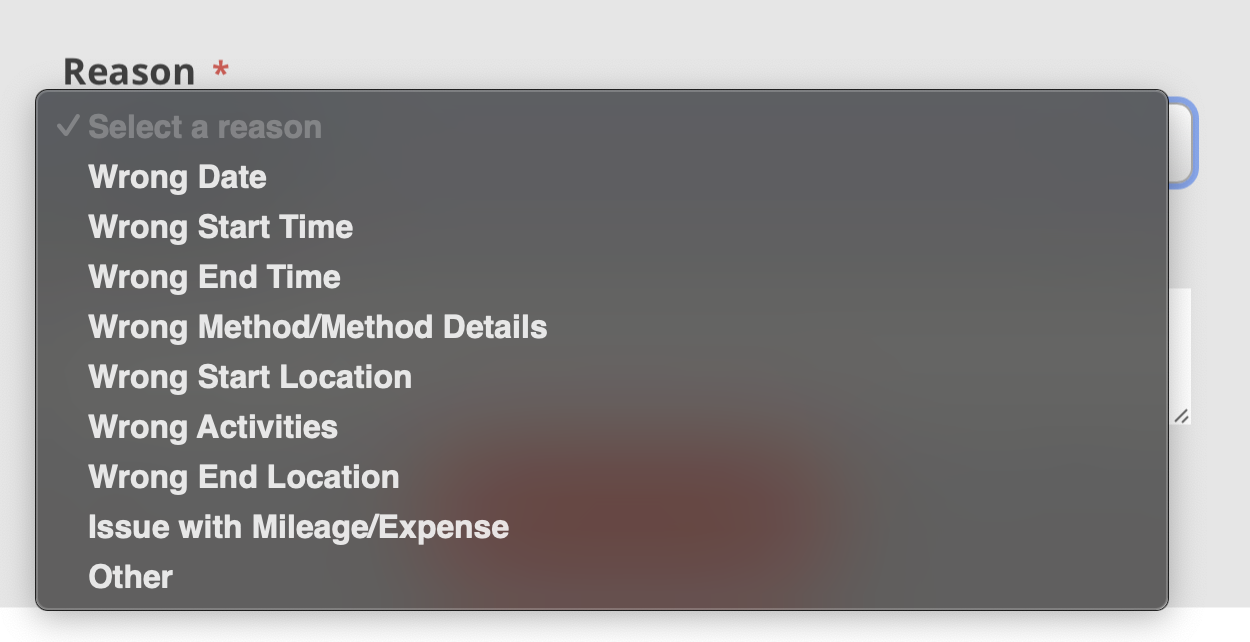
12. Select the reason for your Shift return
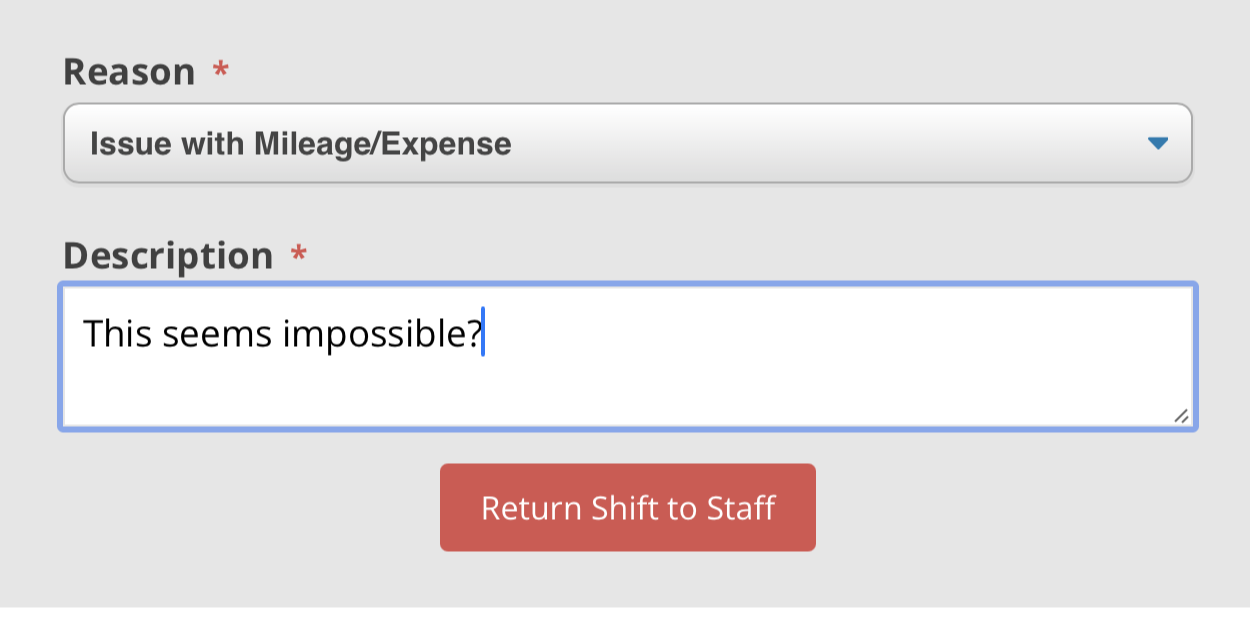
13. Write a clarifying comment to the Staff member
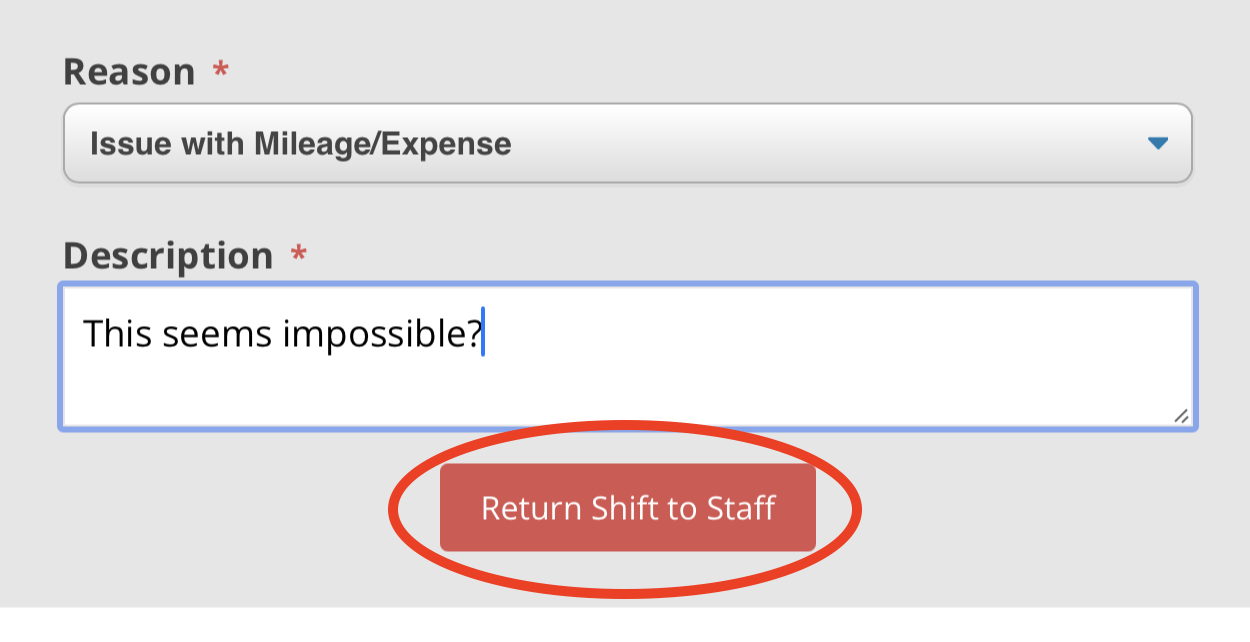
14. Tap the 'Return Shift to Staff' button to complete the return process
For further questions please view our FAQ document: