Multi-Factor Authentication
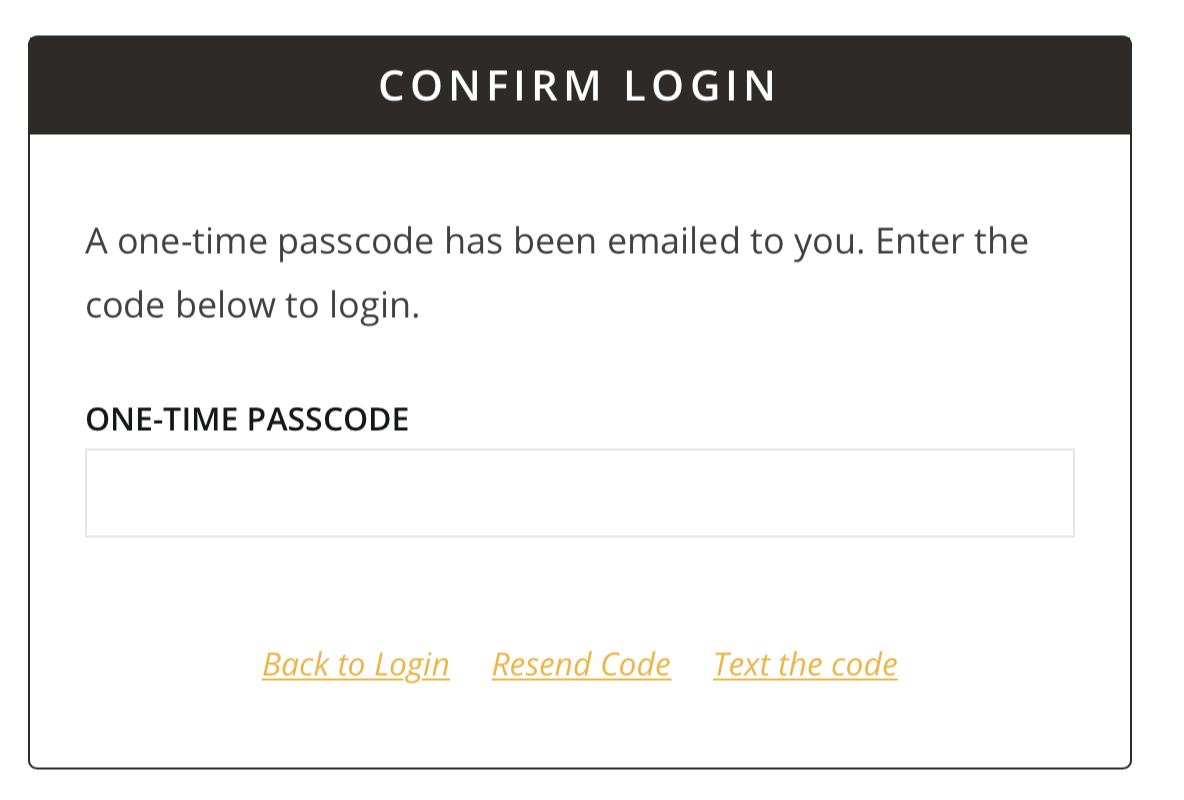
Multi-factor authentication is used on the portal to increase security and help protect your data. After entering your username and password, you will be sent a one-time passcode to enter in order to log in.
Setting Initial Multi-Factor Authentication Preferences
Existing Users
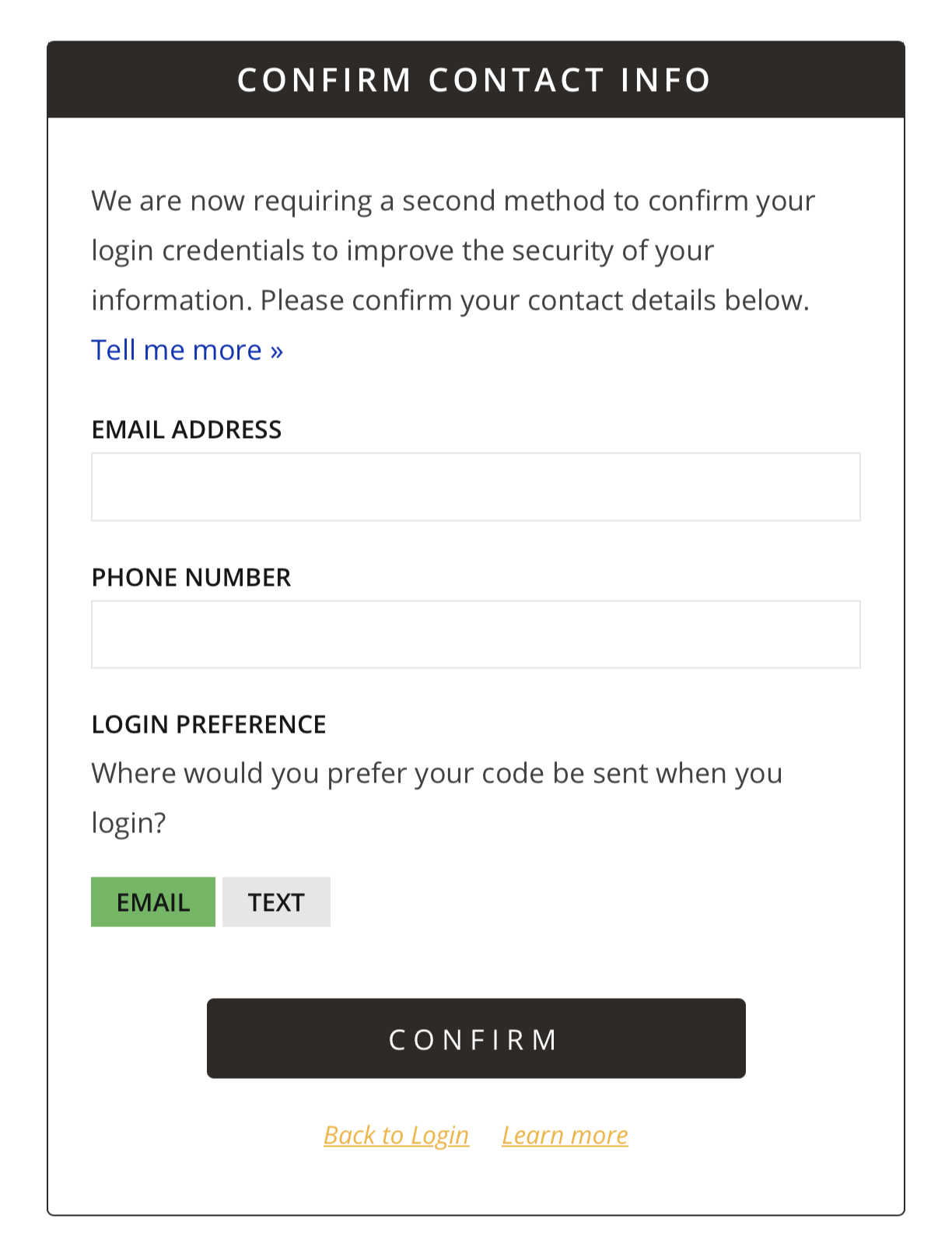
For existing users who have not set their multi-factor authentication preferences, upon login you will be required to specify those preferences by providing an email address and/or a phone number capable of receiving text messages, and indicate which of those two methods, email or text, is preferred. After specifying these preferences, a one-time passcode will be sent via the preferred method to continue logging in.
New Users
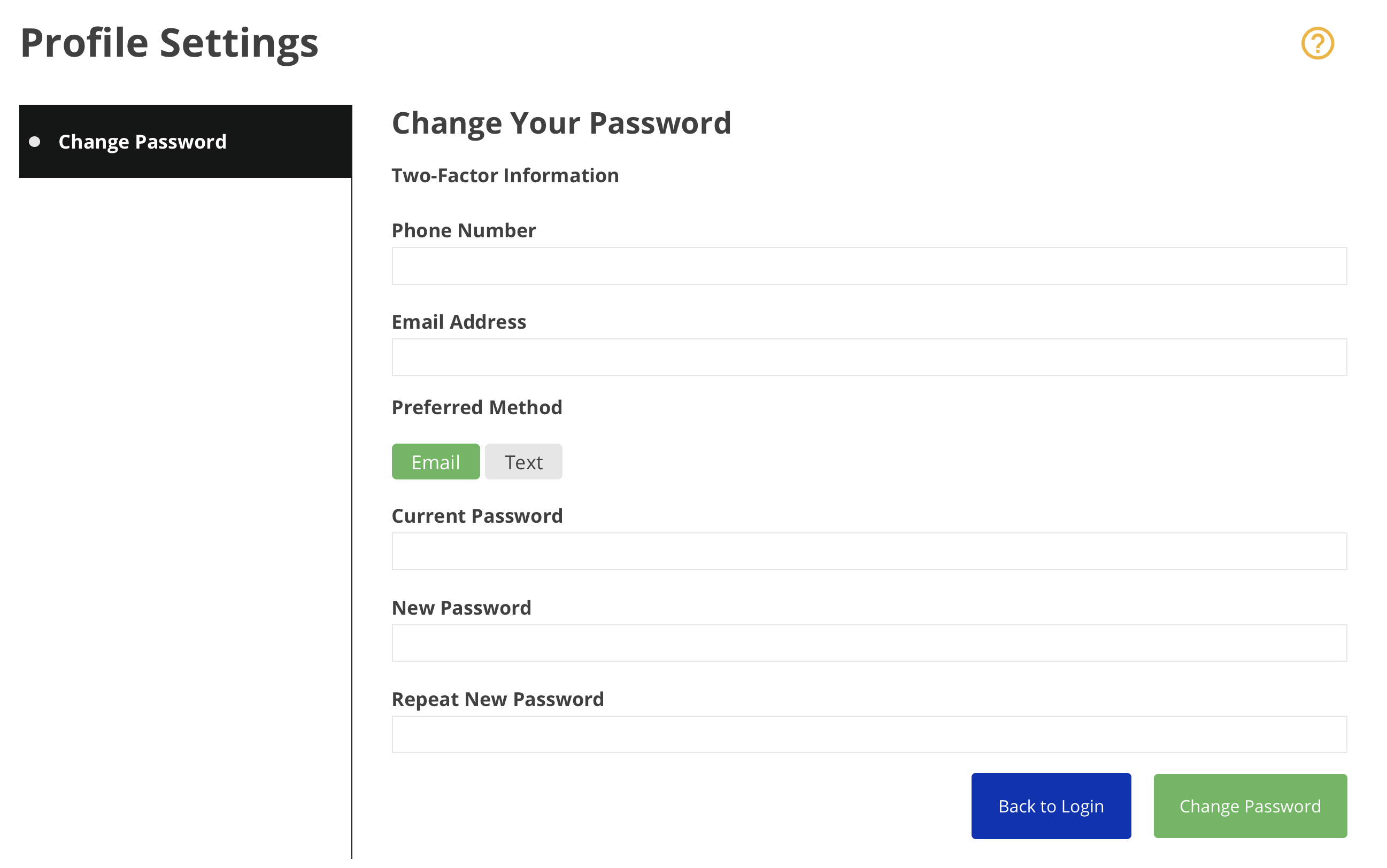
New users to the portal will be required to specify their multi-factor authentication preferences upon initial login as part of the process to reset the initial temporary password. After providing an email address and/or phone number capable of receiving text messages, indicating the preferred authentication method, and entering a new password, a one-time passcode will be sent via the preferred method to continue logging in.
Editing Multi-Factor Authentication Preferences
To edit your existing multi-factor authentication preferences:
-
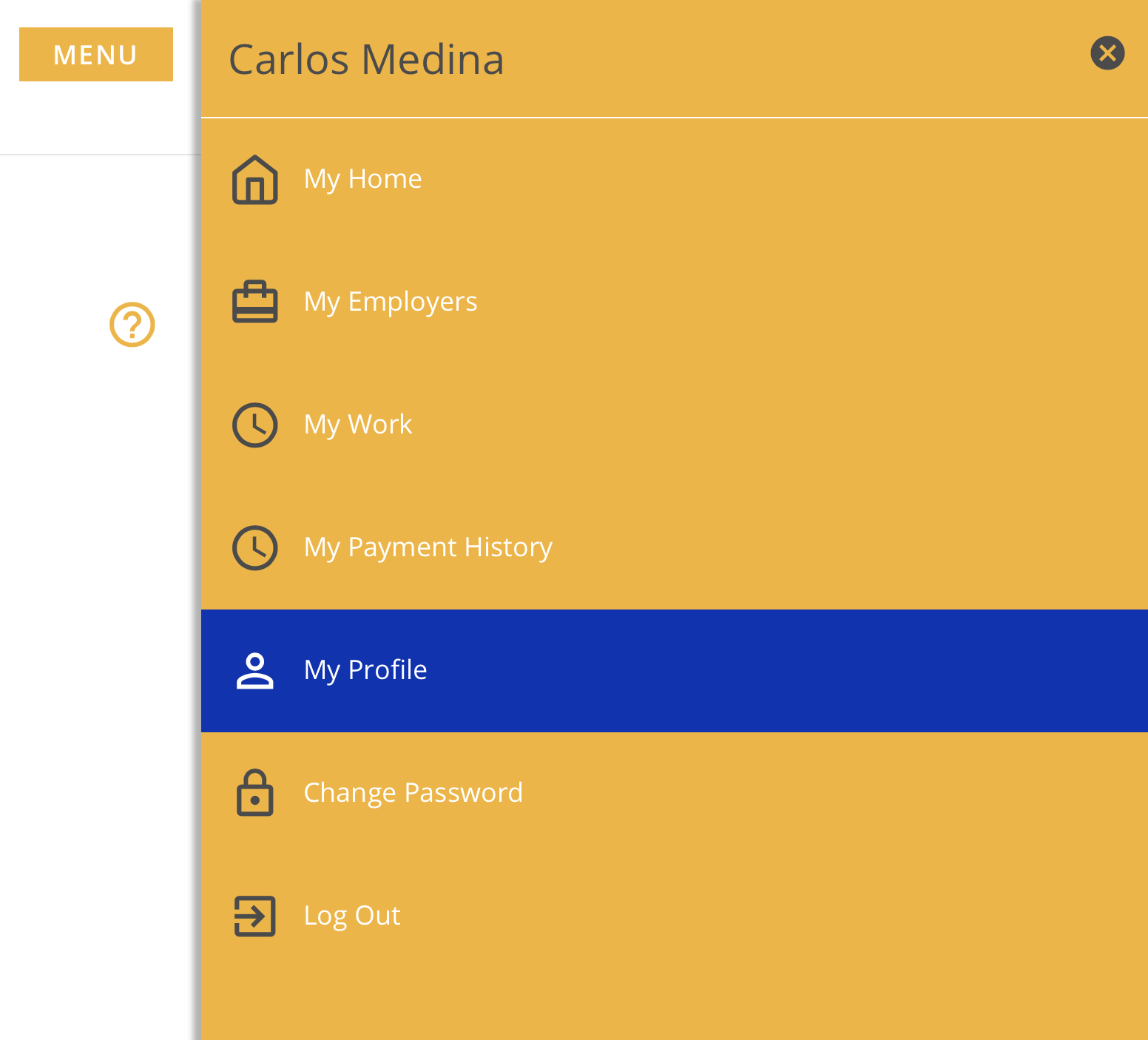
Click the Menu button.
{image} -
Click My Profile .
{image}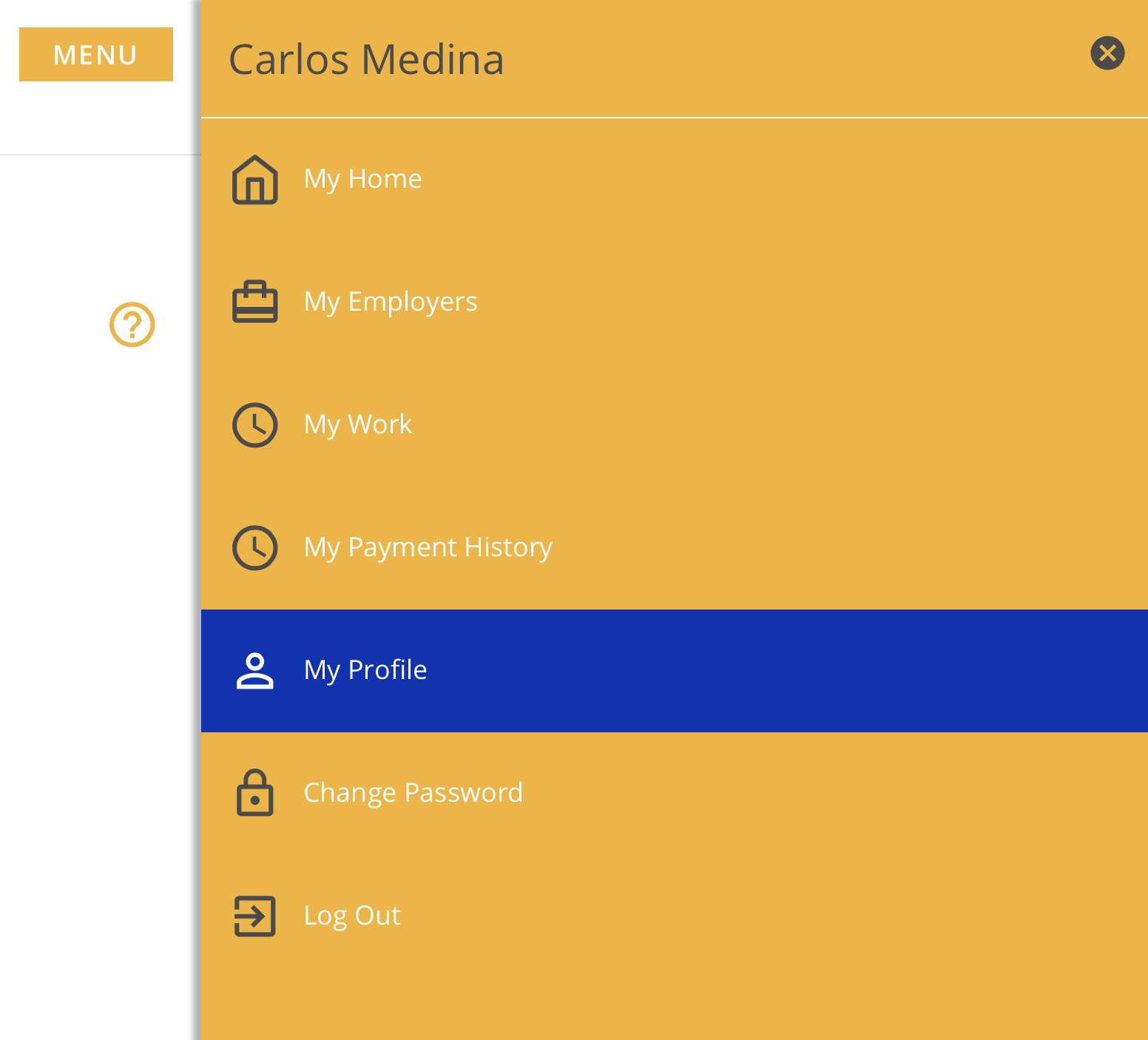
-
Make the desired changes.
-
Click Update . {image}
FAQ
The one-time passcode isn't working.
Only the most recently sent code is valid. This means that if you trigger a code to be resent, whether by the same or different method, any previously received codes will not work. If you are still experiencing issues, contact websupport@issny.org .
I didn't receive the one-time passcode.
It may take up to a minute to receive the passcode. If you still haven't received it, you can click Resend Code to resend a new code using the same method. To receive a code using an alternate method, click Email Code or Text Code .
Users can resend the code up to ten times in a ten minute window. After reaching that limit, they must wait ten minutes before they can request a new code. The ten minute window is reset after each successful login.