
Multi-Factor Authentication
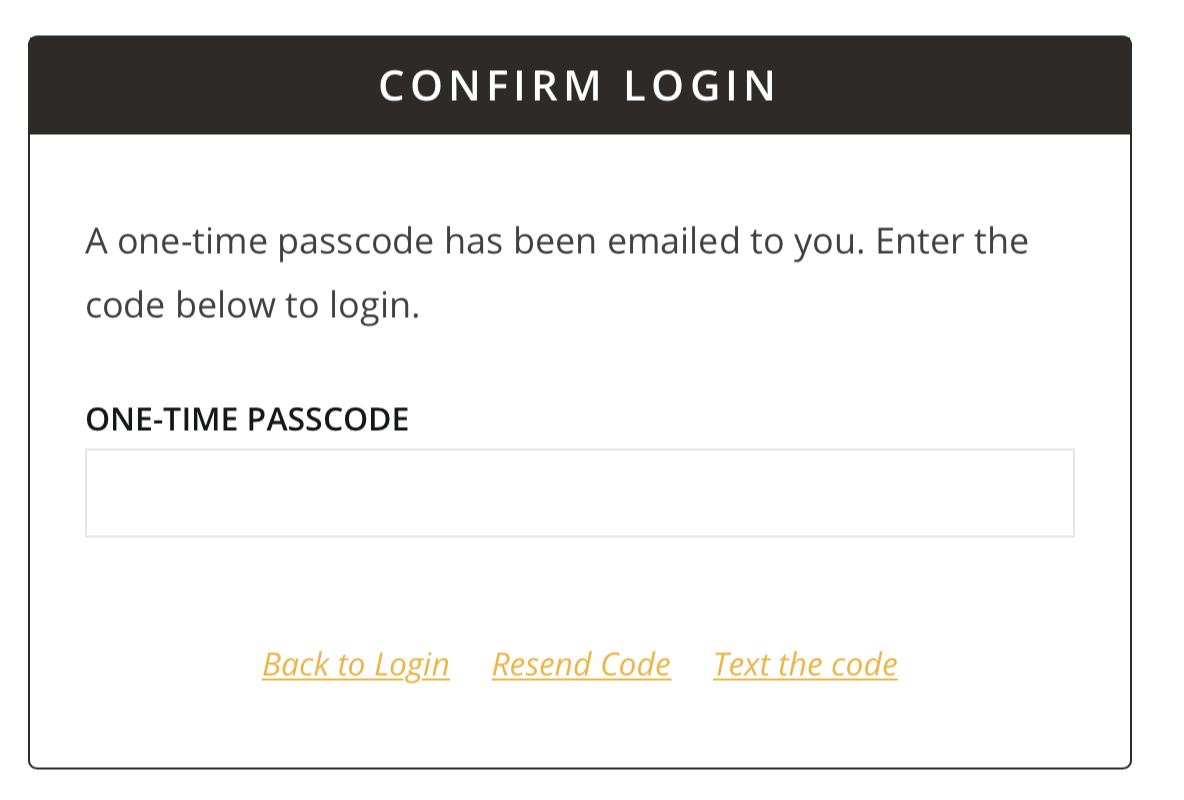
Multi-factor authentication is used on the portal to increase security and help protect your data. After entering your username and password, you will be sent a one-time passcode to enter in order to log in.
Setting Initial Multi-Factor Authentication Preferences
Existing Users
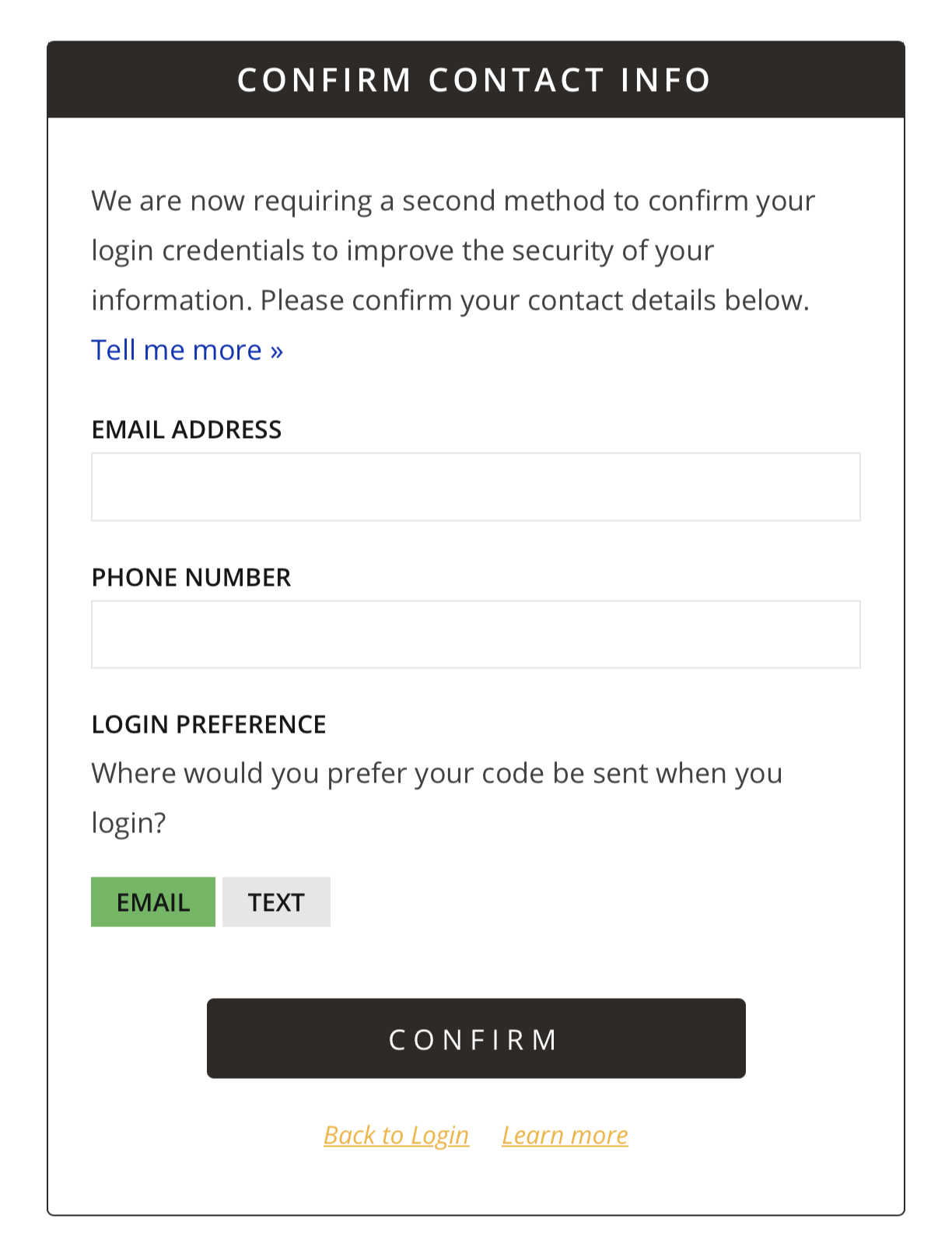
For existing users who have not set their multi-factor authentication preferences, upon login you will be required to specify those preferences by providing an email address and/or a phone number capable of receiving text messages, and indicate which of those two methods, email or text, is preferred. After specifying these preferences, a one-time passcode will be sent via the preferred method to continue logging in.
New Users
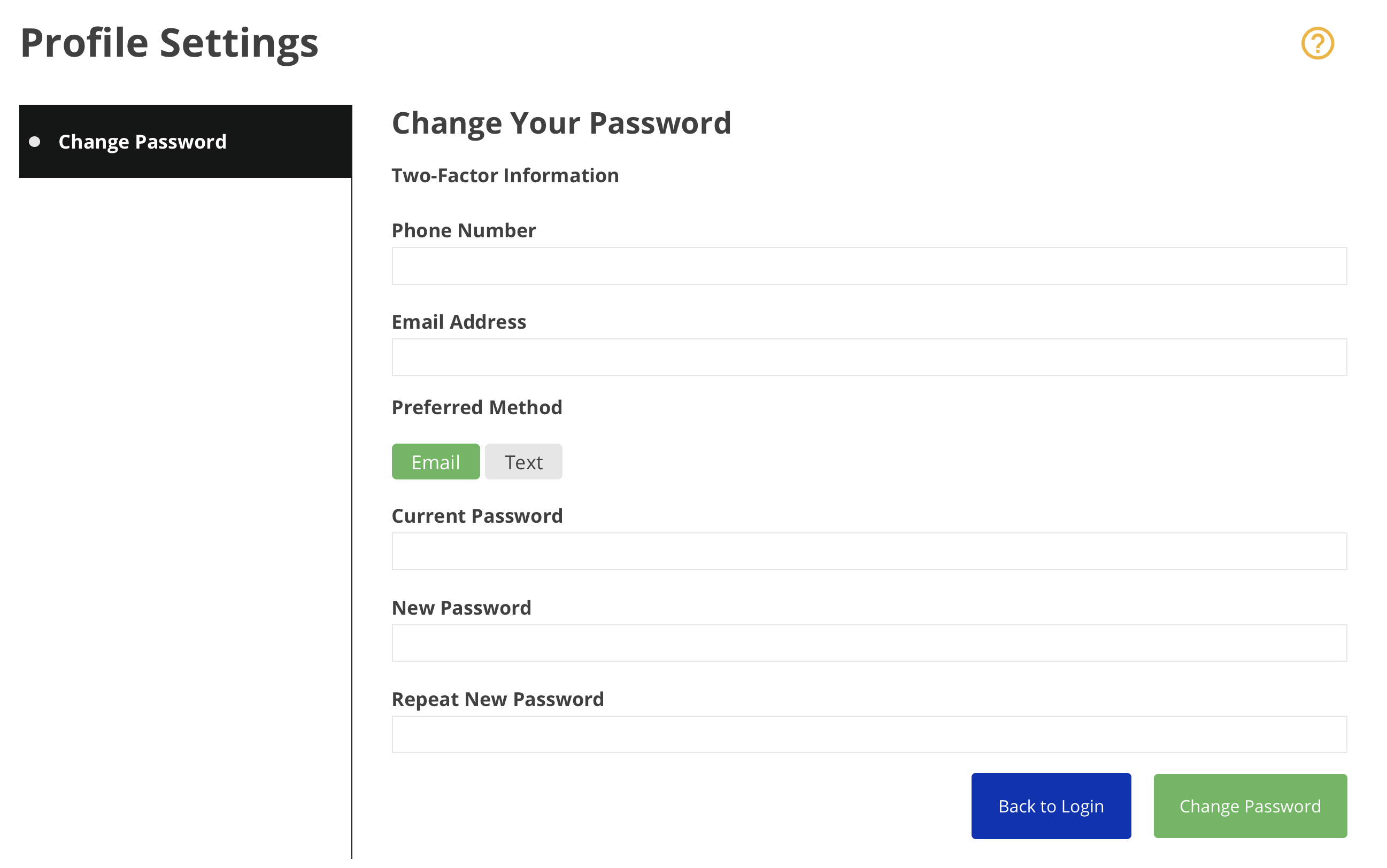
New users to the portal will be required to specify their multi-factor authentication preferences upon initial login as part of the process to reset the initial temporary password. After providing an email address and/or phone number capable of receiving text messages, indicating the preferred authentication method, and entering a new password, a one-time passcode will be sent via the preferred method to continue logging in.
Editing Multi-Factor Authentication Preferences
To edit your existing multi-factor authentication preferences:
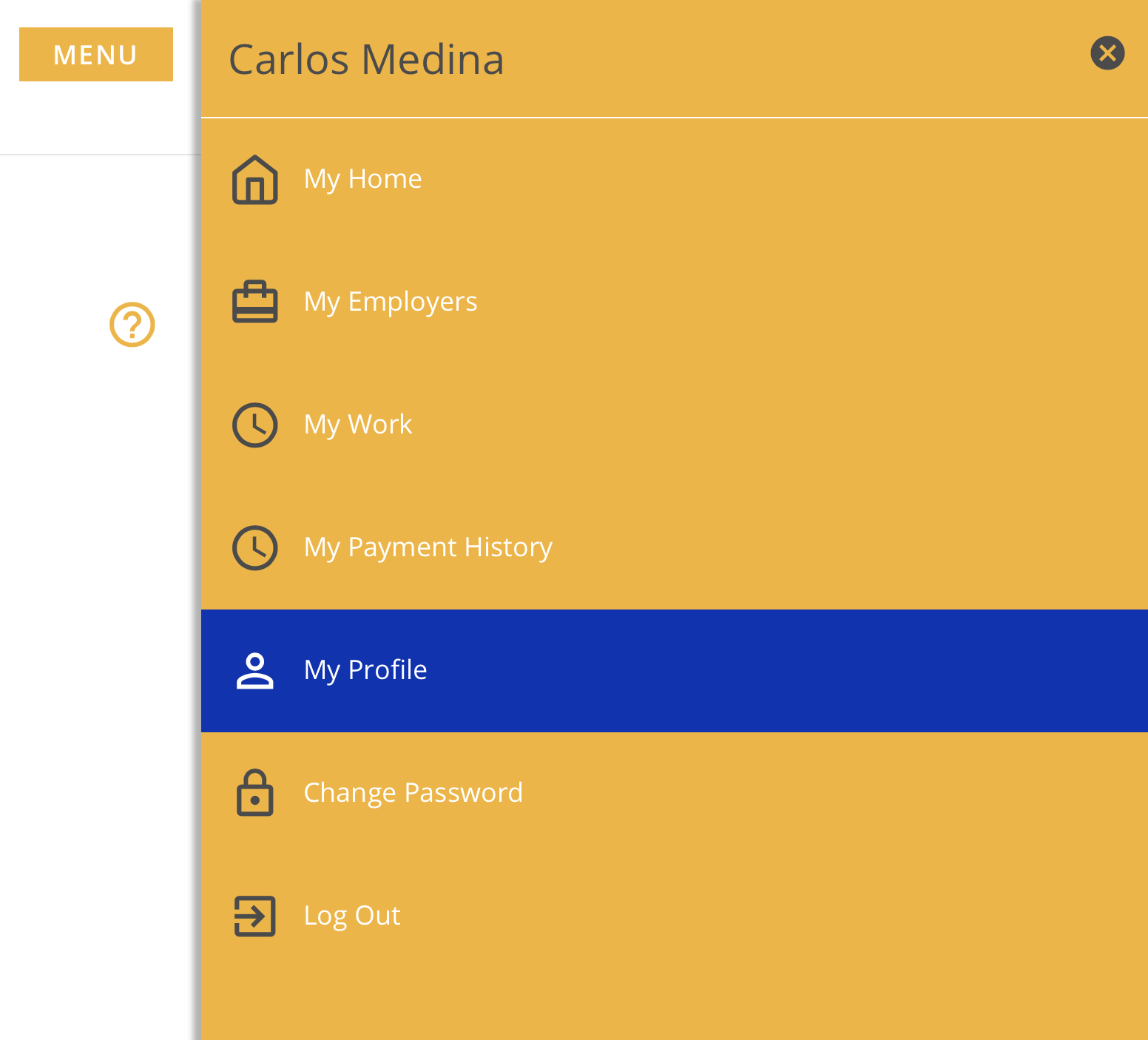
Click the Menu button.
Click My Profile.
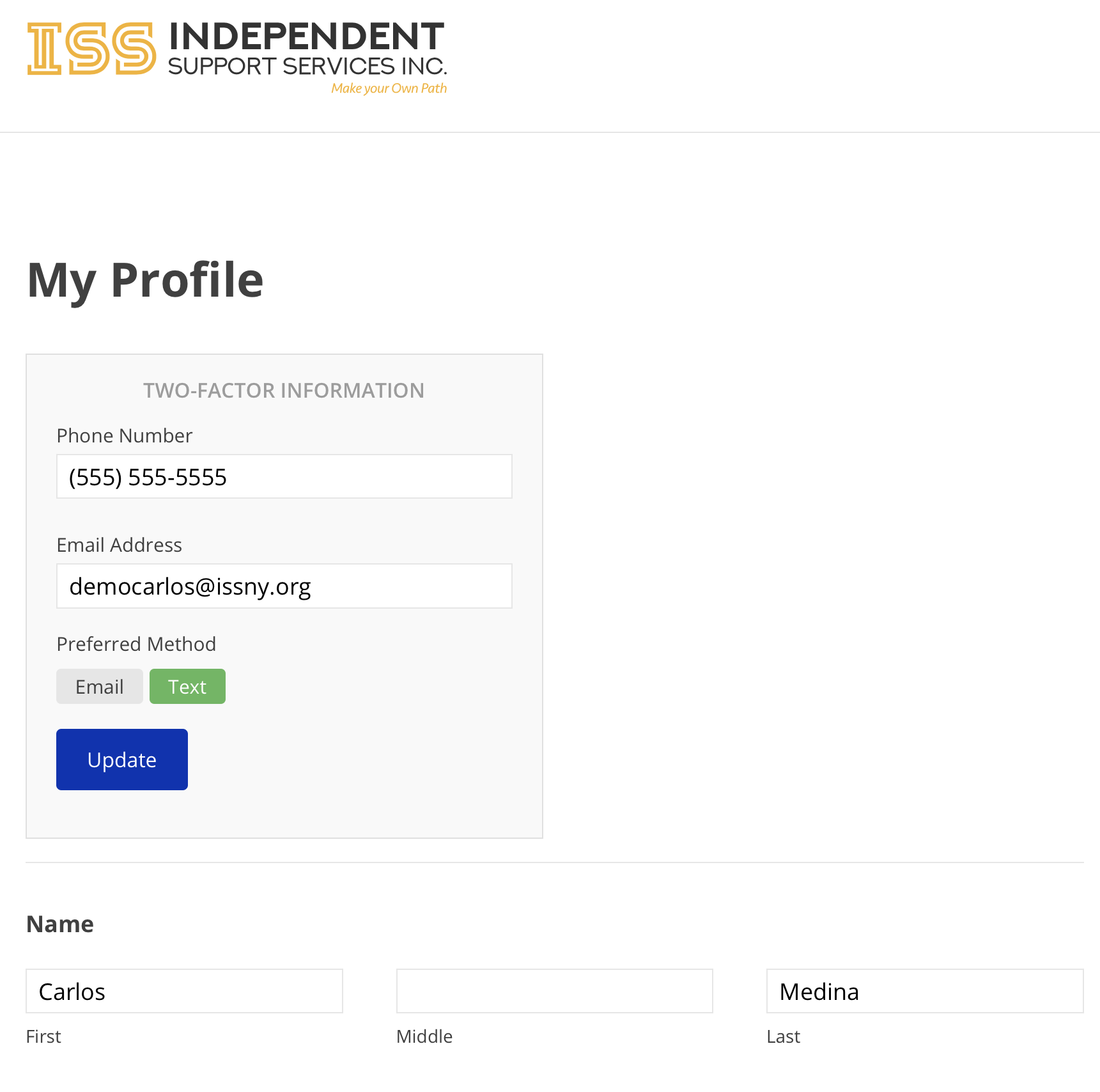
Make the desired changes.
Click Update.
FAQ
The one-time passcode isn't working.
I didn't receive the one-time passcode.
Entered one-time passcode, back at Login?
-
Please make sure that you are only entering the OTP code. Do not hit enter/return afterwards. Hitting enter is not necessary and if you are doing so, it is most likely what is triggering you to “click” the link that takes you back to the login screen.
Once you enter the sixth and final numeric digit in our OTP code, the Portal will automatically take you to the home screen or display the red error banner if you entered the wrong code.
Updated 02/03/22.