Multi-Factor Authentication
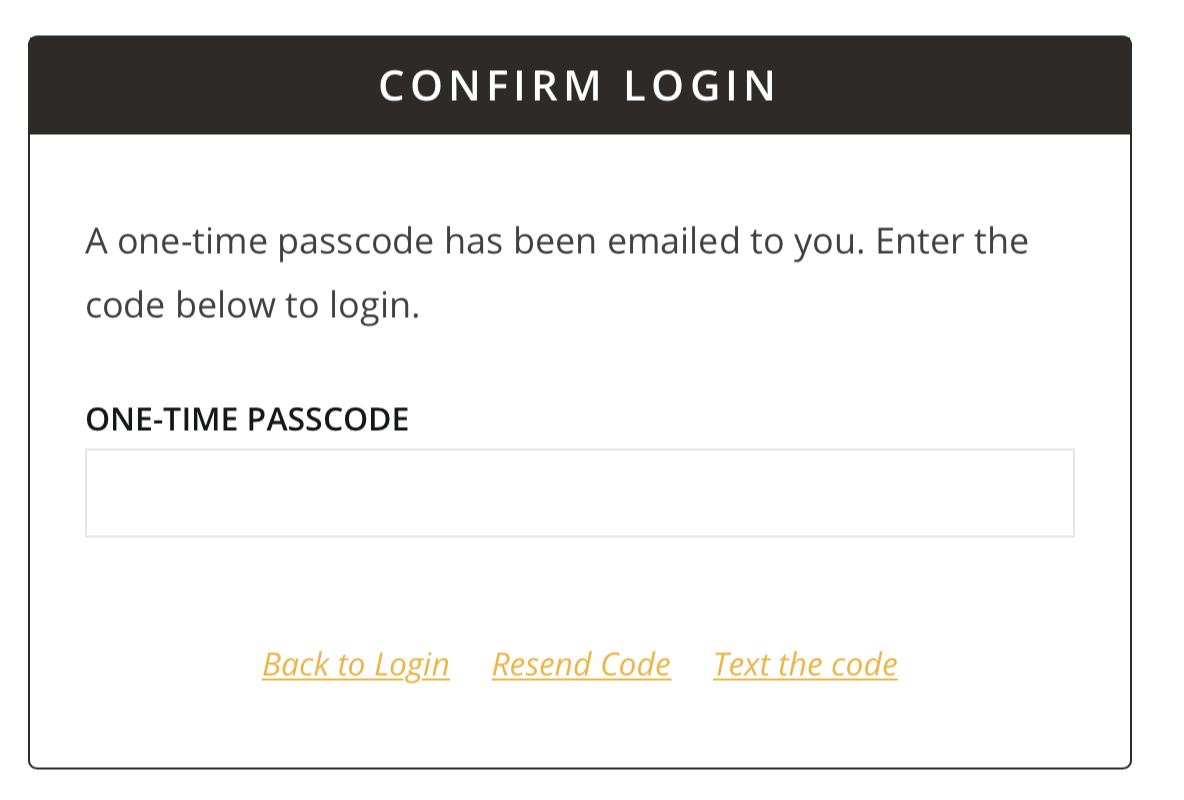
Multi-factor authentication is used on the portal to increase security and help protect your data. After entering your username and password, you will be sent a one-time passcode (OTP) which you will enter to complete your log in.
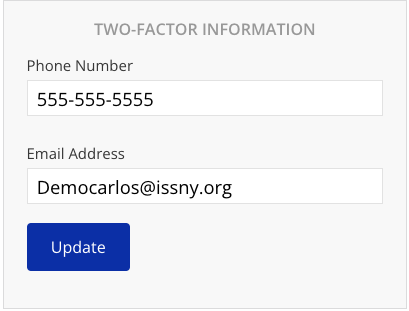
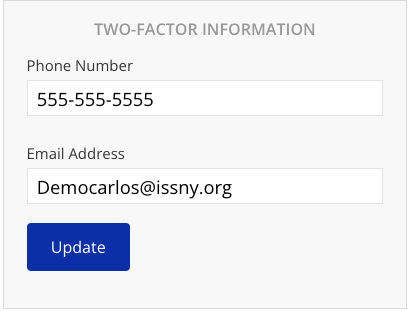
Be sure to add both your email and a cell phone number capable of receiving text messages in your preferences. In case you don't receive one, you can use the other method as a back up.
Existing Users

New Users

Editing Multi-Factor Authentication Preferences
-
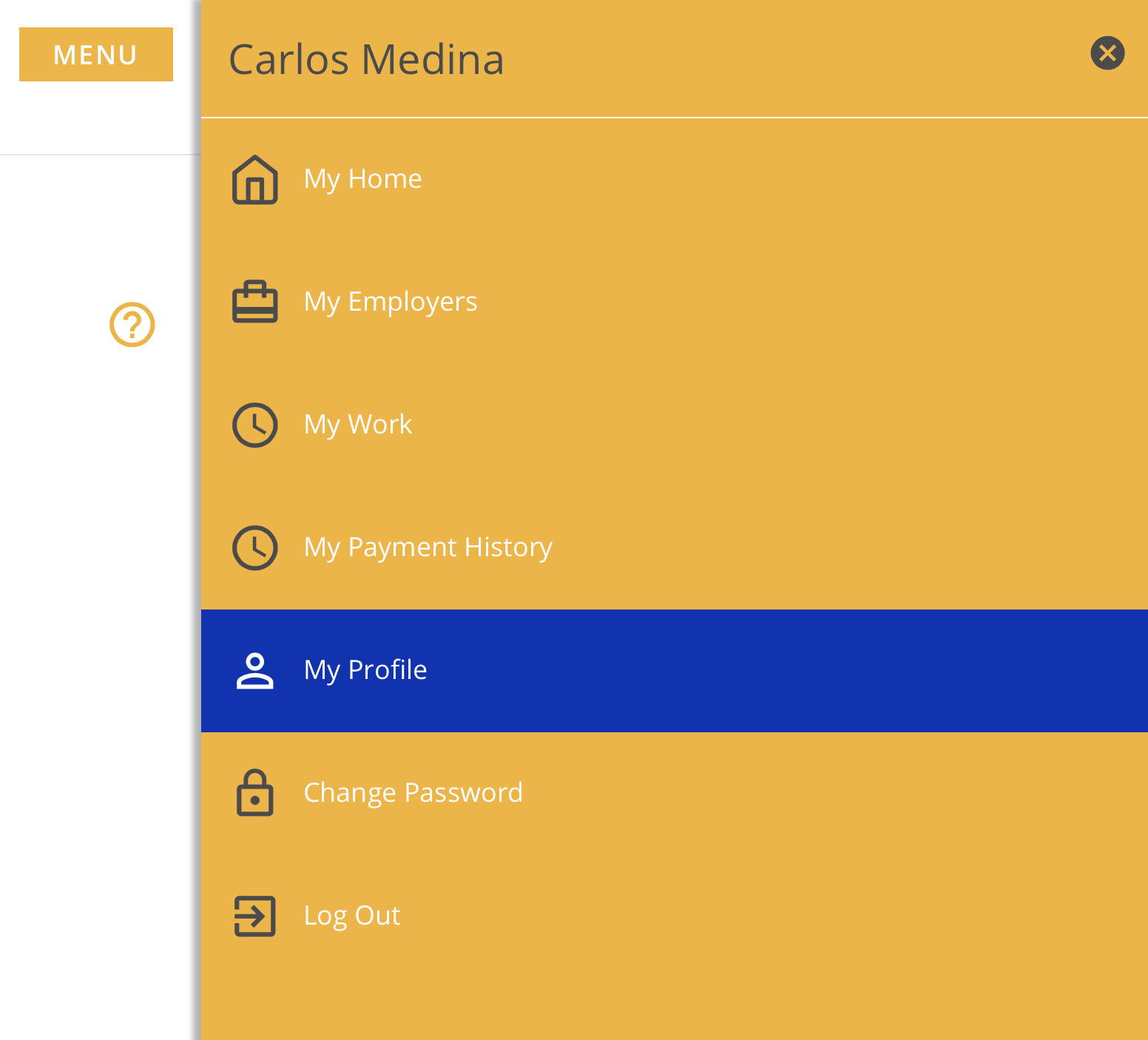
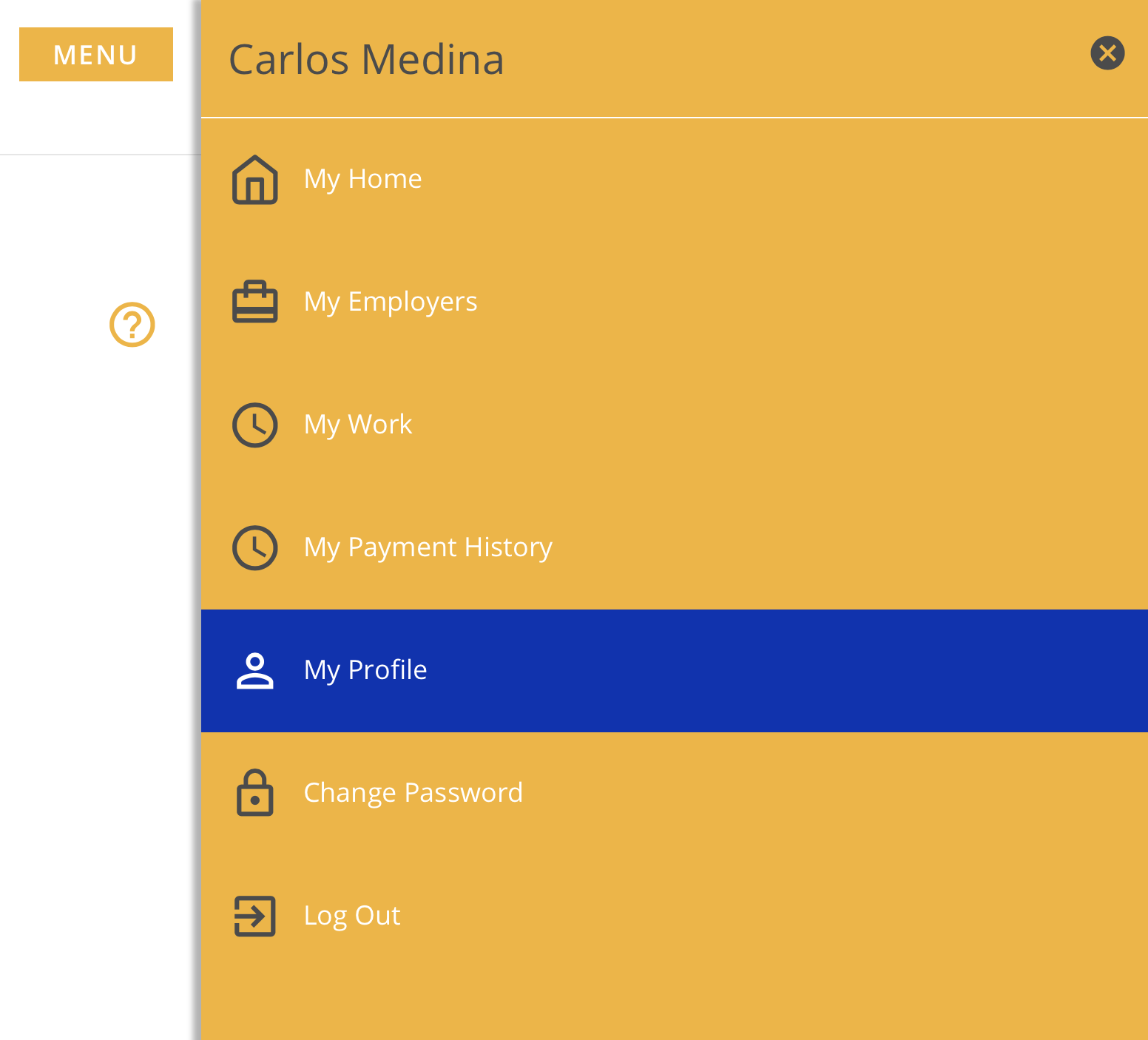
Click the Menu button.
-
Click My Profile.
-
Make the desired changes.
-
Click Update.
FAQ
The one-time passcode isn't working.
- Only the most recently sent code is valid. This means that if you trigger a code to be resent, whether by the same or different method, any previously requested codes will not work. If you are still experiencing issues, contact websupport@issny.org.
I didn't receive the one-time passcode.
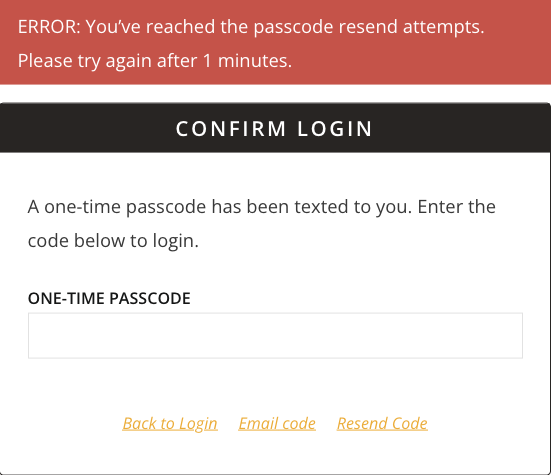
- It may take up to a minute to receive the passcode. If you still haven't received it, you can click Resend Code to resend a new code using the same method. To receive a code using an alternate method, click Email the Code or Text the Code.
- Users can resend the code once every two minutes. A red error banner will appear if an attempt to prematurely send the code has been made.
Entered one-time passcode, back at Login?
-
Please make sure that you are only entering the OTP code. Do not hit enter/return afterwards. Hitting enter is not necessary and if you are doing so, it is most likely what is causing you to unintentionally “click” the link that takes you back to the login screen.
-
Once you enter the sixth and final numeric digit in our OTP code, the Portal will automatically take you to the home screen or display the red error banner if you entered the wrong code.