
Adding an Expense in eTime - Support Staff
1. Log into the Portal and open eTime

2. Start a shift

3. Input your information
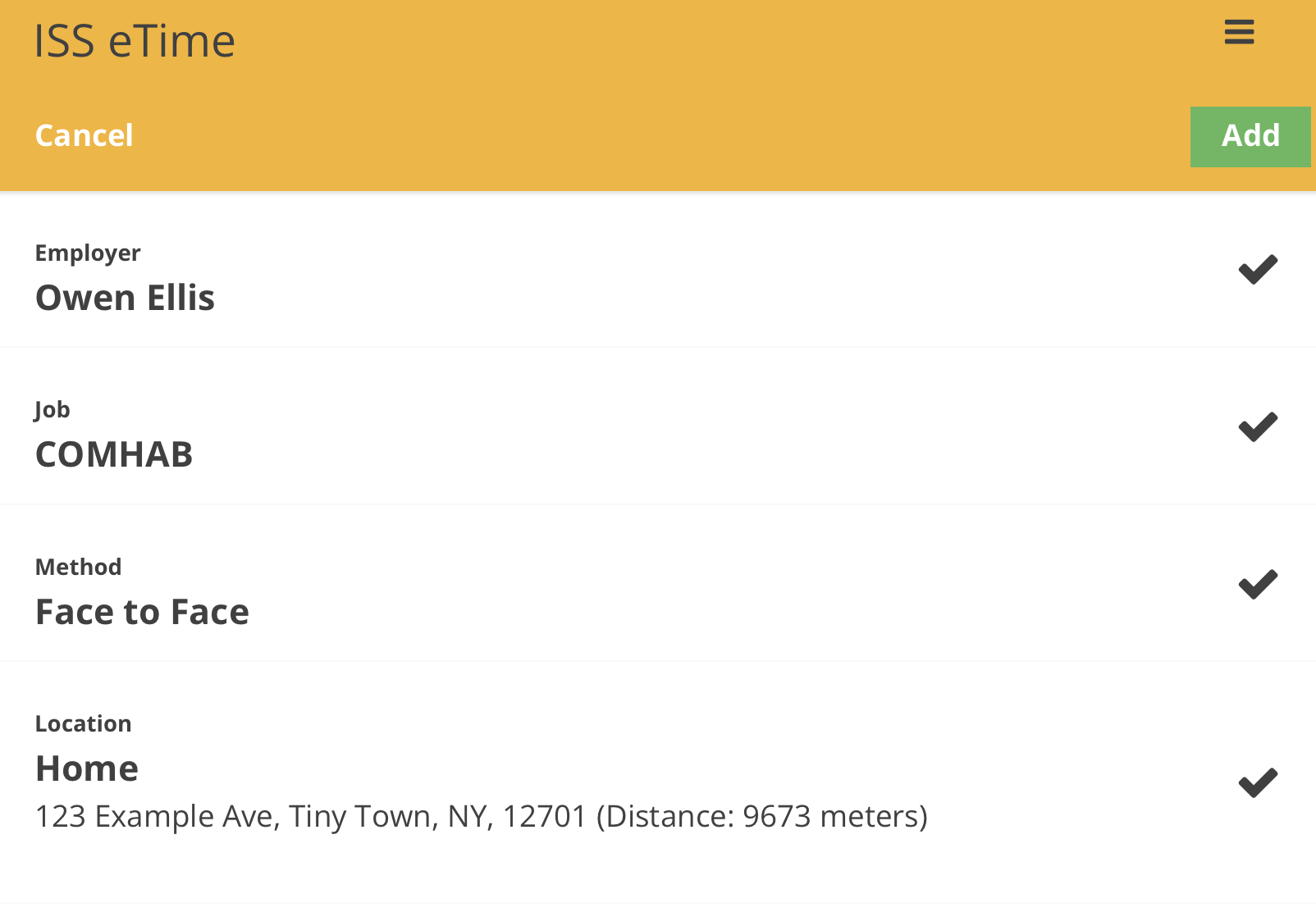
4. Select your shift
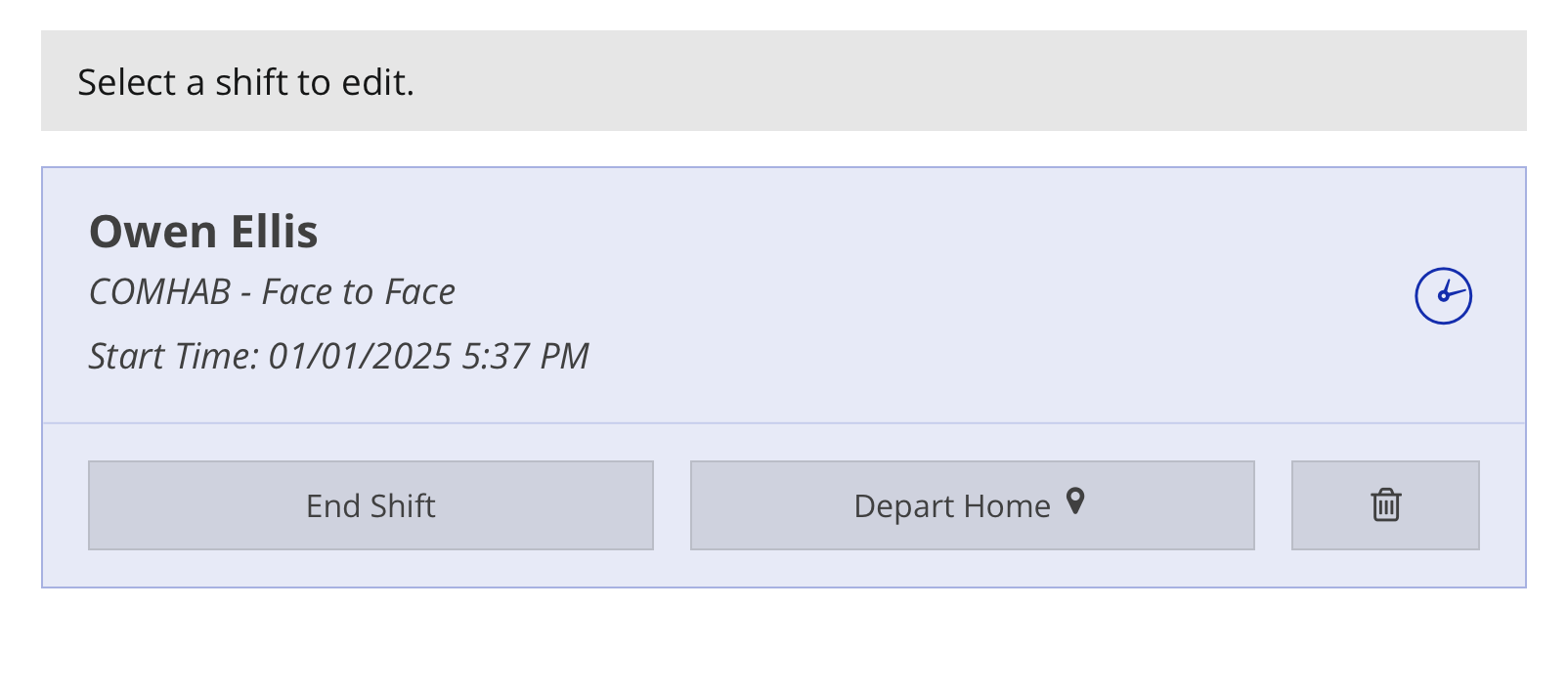
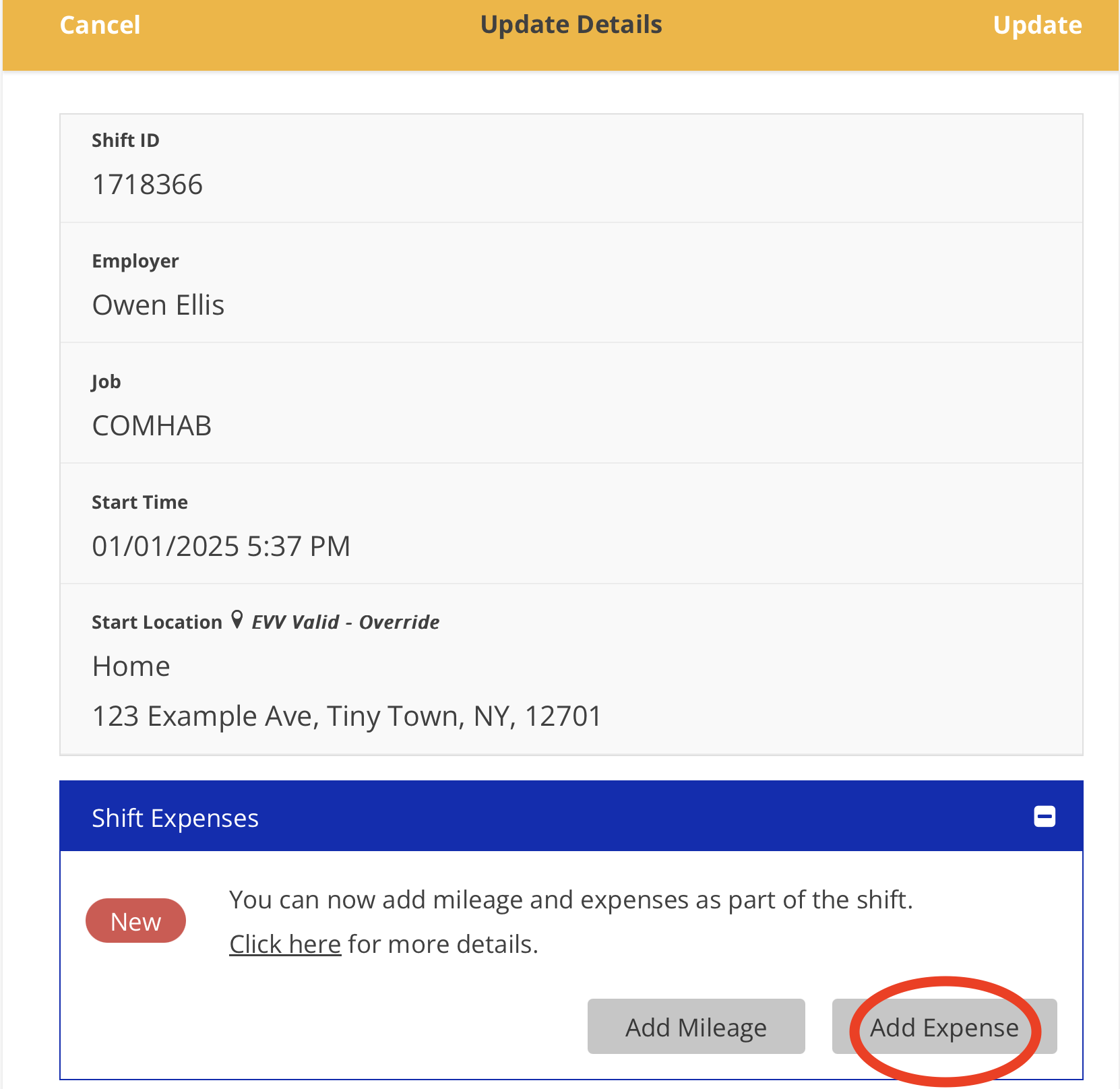
5. Tap the 'Add Expense' button
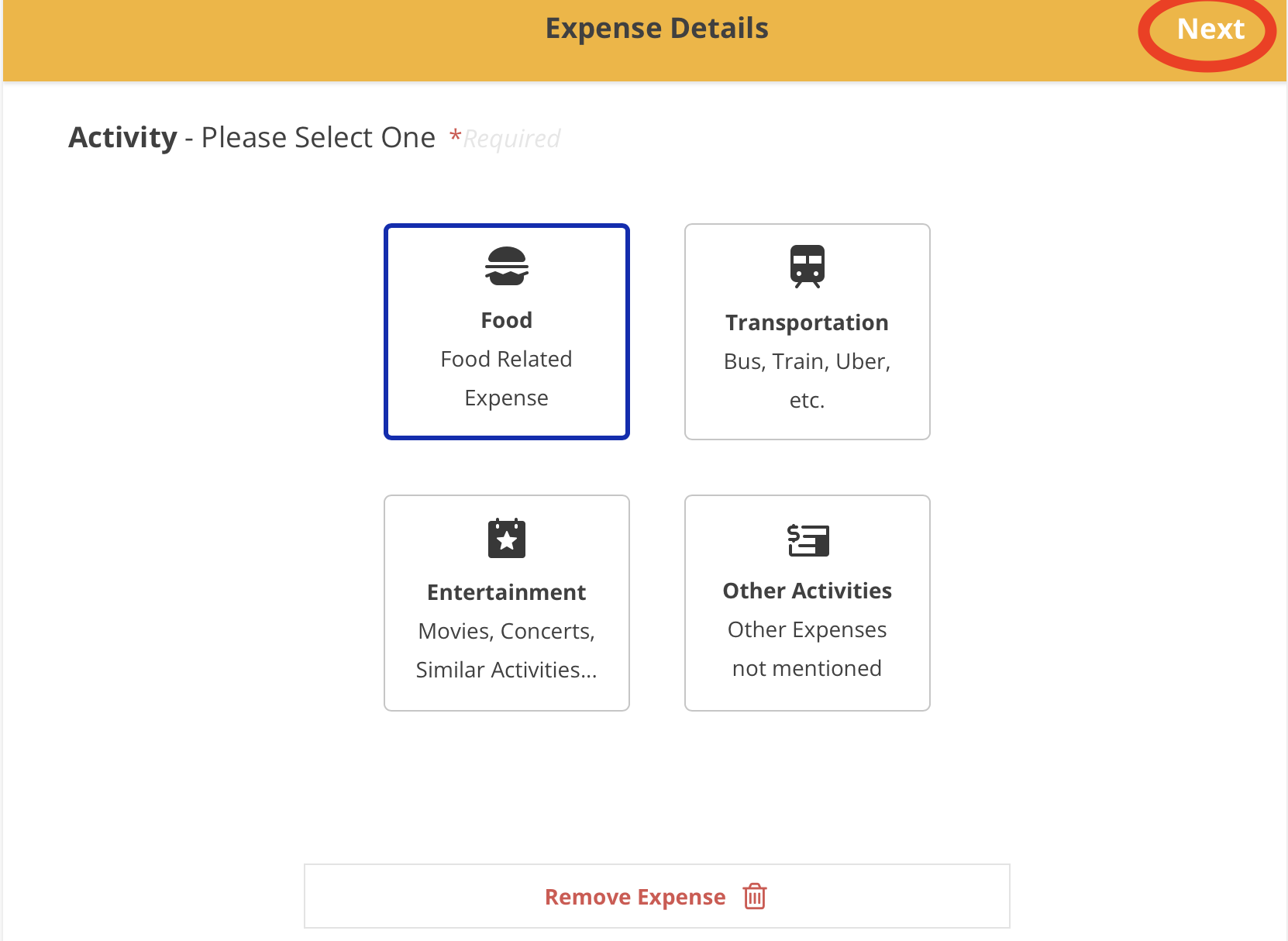
6. Pick your Expense Activity and tap the 'Next' button
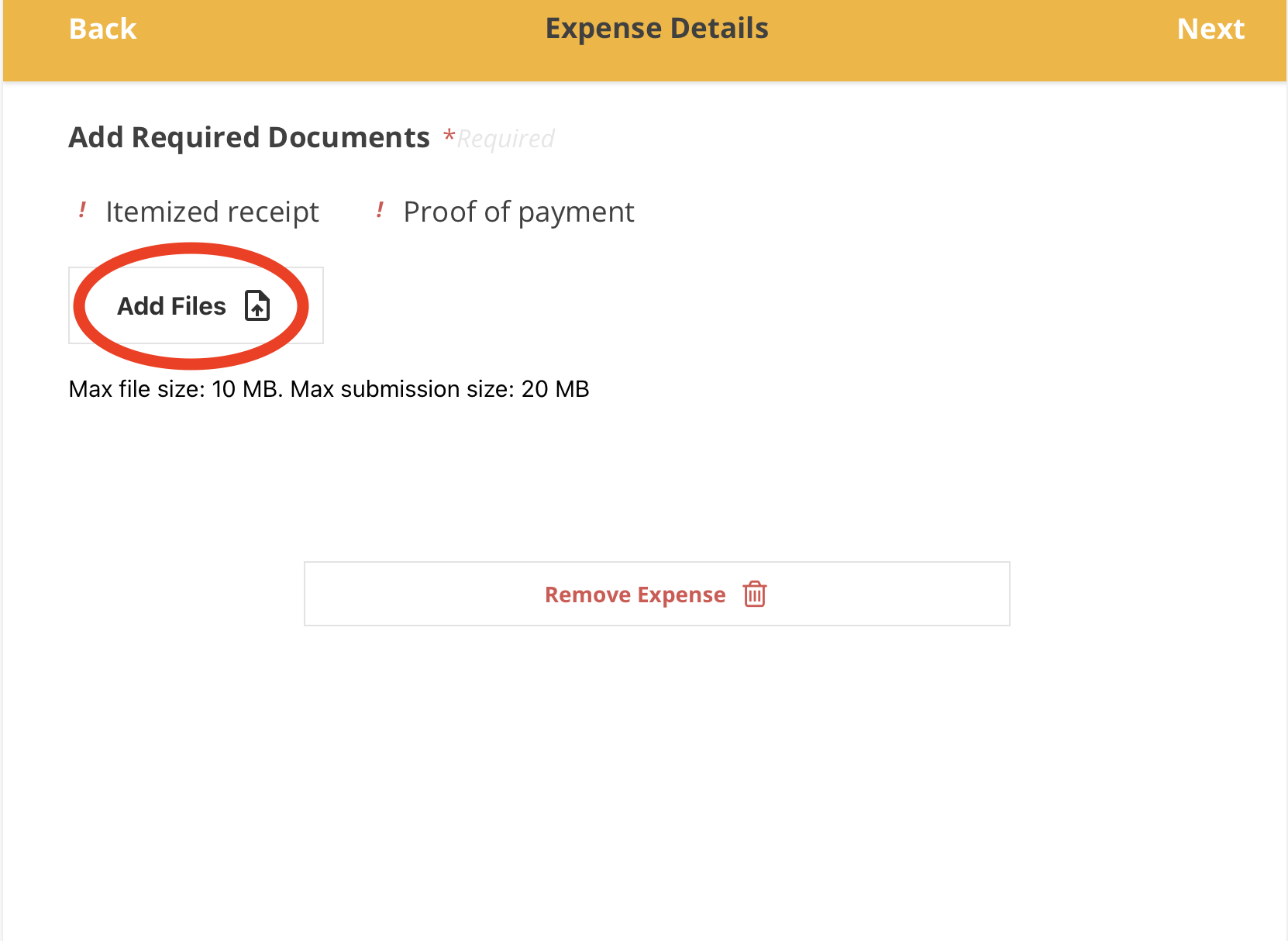
7. Tap the 'Add Files' button
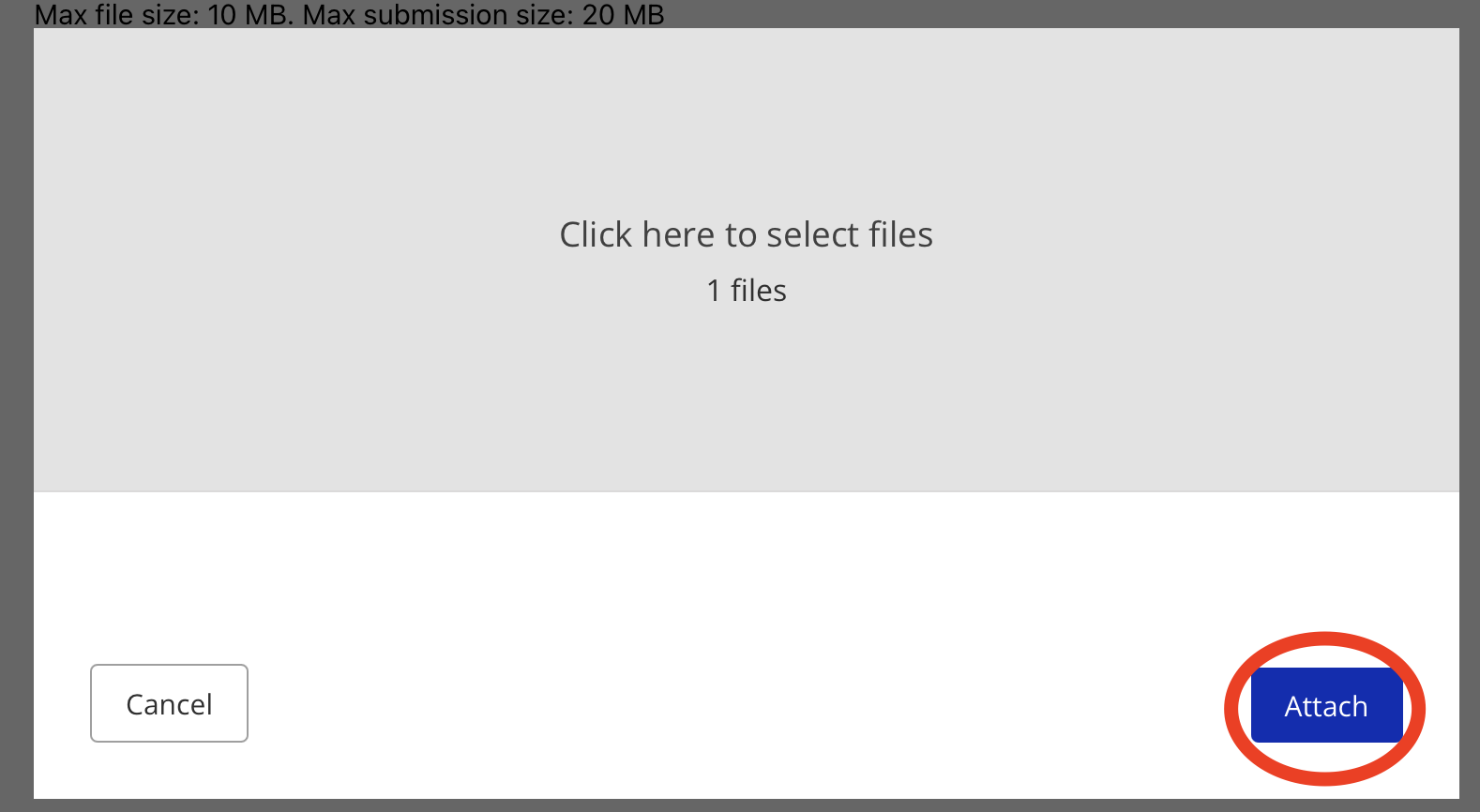
8. Tap the 'Attach' button
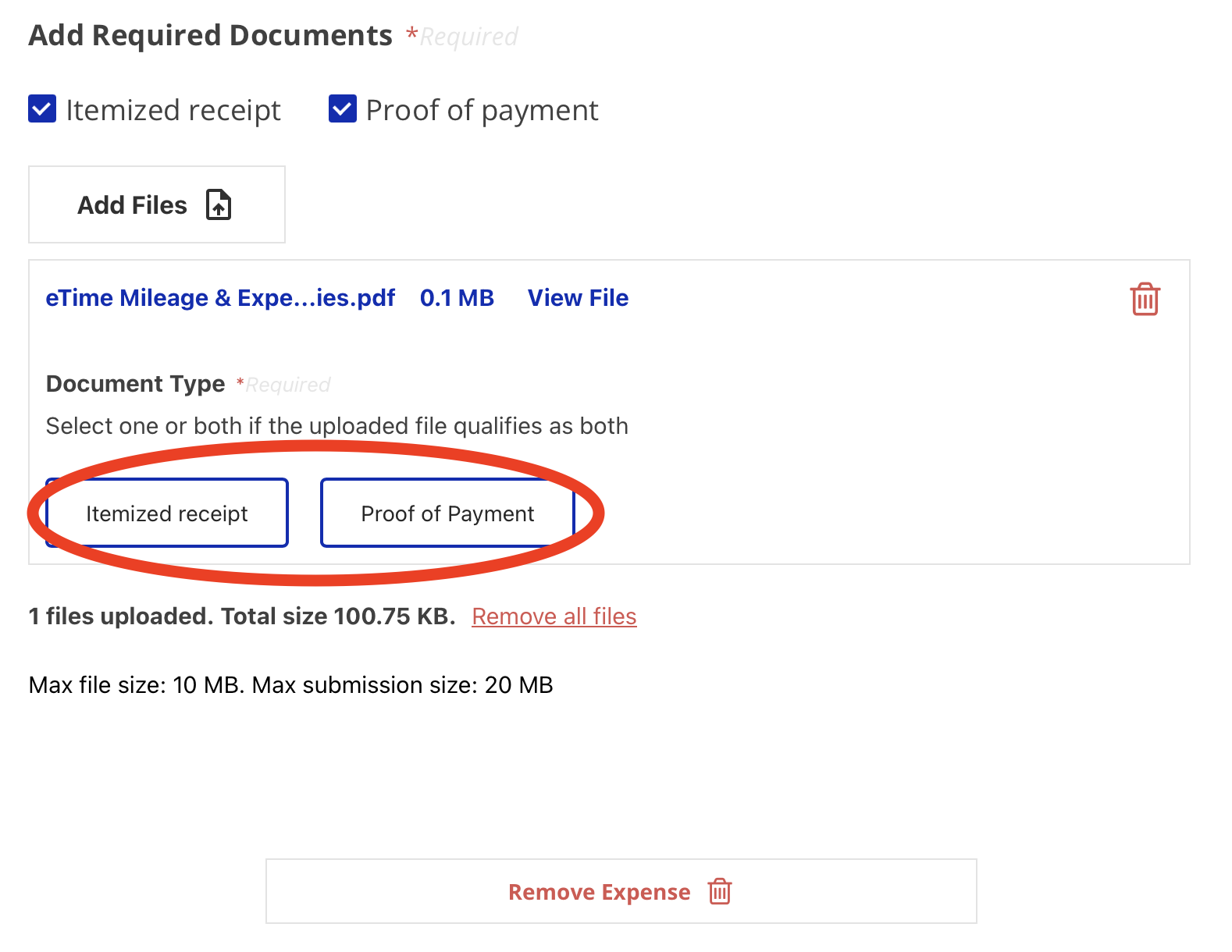
9. After uploading, select whether the item represents an Itemized Receipt, Proof of Payment, or both.
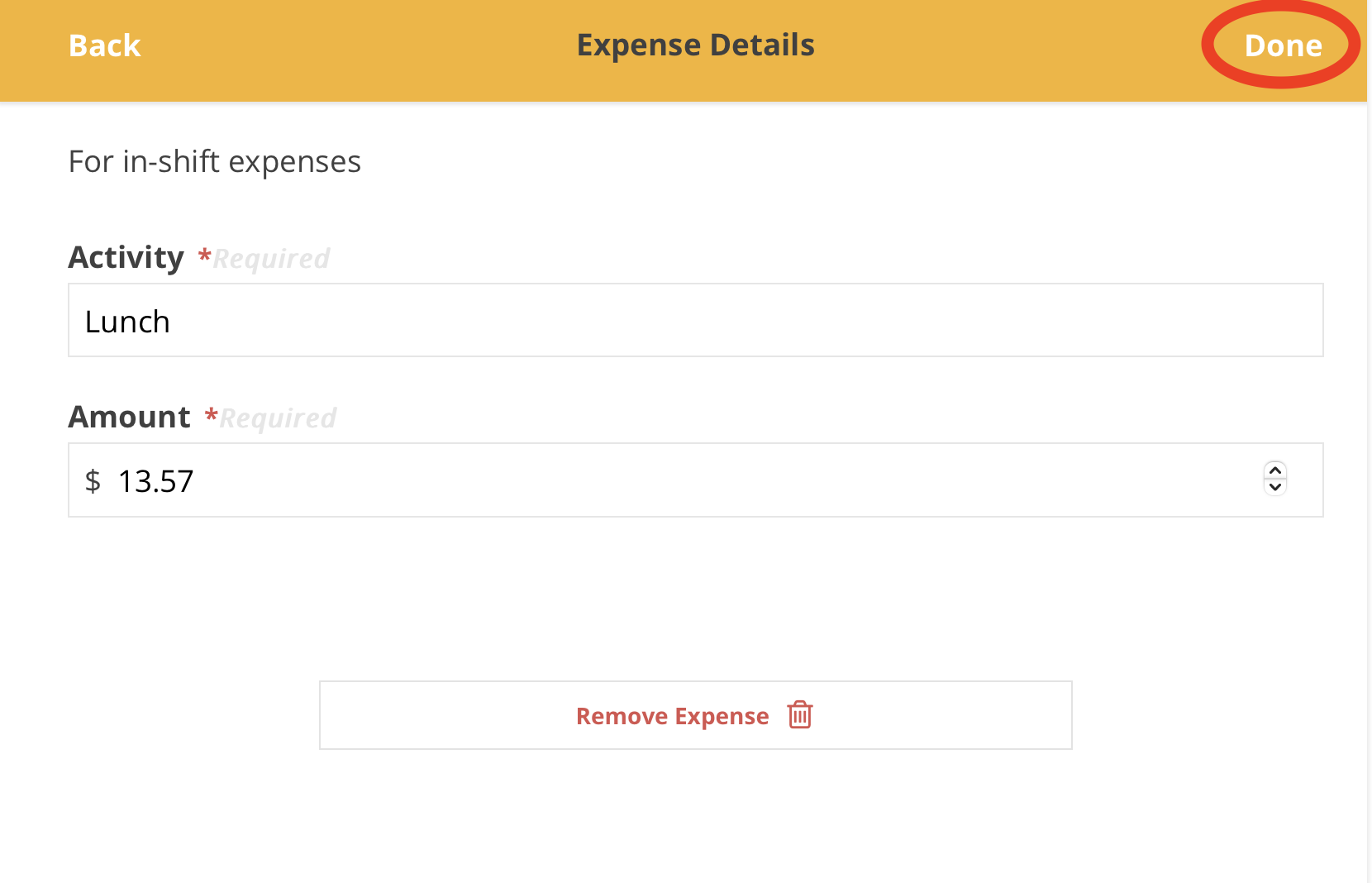
10. Input your Expense Details and tap the 'Done' button
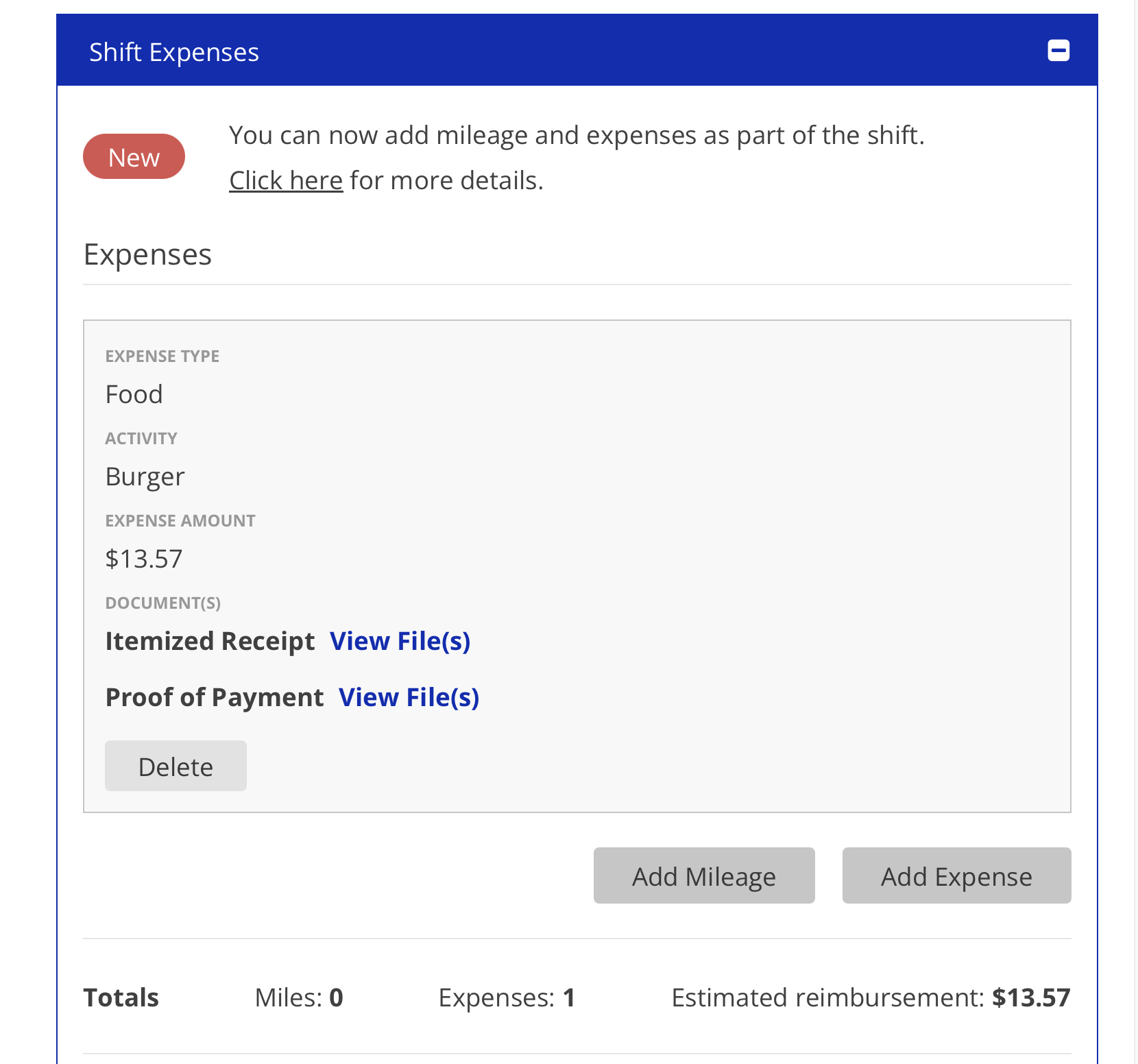
11. The finished Expense can be viewed and deleted within the shift
For further questions please view our FAQ document:
Expenses in eTime
Add Expense feature should not be used to add an expense that wasn’t incurred
during a shift. Telephone bill, electricity, etc.
For Expenses, they should be adding one expense at time and with respective
documents.
Editing an expense in eTimeWhat to do if you have mileage or expenses you forgot to add to your shift post
submission
Reviewing Mileage & / Expenses
Expenses
Activity
Amount
Does the provided documents collaborate with the story
If a shift has a mileage/expenses, it can only be approved after those are reviewed
approved
If any of these do not make sense, just return the entire shift
- Adding expense in eTime - with screenshots
- What to do if you have expenses which you forgot to add to your shift . Also how to add post-submission. Forgot to add to your shift post submission - FAQ callout
- For expenses, they should be adding one expense at a time with respective documents
- What criteria need to be met for expense reimbursement (Cannot submit expenses without supporting documentation. Must provide certain kinds of supporting documentation such as an itemized recipe or proof of payment. Etc.) - FAQ callout
- Add Expense feature should not be used to add an expense that wasn’t incurred during a shift. Telephone bill, electricity, etc. - FAQ callout
•5.The missing budget indicator appears if an expense is asked for and the participant doesn’t have the budget line for it. - FAQ callout