Creating and Submitting a Forgotten Shift
**Creating a shift for a previous day will render the shift EVV Unverified. Continuous unverified shifts will be a cause for ISS intervention, as ISS may not be able to bill for those shifts.**
Please note, you cannot submit a missed shift while another shift is actively running
- To create and submit a forgotten shift, first navigate to eTime Live by clicking Open eTime on the home page.
- On mobile, eTime Live will automatically open upon login
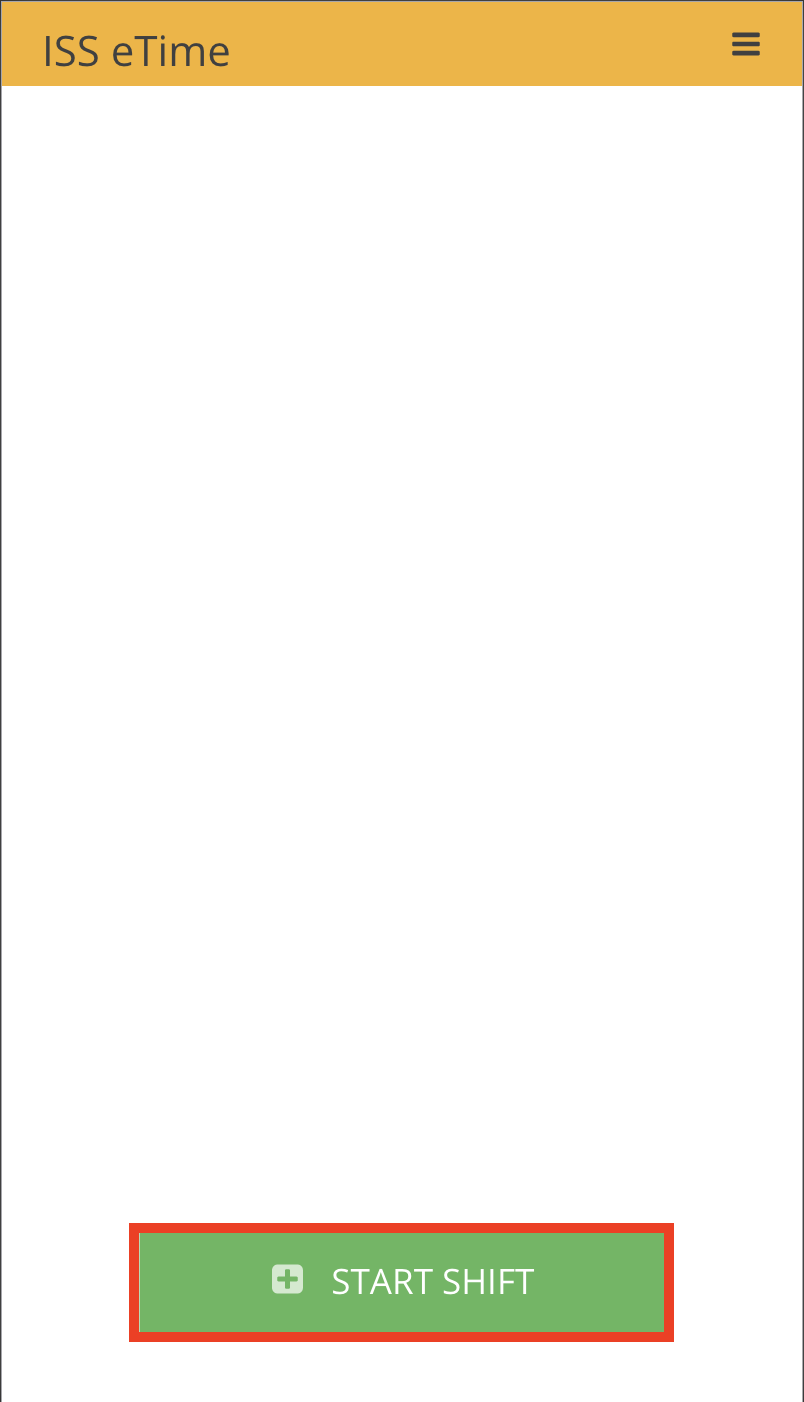
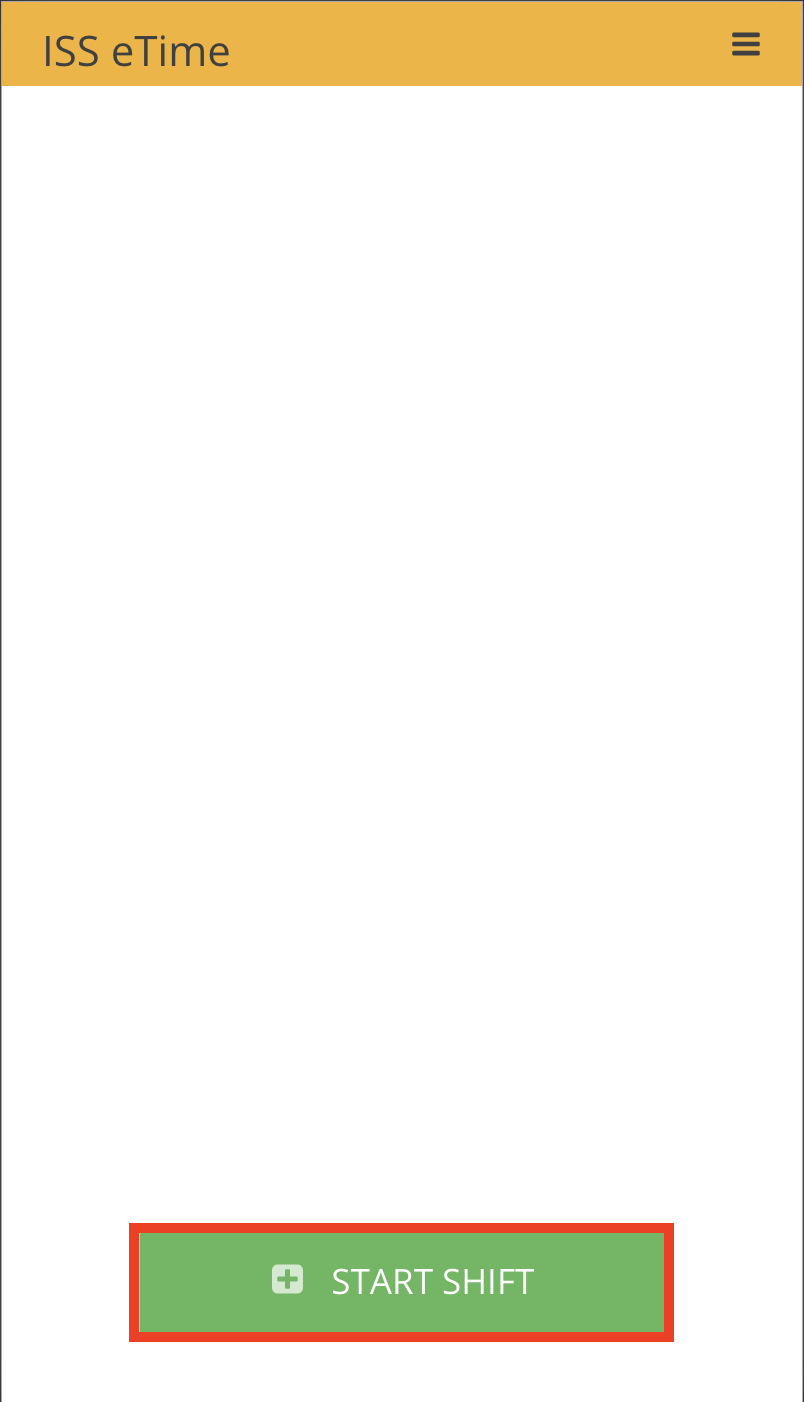
- From eTime, click Start Shift
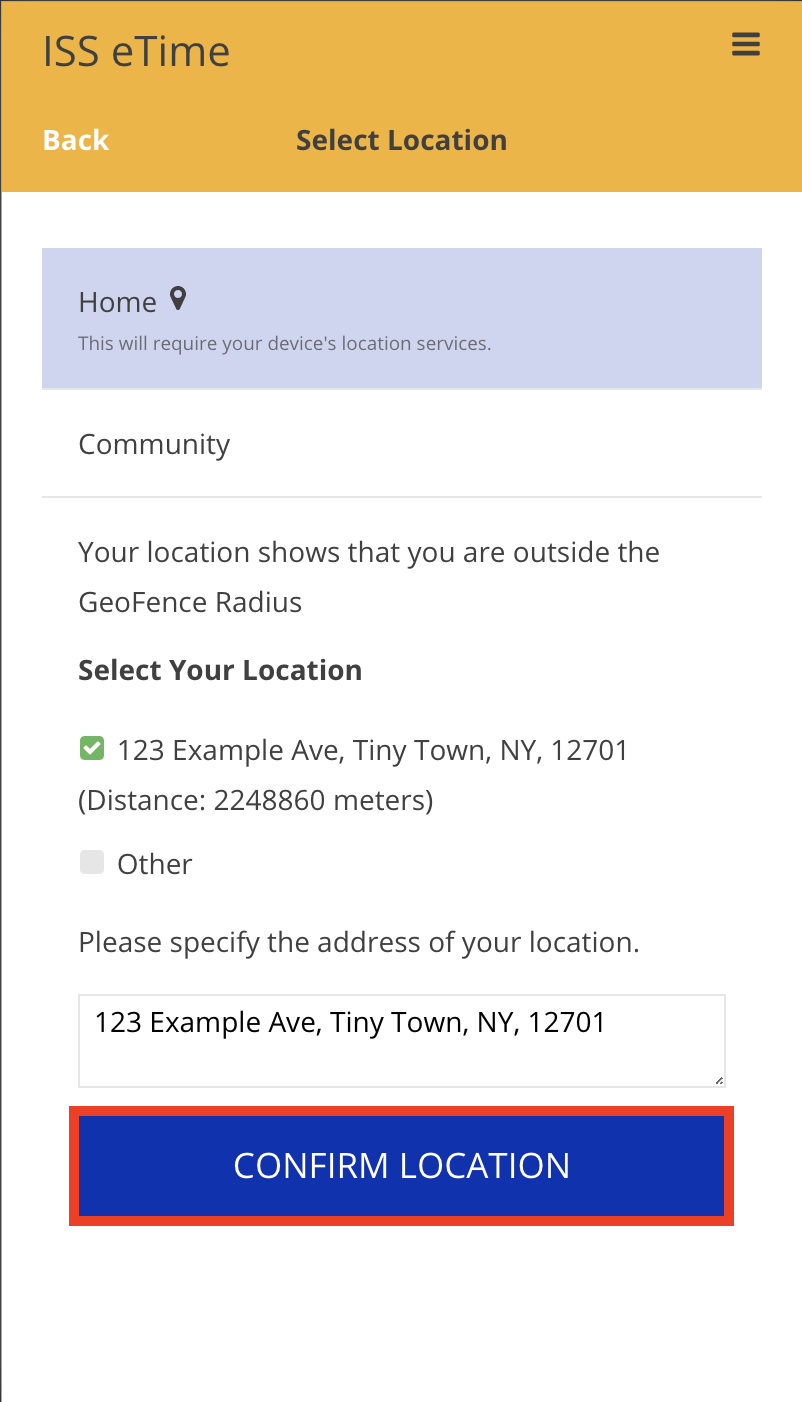
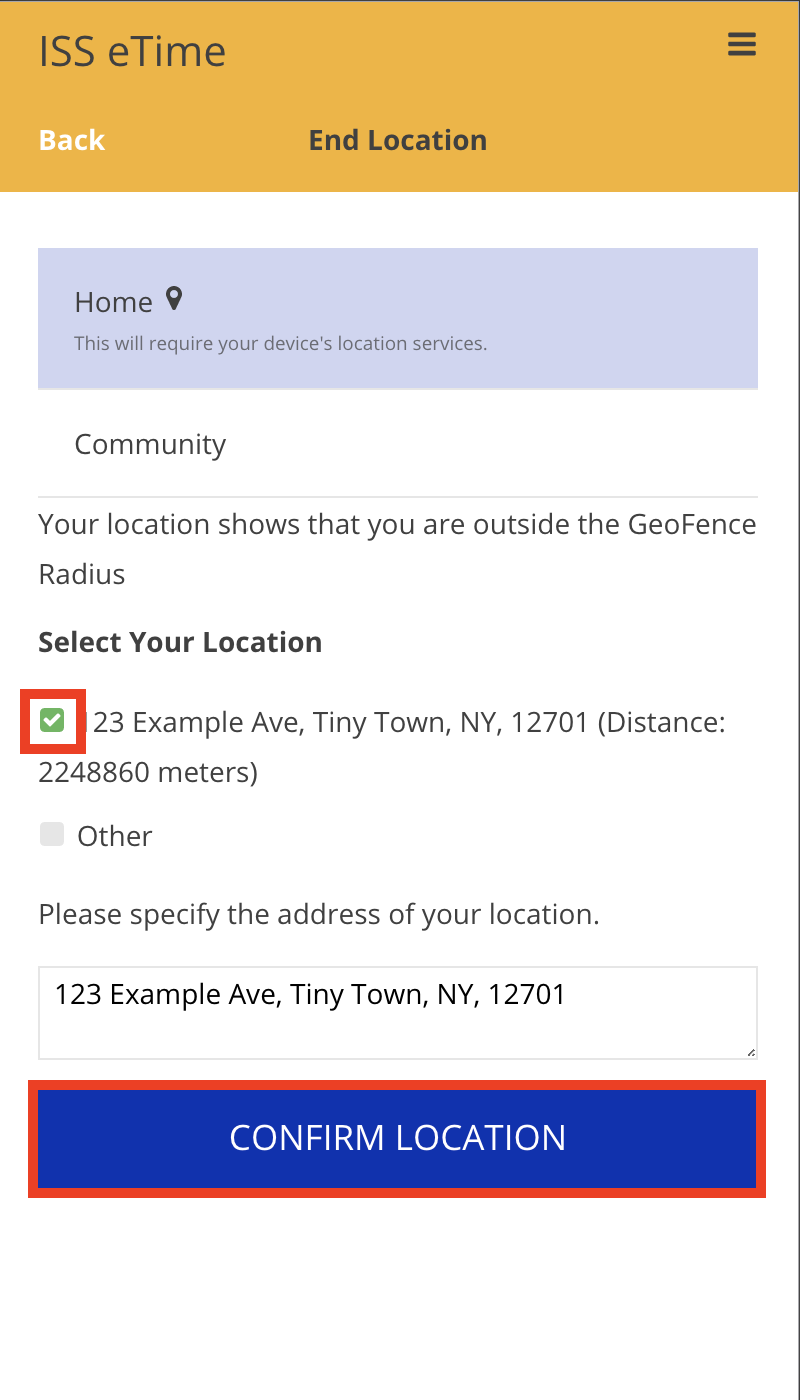
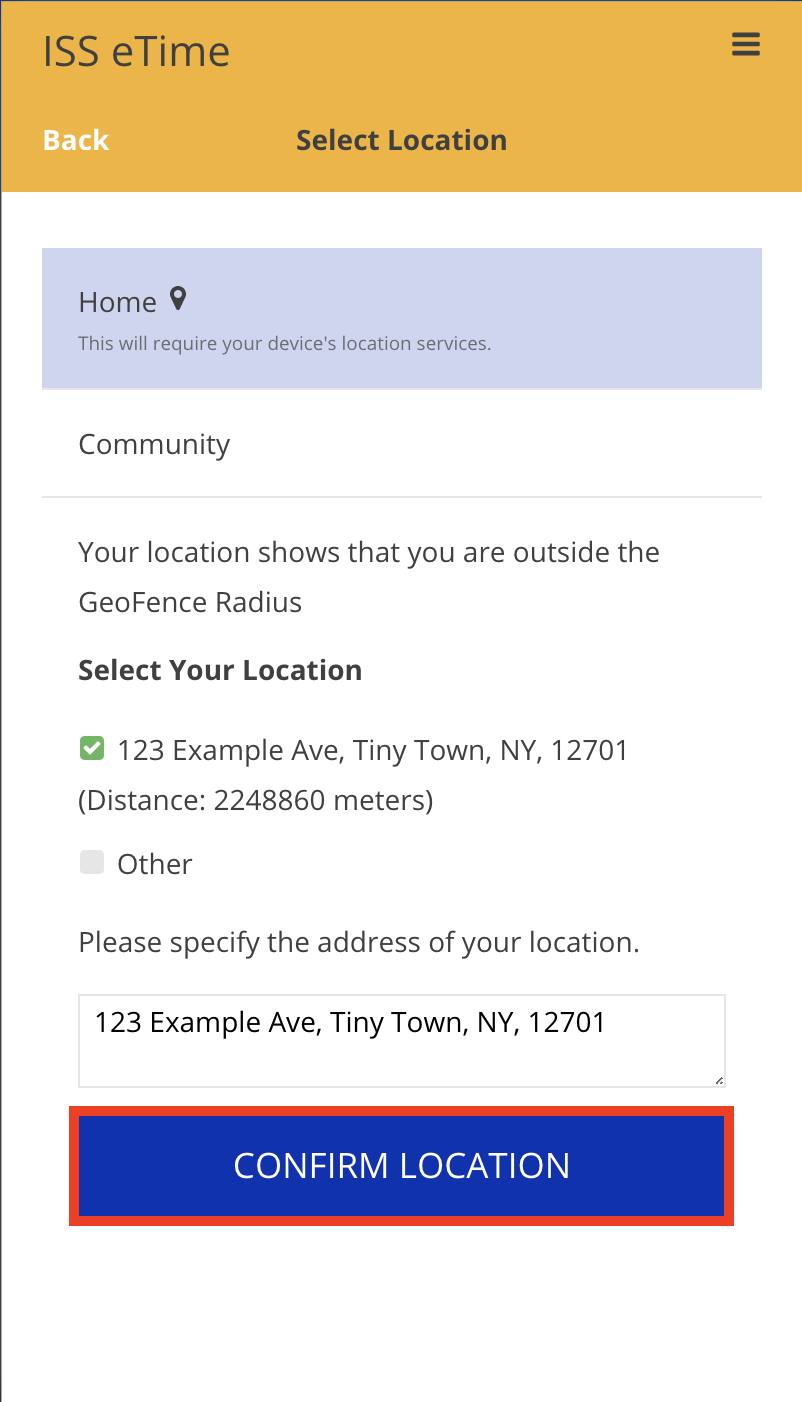
- Next, select the employer, the job, the method and the location for the forgotten shift
- Once the details of the forgotten shift have been confirmed, click Add in the top right hand corner
- Once all of the details have been finalized, click Next in the top right hand corner of the Finalize Details screen
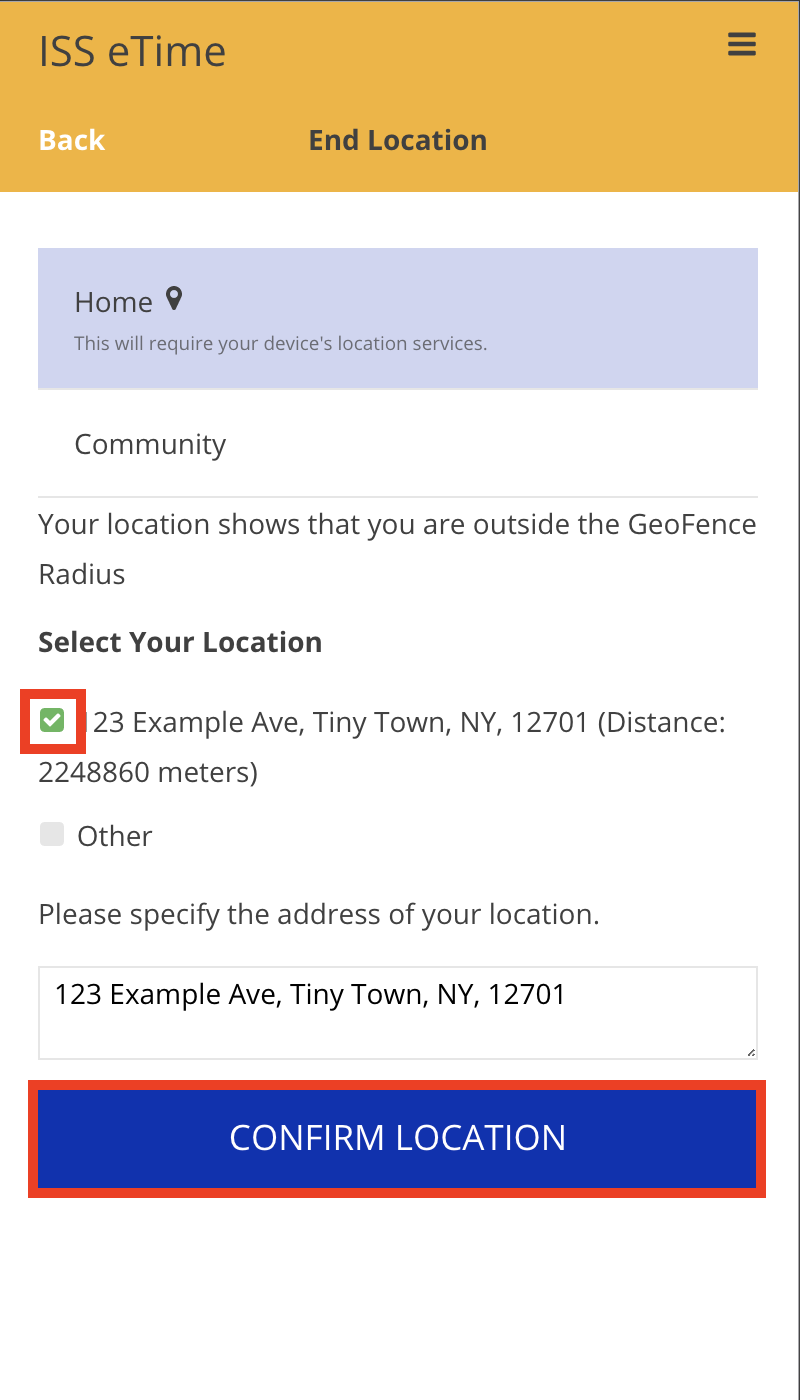
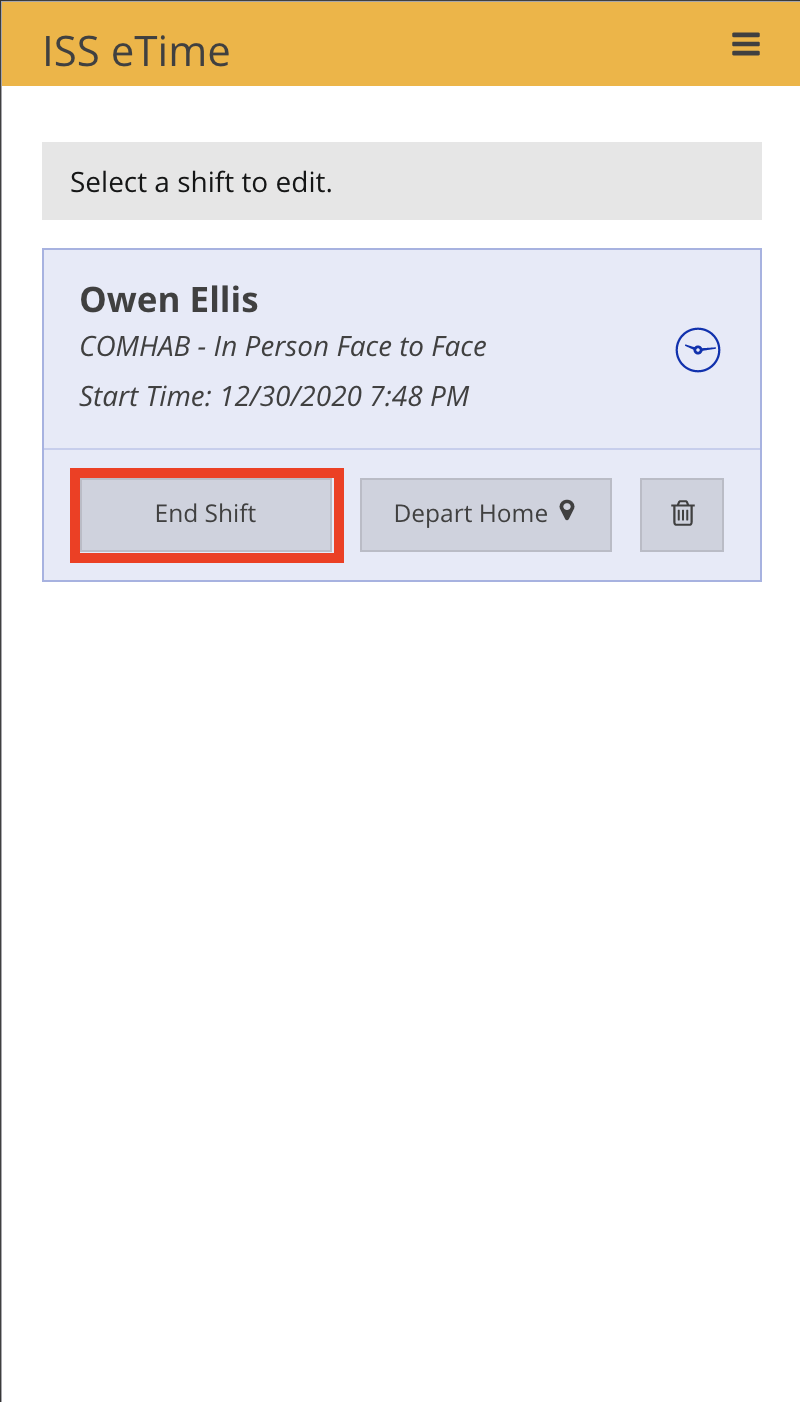
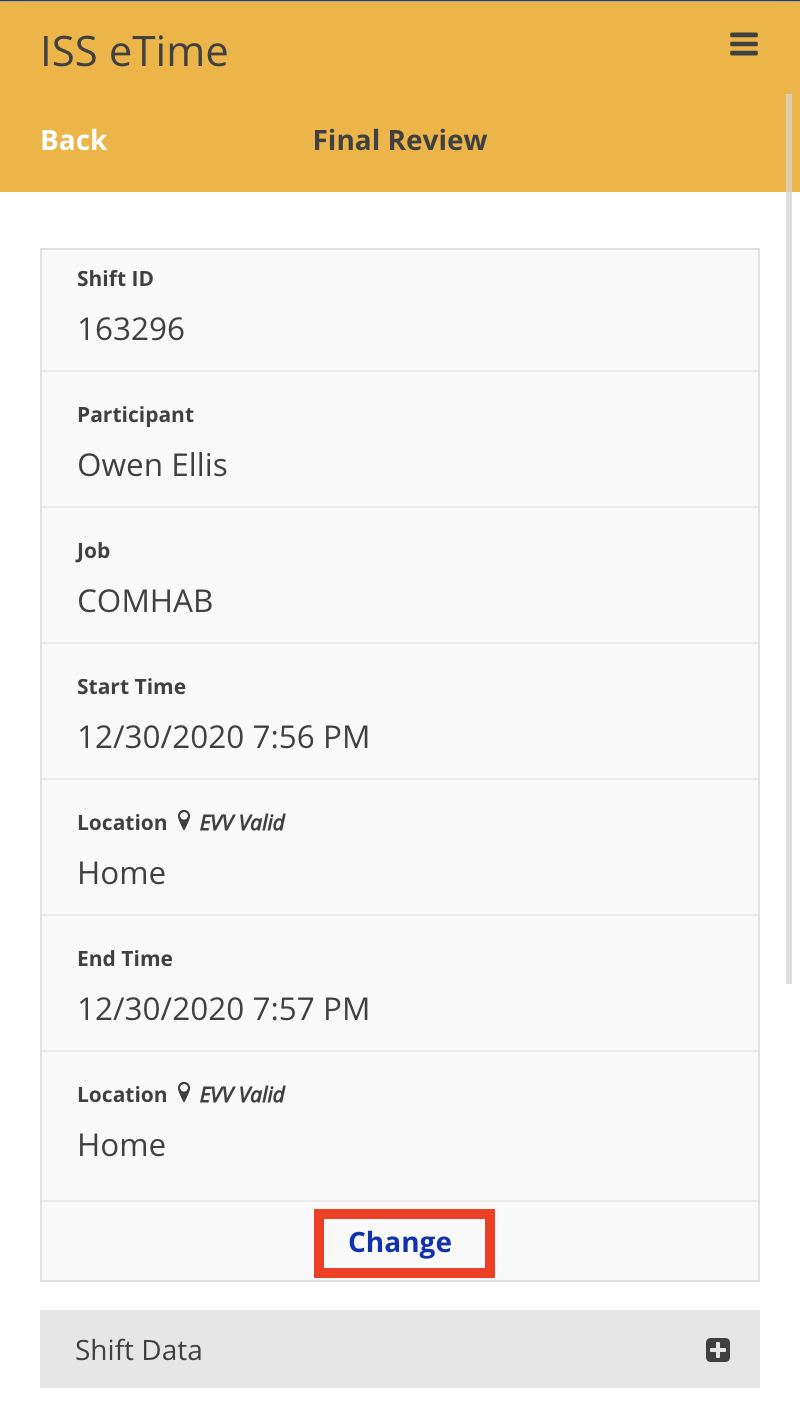
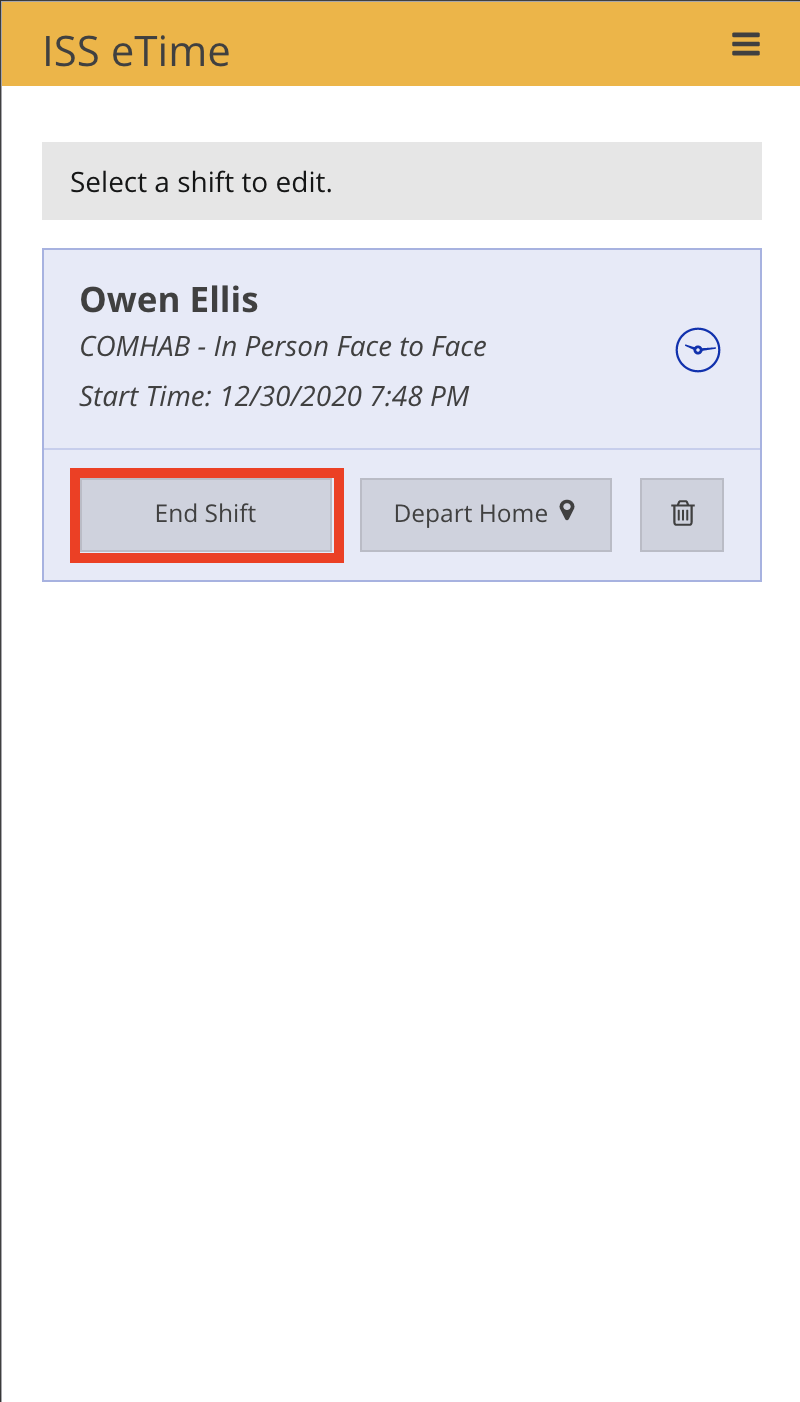
- Click End in the top right hand corner to advance to the Final Review screen
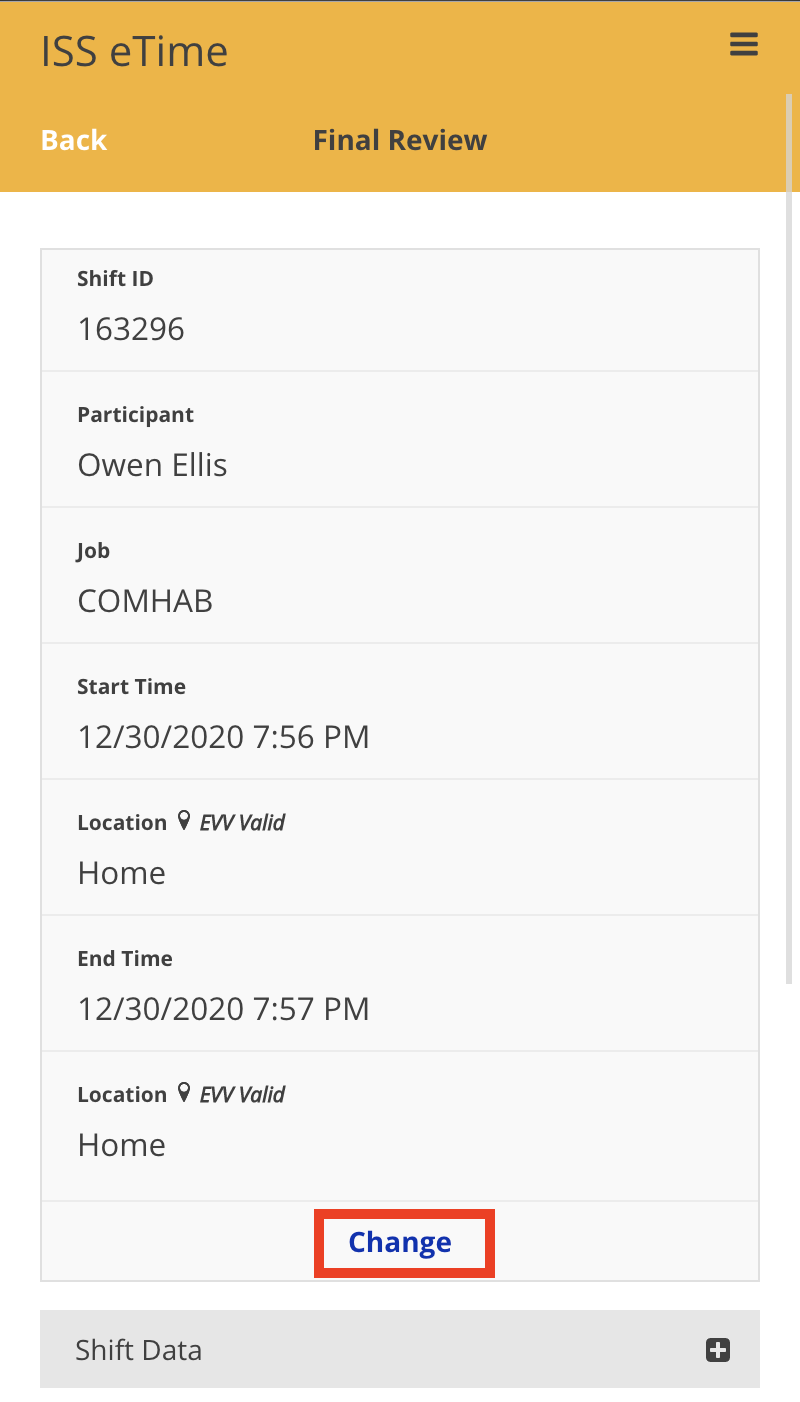
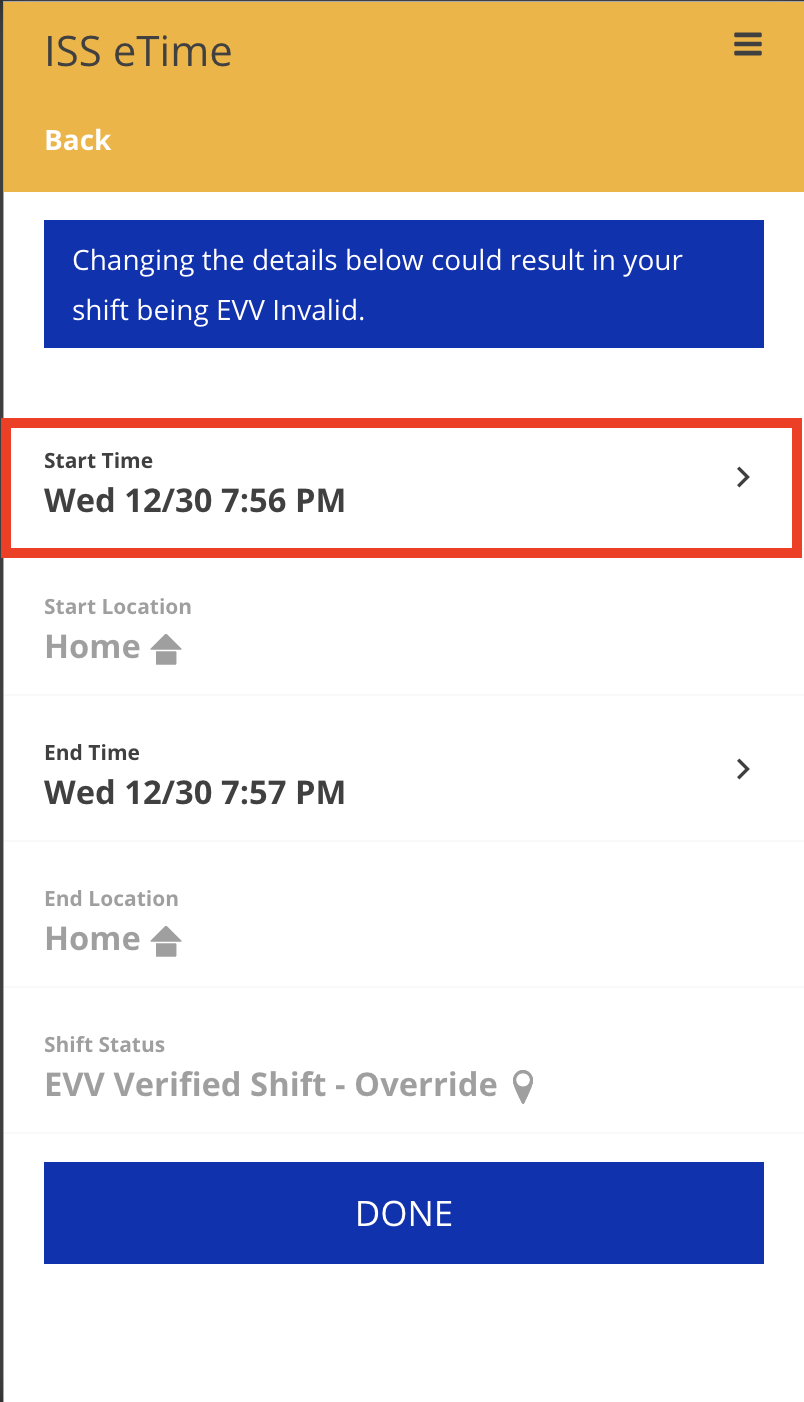
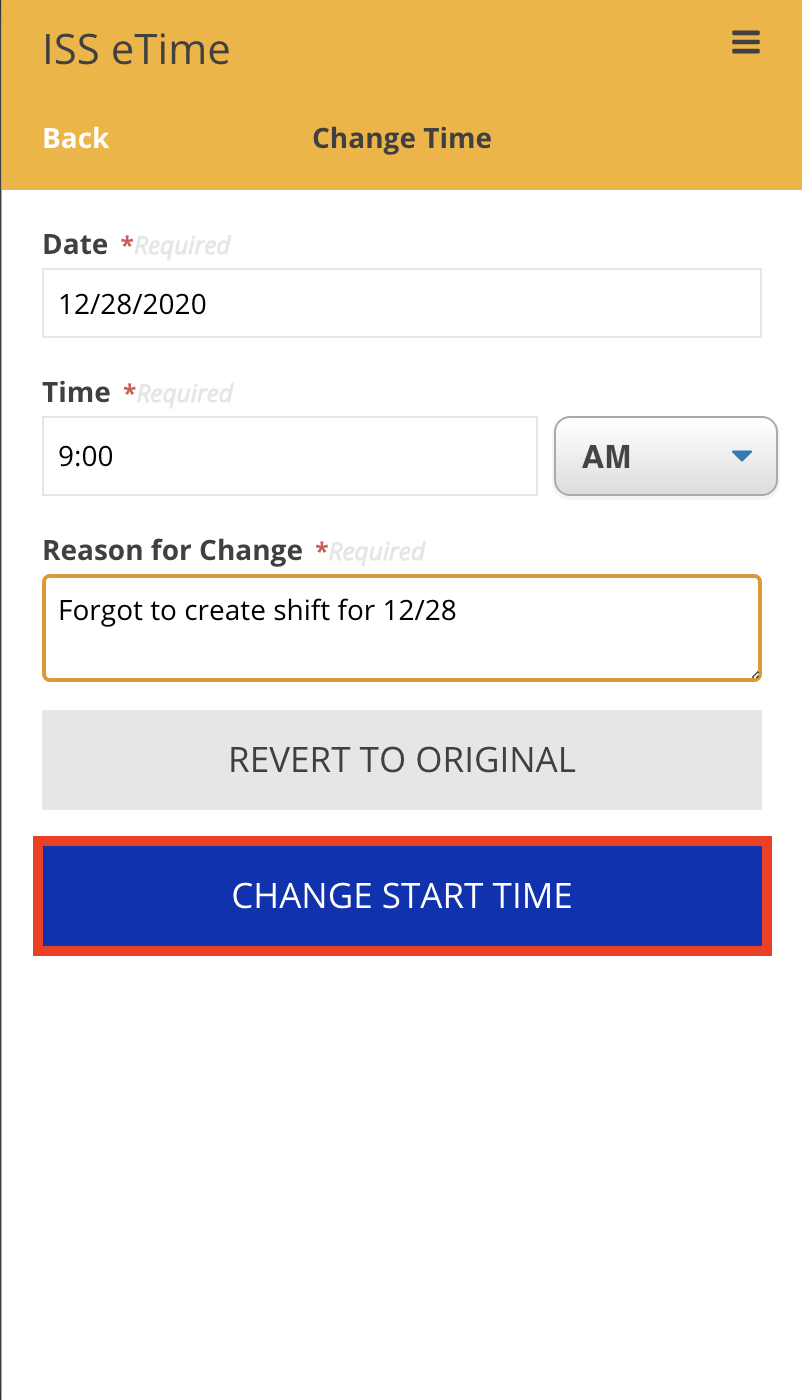
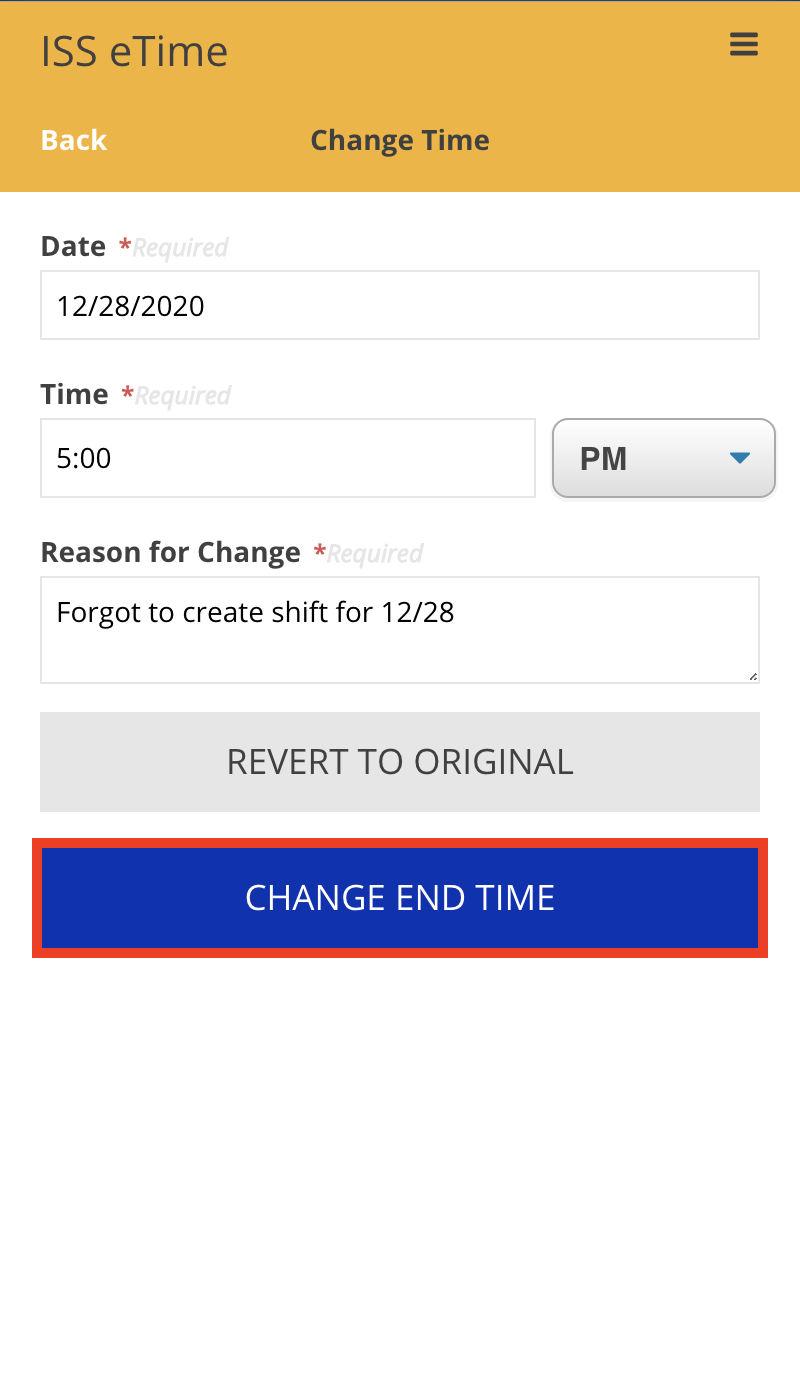
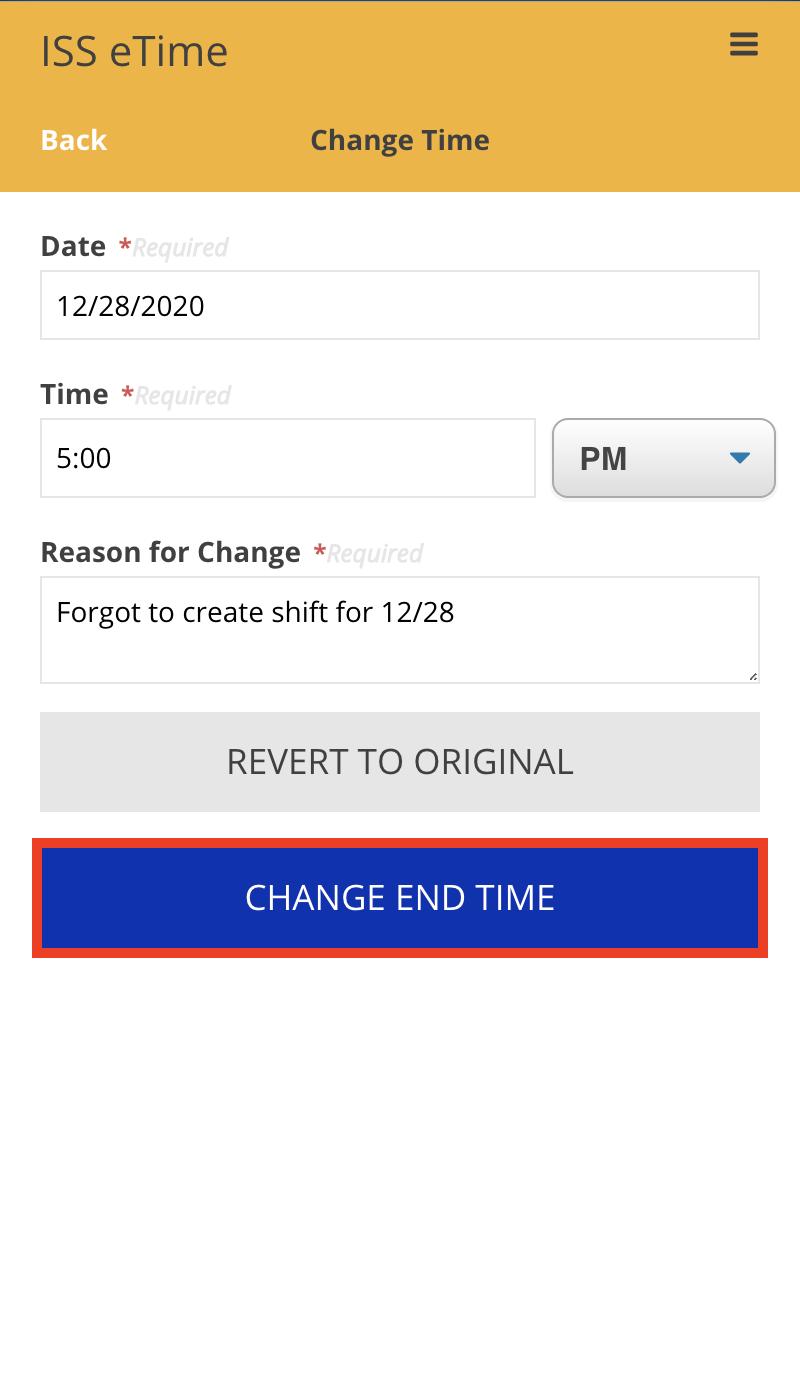
- Once finished, click Change End Time to confirm the changes made
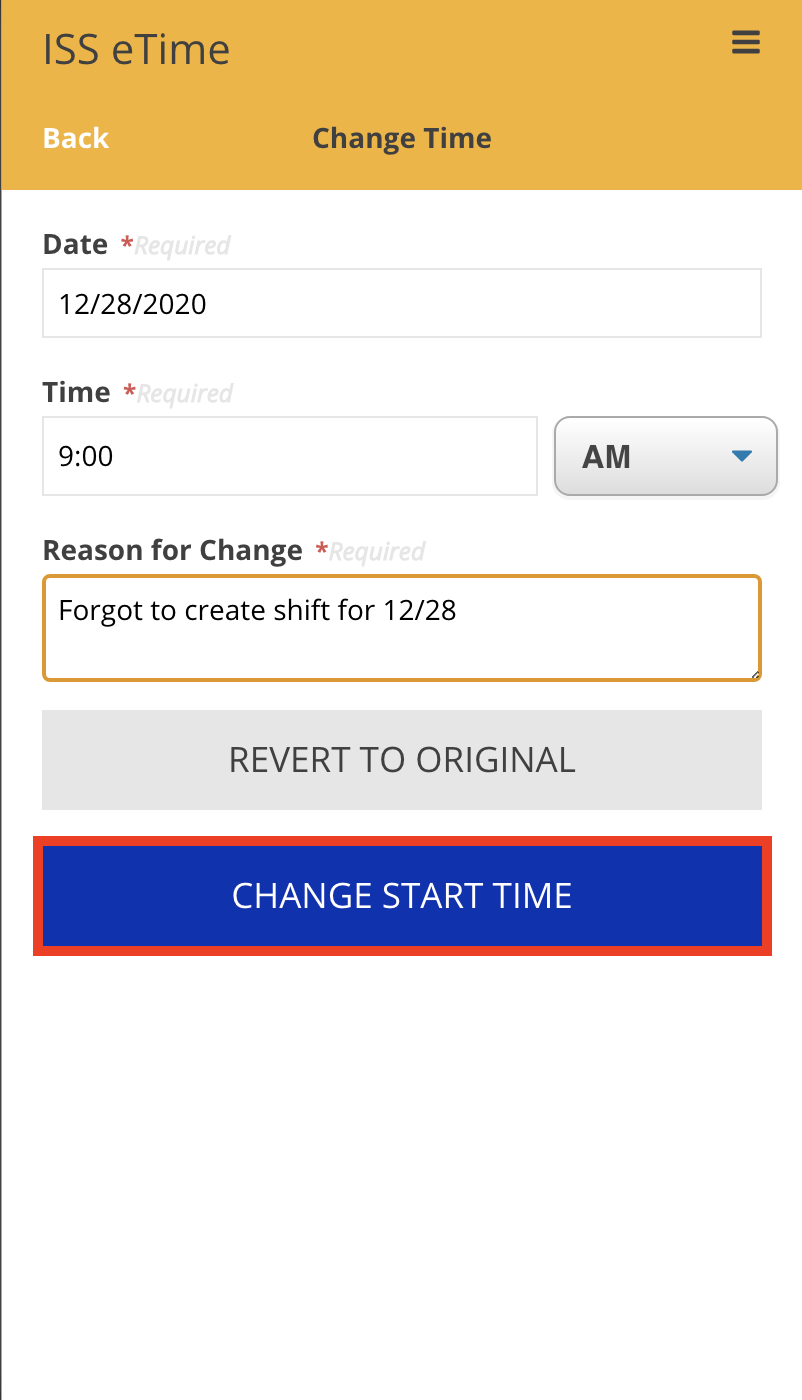
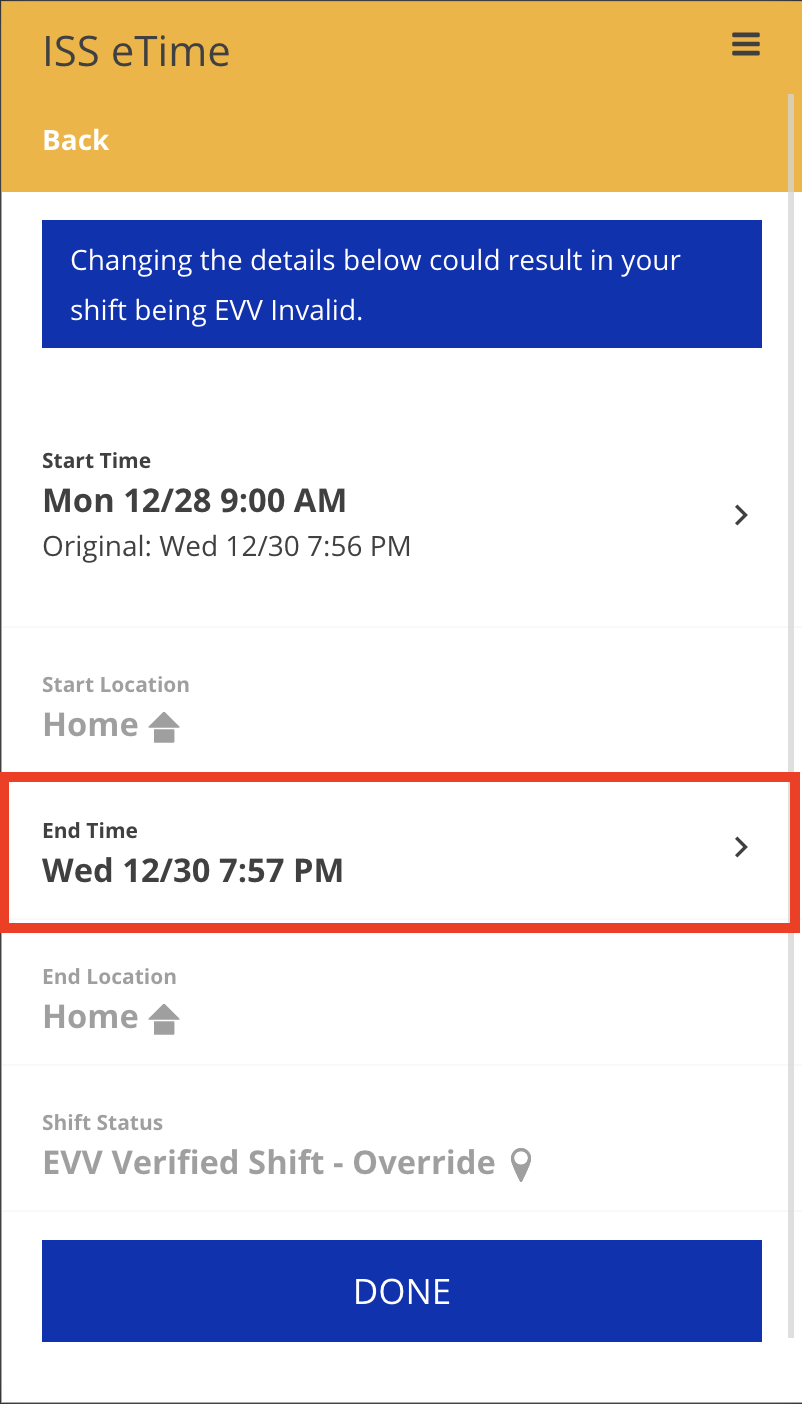
- After editing the Start Time and End Time for the forgotten shift, select Done to advance to the Final Review screen
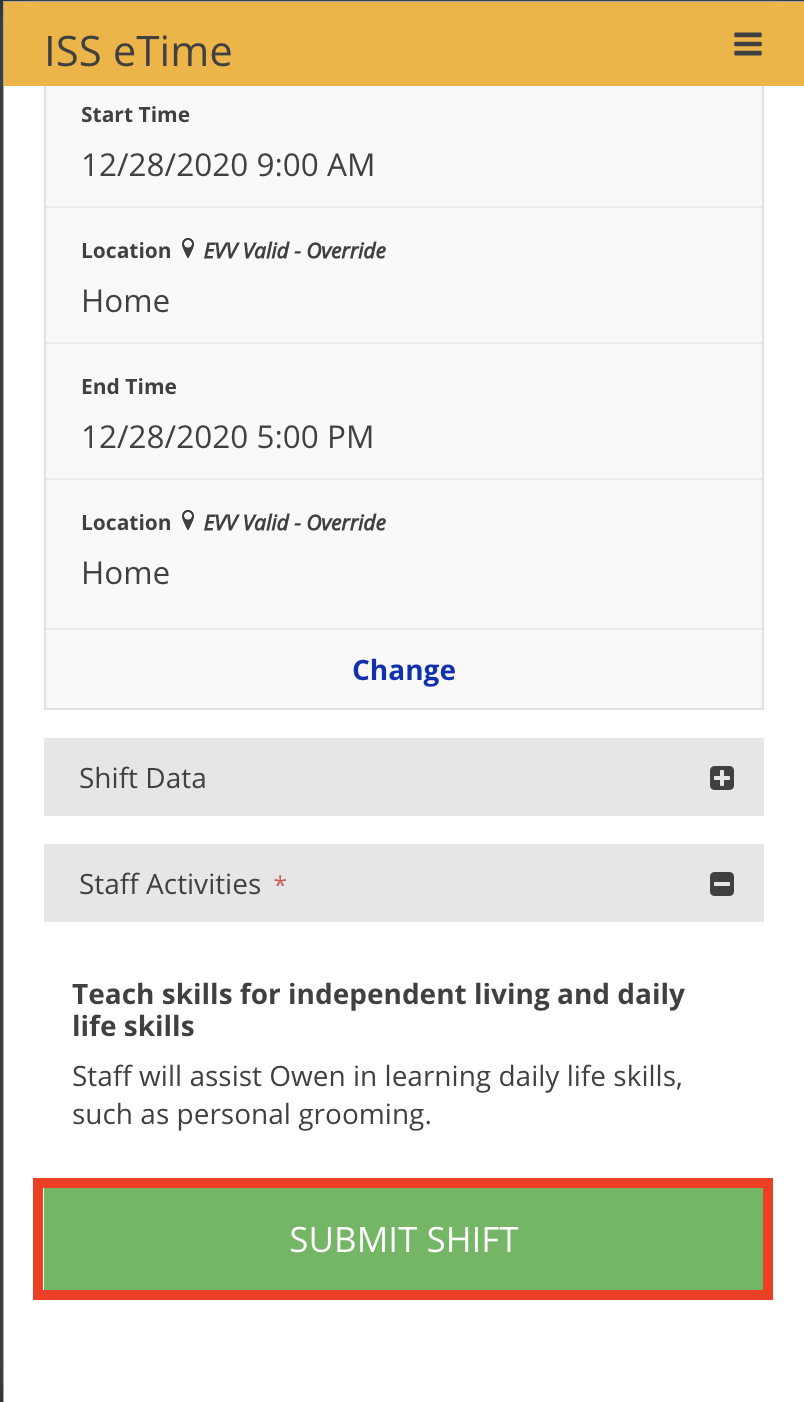
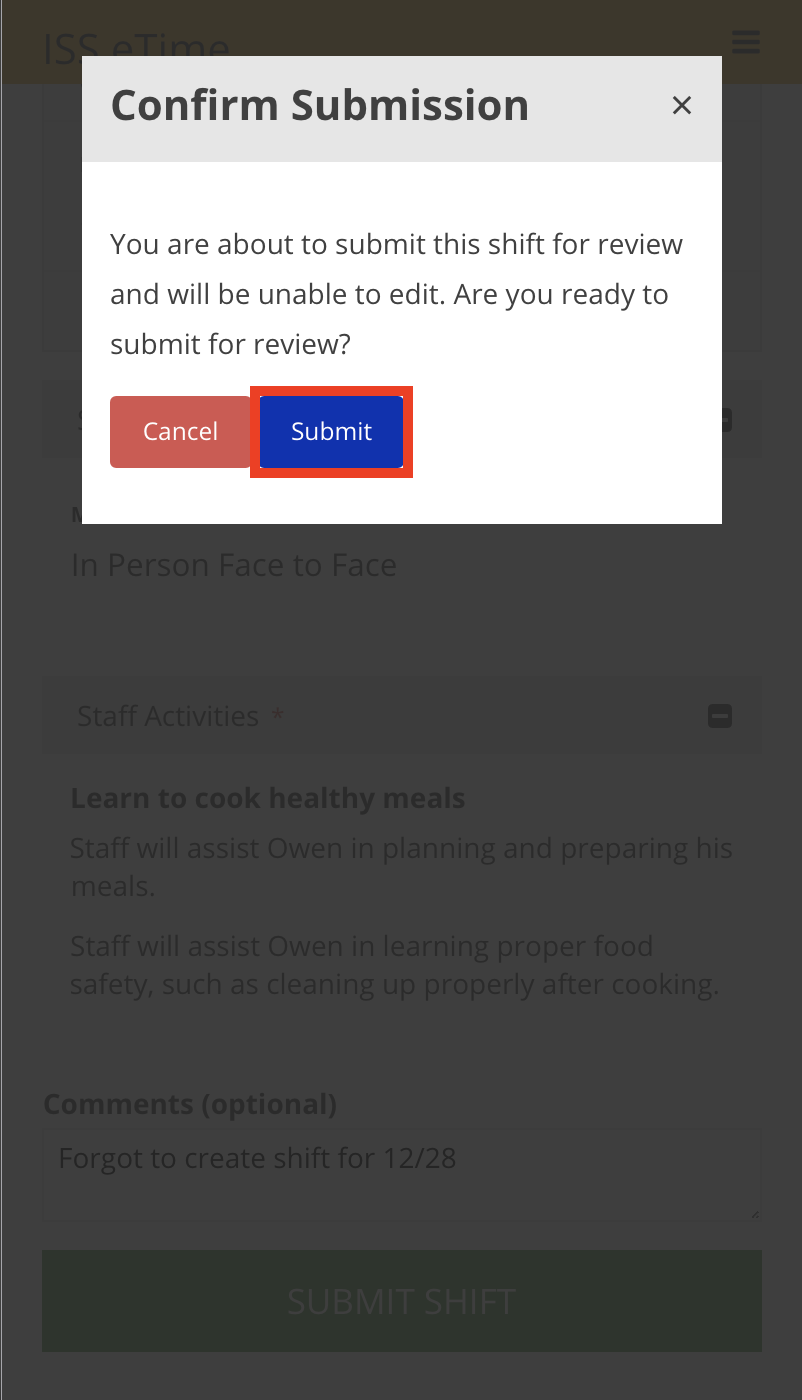
- From the Final Review screen, verify the accuracy of the shift’s details, scroll down and click Submit Shift at the bottom of the screen
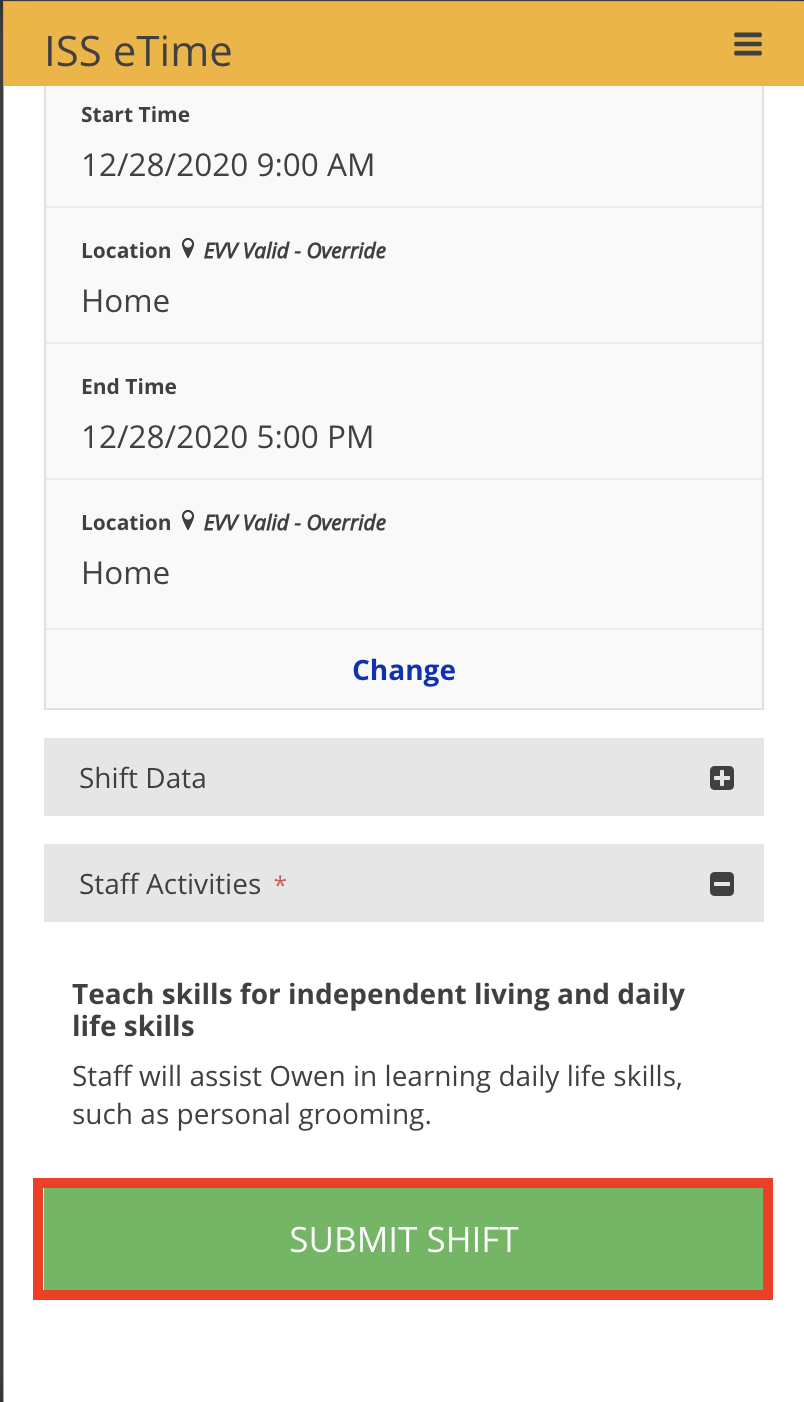
- Click Submit from the Confirm Submission dialog window