
DRAFT - Deleting a Shift
Only support staff can delete their shifts, and only shifts marked as Draft and Returned to Staff can be deleted.
A support staff may need to delete a shift if they created the shift by accident. If you accidentally started an eTime Live shift, simply end the shift and then delete it.
To delete a shift from eTime Live:
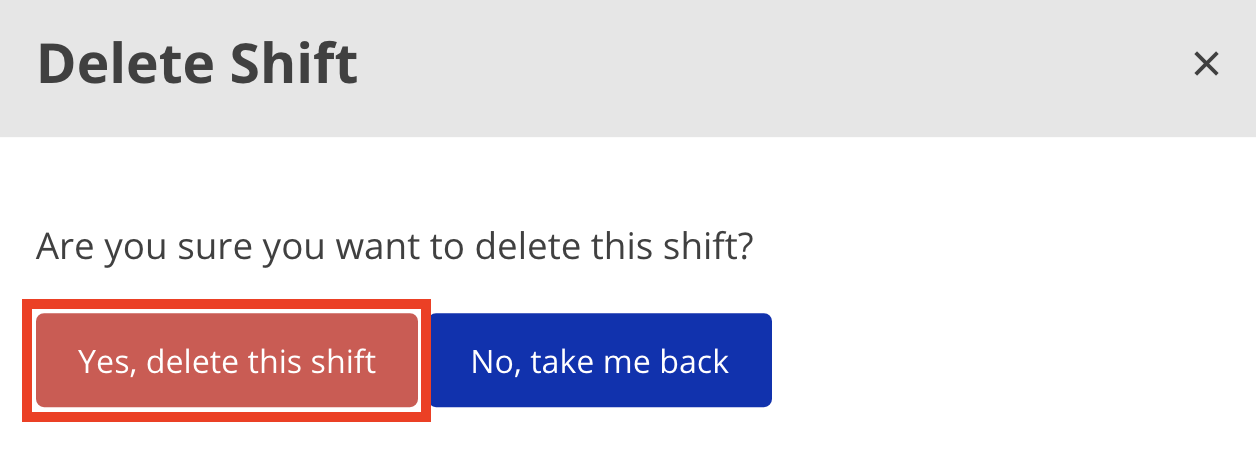
Click Yes, delete this shift on the shift deletion confirmation window that appears. .
. 
To delete a shift from the My Work page:
Select and expand the shift you wish to delete. Click Delete. Click Yes, delete this shift on the shift deletion confirmation window that appears.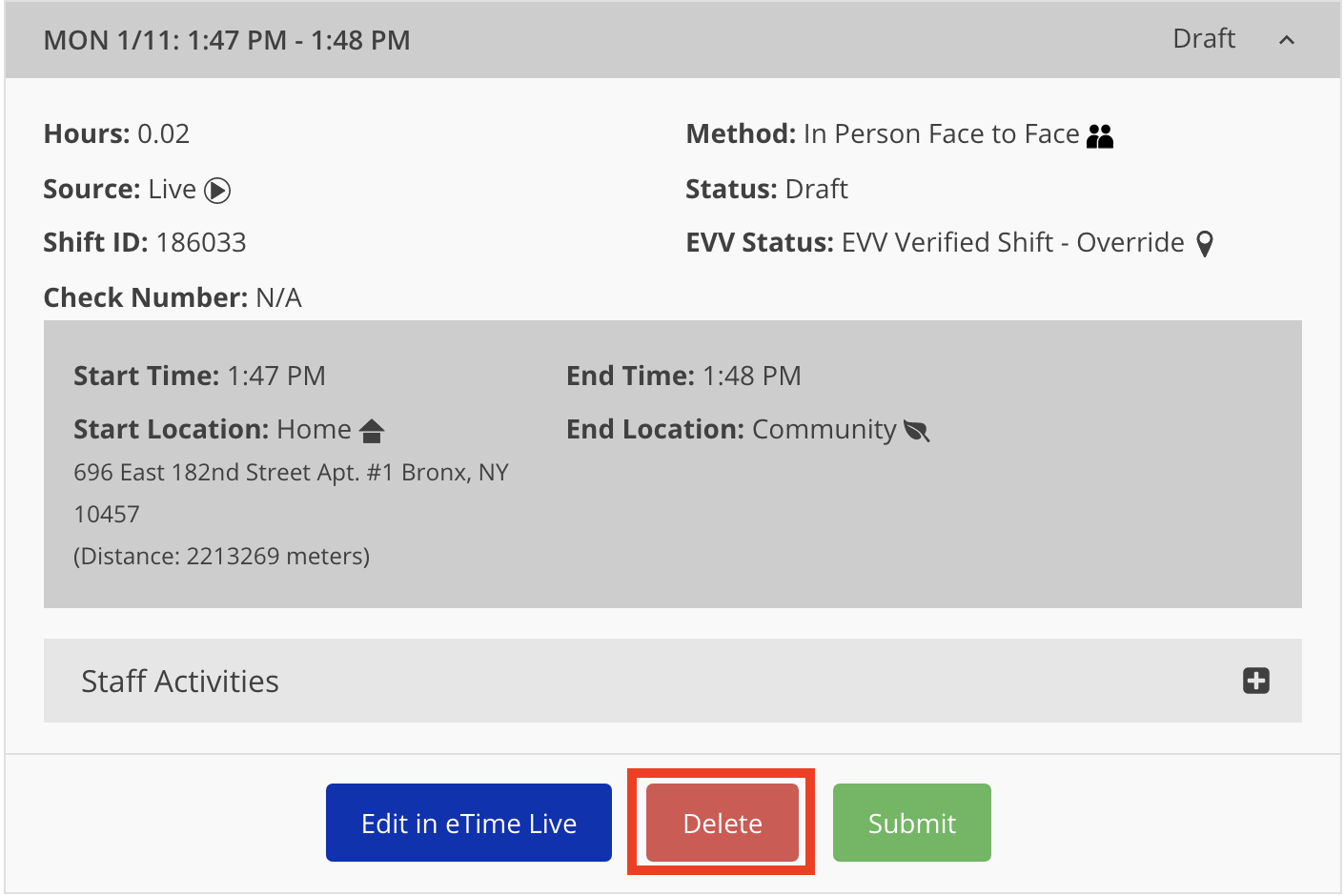
Disclaimer: All names displayed in the above screen shots are fictional characters. No identification with actual persons (living or dead) is intended or should be inferred.