
Editing Start and End Times
Updates to this page will be coming soon.
Support staff should record their time in real time. However, there are situations in which a staff person may need to change the start time, end time, start location,time or end location.time. Examples include forgetting to clock in or clock out,out.
To request a change to the start time or correctingend eTime'stime, evaluationthe of shift must be ended. If the shift has not yet been ended, you cannot make changes to the start or end times.
Change the start or end times from the Final Review screen:
-
Homevs.Community.Upon ending a shift and filling out the shift details, staff will be presented with
athetimeFinalandReviewlocationscreenverificationautomatically. Toscreen.get(Ifto this screen manually, select the shiftisinnoteTime, and then click Next on the Finalize Details screen.
- On the Final Review screen, click Change.
- Select either start time or end time.
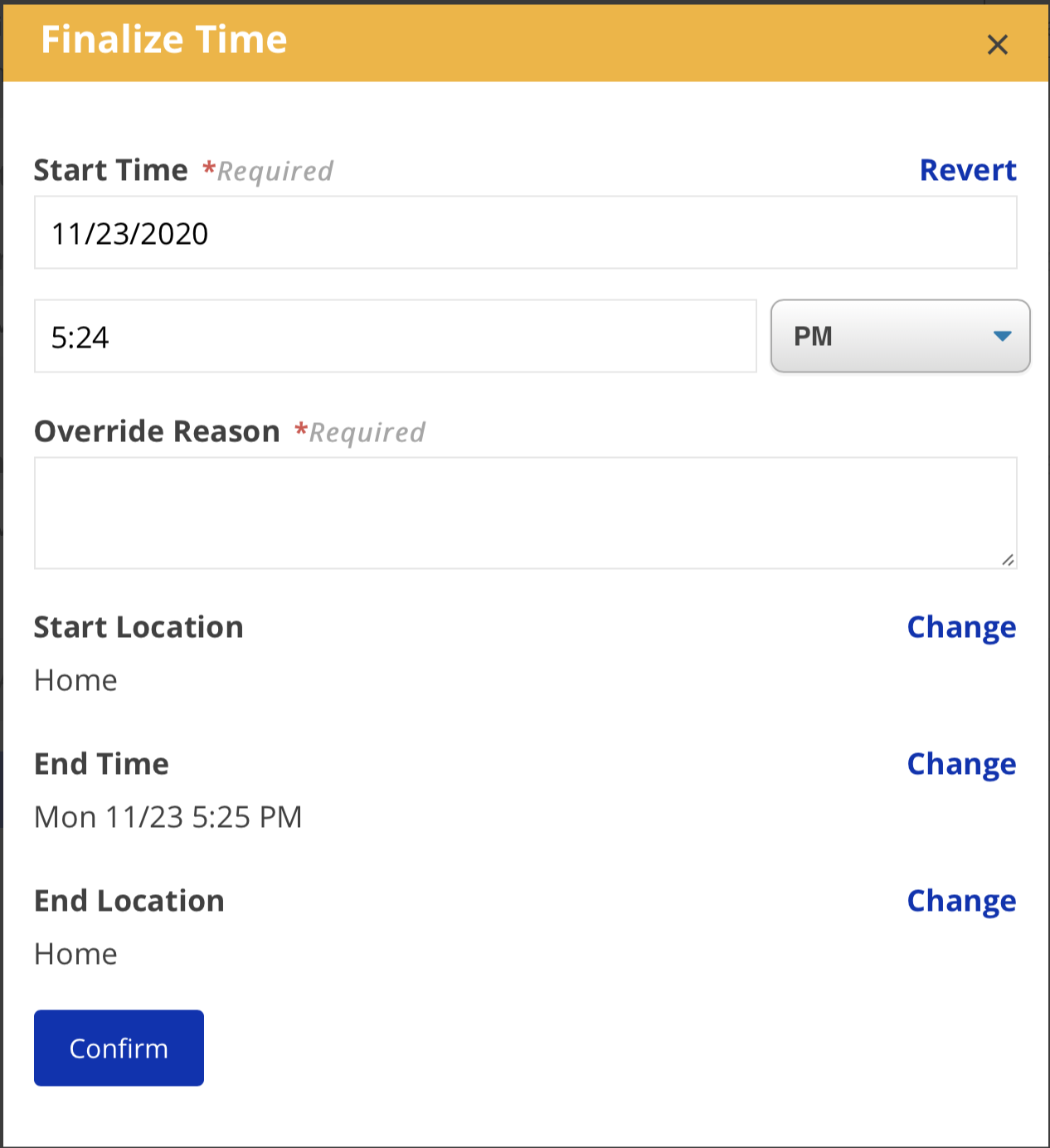
- Modify the date and/or time as necessary.
- Note that any changes you make could result in the shift becoming EVV
Required,Invalid,onlydepending on the relationship between the original start and end timesneedcapturedto be confirmed.) To manually access this screen, click theChangebutton abovewhen theStartshiftTime/EndwasTimecreatedfields in eTime Live.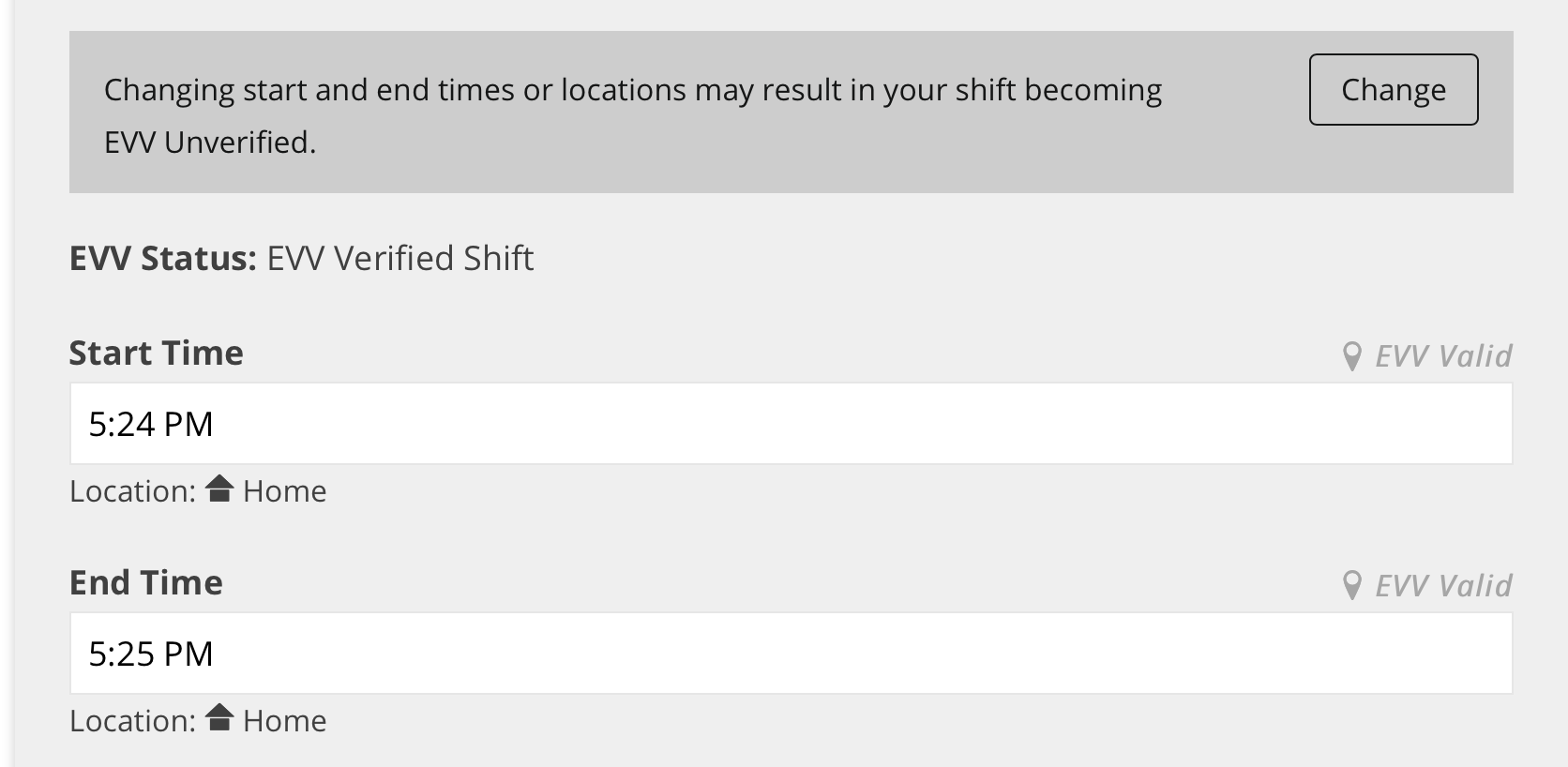
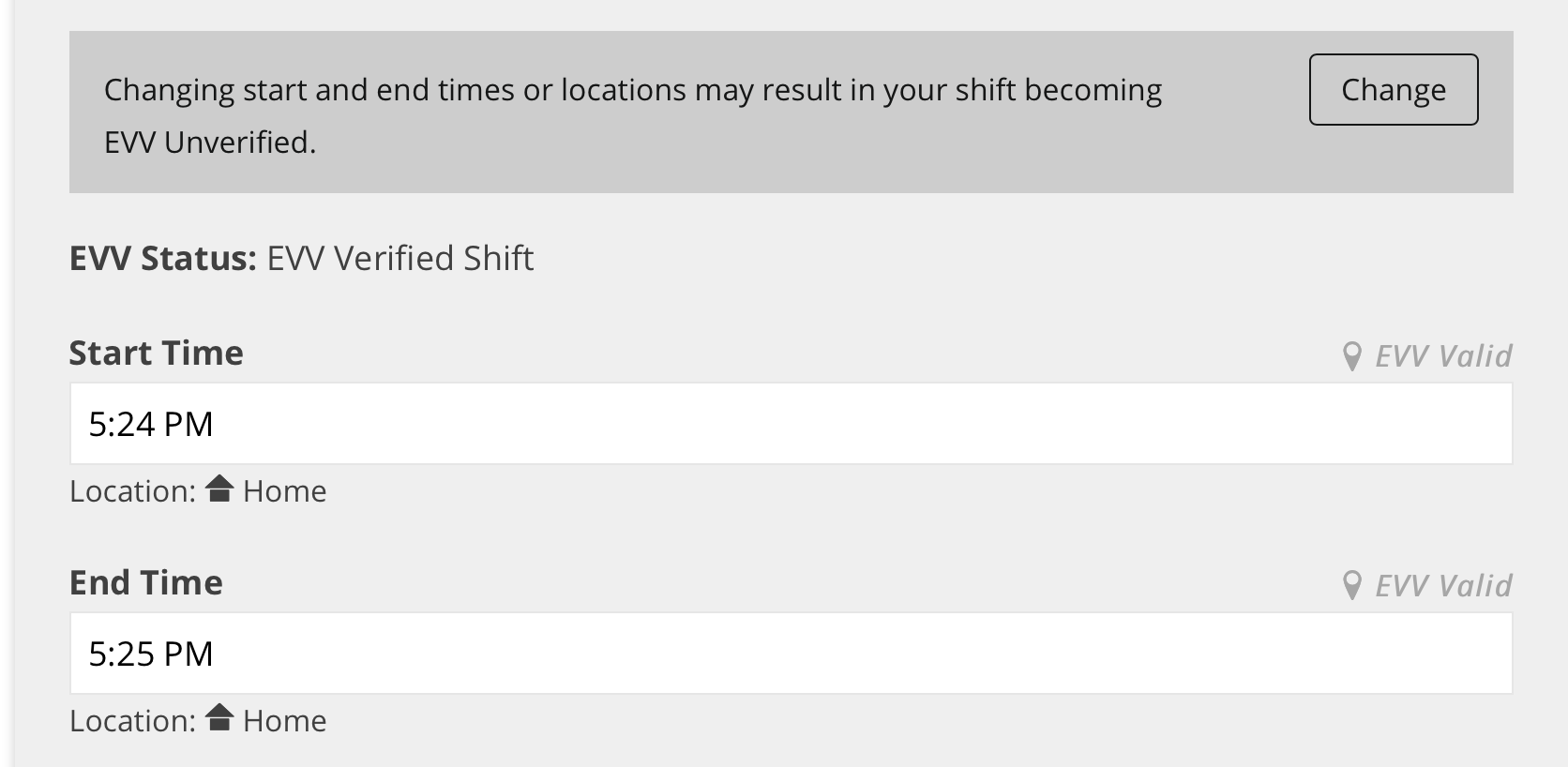
Overriding TimeSupport staff can make adjustments toand the modified starttimeand endtime of up to 5 minutes without requiring the circle approver to explicitly approve the change. Time adjustments greater than 5 minutes will require the circle to explicitly approve the override request.To request a change to start time or end time:ClickChangeabove the appropriate field.times.
Make
the necessary change. - Note that any changes you make could result in the shift becoming EVV
- Provide a reason for this change. If this change is greater than 5 minutes, the
change.circle approver will need to approve this as an Override Request and will see the reason you provide. - Tap Change Start Time or Change End Time, depending which one you're editing.
- You will now see the modified time, as well as the original time listed below it.
- To
undorevertthis change, clickRevertaboveto thefield.original time, select the start or end time, then click Revert To Original. ClickWhen you are done editing start and end times, tapConfirmDonewhenordone.Back.
See more about EVV Override Requests in user story videos on adjustments.