
DRAFT - Navigating and Finding Shifts --DONE
Time is organized on two levels: the shift and the job period.
- Shift - a block of time defined by a start and end time; this is analogous to the previous concept of a line on a timesheet
- Job Period - a dynamic collection of all shifts falling within a specific date range (pay period) that all belong to the same participant, support staff, and job
- A support staff will have a different job period per job per participant.
- Likewise, a participant will have a different job period per job per staff person.
- In the main navigation panel, select either My Work (for support staff) or My Staff Work (for circle approvers).
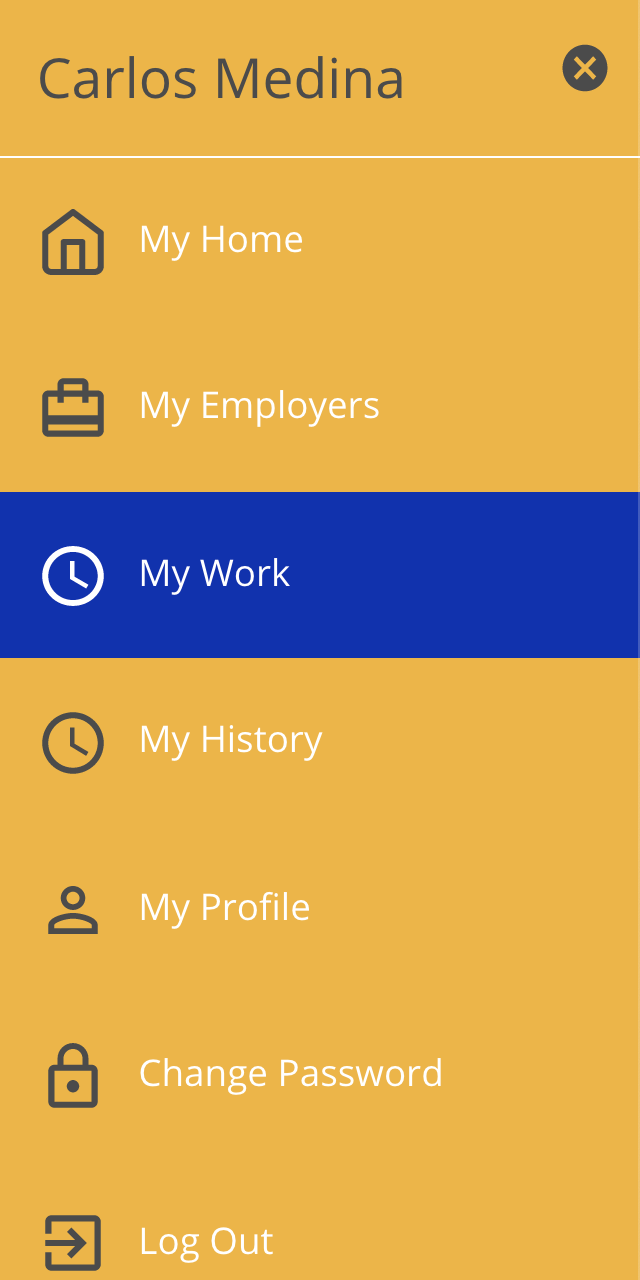
- If you are both a support staff and a circle approver, you will see both options.
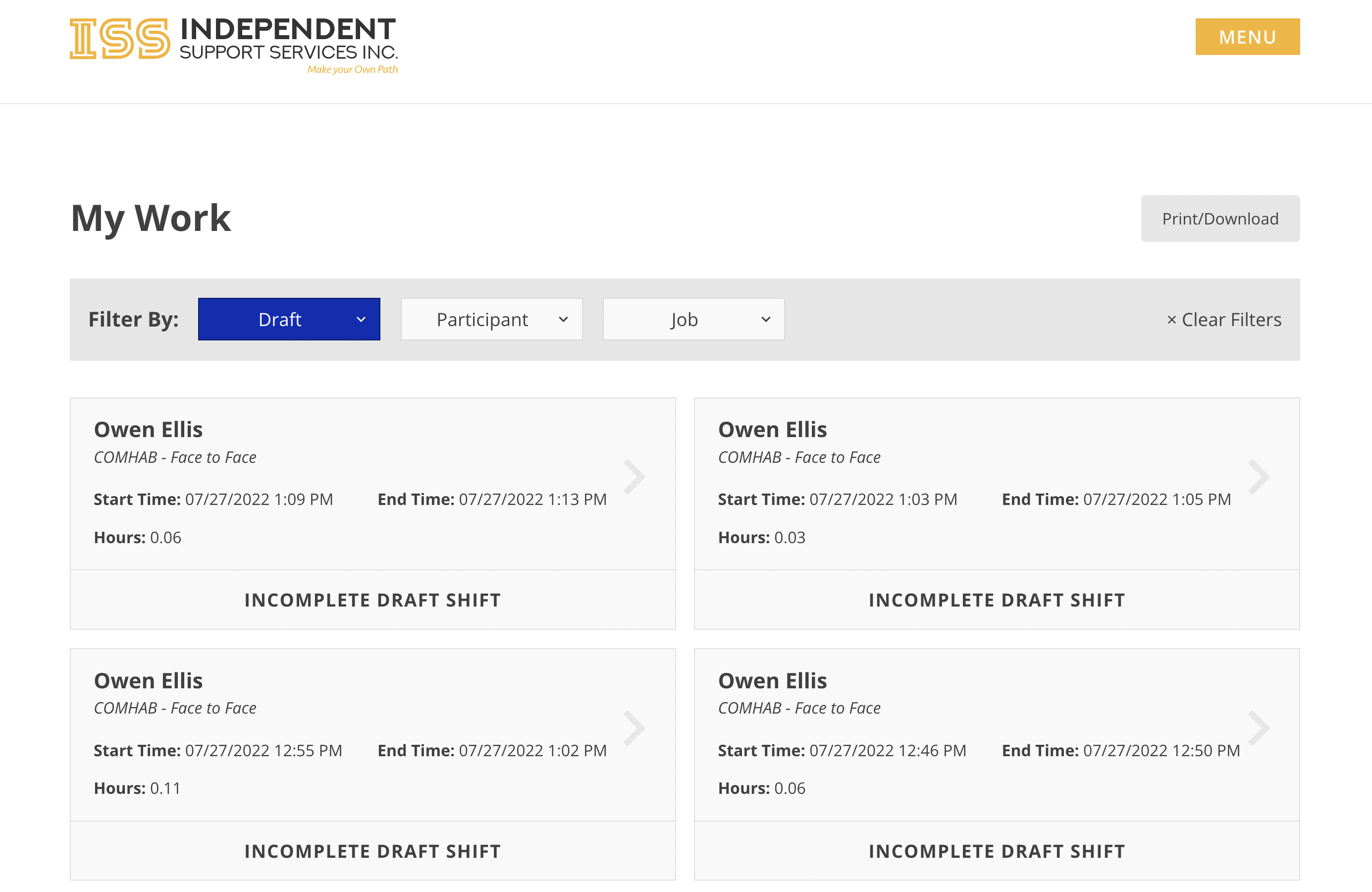
- My Work shows all eTime shift that you have worked.
- My Staff Work shows all eTime shift of participants for whom you are a circle approver.
- All time entered via eTime will appear in the main body of the page.
- By default, this page will be filtered to shifts that have a status of Draft, meaning shifts that have not been submitted.
- Use the filter to view paid shifts.
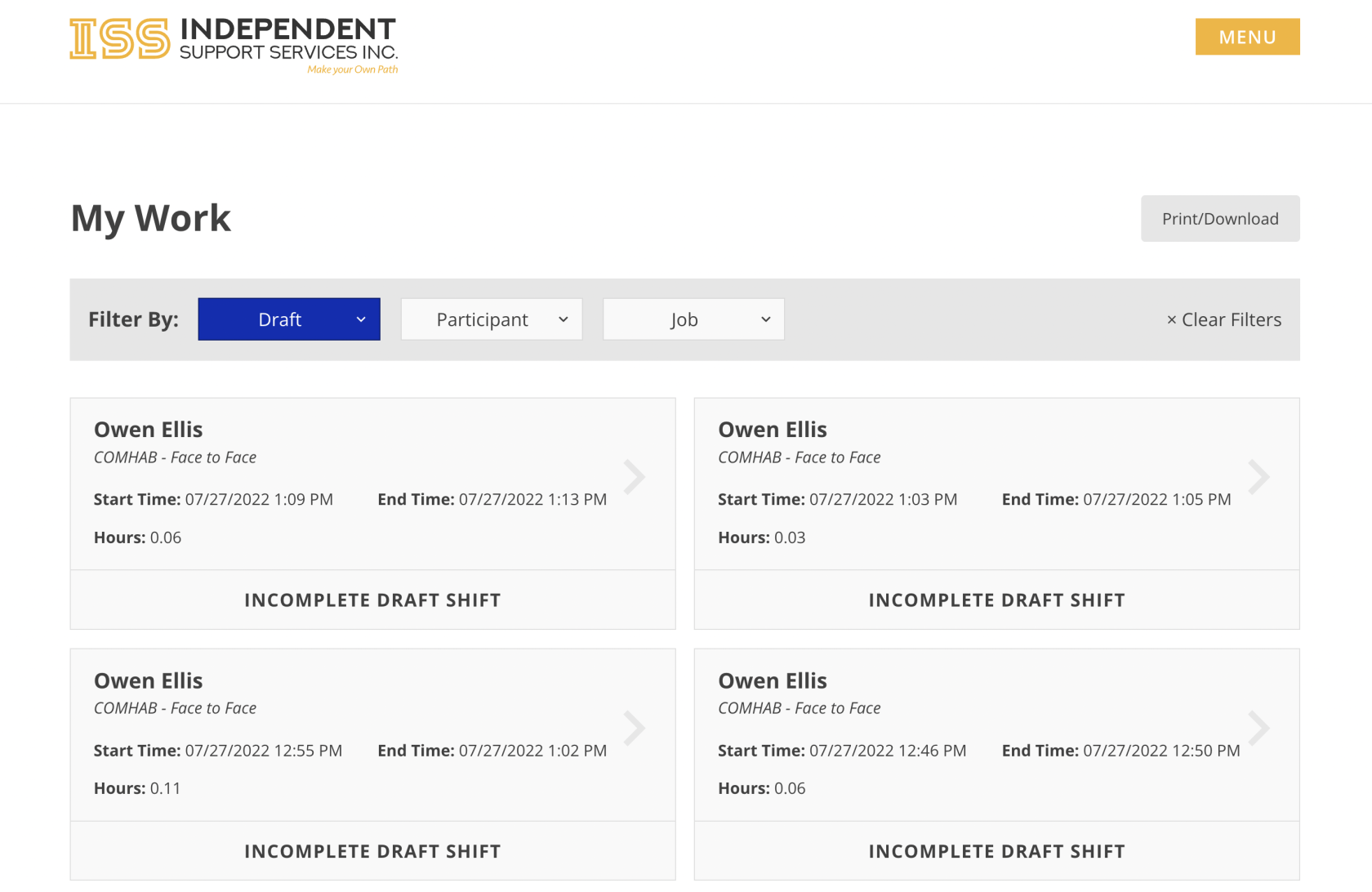
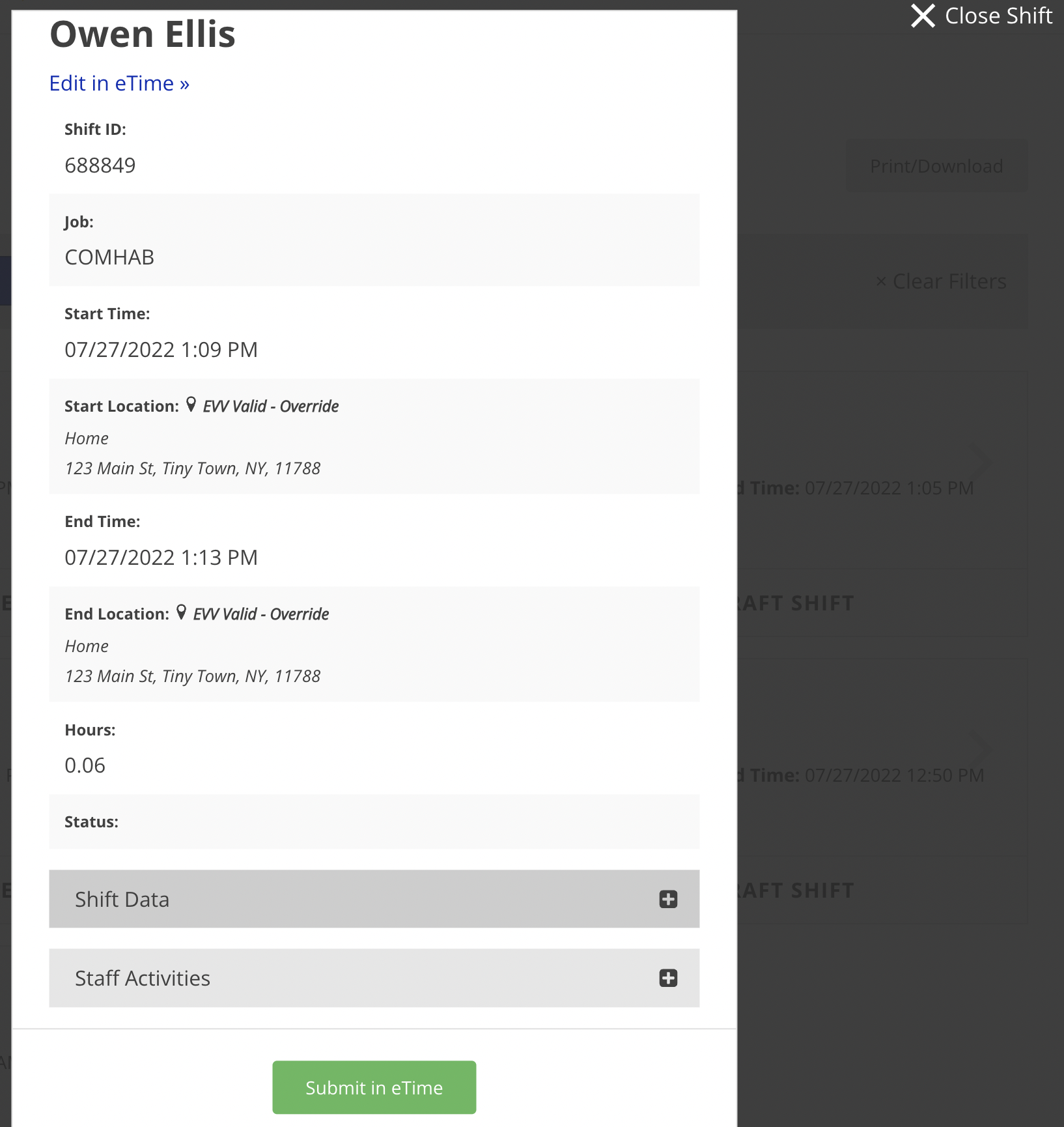
- To view a shift, simply click on the desired shift and a card window showing the details of the shift will be displayed.
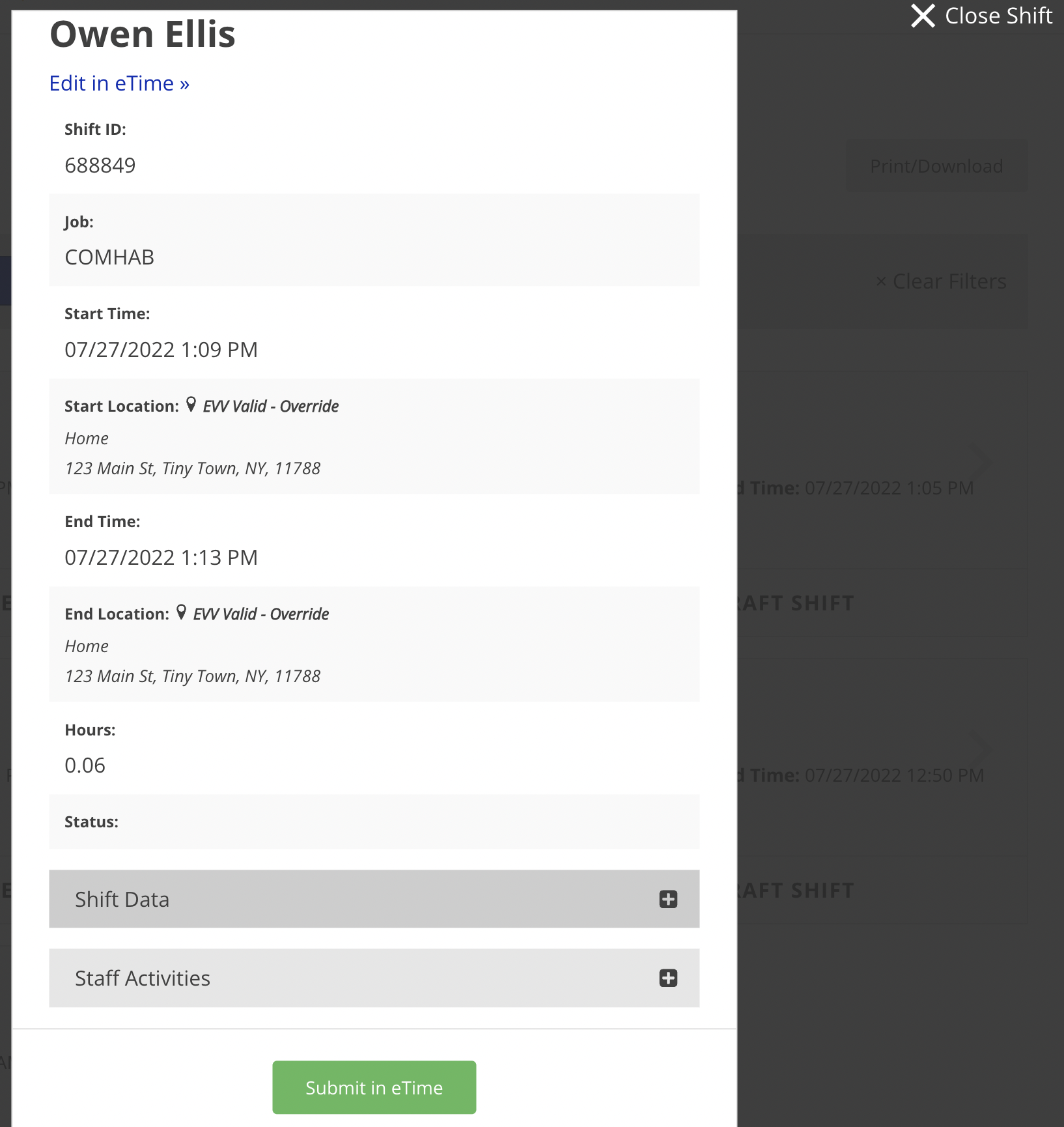
- To close the shift, click Close Shift in the top right corner. If the shift is a draft, then clicking Submit in eTime will submit the shift to the circle for approval.
Disclaimer: All names displayed in the above screen shots are fictional characters. No identification with actual persons (living or dead) is intended or should be inferred.